Free WordPress plugins are more powerful than ever in 2026 —more than 40 percent of all websites are built on it, from small personal blogs to high-volume business sites. The real magic? WordPress plugins. These significant add-ons enable anyone to enhance a site’s features, accelerate everything without needing to touch code, secure it effectively, and optimize SEO with ease.
Free WordPress plugins have undergone significant changes over the years, offering enterprise-level features at no premium price. Whether you are running a personal blog, an online shop, or a business website, getting your plugin selection right can be the make-or-break for your site.
In this complete guide, you will find the top 10 free WordPress plugins that all website owners should install in 2026. The plugins recommended above have all been chosen after much research and consideration about their respective performance, user reviews, reliability, and effectiveness in tackling the three cornerstones of a successful site—speed, SEO, and security.
Why WordPress Plugins Are More Important Than Ever
But before we jump into our list, let’s take a look at why choosing the right plugin is important for your site.
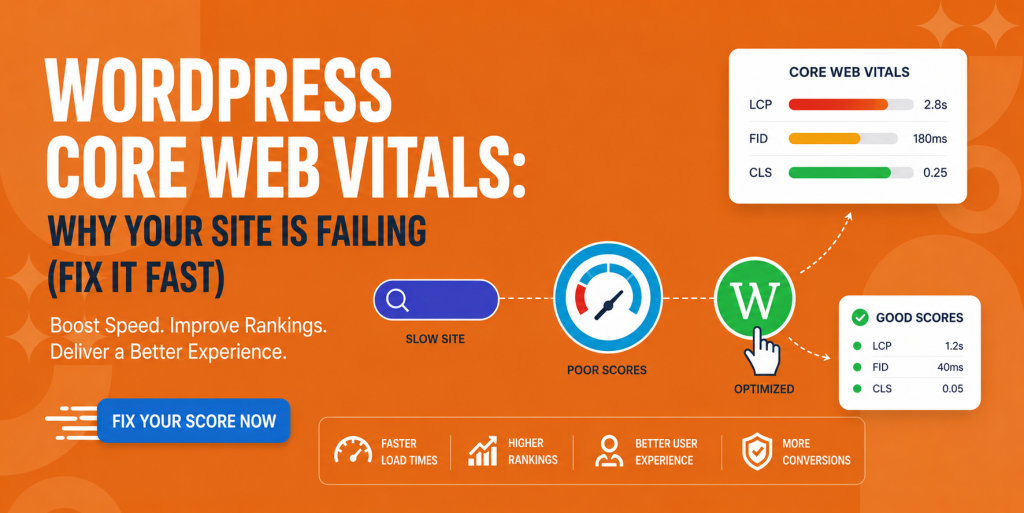
WordPress (open-source website creator). More than 40% of the websites around the world are on WordPress. However, it’s very popular, and this is where you become the victim of hackers and cyberattacks. Plus, with Google’s Core Web Vitals playing an ever more important role in search rankings, never has website performance been so crucial.
The best free WordPress plugins can help your site to load faster, rank more highly on search engines, and remain secure without requiring advanced technical expertise. But if you have too many plugins or use poorly coded ones, your site will slow down and become more prone to getting hacked.
That’s why we created a list of the best free WordPress plugins that benefit your site so you don’t have to.
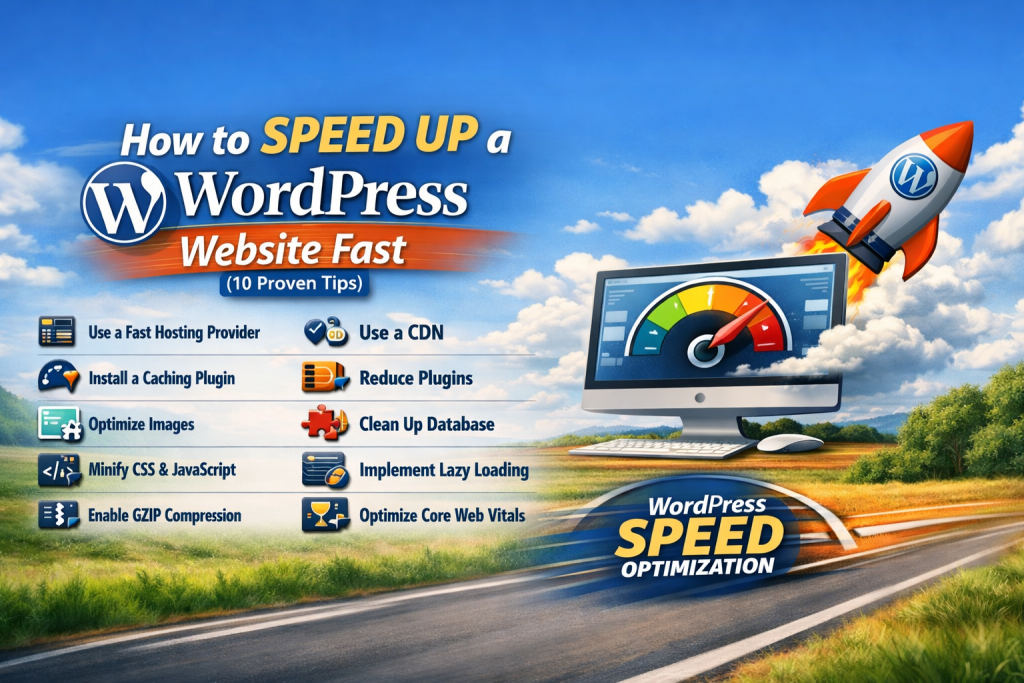
When it comes to speeding up your site, LiteSpeed Cache is one of the best free WordPress plugins that leaves all the competition in the dust. This is a very strong caching plugin, built to work beautifully with LiteSpeed servers, but it also features great performance in other server configurations.
Why LiteSpeed Cache Is the Best
LiteSpeed Cache comes with a long list of features that would normally cost hundreds of dollars in paid plugins. The plugin offers page caching, object caching, database optimization, and even image optimization on top of lazy loading and CSS/JavaScript minification.
This plugin is unique from others since you have the ability to optimize images with LiteSpeed’s own servers without compromising on quality. It allows you to compress your image files up to 90% of the original file, which definitely makes them less bulky and heavy.
The plugin also comes with built-in CDN integration, plus it supports critical CSS generation, which can significantly improve your site’s perceived load time. Users have experienced load time reductions of 50% or more after activation and configuration of the LiteSpeed cache.
Getting Started with LiteSpeed Cache
Installing and configuring LiteSpeed Cache is very simple for beginners as well. After activation, it offers ready-to-use settings for typical use cases but also allows you to customize those. The interface is user-friendly and comes with useful tooltips that tell you what each feature does.
If you’re running WooCommerce stores or membership sites, LiteSpeed Cache has some special features that make sure that dynamic content is always fast and static is properly cached. This balance has significant implications for both the speed and functionality of a transaction.
SEO looks very confusing, but the Rank Math plugin makes SEO easy for all. This all-in-one SEO plugin has quickly become popular since its release, and it’s easy to understand and use.
Comprehensive SEO Features at Your Fingertips
Among all free WordPress plugins for SEO, Rank Math offers the most comprehensive features. “Rank Math (all-in-one) has everything to optimize your content for search engines. The plugin offers on-page SEO analysis, XML sitemap generation, snippet preview (rich snippets and schema markup), 404 log, redirect management, and Google Search Console integration.
What makes Rank Math really impressive, however, is its content analysis feature. While you are writing it, the plugin gives suggestions in real time to help your content rank higher. It checks your use of focus keywords, heading structure, how far you write, and internal and external links.
It allows unlimited keywords on a page or post, unlike others, which only give you one or two for free. This flexibility enables you to tailor content targeting based on multiple search queries, improving your likelihood of ranking for different keywords.
Advanced Features That Set Rank Math Apart
Apart from the elementary SEO, Rank Math comes with advanced features such as auto image SEO and local business SEO optimization, which help businesses with brick-and-mortar stores, and WooCommerce compatibility to optimize your online shop. It also comes with a strong LSI keyword tool to help you find related keywords to add to your page content.
The schema markup feature is especially useful—it enables you to add structured data to your pages without having any coding skills at all. This can help your pages to appear in richer search results, potentially increasing click-through from the SERPs.
Rank Math also comes with a built-in integration of Google Analytics and Google Trends, on which you can monitor your website’s performance and trending topics from right within the WordPress dashboard.
3. Wordfence Security – Fortress-Level Protection
Wordfence stands as one of the most trusted free WordPress plugins for security protection. Wordfence Security is one of the most popular security plugins for WordPress and exists in a wild plugin repository along with over 4 million other website owners.
Comprehensive Security Features
When you are running a WordPress website, security is probably the most important thing. Wordfence Security is now the most popular security plugin in the WordPress repository, with over four million downloads and more than 4.9 out of five stars in the last two years—another statistic you won’t find matched elsewhere.
Wordfence gives you the best security available. The plugin offers a WAF (web application firewall) that stops malicious scripts from ever reaching your website, malware scanning, log-in security hardening, and real-time traffic monitoring.
Our firewall is constantly updated with the latest threat intelligence, preventing your site from being exploited by threats such as brute force attacks or known security flaws. Its premium users get protected immediately, but free ones get firewall rules 30 days later—which is still pretty good at covering most websites.
Malware Scanning and Threat Detection
Wordfence automatically checks the file integrity of WordPress core files, themes, and plugins with checksums supplied by WordPress for any changes. You’re alerted quickly when a potential threat is found and can see the details of any malware or suspicious code before it’s removed.
The extension also tracks login requests and is capable of auto-blacklisting IPs for malicious behavior. Just enable your 2FA for increased security, and the username is as good a secret as anyone can have, don’t you think?
The live traffic tracking feature lets you see who is visiting your site, what pages they are looking at, and whether there is any unusual activity. Visibility is key to enabling quick threat detection and response.
4. WP Super Cache – Simple Yet Effective Caching
For those who love clean beyond features, WP Super Cache remains a preferred option. By Automattic, the company behind WordPress.com, this plugin has been rock solid for many years.
Straightforward Performance Enhancement
WP Super Cache converts your dynamic WordPress pages to static HTML files with one click. To serve the cache file, your web server will serve that file instead of processing the comparatively heavier PHP scripts on every request. This is an easy way to dramatically lower server load and serve pages faster.
The plugin comes with three types of caching: Simple, Expert, and WP-Cache. The Simple view will be for most users what they want here and nothing else. It has to configure some tech stuff. For power users, Expert mode yields even faster performance.
When to Choose WP Super Cache
This plugin is perfect for newcomers looking to increase website load times without a complicated setup. It’s great for sites on shared plans with low resources.
WP Super Cache is compatible with most themes and plugins, so you can generally assume that the code will work on your site. The plugin also provides full CDN support so that you can easily and instantly invest in global performance.
5. UpdraftPlus—Never Lose Your Website Again
UpdraftPlus is essential among free WordPress plugins because backups protect everything you’ve built. UpdraftPlus is the easy, popular, and best WordPress backup plugin.
Complete Backup Solution
UpdraftPlus allows you to schedule full website backups for automatic everyday/hourly or manual backup of the entire site, including your DB, plugins, themes, and all files. You can select the backup frequency and the number of backup copies to keep.
What makes UpdraftPlus different from other plugins is that it integrates with popular cloud services. You can also automatically back up your data, and you can back up with Dropbox, Google Drive, Amazon S3, and Rackspace. This guarantees that your backups are stored off-site and you won’t lose your data in case of the hosting server crash.
Easy Restoration When Disaster Strikes
Good restore support is what separates a real backup from a “hope you can copy it” implementation. This is another area where UpdraftPlus shines, offering one-click restore right from your WordPress dashboard. You can restore all of your site or select elements in whatever condition to recover from incidents.
The plugin is also built to help you move your site to a new host or domain name, so it’s super useful for moving websites/databases around or when working on a staging environment.
6. Contact Form 7 – The Gold Standard for Forms
Every website requires a method through which visitors can communicate, and Contact Form 7 is extremely popular with millions of WordPress users for good reason.
Flexible Form Creation
With Contact Form 7, you can easily create contact forms. You can build unlimited forms with various fields and purposes, from simple contact forms to multi-step, complex forms with file uploads.
The plugin is developed using a simple-to-learn markup. You can include questions for text fields, email addresses, phone numbers, checkboxes, drop-down menus, file uploads, and much more. You can add your own CSS to each type for full design freedom.
Integration and Extensibility
Contact Form 7 integrates with your favorite spam tools, such as the really popular reCAPTCHA and also Akismet, so you don’t need to worry about receiving unwanted submissions. The plugin even connects to email marketing services, capturing the details of your new subscriber as they come aboard.
The plugin is widely popular, and so thousands of developers have built integrations for it, including second-order features like conditional logic, payment processing, and advanced style options. A lot of them are also free, so it’s free to go wild with the plugin.
7. ShortPixel Image Optimizer – Compress Without Compromise
Images are usually the largest files on the page, so image optimization can play a crucial role in achieving adequate speed. The task of optimizing images is well taken care of by ShortPixel Image Optimizer.
Intelligent Compression Technology
ShortPixel is an advanced algorithm to compress your images, reducing by 90% the image file size without losing quality. The plugin provides three options: lossy (best compression), glossy (medium compression), and lossless (no reduction in quality).
For the majority of websites, glossy is the best compression level, as it offers optimal file size reduction while bringing out a bit more detail in an image. The change will be more or less imperceptible to the naked eye of a human, but it should make for faster writing and reading.
Automated Optimization Workflow
After you have installed and configured it, ShortPixel automatically compresses new images when you upload them. And bulk optimize your existing media library in a couple of clicks as well. The free version provides you with 100 images/month, which is right for most small to medium websites.
The plugin also converts images into WebP, which is a modern image format and offers better compression than the traditional JPEG and PNG formats. WebP is supported by most modern browsers, and ShortPixel serves it automatically to your visitors for ideal browser compatibility.
ShortPixel also comes with the ability to change image dimensions if they are larger than required, which can again help reduce file sizes and increase load speeds. This is a great feature in case you or your writers promote shit and sometimes upload images that are too big.
8. Redirection – Manage URLs Like a Pro
It frustrates visitors when they hit broken links, and it harms your SEO as well. Redirection is the solution for you to easily and correctly manage URL redirections within your store.
Comprehensive Redirect Management
With this plugin, you can create and manage redirects, commonly called 301 redirects. You can redirect old URLs to new ones. This is, of course, vital when you’re redesigning your site, migrating to other permalinks, and even deleting some content.
The plugin will automatically track all 404 errors on your website, then log those errors in an easy-to-use list that lets you create RD (redirection) URLs to correct them. This allows you to keep good UX and retain your SEO value if the content is shifted or deleted.
Import and Export Capabilities
If you’re switching to WordPress from another CMS or have a lot of redirects to add at once, Redirection allows imports directly from CSV files. You can also export your redirects to use them for backup or import when you are moving sites.
With this plugin, you also have full log details of all those redirects and 404 errors (from names that redirected here), so it’s easy for you to see the redirections happening. This will help you take data-driven decisions around your site’s URL structure.
9. Really Simple SSL – Secure Your Site in Seconds
Simply having an SSL certificate in place is only the beginning of a secure HTTPS website. All the techy stuff is taken care of by Really Simple SSL, so you can finally relax and focus on writing content for your WordPress site.
Automatic SSL Configuration
When installing Really Simple SSL, the plugin will automatically find your server’s SSL certificate and set up your WordPress site to use HTTPS without changing any settings. It will attempt to avoid mixed content warnings by making everything load over HTTPS (images, scripts, and stylesheets).
The plugin also implements the correct HTTP to HTTPS redirections so that all your visitors can land on the secure version of your site. This is important for both security and SEO, as search engines prioritize HTTPS sites.
Advanced Security Features
Apart from simple SSL setup, Really Simple SSL also adds several security headers, which help to prevent your site from different kinds of attacks. These headers contain HTTP Strict Transport Security (HSTS) that compels browsers to communicate with your site using HTTPS and Content Security Policy headers, which prevent cross-site scripting attacks.
The free version includes all the basics most website owners will need, so it’s a must-run plugin for anyone who takes their website security seriously.
10. WP-Optimize – Database Cleaning Made Simple
As your WordPress database grows, it will store all kinds of unnecessary information, which can slow down your website. WP-Optimize keeps your database sleek and fully efficient.
Comprehensive Database Maintenance
WP-Optimize eliminates post revisions, spam comments, trashed stuff, expired transient options, and other types of database overhead—it’s doing so immediately at the click of a button. Optimizing the database on a regular basis improves query performance and generates web pages faster.
The plugin has a scheduler that enables you to automate database optimization. You can define caching of your database on a weekly or monthly basis and keep your site fast without doing anything manually.
Caching and Image Compression
In addition to the database optimization, WP-Optimize also has caching features like WP Super Cache, which means it’s a two-in-one plugin that can optimize your site’s performance. The plugin also has an additional image optimization feature as well, but we advise using ShortPixel for an improved process.
The free wordpress plugins offers you a comprehensive overview of your database—showing you details on its size and composition—so that you know exactly where to look when trying to rectify your storage problems.
There are thousands of plugins to choose from, so how should you go about picking the right ones? Here are three things to consider in making that decision.
Quality Over Quantity
Installing too many free WordPress plugins can actually hurt your site’s performance. In reality, using lots of plugins can also make your site slow and less secure, too. Focus on core functionality only, using well-written and actively maintained plugins
Some information to check will be the star ratings, amount of active installations and when the plugin was last updated. With plugins that have a few to million active installs, which are very highly rated (if it’s not at least 4.5 stars), and that have been recently updated are generally good bets.
Read Reviews and Test Thoroughly
Make sure to review user reviews before jumping into a plugin that you are interested in. Check out the reviews from users who have similar use cases as yours.
To cross-check the plugin and get successful installation in other cases, test the website once you install any new plugin. Examine page load times, test forms and functionality, and make sure everything functions properly on a variety of devices and browsers.
Consider Support and Documentation
Documentation and Support. Even if they are free plugins, good documentation and support are important. See if the plugin has good documentation, how-to videos, or an active forum where you can get answers in a decent amount of time.
Plugin Installation and Configuration Best Practices
Correctly installing and setting up plugins is key to both performance and securing your site.
1.Create a Backup First
Always make a full site backup before installing any new plugin. It’s a good practice to have so you can restore your site easily if the plugin conflicts or problems arise.
2.Install One Plugin at a Time
When including new functionality, add and test one plugin a time. This will allow you to detect conflicts or problems at once which, as it turns out, makes troubleshooting way easier.
3.Configure Carefully
Some free wordpress plugins work great out of the box, but you will get better results by spending some time to read/review settings and tweaking accordingly. Please read all their options and tool tips to know what each does.
Conservative settings For caching plugins, start with conservative settings and test performance while gradually optimizing the level. With security plugins, add features one at a time so that if there is interference with legitimate functions, it can be removed.
4.Regular Maintenance
Make sure that you are using the most recent version of all free wordpress plugins. Updates often contain security fixes, bug fixes and new features. Allow automatic updates for minor releases and review major updates.
Regularly check your installed plugins and delete those that you don’t need anymore. Disabled plugins can also be potential security threats and mess up your dashboard.
Common Plugin Mistakes to Avoid
Learning from others’ failures is going to save you a great deal of time and headache. Here are some of the most common pitfalls to avoid.
1.Installing Too Many Similar Plugins
Running several plugins that do the same job can be conflicting and inefficient. Instead of adding several solutions, pick an awesome plugin for each.
2.Ignoring Plugin Conflicts
When you do see odd behavior after an installation of a plugin, don’t brush it off. You should debug immediately by deactivating recently installed plugins one by one until you find the offender.
3.Using Nulled or Pirated Plugins
Only download free wordpress plugins from a trusted source. They may also have malware as well as backdoors that can negatively affect your website. Stick with the WordPress plugin directory or well-known developers.
4.Not Reading Documentation
A lot of useless support requests can be prevented by just reading the documentation of the plugin. Read as much about the game as you can before asking for it.
Measuring Plugin Impact on Performance
Knowing how much your plugins either positively or negatively influence your site’s performance allows you to make a decision as to which ones should stay and which should go.
1.Use Performance Testing Tools
There are tools like GTmetrix, Google PageSpeed Insights, and Pingdom that will help you analyze your site’s loading speed both before and after installing plugins. That’s because these are tools that tell you exactly what is slowing down your site.
2.Monitor Database Queries
If your site is slow after you installed a plugin, it’s probably querying the database too much. Use plugins like Query Monitor to figure out which plugins are database hogs.
3.Check Server Resource Usage
Your host’s control panel usually has some sort of resource meter to check server resource usage. If you see out-of-control CPU/memory use after a package has been installed, it is likely poorly written.
The Future of WordPress Plugins
As we look ahead to the rest of 2026 and beyond, several trends are shaping the evolution of free WordPress plugins.
1.AI Integration
AI is taking a bigger role in free WordPress plugins, with functionality such as automatic content optimization, smart caching decisions, and predictive security threat detection.
2.Performance-First Development
As Core Web Vitals have become an important factor for SEO, even plugin creators are putting speed at the top of their to-do list. I suspect we will see more lightweight, lean, optimized plugins that pack in features without bloat issues.
3.Enhanced Security Focus
Security plugins are getting smarter in the face of more advanced cyber threats, giving us things like behavior analytics, automated response to threats, and better encryption techniques.
Conclusion: Building Your Perfect Plugin Stack
These free WordPress plugins we’ve written about in this article are some of the most effective solutions you have to increase site speed, improve SEO, and secure your website in 2026. Every one of the plugins provided here has been battle-tested by millions of users around the world and continues to receive frequent updates, including new features and enhancements
Please keep in mind that the best configuration of free wordpress plugins is one that fits your concrete needs, providing only those features you need and not overloading your site with unneeded functionality. Begin with the basics: a caching plugin for speed (you’ll want your website to load in less than five seconds), an SEO plugin for visibility, a security plugin for protection, and a backup plan—because you need one.
As your website develops and as you begin to have special demands, we provide an additional list of plugins that you may want to install. The challenge is to maintain a balanced focus between function, performance, and security.
When you use these free WordPress plugins and follow the optimization tips from this guide, you’ll create a website that is fast, secure, SEO-friendly, and ready to compete in 2026 and beyond. Your visitors will have great experiences, the search engines will applaud your optimizations, and you’ll rest easy knowing that your website is safeguarded.
Do something and get these must-have plugins installed and set up on your pages today. The success of your website comes from the foundation you lay, and these resources are everything you need to lay that foundation without spending a penny.
Begin with one or two of the plugins listed below, do extensive testing, and create the ultimate plugin stack over time. Your site—and your guests—will thank you for it.
FAQs
Some of the best beginner-friendly free plugins include Rank Math for SEO, LiteSpeed Cache for speed, Wordfence for security, and Contact Form 7 for forms. They are easy to use and require no technical skills.
Yes, plugins from the repository are secure just because they're being offered for free. Please make sure that you check ratings, reviews, number of active installations and last update date before installing any plugin.
They may if the code is sketchy and/or you add too many of them. Opt for lightweight, well-made plugins, and limit the number of plugins that serve the same purpose.
There is no strict limit. A website can run smoothly with 10–20 plugins as long as they are well-maintained and optimized. Quality matters more than quantity.
Most free plugins offer enough features for small and medium websites. Many also provide paid upgrades, but the free versions are usually sufficient for essential tasks like SEO, caching, security, and forms.