Several WooCommerce stores connected to one shared inventory dashboard.
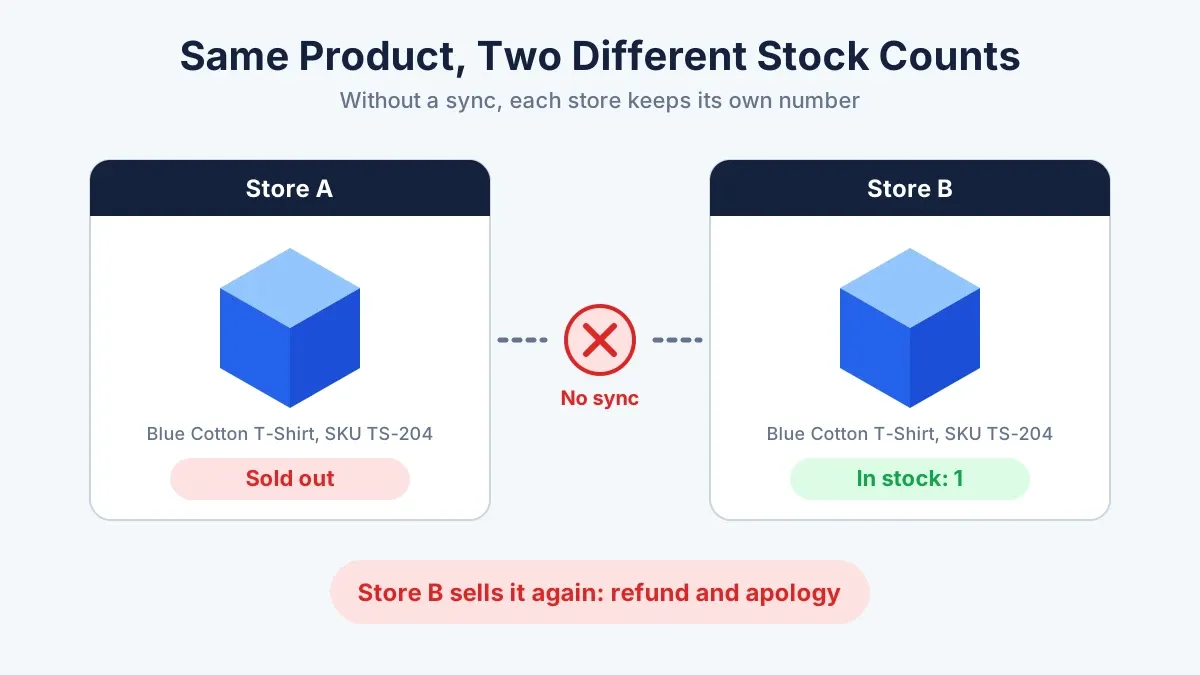
You sell the same products on more than one WooCommerce store. Then a customer buys the last unit on Store A, and Store B still shows it in stock. Another customer orders it there. Now you owe someone a refund and an apology.
This guide shows you how to sync inventory across WooCommerce stores so every store shows the same count. You will learn three ways to do it, how to pick the right one, and a step-by-step plan you can start today. You will also see how to set up a WooCommerce multi store inventory sync that stays accurate when orders pile up.
You sync inventory between multiple WooCommerce stores by choosing one source of truth for stock and sending every change to your other stores. Use a sync plugin, the WooCommerce REST API with webhooks, or a central inventory system. Match products by SKU, update stock after each order, and test with real orders before you go live.
That short answer hides a few choices. The sections below walk through each one in plain steps.
Every WooCommerce store keeps its own database. Store A has no idea what Store B sold. WooCommerce does not link stock between stores on its own, so you have to add that link.
Drift usually starts in one of four places:
Small gaps grow fast. With five stores and a few hundred orders a day, mismatches stack up before lunch. Each one costs you a refund, a support ticket, or a lost customer.
Stock sync also affects how your whole setup performs as you add stores. Our guide on WooCommerce scalability across multiple stores covers the other pressure points, from hosting to catalog size.
Two WooCommerce stores showing different stock counts for the same product
Each method fits a different business size. Here is the quick comparison before the details.
| Method | Best for | Sync speed | Setup effort | Ongoing cost |
|---|---|---|---|---|
| Sync plugin | A few stores with the same catalog | Near real time or scheduled | Low | Plugin license |
| REST API and webhooks | Custom rules and a developer on hand | Real-time | Medium to high | Developer time |
| Central inventory system | Many stores, several warehouses, or an ERP | Real-time | High | Software plus build |
A WooCommerce inventory sync plugin is the fastest route. You install it on each store, connect the stores, and map products by SKU. When stock changes in one store, the plugin sends the new number to the others.
This option fits you if your stores sell the same products and follow standard stock rules. You can buy a license, finish setup in a day or two, and skip custom code.
The trade-off is limits. Most plugins handle simple products well. They can struggle with bundles, kits, or stock that lives in several warehouses. Check the plugin’s documentation for those cases before you pay.
WooCommerce ships with a REST API and webhooks, and you can use both to build your own sync.
Here is how it works. A webhook fires when a store creates an order. Your script reads the SKU and quantity from that order. Then it calls the REST API on every other store and updates the stock quantity.
Tools like Zapier, Make, and n8n can run this flow without custom code for simple cases. A developer can write something sturdier, with retry logic, a log of every change, and clear rules for conflicts.
The trade-off is upkeep. Someone has to own this code. API rate limits, slow hosting, and failed requests all need handling, or your counts drift again.
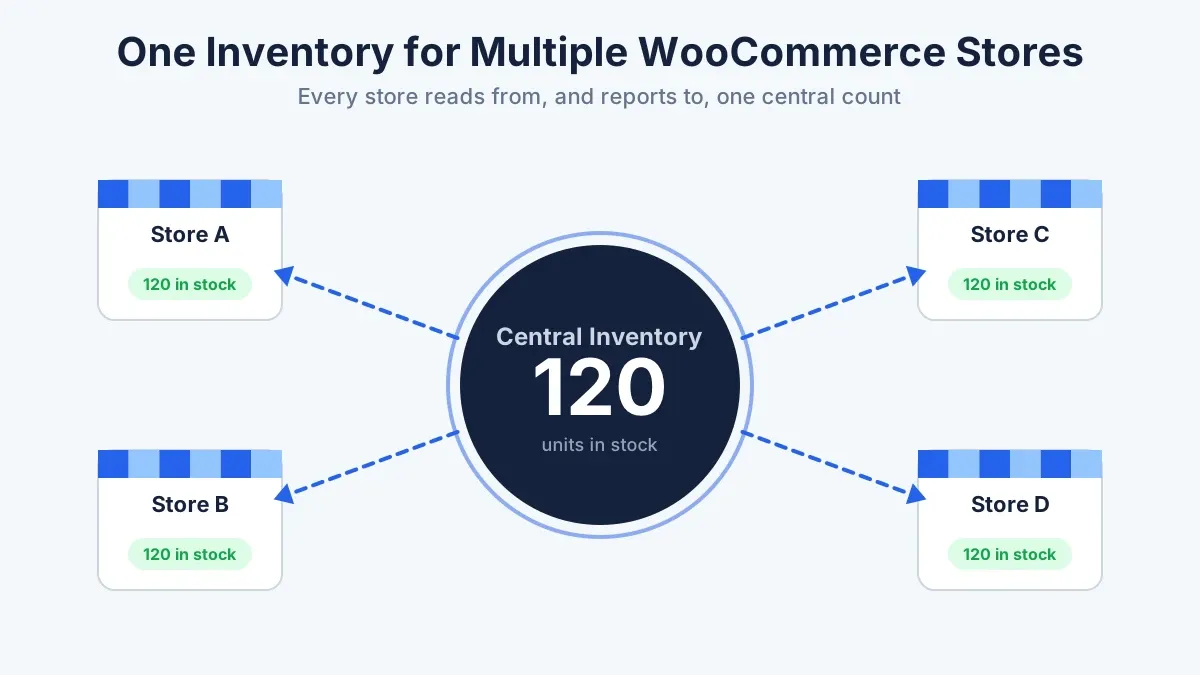
This is the hub model. Your stores stop talking to each other. Instead, each store talks to one central system, such as an ERP, an inventory app, or a master WooCommerce store. That system holds the true count and pushes it out.
Running one inventory for multiple WooCommerce stores scales best. Your stores become sales channels, and the hub tracks stock by warehouse, supplier, and location. If you ship from more than one site, read our post on WooCommerce multi-warehouse inventory next.
The trade-off is cost and setup time. You pay for the system and for the work to connect it. For a growing business, that spend usually pays back in fewer errors and less manual work.
Hub and spoke diagram with one central inventory sending stock to four WooCommerce stores
Speed matters as much as method. Every sync tool runs in one of two modes.
Real-time sync fires the moment a store records an order, a refund, or a stock edit. Your other stores update within seconds. This mode protects fast-moving products and flash sales, because the gap where overselling can happen stays tiny.
Scheduled sync runs on a timer, such as every five or fifteen minutes. It puts less load on your servers and costs less to run. It works well when you sell slow movers or keep plenty of spare stock.
Here is a quick example. You have one unit of a best-selling item left. A customer buys it on Store A. Thirty seconds later, a second customer opens Store B. With real-time sync, Store B already shows the item as sold out. With a fifteen-minute schedule, Store B still shows it in stock, so the second customer checks out and then gets a cancellation email.
Many sellers mix both modes. They use real-time sync for top sellers and low stock and a schedule for the rest of the catalog.
Answer these questions before you buy anything:
Use these rules of thumb:
Compare cost the right way. A plugin license looks cheap, but ask how many hours it saves each month. A custom build costs more up front, but it fits your rules exactly. Ask every vendor for a written quote and a refund policy before you commit.
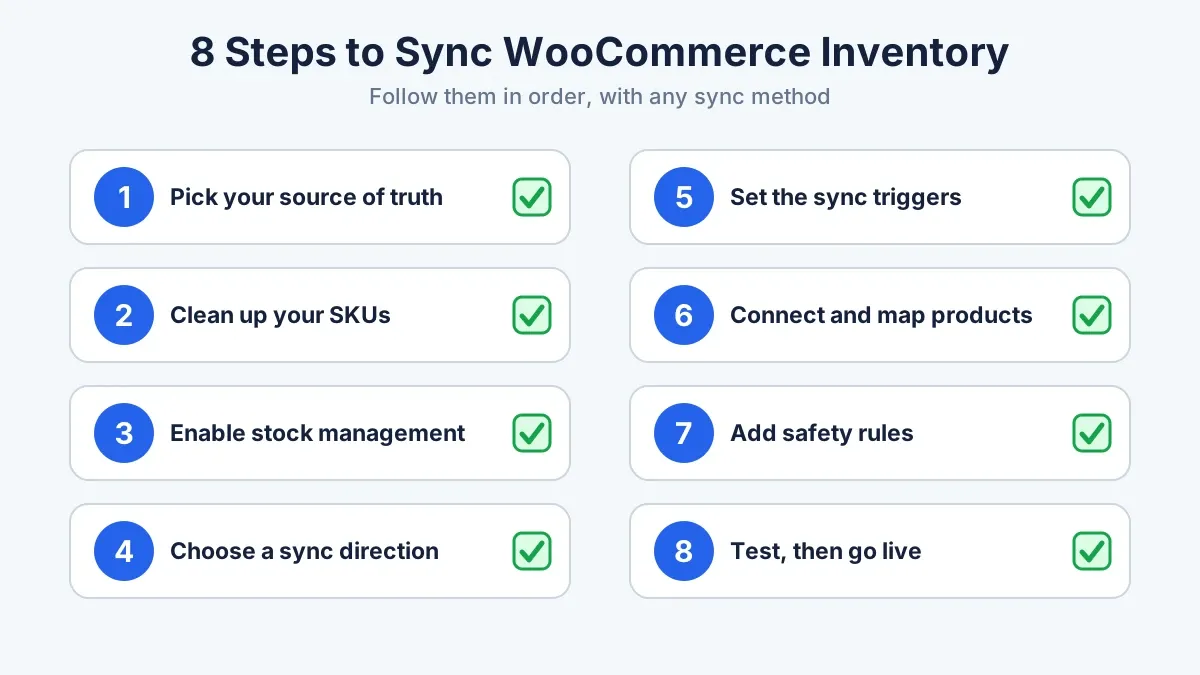
Follow these eight steps in order. They work with any of the three methods above.
1. Pick your source of truth. Decide which system owns the real stock count. It can be one store, an ERP, or a central app. Every other store follows it.
2. Clean up your SKUs. Sync tools match products by SKU. If the same product has different SKUs in two stores, the sync fails. Give each product one SKU and use it everywhere. Our WooCommerce inventory management guide shows how to tidy a messy catalog first.
3. Turn on stock management. In each store, enable “Manage stock” on every product. For variable products, enable it on each variation and give each variation its own SKU.
4. Choose a sync direction. One-way sync sends stock from the source of truth to your stores. It is simple and safe. Two-way sync lets every store lower the shared count when it sells. It needs stricter rules, so use it only when you must.
5. Set the sync triggers. Decide which events change stock: a new order, a paid order, a refund, a cancellation, or a manual edit. List every one. A missed trigger is the most common reason for count drift.
6. Connect the stores and map products. Link each store to your plugin, script, or hub. Match products by SKU, then spot-check a sample of 20 to 30 items by hand.
7. Add safety rules. Set a buffer, a conflict rule, and an alert for failed syncs. The next section covers these.
8. Test, then go live. Run every test on a staging copy first. Place an order, cancel it, refund it, edit stock by hand, and run a bulk import. Check that every store shows the right number after each action. Then switch to your live stores and watch the logs for a week.
Checklist of eight steps for syncing WooCommerce inventory across stores
A sync that works on a quiet day can fail on a busy one. These rules keep your numbers safe when traffic spikes.
Keep a safety buffer. For fast sellers, hold back a few units in every store. If you have 10 units in total, show 8. The buffer covers the short gap between a sale and the sync.
Count held stock. WooCommerce holds stock for unpaid orders for a set time. The default is 60 minutes, and you can change it in the product settings. Make sure your sync treats hold the stock the same way, or one store will sell units another store already reserved.
Pick a winner for conflicts. Two stores may sell the last unit in the same second. Decide ahead of time which sale stands. The simplest rule is that the first order the source of truth records wins, and the second store cancels and refunds.
Sync refunds and cancellations. When an order fails or comes back, the stock must go back too. Many setups handle new orders and forget this part.
Fix your background jobs. WordPress runs scheduled tasks through WP-Cron, which only fires when someone visits the site. A quiet store can delay syncs for minutes. Set up a real server cron job so tasks run on time.
Log every change. A good log shows the SKU, the old count, the new count, the store, and the time. When a number looks wrong, the log tells you where it went off track in minutes instead of hours.
Not every plugin handles real stores well. Run through this list before you buy:
Install it on a staging site first. Place test orders on every store and watch the numbers. If the plugin misses a single case on your list, ask the vendor about it before you pay for a license.
Most failed syncs trace back to a short list of errors.
Matching by product name. Names change. SKUs do not. Always match on SKU.
Running two sync tools at once. Two tools change the same number and fight each other. Run one, and turn the other off.
Skipping staging. A bad sync can wipe stock counts across every store in seconds. Test on a copy.
Forgetting variations. A shirt in five sizes is five stock numbers. Sync each one.
Letting staff edit stock anywhere. Pick one place for manual edits. If your team edits stock in two places, the sync cannot tell which edit is right.
A plugin covers many stores. It does not cover every store. If you need custom stock rules, an ERP link, several warehouses, or different prices per store, you need a build that fits your business.
DazzleBirds designs and builds multi-store WooCommerce setups for growing sellers. We map your stores, choose the right sync method, build and test it on staging, and hand you a setup your team can run. If you want to see what that looks like for your catalog, book a call and ask for a quote.
Book a Multi-Store Inventory Consultation
Start small. Clean up your SKUs, pick a source of truth, and test one sync method on a staging site this week. Once your counts hold steady, you can sync inventory across WooCommerce stores without watching spreadsheets or fixing oversold orders by hand.
Want a team to handle it? Get a plan built around your stores, your warehouses, and your growth.
Talk to a WooCommerce Multi-Store Expert



 WooCommerce Solutions
 Solutions for WordPress