Every WooCommerce store hits the same wall eventually.
You start with fifty products. Updating prices by hand is fine. Adding a new supplier’s catalog takes an afternoon. Then the store grows. Fifty products becomes five hundred. Five hundred becomes five thousand. Suddenly your supplier sends a new price list every week, your warehouse team needs inventory synced daily, and your accountant wants six months of order history exported into a spreadsheet by tomorrow morning.
This is the point where manual product entry, copy-pasting order details, and rebuilding customer lists by hand stop being a minor annoyance and start being a genuine business risk. Mistakes creep in. Stock counts go out of sync. Prices lag behind what your supplier actually charges. Someone forgets to update a category, and now half your catalog is misfiled.
Store owners, ecommerce managers, and WordPress agencies who manage growing catalogs, active order pipelines, and expanding customer databases eventually reach for the same solution: a dedicated WooCommerce import export tool that can move data in bulk, on a schedule, without manual intervention.
This guide covers everything you need to know before choosing one. We’ll walk through what these tools actually do, where native WooCommerce falls short, every type of store data you can move, and the workflows that separate a basic CSV uploader from a genuine data management system. Throughout, we’ll reference how Woo Import Export approaches these problems, since it’s built specifically to handle the scenarios covered in this guide.
By the end, you’ll know exactly what to look for, what questions to ask, and how to evaluate whether your current process is costing you more than it’s saving.

What Is a WooCommerce Import Export Plugin?
A WooCommerce import export plugin is a tool that moves store data (products, orders, customers, coupons, and related content) into and out of WooCommerce in bulk, typically using CSV, XML, or Excel files, instead of requiring manual entry through the WordPress admin.
“Import” means bringing data into your store. That could mean uploading a supplier’s product catalog, restoring a backup of customer records, or migrating orders from a legacy system.
“Export” means pulling data out of your store. That could mean generating a report for your accountant, sending a product feed to a marketplace, or backing up your entire catalog before a major update.
A typical workflow looks like this: a store manager receives an updated price list from a supplier as a spreadsheet, maps the supplier’s column headers to WooCommerce fields (SKU, price, stock quantity), previews the changes, and runs the import. Minutes later, hundreds of products reflect the new pricing, with no manual editing required.
The business value is straightforward. Time that would have gone into manual data entry gets redirected toward running the business. Errors from typos and missed updates drop dramatically. And because the process is repeatable, it scales as the catalog grows.
Stores generally need a dedicated solution once they’re managing more than a handful of SKUs, working with suppliers who send regular updates, running promotions that require frequent price changes, or preparing to migrate to or from WooCommerce entirely. If any of that sounds familiar, it’s worth understanding exactly where the built-in tools stop being sufficient.
Why Native WooCommerce Import/Export Is Not Enough
WooCommerce ships with a basic product importer and exporter under Products > All Products > Import/Export. It works, but only for simple, occasional tasks.
Limited product support. The native importer handles simple and variable products reasonably well, but it struggles with complex attribute combinations, bundled products, and certain custom field types that plugins like Product Bundles or Composite Products rely on.
Manual workflows only. There is no way to schedule an import or export. Every single run requires someone to log in, upload a file, and click through the process by hand. If your supplier sends a new catalog every Monday morning, someone has to remember to do this every single week.
No automation. Related to the point above, there’s no cron-based scheduling, no folder watching, and no way to trigger an import automatically when a new file lands in a remote location.
Limited filtering. You can’t export only out-of-stock products in the Electronics category updated in the last 7 days. “Native exports are largely all-or-nothing, with a few basic filters bolted on.
No reusable templates. Every import requires you to remap columns from scratch, even if you’re importing the exact same file structure every week.
Scaling issues on large catalogs. Stores with tens of thousands of products or years of order history often run into memory limits, timeouts, and partial imports using the native tools, especially on shared hosting.
No support for orders or customers. This is the big one. Native WooCommerce export only covers products. It doesn’t include native tools for order export or customer export at all, which means WooCommerce order export and WooCommerce customer export needs typically require a separate plugin from the start.
None of this makes native WooCommerce bad. It’s simply built for occasional, small-scale use. The moment your operation involves recurring updates, high product volume, or data types beyond simple products, you need a purpose-built WooCommerce Import Export Plugin.
What Data Can You Import and Export?
WooCommerce stores can import and export products, product variations, orders, customers, coupons, reviews, categories, tags, attributes, images, custom fields, and taxonomies, though native WooCommerce only supports basic product data out of the box.
Here’s how coverage typically breaks down between native tools and a dedicated plugin:
| Data Type |
Native WooCommerce |
Dedicated Import Export Plugin |
| Simple Products |
Yes |
Yes |
| Variable Products & Variations |
Partial |
Yes |
| Product Images (multiple) |
Partial |
Yes |
| Categories & Tags |
Yes |
Yes, with hierarchy support |
| Attributes (global & custom) |
Partial |
Yes |
| Custom Fields / Meta Data |
No |
Yes |
| Orders |
No |
Yes |
| Order Line Items & Status |
No |
Yes |
| Customers |
No |
Yes |
| Customer Billing/Shipping Data |
No |
Yes |
| Coupons |
No |
Yes |
| Product Reviews |
No |
Yes |
| Taxonomies (custom) |
No |
Yes |
| Scheduled Automation |
No |
Yes |
| Column Mapping Templates |
No |
Yes |
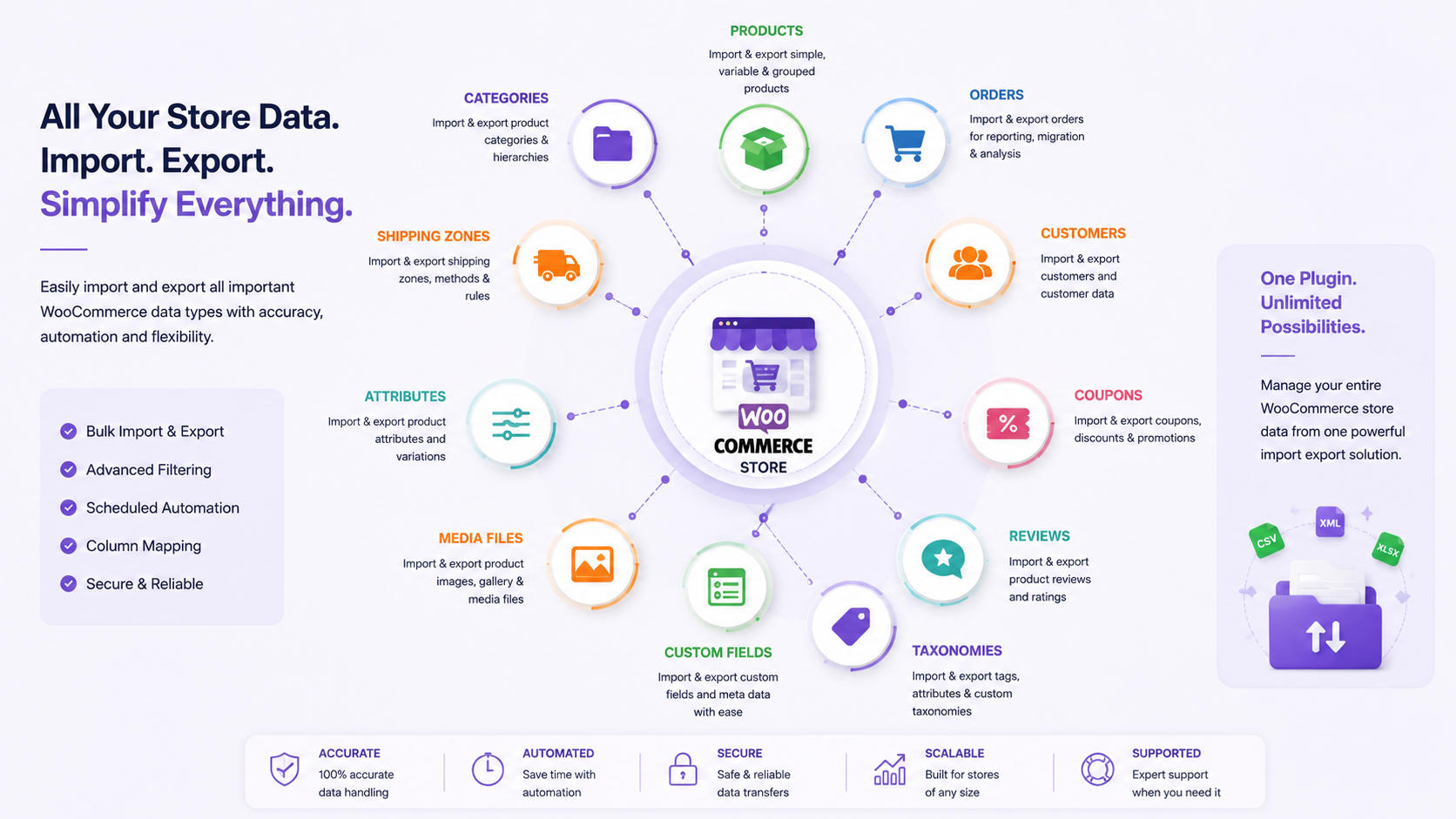
This table is worth revisiting whenever you’re evaluating a plugin. A tool that only handles products isn’t a complete WooCommerce import export solution. It’s just a product importer with extra marketing.
Product Import and Export
Product data is where most stores start and where the daily grind actually happens.
Bulk imports let you add hundreds or thousands of new products at once, typically from a supplier feed, a manufacturer’s spreadsheet, or a previous platform export.
Bulk exports let you pull your entire catalog, or a filtered subset of it, into a spreadsheet for review, backup, or use in another system like a marketplace listing tool.
Inventory updates are one of the most common recurring tasks. A supplier sends stock levels twice a week; you import just the SKU and stock quantity columns, and every matching product updates instantly, without touching price or description fields.
Pricing works the same way. Seasonal sales, supplier cost increases, and currency adjustments can all be handled through a bulk price import rather than editing products one at a time.
Images are trickier than most people expect. A dedicated WooCommerce product import tool should support pulling images from external URLs, matching multiple images to a single product for a gallery, and handling featured images separately from gallery images.
Categories and attributes need to map correctly, especially with variable products where color, size, or material variations each carry their own SKU and stock count.
Supplier catalogs are a real-world scenario worth calling out directly. Say you run a home goods store and work with four suppliers, each sending a spreadsheet in a slightly different format. A good WooCommerce CSV import workflow lets you save a separate column mapping template for each supplier, so Monday’s import from Supplier A and Tuesday’s import from Supplier B both run smoothly without remapping fields every time.
Seasonal updates, like swapping in holiday pricing or activating a batch of seasonal SKUs, become a scheduled or on-demand bulk operation instead of a week of manual admin work.
Pro Tip: Keep your SKU column consistent and unique across every import file. SKU is almost always the matching key used to update existing products instead of creating duplicates.
Order Import and Export
WooCommerce can export orders in bulk once a dedicated import export plugin is installed, since native WooCommerce does not include order export functionality by default.
This matters more than most store owners realize until they need it.
Accounting teams typically need a WooCommerce order export on a monthly or quarterly basis, formatted to match what their bookkeeping software expects, complete with totals, taxes, and payment methods.
Reporting often requires pulling order data into a spreadsheet or BI tool for analysis that WooCommerce’s built-in analytics don’t cover, like custom cohort views or supplier-level profitability.
ERP synchronization is common in B2B and wholesale operations, where orders placed on the WooCommerce storefront need to flow into an external ERP or inventory system, and vice versa.
Migration scenarios require moving historical order records from an old system or a previous store into a new WooCommerce installation, preserving order status, line items, and customer association.
Historical records sometimes need to be archived and removed from the live database to keep the store fast, while still being retrievable from an exported file if needed later.
Order synchronization between two systems, like a physical POS and an online store, depends on reliable, repeatable order export and import cycles.
A real scenario: a wholesale B2B company processes 200 orders a day across WooCommerce and an in-house fulfillment system. Every evening, an automated WooCommerce order export pushes the day’s completed orders to a shared folder that the fulfillment system reads on its own schedule. No one touches this process manually. That’s the difference automation makes once order volume climbs.
Customer Import and Export
WooCommerce customer export lets stores pull registered customer data, including names, emails, billing and shipping addresses, and order history, into a file for use in CRM systems, email platforms, or migrations.
Customer migration comes up constantly during platform switches. Moving from Shopify, Magento, or a custom system into WooCommerce means bringing existing customer accounts along, ideally without forcing everyone to re-register.
CRM integration depends on getting customer data out of WooCommerce in a format your CRM can ingest, matching fields like lifetime value, last order date, and contact details.
Email marketing platforms need current customer lists, segmented by purchase behavior, to run targeted campaigns. A WooCommerce customer export that includes order counts or last purchase date makes segmentation far easier downstream.
Customer segmentation for internal use, like identifying wholesale buyers versus retail customers, often relies on exporting customer meta fields set by other plugins.
Bulk onboarding works in the other direction. A B2B company transitioning existing accounts to a new WooCommerce B2B portal can import customer records in bulk, complete with custom roles and pricing tiers, rather than asking each customer to sign up individually.
Bulk Product Updates
This is where a WooCommerce import export plugin earns its keep on a weekly basis, not just during a big migration.
Inventory: Update stock counts across an entire warehouse’s worth of SKUs in one file, rather than opening each product individually.
Pricing: Apply a percentage discount, a flat price change, or a full price list refresh across thousands of products at once.
Descriptions: Refresh product copy across a category, useful when rebranding or correcting a batch of listings with outdated information.
Categories: Reassign products into new categories after a catalog reorganization, without manually dragging and dropping each item.
Attributes: Update color, size, or material attribute values across variations when a supplier changes naming conventions.
Images: Swap out product photography in bulk after a rebrand or photoshoot refresh.
SEO fields: Update meta titles, meta descriptions, or focus keywords across a large set of product pages in a single pass when they’re stored as accessible custom fields.
Common Mistake: Running a full-catalog price update without first exporting a backup of current prices. If the wrong column gets mapped, there’s no quick way to reverse the damage without a pre-update export to restore from.
WooCommerce Store Migration
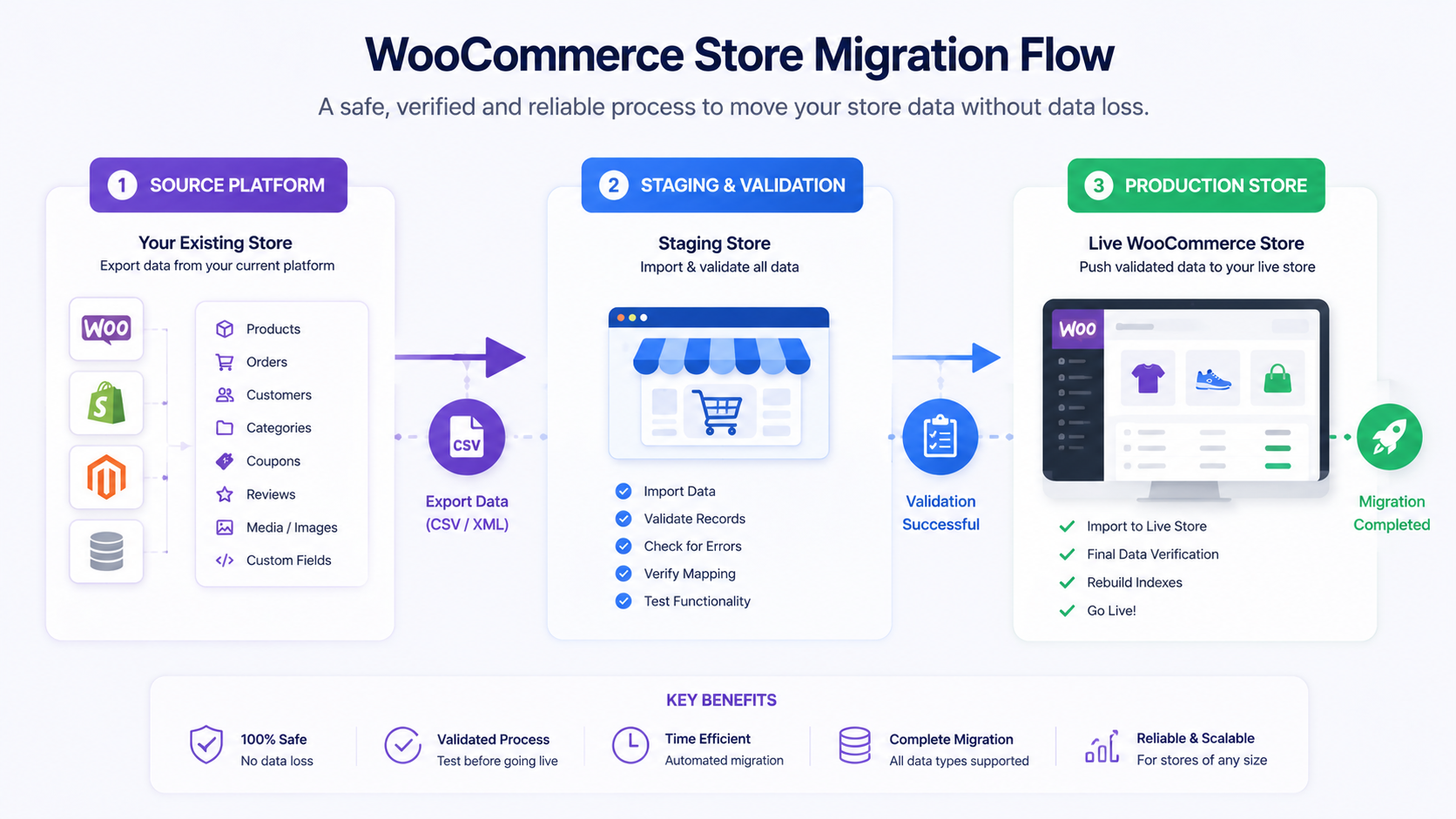
WooCommerce store migration is the process of moving products, orders, customers, and related data from one WooCommerce installation, or an entirely different platform, into a new WooCommerce store, using structured import and export files to preserve data integrity.
Migration is one of the highest-stakes uses of any WooCommerce import export plugin because mistakes here affect the entire business, not just one product listing.
Migration planning starts with an inventory of exactly what needs to move: product count, order history range, customer accounts, coupons, and any custom fields added by other plugins.
Data validation means checking the source data before it ever touches the new store. Missing SKUs, malformed prices, or broken image URLs are far easier to fix in a spreadsheet than after a failed import.
Import sequence matters more than people expect. Categories and attributes generally need to exist before products import into them. Customers often need to exist before historical orders reference them. Getting the order wrong creates orphaned records.
Testing on a staging site before touching the live store is non-negotiable for any WooCommerce data migration of meaningful size. Run the full import on staging; check a sample of records by hand; and confirm variations, images, and pricing all landed correctly.
Migration checklist:
- Export and back up all current data before starting
- Set up a staging environment identical to production
- Validate source files for missing or malformed data
- Import categories, tags, and attributes first
- Import products and variations
- Import customers before importing historical orders
- Import orders and confirm status and totals match source
- Import coupons and confirm expiration dates carried over
- Spot-check a random sample of records across every data type
- Run the migration on production during low-traffic hours
- Keep the source system available until the new store is confirmed stable
Avoiding downtime usually comes down to running the actual production migration during off-peak hours and having a rollback plan (a full recent export) ready in case anything needs to be reversed quickly.
Automation
Scheduled imports and exports let a WooCommerce import export plugin run recurring data operations automatically, without manual intervention, using cron-based timing.
Scheduled imports handle the recurring supplier feed scenario mentioned earlier. Instead of someone manually uploading a file every Monday, the system checks a designated location and imports automatically at a set time.
Scheduled exports work the same way in reverse, generating a fresh order export or inventory report on a daily or weekly cadence for accounting, reporting, or synchronization purposes.
Background processing matters for large catalogs. Rather than locking up the admin screen while thousands of rows process, background handling lets store staff keep working while a large import runs behind the scenes.
Reusable templates save the column mapping configuration from a previous import, so a recurring supplier feed with the same structure runs without any remapping each time.
Cron jobs are the underlying mechanism that makes scheduling possible on a WordPress site, triggering the import or export process at defined intervals even when no one is logged in.
Large catalog automation becomes essential once a store crosses into the tens of thousands of SKUs, where manual, one-off imports simply aren’t practical on any regular basis.
Scheduling Documentation
Integrations
A WooCommerce import export plugin becomes significantly more useful when it connects to where your data already lives, rather than requiring a manual file upload every time.
Google Sheets integration lets teams maintain a live spreadsheet that syncs directly into WooCommerce, which is popular with smaller teams who want a familiar, editable interface without touching CSV files directly.
FTP and SFTP support lets suppliers or internal systems drop a file into a designated server location, which the plugin then picks up automatically on its schedule.
Remote URLs allow imports to pull directly from a hosted file address, useful when a supplier maintains a live feed URL that always reflects current pricing and stock.
Cloud storage connections, where officially supported, allow imports and exports to read from or write to services your team already uses for file storage.
Google Sheets Integration: FTP/SFTP Guide
Smart Column Mapping
Column mapping is the process of matching the column headers in a CSV or spreadsheet file to the corresponding WooCommerce fields, such as matching a supplier’s “item_price” column to the WooCommerce “regular_price” field.
This sounds simple until you’re dealing with a real supplier file that has twenty inconsistent column headers, half of them abbreviated and none of them matching WooCommerce’s internal naming.
Field mapping is the core mechanic: telling the import tool that column D in the file corresponds to the SKU field, column E corresponds to stock quantity, and so on.
CSV matching becomes more complex with custom fields, since not every value maps cleanly to a default WooCommerce field. Plugins that support custom field mapping let you route supplier data into meta fields used by other plugins, like a custom “warranty period” field.
Custom field support is one of the clearest signals separating a basic importer from a genuine WooCommerce import export plugin, since native tools rarely handle anything beyond default product attributes.
Reusable mappings mean you configure the match once, save it as a template, and every future import from that same source runs without any remapping.
Reducing manual work is the entire point. A well-built mapping system turns a ten-minute manual remapping task into a one-click recurring process.
Advanced Filtering
Selective exports let you pull only the data you actually need, rather than exporting an entire catalog or order history every time.
Date filters allow exports limited to a specific range, like all orders placed in the last quarter for an accounting report.
Status filters let you export only completed orders, only out-of-stock products, or only pending customer accounts, depending on what the task requires.
Customer filters support pulling a specific segment, like customers who haven’t ordered in six months, for a re-engagement email campaign.
Category filters let you export or update just one product category at a time, useful when a single supplier or department only touches part of the catalog.
Product filters can combine multiple conditions at once, such as products in a specific category, below a certain stock threshold, and last updated more than 30 days ago.
Performance for Large WooCommerce Stores
Batch processing splits a large import or export into smaller chunks processed sequentially, which prevents server timeouts and memory exhaustion on stores with tens of thousands of records.
Memory optimization matters because a naive import that tries to load an entire 50,000-row file into memory at once will crash on most standard hosting plans. A well-built plugin processes rows in manageable batches instead.
Large imports of six figures worth of rows are realistic for enterprise catalogs and multi-year order histories and need a tool designed for that scale from the start, not one that was only tested on sample files of a few hundred rows.
High-order stores processing hundreds of orders daily need export processes that don’t slow down the live storefront while running, which is where background processing becomes critical rather than optional.
Scalability ultimately comes down to whether the plugin was architected for growth. A tool that works fine at 500 products but falls over at 50,000 isn’t a long-term solution; it’s a temporary one. A properly built WooCommerce Import Export Plugin should feel just as reliable at ten thousand SKUs as it does at ten.
Security and Data Reliability
Validation checks incoming data before it’s committed to the database, catching issues like missing required fields, invalid price formats, or malformed SKUs before they corrupt live product listings.
Import logs give store administrators a record of exactly what changed, when, and from which file, which becomes essential when troubleshooting an unexpected price change or missing product.
Error handling should clearly flag which specific rows failed and why, rather than aborting the entire import or silently skipping problem records.
Backups before any significant import or bulk update are simply non-negotiable. An export of current data, taken immediately before a large change, is the fastest way to recover if something goes wrong.
Rollback strategies, where supported, let administrators reverse a bulk change using a previous export, restoring the store to its prior state.
Safe workflows generally mean testing on staging first, reviewing a preview before committing changes, and keeping recent backups on hand at all times, not just during migrations.
Pro Tip: Always run a small test batch, ten or twenty rows, before committing a full import of thousands of records. It takes two minutes and catches mapping errors before they touch your entire catalog.
Best Practices
Preparing CSV files properly before import saves far more time than it costs. Clean headers, consistent SKU formatting, and no merged or blank cells go a long way toward a smooth import.
Testing imports on a small sample, or on a staging environment, catches formatting and mapping issues before they reach the live store.
Scheduling jobs during low-traffic hours reduces any performance impact on customers actively browsing or checking out.
Maintaining backups before every significant bulk operation, not just migrations, protects against the unexpected.
Monitoring logs after every scheduled import confirms the process ran successfully and flags any rows that failed.
Using reusable templates for recurring supplier feeds or regular exports turns a repetitive manual task into a one-click operation.
Summary Checklist:
- Clean and validate source files before uploading
- Run a small test batch first
- Save column mappings as reusable templates
- Schedule large jobs during off-peak hours
- Export a backup before any bulk update
- Review import logs after every run
- Confirm a sample of updated records manually
Common Import Problems and Solutions
Duplicate records usually happen when the matching field, typically SKU, isn’t unique or consistent across the import file. Solution: Enforce unique SKUs before importing, and confirm the plugin is matching on SKUs rather than creating new entries by default.
Broken images often result from incorrect or expired URLs, or images hosted on a server that blocks external requests. Solution: host images on a reliable, accessible server and test a handful of image URLs manually before running the full import.
Encoding issues show up as garbled special characters, especially with accented letters or currency symbols. Solution: Save CSV files with UTF-8 encoding before uploading.
Missing columns cause partial imports where some fields update and others silently don’t. Solution: compare your file’s headers against the plugin’s expected field list before running the import.
Timeouts on large files typically stem from server-side execution limits. Solution: Use a plugin that supports batch or background processing, and consider splitting extremely large files into smaller chunks.
Large files that exceed upload limits need either a server configuration adjustment or a plugin that supports chunked uploads.
Mapping errors are the most common cause of incorrect data landing in the wrong fields. Solution: Always preview the mapped result before confirming the import, and save a correct mapping as a template once verified.
Permission issues with FTP, SFTP, or remote URL imports usually come down to incorrect credentials or restrictive server firewall rules. Solution: Confirm credentials and whitelist the necessary IP or domain with your hosting provider.
Conclusion
Every growing WooCommerce store eventually reaches the point where manual data entry stops making sense. Product catalogs expand, suppliers send regular updates, order volume climbs, and customer databases grow past what anyone can manage by hand without errors creeping in.
Native WooCommerce covers the basics, but it was never built for automation, large-scale order and customer handling, or the kind of recurring, repeatable workflows that busy stores actually need. That gap is exactly why a dedicated WooCommerce import export plugin becomes essential rather than optional.
Whether you’re managing supplier feeds every week, preparing for a full store migration, or simply trying to keep inventory and pricing accurate across thousands of SKUs, the right tool turns a recurring headache into a scheduled, reliable background process. Woo Import Export is built around exactly these scenarios, from product and order handling to customer data, column mapping, and automation, giving growing stores a scalable way to manage data without outgrowing their tools.
The businesses that get ahead of this problem, rather than reacting to it after a bad manual update, are the ones that scale smoothly. Start by auditing your current process, identify where manual work is costing you time or accuracy, and choose a WooCommerce Import Export Plugin built to handle it at the scale your store is actually operating at today, not the scale it was at when you first launched.
FAQs
A WooCommerce Import Export Plugin enables you to efficiently import, export, migrate, and update store data such as products, orders, customers, coupons, reviews, categories, and custom fields in bulk. It simplifies data management, reduces manual effort, and supports scalable ecommerce operations.
You can import and export WooCommerce products by preparing a structured data file, mapping the required fields, validating the data, and running the import or export process. Advanced plugins also support bulk updates, product variations, images, categories, and custom fields.
A WooCommerce Import Export Plugin can manage products, product variations, orders, customers, coupons, reviews, categories, tags, attributes, images, custom fields, and other store data. This allows businesses to automate updates, migrations, and bulk data management from a single workflow.
To migrate a WooCommerce store safely, back up your website, validate your data, export products, customers, and orders, then import them into the new store using reliable mapping and verification. Testing the migration before going live helps minimize errors and prevents data loss.
Choose a WooCommerce Import Export Plugin that supports bulk imports and exports, smart column mapping, scheduled automation, advanced filtering, product variations, custom fields, migration workflows, detailed logs, and reliable performance for stores of any size.


 WooCommerce Solutions
 Solutions for WordPress