An order appears in WooCommerce, the payment is successful, and the stock level changes as expected. However, the customer never receives an order confirmation, or the store team misses the new-order notification.
This is where WooCommerce email logs become more useful than repeatedly resending messages or changing SMTP settings without evidence. A missing order email can fail at several points: WooCommerce may not trigger it, WordPress may fail to hand it to the mail system, the SMTP provider may reject it, or the recipient’s server may filter it before it reaches the inbox.
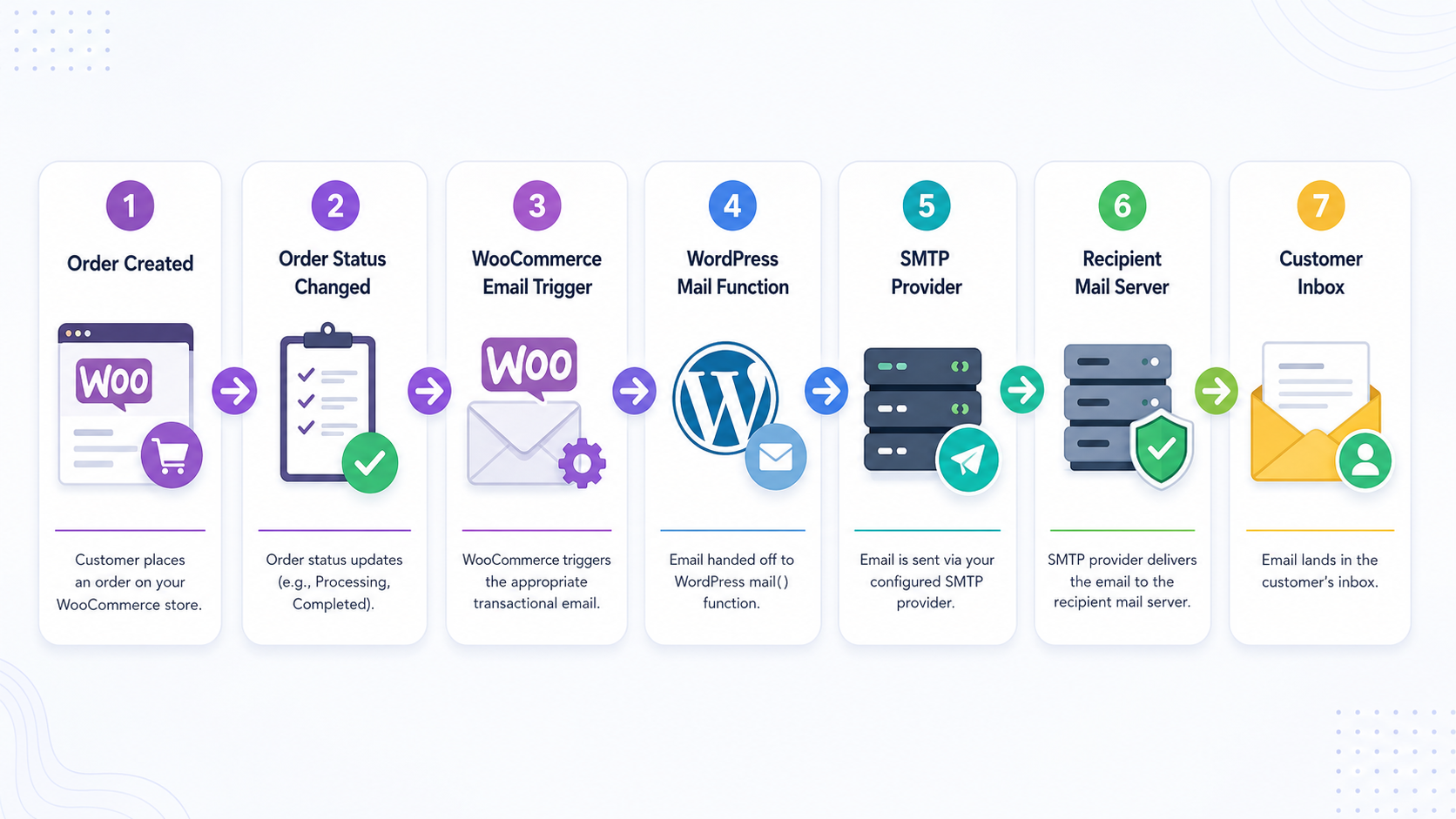
The correct troubleshooting path follows the entire journey:
Order event → WooCommerce notification → WordPress mail system → SMTP provider → recipient server → inbox
By tracing each stage, you can find the actual failure instead of applying fixes that may have nothing to do with the problem.
Key Takeaways
WooCommerce email logs help identify where an order notification stopped in the sending process.
No log entry often indicates a notification trigger, order status, recipient, or configuration problem.
A failed entry usually points to WordPress, SMTP, hosting, or mail-server configuration.
A “Sent” result does not prove that the email reached the customer’s inbox.
A real test order provides more useful evidence than a basic email test alone.
How Do You Check WooCommerce Email Logs?
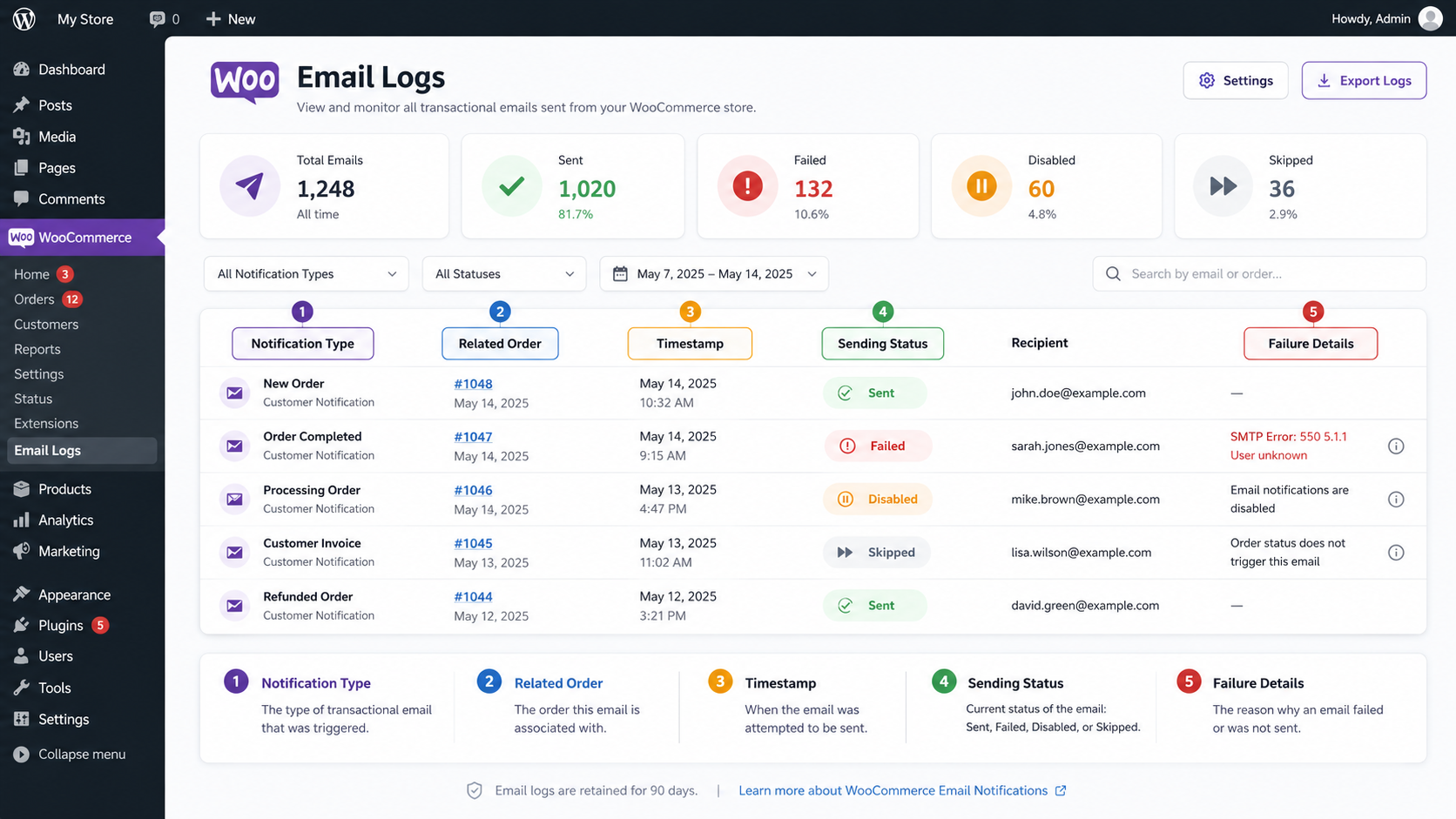
In WooCommerce 10.9 or later, go to WooCommerce → Status → Logs and open or filter the log source named transactional-emails. Find the relevant entry by comparing the email type, order details, and timestamp. The result may show that the email was sent, failed, disabled, or skipped. If WooCommerce reports a successful send but the message is missing, continue the investigation through your SMTP provider and recipient-server records. RCE 10.9 introduced transactional email logging directly into the core plugin. This allows stores to begin troubleshooting without installing a separate email-logging plugin first. Stores using an earlier version may still need an SMTP plugin, WordPress email logger, hosting mail log, or transactional email provider dashboard.
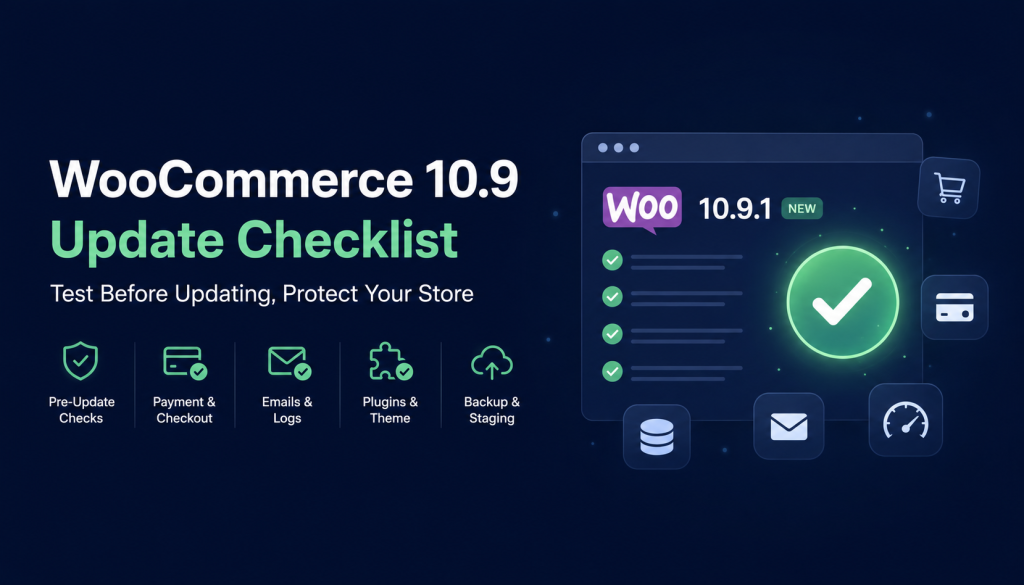
Before updating a production store, review compatibility, backups, and staging requirements through a structured WooCommerce 10.9 update checklist.
What WooCommerce Email Logs Can and Cannot Tell You
WooCommerce email logs show what happened while the notification was still inside WooCommerce and the local WordPress mail process.
Depending on the result and the store’s setup, an entry may include the following:
The notification or email type
The related order or customer
The send timestamp
Whether the email was sent, failed, disabled or skipped
The local mail result
An available WordPress, PHPMailer or SMTP failure message
WooCommerce 10.9 records transactional email activity under the transactional-emails log source. Its email logger can capture successful sends, disabled notifications, skipped messages, and failures reported through WordPress’s wp_mail_failed hook. A WooCommerce log cannot always confirm what happened after the message left the website.
It may not prove:
That the receiving server accepted the message
That the email reached the customer’s inbox
That the message avoided spam filtering
That a delayed bounce did not occur
That the address is absent from a suppression list
That the recipient opened the message
Understanding the terminology prevents incorrect conclusions:
Generated: WooCommerce created the notification.
Sent: WooCommerce successfully handed the message to the configured mail process.
Accepted: The receiving or next-stage mail server agreed to process the message.
Delivered: The provider reports that the recipient server accepted the email for the mailbox.
Deferred: Delivery was temporarily delayed and may be attempted again.
Bounced: The recipient server returned the message after a permanent or temporary delivery failure.
Rejected: A server refused the email because of authentication, reputation, policy, or recipient problems.
Filtered: The message was accepted but moved to spam, quarantine, or another mailbox folder.
Identify the Exact WooCommerce Email That Is Missing
Before opening several logs, identify the specific notification and order involved. “WooCommerce emails are not working” is too broad to diagnose accurately.
Collect the following information:
WooCommerce order number
Customer email address
Date and time the order was created
Current order status
Previous order statuses
Payment method
Payment result
Missing email type
Whether the customer, administrator or both missed the email
Whether the problem affects every order or only certain situations
Whether password resets and other WordPress emails are working
Any recent plugin, theme, hosting or server changes
WooCommerce contains several built-in email notifications, and each one depends on a different event or order-status transition.
Common notifications include:
New order
Cancelled order
Failed order
Order on hold
Processing order
Completed order
Refunded order
Order details
Customer note
New account
Password reset
For example, a processing-order email is normally generated after payment when the order reaches the “Processing” status. A completed-order email is triggered when the order is marked Completed. Admin-facing new-order emails are sent to the recipients configured for that individual notification. A missing email may be a symptom of an earlier order-workflow failure rather than a mail-server problem.
How to Find and Review WooCommerce Email Logs
For WooCommerce 10.9 and later, use the following process:
Sign in to the WordPress administration area.
Open WooCommerce → Status → Logs.
Filter or locate the transactional-emails log source.
Select the log covering the date of the affected order.
Find the entry connected to the notification and order.
Compare its timestamp with the order notes.
Review whether the result is Sent, Failed, Disabled, or Skipped.
Record any available error or reason.
Check the order notes for a corresponding sent or failed event.
Compare the result with the SMTP or transactional email provider’s log.
WooCommerce may record:
Sent: The message was handed to the mail system successfully.
Failed: The local mail process returned an error.
Disabled: The notification is turned off in WooCommerce settings.
Skipped: A required condition, such as a recipient, was missing.
Sent and failed order emails may also appear as private order notes. Disabled and skipped emails are recorded in the log rather than the order notes. WooCommerce also redacts raw customer email addresses from the transactional log for privacy. ted entries are missing, review WooCommerce → Status → Logs → Settings. Confirm that logging is active and that the selected log-level threshold is not hiding informational or notice-level entries.
What to Use on Older WooCommerce Versions
Stores running a version without native transactional logging can investigate through:
A WordPress email-logging plugin
An SMTP plugin with email history
A transactional email provider dashboard
Hosting mail logs
PHP or server error logs
WordPress debug logs
WooCommerce fatal-error logs
Look for the recipient, subject, timestamp, sending method, status, and complete failure message. Avoid installing several overlapping mail plugins at once, as this can make the sending path harder to understand.
What Your WooCommerce Email Log Result Means
The next action depends on what the log shows. Treat each result as a different diagnostic path.
There Is No Email Entry in the Log
When no email entry appears, WooCommerce may not have attempted to create or send the expected notification.
Start by checking WooCommerce → Settings → Emails. Open the affected notification and confirm:
The email is enabled
The administrator recipient is correct, where applicable
The required customer email exists on the order
The notification type matches the order event
The settings were saved successfully
WooCommerce can also record a notification as Disabled or Skipped. A skipped email may indicate that a required condition was missing, such as an empty recipient. View the order history. Ask:
Did the order reach the status that triggers this email?
Did the payment gateway update WooCommerce correctly?
Is the order still marked pending payment?
Was a normal status skipped?
Is a custom order status being used?
Did a manual update work while the automatic payment update failed?
A payment can appear successful inside the payment provider while WooCommerce remains at Pending payment because a webhook or callback failed. In that situation, the expected processing-order email may never be generated.
Other possible causes include:
A checkout or payment plugin conflict
A custom order-status extension
An email customizer removing a hook
Subscription or membership workflow changes
Multilingual email-routing issues
Theme-level email overrides
Custom code affecting WooCommerce actions
A fatal PHP error
A delayed or failed scheduled action
When the email is enabled but never triggered, review the wider WordPress error logs and WooCommerce fatal-error records before changing the mail provider.
The Email Log Shows a Failure
A failed result means WooCommerce attempted to send the notification, but the local WordPress mail process returned an error.
Common causes include:
Incorrect SMTP username or password
An expired API key
Authentication failure
An unavailable SMTP server
A blocked SMTP port
Hosting mail restrictions
A sender-address mismatch
An invalid recipient
Provider rate limits
Sending quota limits
Connection timeouts
DNS configuration problems
A conflicting mail plugin
Do not respond to a failed entry by randomly switching plugins. Start with the complete error message.
Use this sequence:
Copy the exact error from the log.
Identify which mailer or provider handled the request.
Check the SMTP or API credentials.
Confirm that the From address is permitted by the provider.
Review the provider dashboard for the same timestamp.
Send a controlled test email.
Place a test WooCommerce order.
Compare the test email, order email, and provider logs.
A basic test email can confirm that a connection works, but it does not validate WooCommerce’s order trigger, recipient data, or status workflow.
The Log Shows Success, but the Email Is Still Missing
When the log shows Sent, the website successfully handed the message to its configured mail system. The problem may now sit beyond WooCommerce.
If the provider reports “Delivered,” the recipient server accepted the message. The remaining issue may be inbox filtering, quarantine, or mailbox rules.
If the provider reports Bounced, Rejected, or Suppressed, use the stated reason. Do not continue resending to an address on a suppression list until the reason for suppression has been resolved.
The Email Is Delayed
A delayed email may have been created correctly but left waiting in a background queue.
Possible causes include the following:
WP-Cron is not running reliably
The action scheduler has pending or failed actions
Hosting resources are exhausted
A large queue is processing slowly
A plugin sends emails asynchronously
The mail provider is throttling messages
The recipient server has temporarily deferred delivery
WooCommerce’s Scheduled Actions screen displays background processes, including some customer emails, and shows whether actions are complete, pending, or failed. WooCommerce → Status → Scheduled Actions* and inspect pending or failed tasks near the order time. Stores experiencing recurring queue delays should investigate delayed WordPress cron jobs rather than repeatedly running actions manually.
Only Some WooCommerce Emails Are Missing
When some notifications work, the entire mail system is unlikely to be completely broken. The failure is probably connected to a specific trigger, recipient, or extension.
Examples include:
New-order emails work, but completed-order emails do not
Admin emails arrive, but customer emails do not
Customer emails work, but the admin recipient is incorrect
Manual order-status changes send emails, but gateway updates do not
Standard WooCommerce emails work, but subscription emails fail
Test emails arrive, but real order notifications are missing
One payment method triggers emails while another does not
Compare a working notification with the failing one. Review its trigger, recipient, order status, extensions, and log result separately.
WooCommerce Email Troubleshooting Matrix
Log result
Likely cause
What to check first
Recommended next action
No email entry
Notification was not triggered
Order status, payment event and email settings
Reproduce the trigger and inspect errors
Disabled
Notification is turned off
WooCommerce email settings
Enable the correct notification
Skipped
A recipient or another requirement is missing
Customer address and notification conditions
Correct the missing condition
Failed
Local mailer, SMTP, or server error
Exact failure message
Repair the mail configuration and retest
Sent but not received
Provider or recipient-side issue
SMTP delivery report
Check bounces, suppression and authentication
Delayed
Cron, queue or provider throttling
Scheduled Actions
Repair the queue and monitor processing
Admin email missing
Recipient configuration problem
Admin notification recipient
Correct the recipient and retest
Customer email missing
Customer data or status issue
Billing email and order status
Correct the data and reproduce the email
Some notification types fail
Trigger-specific conflict
Individual notification settings
Compare working and failing workflows
The test email works; order email fails
WooCommerce trigger problem
Order event and order notes
Run a complete test order
Check the WooCommerce email settings.
WooCommerce’s email configuration is available under WooCommerce → Settings → Emails. Each notification can be managed separately. affected email, review:
Enable or disable setting
Recipient addresses
From name
From address
Subject
Email heading
Additional content
Email type
CC or BCC recipients, where available
Template customizations
Admin notifications such as “New order,” “Cancelled order,” and “Failed order” can use configurable recipient addresses. Customer notifications usually use the email address stored with the customer or order.
The From address should normally belong to the store’s verified domain, such as orders@example.com. Using an unrelated Gmail, Yahoo, or similar public address can create sender-alignment problems because the website is not authorized to send on behalf of that public domain. WooCommerce recommends using an address associated with the website’s domain. Order Statuses and Payment Events
WooCommerce emails are connected to events. They do not all send immediately after an order record is created.
A typical paid-order journey may look like:
Pending payment → Processing → Completed
However, the exact workflow depends on the products, payment method, and extensions.
For example:
Pending payment: The order is waiting for payment confirmation.
On hold: Payment may require confirmation or manual action.
Processing: Payment is received and fulfillment is required.
Completed: The order has been fulfilled.
Failed: The payment attempt failed.
Cancelled: The order was cancelled.
Refunded: A full or partial refund was processed.
Suppose a payment succeeds in the gateway dashboard, but WooCommerce remains at pending payment. The likely issue is not the processing-order email itself. WooCommerce never received or processed the event required to move the order into processing.
Investigate:
Payment webhooks
Callback URLs
API credentials
Firewall restrictions
Security-plugin blocks
Gateway logs
Order notes
Custom status rules
Stores with complex fulfillment logic should treat emails as part of their wider WooCommerce order automation, not as an isolated feature.
Check SMTP and email authentication.
SMTP or an API-based transactional email service provides an authenticated route for WordPress email. It can improve reliability, reporting, and control over delivery.
A strong sending setup should include the following:
An authenticated SMTP or API connection
A verified sender domain
SPF
DKIM
DMARC
Correct return-path alignment
Bounce reporting
Suppression-list management
Delivery-event tracking
Appropriate sending limits
SPF identifies which servers are authorized to send for a domain. DKIM adds a signature that allows the recipient to verify the message. DMARC tells receiving servers how to handle messages that fail authentication or alignment checks. not a complete fix for every missing WooCommerce email.
SMTP can improve transport and deliverability, but it cannot send a notification that WooCommerce never generated.
That is why the investigation should begin with the order event and WooCommerce log before moving to SMTP configuration.
Check Plugin, Theme and Custom-Code Conflicts
WooCommerce stores often contain multiple extensions that can alter orders, emails, or background processing.
Review recent changes involving:
Email customizer plugins
Checkout plugins
Payment gateways
Subscription extensions
Membership systems
Multilingual plugins
Custom order statuses
Security plugins
Performance plugins
Theme email templates
Custom WooCommerce hooks
Code snippets
Must-use plugins
A conflict may remove a notification hook, change the order status, replace the recipient, interrupt the mail call, or produce a fatal error before the notification is generated.
Conflict testing should be performed on staging whenever possible. Reproduce the problem, temporarily reduce the environment to WooCommerce and a default theme, and reintroduce components methodically.
Do not deactivate payment, security, or checkout systems without preparation in a busy production store.
Test the Complete WooCommerce Email Workflow
A proper validation test should reproduce the business event that originally failed.
Use this process:
Create a controlled test order.
Use a real inbox you can access.
Follow the normal checkout process.
Complete the expected payment flow.
Confirm that the gateway records the payment.
Check the WooCommerce order status.
Review the order notes.
Confirm the customer notification.
Confirm the administrator notification.
Review the WooCommerce transactional log.
Review the SMTP or provider log.
Check spam, bounce, and delivery results.
Repeat the test after applying the fix.
Where relevant, validate:
New-order emails
Processing-order emails
Completed-order emails
Failed-order emails
Refund emails
New-account emails
Password-reset emails
Testing through Gmail, Outlook, and a business-domain mailbox can reveal provider-specific filtering that a single inbox may not show.
How Dazzlebirds Approaches Missing WooCommerce Order Emails
Understanding the Email Issue
The first thing we would do is understand which emails are missing and when the issue occurs, as not all email problems have the same underlying cause.
We would identify:
Which WooCommerce emails are affected
Whether the issue impacts all orders or specific scenarios
When the problem first started
Recent plugin, theme, or server changes
Whether emails are being sent but not delivered
This discovery phase helps narrow down whether the issue is related to WooCommerce, WordPress, the mail server, or email deliverability.
Analyzing the Email Configuration
Once the issue is understood, we would evaluate how the website is configured to send emails.
We would review:
WooCommerce email settings
WordPress mail configuration
SMTP setup
Email service provider
Sender authentication
Server mail logs
The goal here is to identify configuration issues that could prevent emails from being generated or successfully delivered.
Reviewing Email Logs
We would then analyze the available logs to determine where the email process is failing.
This may include:
WooCommerce email logs
SMTP logs
WordPress debug logs
Server error logs
Email delivery reports
Failed email records
Reviewing these logs helps determine whether emails are being created, sent, rejected, or blocked.
Identifying the Root Cause
Based on our findings, we would investigate common causes such as the following:
SMTP configuration issues
Plugin conflicts
Email authentication problems (SPF, DKIM, DMARC)
Hosting restrictions
Custom code affecting email triggers
Deliverability or spam filtering issues
This allows us to focus on resolving the underlying problem instead of simply resending missing emails.
Testing & Validation
Once the issue has been addressed, we would validate the complete email workflow by testing the following:
New order emails.
Customer notification emails.
Admin notification emails.
Refund and status update emails.
Email delivery and inbox placement.
This ensures every critical WooCommerce email is generated and delivered successfully.
Ongoing Monitoring
To help prevent similar issues in the future, we would recommend:
Email logging
SMTP monitoring
Delivery reporting
Regular email testing
Server log reviews
Alerting for failed email deliveries
This provides ongoing visibility into email performance and allows issues to be detected before they impact customers.
Expected Outcome
The end result would be a reliable WooCommerce email system where order notifications are consistently generated, successfully delivered, and fully traceable through logging and monitoring, reducing missed communications and improving the customer experience.
How to Prevent Future WooCommerce Email Failures
Email reliability should be monitored as part of regular WooCommerce maintenance rather than checked only after a customer complains.
A stronger process includes:
Keeping transactional email logging enabled
Defining a reasonable log-retention period
Using authenticated email transport
Monitoring bounce and delivery reports
Reviewing suppression lists
Validating SPF, DKIM, and DMARC
Testing important notifications regularly
Monitoring WooCommerce Scheduled Actions
Reviewing logs after plugin and platform updates
Creating alerts for failed sends
Testing after payment-gateway changes
Documenting the store’s order-status workflow
Logs may contain operational information and increase database or file storage over time. Retain enough history to investigate incidents, but review storage and privacy requirements before keeping records indefinitely.
Monitoring cannot prevent every outage, rejection, or recipient-side filter. It does, however, reduce the time between a failure occurring and the store team discovering it.
Final WooCommerce Email Troubleshooting Checklist
Before closing the investigation, confirm that you have:
Identified the affected order
Confirmed the missing notification type
Checked whether the administrator, customer or both are affected
Verified the customer and admin recipients
Reviewed the current and previous order statuses
Checked the order notes
Confirmed the notification is enabled
Located the transactional email log
Interpreted the Sent, Failed, Disabled or Skipped result
Reviewed the complete error message
Checked SMTP or provider delivery records
Checked bounces, deferrals and suppression lists
Verified SPF, DKIM, and DMARC
Reviewed payment webhooks
Checked Scheduled Actions
Investigated plugin and custom-code conflicts
Placed a controlled test order
Confirmed actual inbox delivery
Conclusion
Missing WooCommerce order emails should be investigated through evidence, not assumptions. Start with the affected order, confirm the required notification trigger, and use WooCommerce email logs to establish whether the message was sent, failed, disabled, or skipped.
From there, follow the correct path. A missing log entry points toward the order workflow or notification configuration. A failed entry requires investigation of WordPress, SMTP, or server configuration. A successful send shifts the investigation toward provider delivery events, authentication, suppression, and recipient filtering.
The final test should reproduce a real order journey and confirm both customer and administrator notifications from trigger to inbox.
When the failure spans payment events, plugins, custom code, SMTP, or server infrastructure, Dazzlebirds can provide structured WooCommerce development support to trace the complete workflow, resolve the underlying cause, and validate reliable transactional email delivery.
FAQs
In WooCommerce 10.9 or later, go to WooCommerce → Status → Logs and select the transactional-emails log source. The log can show whether an email was sent, failed, disabled, or skipped. Older WooCommerce versions may require SMTP logs, hosting mail logs, or a WordPress email-logging plugin.
A “Sent” status means WooCommerce successfully handed the message to the configured mail system. It does not confirm inbox delivery. Check the SMTP provider for bounces, rejections, suppression, or delays. Also review the recipient address, spam folder, mailbox rules, SPF, DKIM, DMARC, and sender reputation.
A missing log entry usually means WooCommerce did not trigger the notification. Check whether the email is enabled, the recipient exists, and the order reached the correct status. Payment webhook failures, plugin conflicts, custom order statuses, code errors, and delayed scheduled actions can also prevent the email from being generated.
WooCommerce can send emails through the default WordPress mail system without SMTP. However, authenticated SMTP or API-based delivery usually provides better reliability, logging, and bounce reporting. SMTP cannot fix disabled notifications, incorrect recipients, or order events that never trigger the email, so the WooCommerce workflow must still be checked.
Yes, some WooCommerce order emails can be resent from the order actions available on the Edit Order screen. Before resending, identify why the original email failed, correct the recipient or sending issue, and then review the new WooCommerce and SMTP logs to confirm that the message was generated and delivered successfully.


 WooCommerce Solutions
 WordPress Solutions
 CMS to WordPress Migration Solutions
 WooCommerce Product Catalog Management
 WooCommerce Order Automation Solution
 Centralized Inventory Management
 WooCommerce ERP Integration