Many WordPress websites slow down over time even when the design looks perfectly fine. The issue is often not visible on the surface. Old post revisions, expired transients, orphaned metadata, plugin leftovers, WooCommerce session data, and thousands of unused database entries accumulate quietly in the background. Over time, this data bloat affects page speed, admin performance, backup size, and overall site stability.
WordPress database optimization is not about randomly deleting records. It is about understanding what your database contains, identifying what is slowing things down, and then making targeted changes with proper backups and testing in place. Safe cleanup always starts with diagnosis.
Quick Answer Box
WordPress database optimization means cleaning unnecessary data from your WordPress database and improving how it stores and retrieves information. It removes post revisions, expired transients, orphaned metadata, and unused plugin tables. This reduces database size, improves query performance, speeds up your admin dashboard, and keeps WooCommerce operations running efficiently.
What Is WordPress Database Optimization?
Your WordPress website stores almost everything in a database: pages, posts, products, settings, user data, plugin configurations, comments, logs, and much more. Over time, WordPress and its plugins write enormous amounts of data that serve no ongoing purpose.
WordPress database optimization covers two related but distinct activities. The first is cleanup: removing data that is no longer needed, such as old revisions, expired transients, spam comments, orphaned metadata, and abandoned plugin tables. The second is improving how the database itself performs: reducing autoloaded options, fixing fragmented tables, and improving query efficiency.
Both activities matter. A large database full of old data is slower to query. A database that is correctly structured and maintained responds faster, even as your website grows.
Why WordPress Databases Become Slow Over Time
Every time you publish, edit, or update content, WordPress creates records. Most of these records are useful. Some are not. The problem is that they all accumulate.
Here is what typically fills up a WordPress database over months and years:
Post revisions and auto-drafts. By default, WordPress saves a revision every time you update a post or page. On an active blog or product catalog, this can generate hundreds of revision records per piece of content. Autodrafts are created automatically and rarely cleaned up.
Trashed content. Deleted posts, pages, and products move to the trash folder rather than being permanently removed. If trash is never emptied, those records remain in the database indefinitely.
Spam and unapproved comments. Comment spam builds up quickly on websites without strong filtering. These records take up space and slow down comment-related queries.
Expired transients. Transients are temporary cached values that plugins store in the database with an expiry time. When they expire, they should be deleted automatically. In practice, many expired transients linger for months or years in the wp_options table, inflating autoloaded data.
Orphaned metadata. When a post, user, or product is deleted, the associated metadata records often remain behind. These orphaned rows serve no purpose but continue to occupy space.
Plugin and theme leftovers. Plugins frequently create their own database tables and store their own records. When a plugin is uninstalled without a proper database cleanup, those tables remain. On sites that have used and removed many plugins over the years, this can account for a significant volume of dead data.
WooCommerce data. WooCommerce stores order data, product metadata, customer session records, analytics tables, and scheduled background actions. On active stores, these tables grow rapidly and can affect both front-end speed and admin responsiveness.
Large wp_options tables. WordPress stores site settings in a table called wp_options. Many plugins write their own configuration and cached values here. When too much data is autoloaded from this table on every page request, it directly slows down every page on your site.
Signs Your WordPress Database Needs Optimization
Database problems often show up as general sluggishness rather than a specific error. Here are the common symptoms that suggest your database needs attention:
- Your WordPress admin dashboard loads slowly, sometimes taking several seconds per page
- The backend feels sluggish even on fast hosting
- WooCommerce order pages, product filtering, or checkout steps are slower than expected
- Search results take noticeably longer to return
- Backups are unusually large, even for a site your size
- Server CPU or memory usage is consistently high with no obvious cause
- You occasionally see database connection errors or white screen issues
- Site speed tools report slow server response times (TTFB) despite good hosting
None of these symptoms automatically confirm a database problem. But if your site scores poorly on multiple points above, the database is a reasonable place to investigate.

What Can Be Cleaned Safely in a WordPress Database?
The word “safely” carries a lot of weight here. What is safe to delete depends on your specific website, your plugins, and what your business relies on. That said, the following categories are generally low-risk with a proper backup in place:
1. Post revisions. Old revision records from published posts and pages rarely serve any ongoing purpose. Removing them reduces table size and speeds up content queries. Note that keeping a small number of recent revisions is a reasonable policy.
2. Auto-drafts. WordPress creates auto-drafts automatically during editing. They accumulate and are almost never needed after the final content is published.
3. Trashed posts and pages. Content sitting in the trash should be reviewed and permanently deleted when no longer needed.
4. Spam comments. Spam and unapproved comments that have been reviewed and dismissed can be deleted safely.
5. Expired transients. Transients that have passed their expiry date provide no benefit and inflate your wp_options table. These are safe to remove.
6. Orphaned metadata. Post meta, user meta, and comment meta records linked to deleted items can be cleaned. This requires careful checking to avoid removing metadata still linked to active records.
7. Old logs. Some plugins store activity logs, error logs, or audit trails in the database. Older log entries beyond your retention policy can be cleaned.
8. Unused plugin tables. Tables left behind by uninstalled plugins can be removed once you have confirmed the plugin is gone and the data is not needed elsewhere.
9. WooCommerce sessions. WooCommerce stores session data for guest and logged-in shoppers. Old, expired sessions accumulate over time and can be cleared safely.
10. Database overhead. After records are deleted, tables can have unused space called overhead. Running a table optimization command reclaims this space and improves performance.
Even within these categories, cleaning without a staging environment and a recent backup is not something we would recommend for any business website.
What You Should Not Delete Without a Developer
Some data looks unnecessary but is actually business-critical. Deleting it without expert review can cause real problems.
WooCommerce order records. Order data is tied to financial reporting, customer history, refund processing, and tax compliance. These records should never be mass-deleted.
Customer and user metadata. User preferences, purchase history, membership status, and subscription data may be stored in metadata tables. Deleting orphaned-looking metadata without checking its relationships can break user accounts.
SEO plugin metadata. Plugins like Yoast SEO and Rank Math store per-post metadata, including titles, descriptions, and schema settings. Deleting these records removes your configured SEO data.
Form submission records. Contact form entries, quote requests, and other form submissions may be stored in plugin tables. These can represent business inquiries or leads.
Membership and subscription data. Membership plugins create complex relationships across multiple tables. Cleaning these without understanding the structure can corrupt member accounts.
Booking and appointment data. Booking plugins store appointment records, customer data, and availability settings. These tables should only be touched by someone who understands the plugin’s data model.
Custom plugin tables. If a developer has built custom functionality that stores data in its own tables, those records cannot be assessed by a generic cleanup tool.
Page builder settings. Visual editors like Elementor, Bricks, and Beaver Builder store page layouts and design data in post metadata. Removing this data destroys page designs.
WordPress Database Cleanup vs Database Optimization
These two terms are often used interchangeably, but they describe different activities.
Cleanup focuses on removing data that has accumulated and is no longer useful: old revisions, expired transients, spam, orphaned records, and so on.
Optimization focuses on making the database perform better: improving how tables are structured, reducing autoloaded data, optimizing queries, and defragmenting table storage.
A website that has been cleaned but not optimized may still have performance problems. A website that has been optimized but not cleaned may still carry an unnecessary load.
| Area |
Cleanup |
Optimization |
| Post revisions |
Remove old revisions |
Limit revisions going forward |
| Transients |
Delete expired transients |
Prevent transients from autoloading |
| wp_options |
Remove unused plugin entries |
Reduce size of autoloaded options |
| Database tables |
Remove unused plugin tables |
Defragment and optimize active tables |
| WooCommerce data |
Clear old sessions and logs |
Index and query-tune order tables |
| Query performance |
Not directly addressed |
Identify and improve slow queries |
Both are necessary for a meaningful improvement in WordPress database performance.
WordPress Database Optimization Checklist
Use this checklist before, during, and after any database optimization work:
Before you start:
- Take a full database backup and verify it restores correctly
- Set up a staging environment and test there first
- Record the current database size for comparison
- Note current admin dashboard load time and front-end speed
What to review:
- Identify the largest database tables
- Check autoloaded options size in wp_options
- Review number of post revisions and auto-drafts
- Identify expired transients
- Check for orphaned post and user metadata
- List tables left by uninstalled plugins
What to clean:
- Remove old post revisions (keep recent ones where relevant)
- Delete expired transients
- Clear auto-drafts and trashed content
- Remove spam comments
- Delete orphaned metadata after verifying it is unused
- Remove unused plugin tables (after confirming they are safe to drop)
- Clear old WooCommerce sessions and expired coupons
After cleanup:
- Run table optimization to reclaim overhead
- Test admin dashboard speed
- Test front-end page speed
- Verify WooCommerce checkout and order management still work correctly
- Monitor for errors in the following days
Technical Approach

Understanding the Current Database
The first thing we would do is analyze the current state of the WordPress database to identify what is contributing to performance issues.
We would review:
- Database size and growth
- Number of posts, pages, and products
- Post revisions and aut drafts
- Transients and expired cache data
- Orphaned records left behind by plugins
- Database table health
This discovery phase helps us identify unnecessary data and potential bottlenecks before making any changes.
Identifying Performance Bottlenecks
Once we understand the database structure, we will evaluate how it is impacting the website.
We would analyze:
- Slow database queries
- Large autoloaded options
- High-volume WooCommerce tables
- Plugin-generated database usage
- Database indexing and query efficiency
The goal here is to determine where the database is slowing down page loads, admin performance, or order processing.
Planning the Optimization Strategy
Rather than simply deleting data, we would create an optimization plan that targets the areas providing the greatest performance improvements.
This may include:
- Cleaning post revisions
- Removing expired transients
- Deleting orphaned metadata
- Optimizing database tables
- Reducing unnecessary autoloaded data
- Archiving historical data where appropriate
This ensures the cleanup is safe while preserving important business data.
WooCommerce-Specific Optimization
For WooCommerce websites, the database requires additional consideration due to ongoing order and customer activity.
We would review:
- Order and order item tables
- Product metadata
- Customer lookup tables
- Session data
- Analytics tables
- Scheduled actions and background jobs
Optimizing these areas helps improve both front-end performance and admin responsiveness.
Preventing Future Database Growth
Optimization is not just about cleaning existing data — it also involves preventing unnecessary growth.
We would implement best practices such as the following:
- Managing post revisions
- Cleaning expired transients automatically
- Monitoring scheduled actions
- Reviewing plugin database usage
- Regular database maintenance
This helps maintain long-term performance as the website continues to grow.
Testing and Validation
Once the optimization is complete, we would validate the improvements by reviewing the following:
- Database size reduction
- Query performance
- Page load times
- WooCommerce admin responsiveness
- Overall website stability
This ensures the optimization delivers measurable improvements without affecting website functionality.
Expected Outcome
The end result would be a cleaner, more efficient WordPress database that improves website performance, speeds up WooCommerce operations, reduces unnecessary data, and provides a stronger foundation for future growth.
WooCommerce Database Optimization: Why Store Owners Need Extra Care
WooCommerce websites are fundamentally different from standard WordPress sites when it comes to database management. Every transaction, customer session, product update, analytics event, and scheduled background job creates new database records. In an active store, this means the database grows continuously and often grows faster than a site owner realizes.
The complication is that WooCommerce data is deeply interconnected. An order record is linked to customer data, order items, product metadata, tax records, shipping records, and payment information. A background process that cleans up what looks like old session data might, in the wrong configuration, touch records that are still in use.
WooCommerce database optimization also directly affects admin performance. Slow order management pages, delayed stock updates, and sluggish product filtering are frequently caused by unoptimized database tables rather than frontend code. If your store has grown significantly or you are running frequent promotions, your database tables for orders and analytics may have grown to a size where targeted optimisation would make a visible difference.
This is an area where we would strongly recommend working with a WooCommerce development services team rather than running a generic plugin. The risk of data loss or broken store functionality is too high to leave to automated tools alone.
Should You Use a WordPress Database Optimization Plugin?
Plugins designed for WordPress database cleanup exist and can handle straightforward tasks reasonably well. Removing post revisions, clearing expired transients, and emptying the trash are all tasks that most reputable cleanup plugins perform without causing problems on standard sites.
However, business websites require more caution. On a WooCommerce store, a membership platform, a booking site, or any website built with custom plugin functionality, a generic cleanup plugin does not have the context to know which data matters and which does not. It works from a fixed set of rules, not from an understanding of your specific site.
If you choose to use a WordPress database optimization plugin, a few principles apply: always take a full backup before running any cleanup, test on a staging environment before touching your live database, and review what the plugin proposes to delete before confirming. Never run an automated cleanup on a live WooCommerce store without staging validation.
For basic hygiene on a simple blog or brochure website, a plugin can handle routine maintenance well. For anything more complex, a developer-led approach gives you the assurance that the cleanup is appropriate for your specific setup.
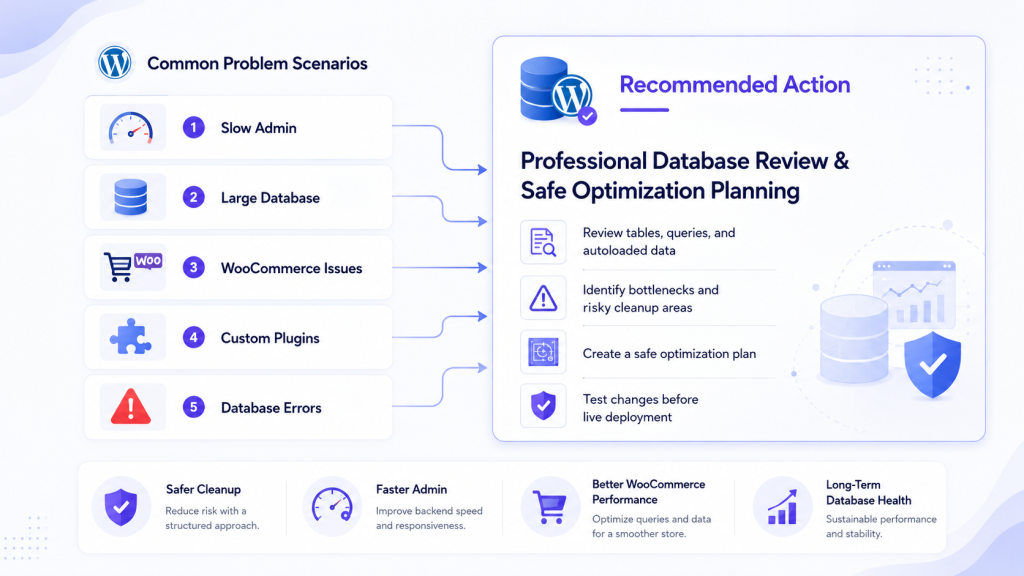
When Should You Ask a WordPress Developer for Help?
Some database situations are best handled by a developer from the start. Consider reaching out to a WordPress performance optimization services team if any of the following apply:
- Your database has grown to several gigabytes and your backups are becoming unmanageable
- Your WordPress admin dashboard or WooCommerce backend is noticeably slow
- You are seeing database connection errors or intermittent failures
- Your site uses custom plugins that store data in non-standard tables
- You have tried a cleanup plugin and noticed unexpected behaviour after running it
- Your site handles membership, subscriptions, or bookings and you are unsure which tables are safe to clean
- You have old plugins that were removed years ago but you are not sure if their tables are still in use
- Your site has been built or modified by multiple developers over time and the database structure is not well documented
- You need query-level analysis to identify what is specifically causing slow performance
These are situations where the cost of getting something wrong is higher than the cost of getting professional help upfront.
Final Thoughts
A poorly maintained database is one of the more common and less visible reasons WordPress websites slow down over time. Post revisions, expired transients, orphaned metadata, WooCommerce session data, and unused plugin tables all contribute to a database that is larger and slower than it needs to be.
WordPress database optimization, done correctly, can reduce database size, improve admin responsiveness, speed up WooCommerce operations, and make ongoing maintenance easier. It is not a guaranteed fix for every performance problem, and it is not something to approach without preparation. The right sequence is always backup first, diagnose second, and clean and optimize third.
For business websites and WooCommerce stores in particular, the data in your database often has more value than you might assume from looking at a list of table names and row counts. A developer-led review gives you the information you need to make safe, targeted decisions.
If your WordPress website feels slow, your admin dashboard takes too long to load, or your WooCommerce store is becoming difficult to manage, contact Dazzlebirds, and we can review your database, identify performance bottlenecks, and create a safe optimization plan before making any changes.
FAQs
To optimize a database in WordPress, start with a full backup, then review post revisions, auto-drafts, spam comments, expired transients, orphaned metadata, and unused plugin tables. For business websites or WooCommerce stores, use staging first because deleting the wrong data can affect orders, forms, SEO metadata, or settings.
The safest way to optimize a WordPress database is to diagnose first and clean second. Check database size, large tables, autoloaded options, slow queries, and plugin-generated data before deleting anything. Always create a backup, test changes on staging, and validate admin speed, page speed, and website functionality after cleanup.
To do database optimization in WordPress without breaking the site, avoid deleting unknown tables or metadata directly. Clean safe items such as expired transients, spam comments, trashed posts, and old revisions first. For WooCommerce, membership, booking, or custom plugin websites, a developer should review the database before cleanup
Optimizing the WordPress database means cleaning unnecessary stored data and improving how the database performs. This can include removing old revisions, expired transients, spam comments, orphaned metadata, unused plugin data, and table overhead. The goal is to improve admin speed, page performance, database health, and long-term website stability.
Yes, WordPress database optimization can improve website speed, especially when the database has too many revisions, expired transients, heavy plugin data, large autoloaded options, or WooCommerce records. It may not fix every speed issue, but it can improve admin performance, query efficiency, backup size, and overall website health.


 WooCommerce Solutions
 Solutions for WordPress