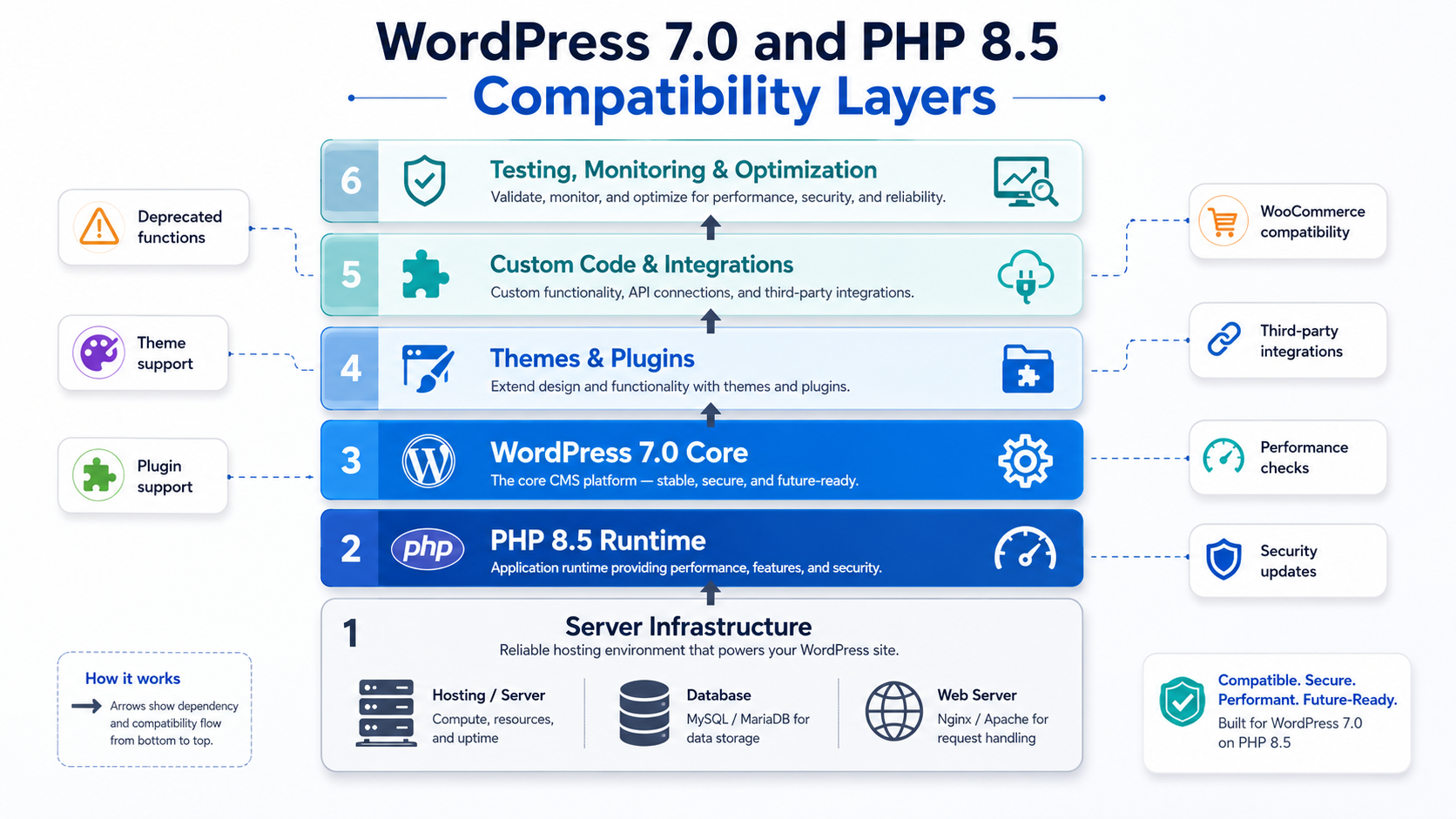
Every WordPress website update carries risk. You gain security patches and modern platform features, but you also risk exposing compatibility problems hiding in older plugins, deprecated PHP functions, or custom code. WordPress 7.0 and PHP 8.5 represent significant upgrades that improve security and compatibility. However, upgrading is not simply clicking a button and assuming everything works. WordPress PHP compatibility means understanding that core platform support is only the first layer. Your plugins, themes, WooCommerce extensions, custom integrations, and critical business workflows must all validate separately before deployment to your live site.
For a broader look at where WordPress is heading this year, beyond just this release, see our guide to the future of WordPress in 2026.
Is WordPress 7.0 compatible with PHP 8.5?
Yes, WordPress 7.0 officially supports PHP 8.5 at the core level. However, official core compatibility does not automatically mean your entire website stack is ready. Plugins, themes, WooCommerce extensions, and custom code require separate testing. Before deploying to production, test your website in a staging environment that replicates your live setup and prepare a rollback plan.
Key Takeaways
- WordPress core support for PHP 8.5 does not guarantee plugin, theme, or custom code compatibility
- Test WordPress 7.0 and PHP 8.5 separately in staging to isolate compatibility issues
- Create a production-identical staging environment before running any validation
- Focus testing on critical business workflows like checkout, forms, and logins
- Prepare and test backup restoration and rollback procedures before upgrading live
What WordPress PHP Compatibility Actually Means
Compatibility is layered. WordPress 7.0 supporting PHP 8.5 means the core platform functions with that PHP version. This matters, but it is only one dimension of your website’s readiness.
| Website Layer |
What Official Compatibility Confirms |
What Still Needs Testing |
| WordPress Core |
Core functions work with PHP 8.5 |
Nothing more regarding core |
| Plugins |
Individual developers must confirm support |
Each active plugin’s PHP 8.5 compatibility |
| Themes |
Theme developers test compatibility |
Whether your current theme supports PHP 8.5 |
| WooCommerce Extensions |
WooCommerce core supports PHP 8.5 |
Payment gateways and custom extensions |
| Custom Code |
Official support does not cover custom code |
Custom functions and database queries |
| Server Environment |
PHP 8.5 availability on hosting |
Extensions and server configuration |
| Third-Party APIs |
Nothing |
Whether external services still function |
A website can have WordPress 7.0 and PHP 8.5 installed correctly and still fail at critical moments. A contact form may accept submissions but not send emails. A checkout may appear to complete but fail to process payments. These failures occur outside the WordPress core.
Why a Supported WordPress and PHP Upgrade Can Still Break a Website
Several common issues cause compatibility problems even with official support.
Unsupported plugins remain the most common cause. If a plugin has not been updated in two years and was written for PHP 7.4, its code may use deprecated functions no longer supported in PHP 8.5. Some hosting providers will throw fatal errors. Others will silently fail.
Old PHP syntax can trigger warnings or errors. Plugins written before PHP 7.4 might use patterns that generate deprecation notices in PHP 8.5, slowing the admin dashboard and bloating error logs.
Deprecated functions from older WordPress versions may be removed. If a plugin calls a function that WordPress removed, the site will throw a fatal error.
Outdated libraries bundled in plugins create hidden problems. A plugin might include an older package designed for PHP 7.0 that fails under PHP 8.5.
Theme template overrides in child themes can conflict. If your override misses new code that handles PHP 8.5 compatibility, it may fail.
Page builder extensions sometimes hardcode compatibility checks or include old code that fails under the new PHP version.
Missing PHP extensions on your server can cause problems. A plugin may require an extension installed on your current server but never verified on staging.
Cache conflicts occur when old cached data persists. An object cache or page cache populated under WordPress 6.x may contain assumptions no longer valid under PHP 8.5.
Should WordPress 7.0 and PHP 8.5 Be Upgraded at the Same Time?
No. The safest approach is changing one variable at a time in staging.
Step 1: Establish baseline in staging. Run full tests and document performance.
Step 2: Upgrade WordPress to 7.0 while keeping current PHP. Run the same tests.
Step 3: If WordPress passes, upgrade staging to PHP 8.5. Run tests again.
Step 4: Compare results. This tells you whether WordPress, PHP, a plugin, or custom code caused problems.
If you upgrade both at once, you cannot isolate the source of failures. Separating changes saves time overall.
WordPress 7.0 and PHP 8.5 Pre-Upgrade Testing Checklist
Record the Current Production Baseline
Document your environment before changing anything:
- Current WordPress and PHP versions
- Database version
- All active plugins and versions
- Active theme and child theme
- WooCommerce version and extensions
- PHP extensions installed
- PHP configuration values
- Caching setup
- Existing PHP warnings or errors
- Current page load times
- Admin dashboard response time
This baseline lets you compare results after upgrading.
Create a Production-Like Staging Environment
Staging must reproduce your actual setup:
- Complete WordPress files from production
- Complete database copy with all data
- All media files
- All plugins, themes, and child themes
- PHP version matching production
- PHP extensions matching production
- Object cache configuration
- Page cache configuration
- Server rewrite rules
- Environment variables and API keys
Protect staging from affecting production:
- Add HTTP authentication
- Add noindex, nofollow directives
- Disable production emails
- Set payment gateways to test mode
- Mask sensitive customer information
Test WordPress Admin and Editorial Workflows
Verify backend stability:
- Login and logout
- User roles and permissions
- Dashboard performance
- Post and page editing
- Media uploads
- Menu management
- Theme customizer
- Plugin settings pages
- Block editor
- Publishing workflows
A slow admin dashboard signals plugin conflicts or database issues.
Test the frontend.
Validate public-facing functionality:
- Homepage and navigation
- Mobile menu
- All template types
- Archive and search pages
- Pagination
- Forms and validation
- Responsive layout
- Browser compatibility
Use real devices or browser developer tools.

Test Plugins, Themes, and Custom Code
Review whether plugins and themes support PHP 8.5:
- Check plugin repository for compatibility statements
- Review changelogs for PHP 8.5 mentions
- Check support forums for compatibility discussion
- Review “Tested up to” version
- Look for deprecation errors in logs
- Check theme documentation for PHP 8.5 support
- Review custom code for deprecated patterns
A plugin may fail after a core or PHP change because of outdated code, overlapping functionality, theme conflicts, or unsupported dependencies. Understanding WordPress plugin compatibility problems helps you isolate the cause safely.
Test Critical Business Workflows
Test workflows that generate revenue:
For contact and lead generation sites:
- Form submission and validation
- Email delivery
- CRM connection
- Conversion event tracking
For membership platforms:
- User registration and login
- Access restrictions
- Payment processing
- Member dashboards
For WooCommerce stores:
- Product display and search
- Cart functionality
- Checkout end-to-end
- Payment processing
- Order confirmation emails
- Tax and shipping calculations
- Subscription renewals if used
- Webhook processing
Actually submit forms, add items to cart, and complete test purchases.
Review PHP Errors and Deprecation Notices
Enable WordPress debugging to see all PHP messages:
- Fatal errors stop execution and must be fixed
- Warnings indicate problems but allow execution to continue
- Notices are less severe but indicate code issues
- Deprecation notices warn that code needs updating
- Silent failures do not appear in logs but cause incorrect behavior
Check:
- PHP error log
- WordPress debug log
- Browser console
- REST API responses
- Webhook logs
- Payment gateway logs
- Email delivery logs
Visible pages do not reveal every failure. Reading WordPress error logs is essential when validating a new PHP environment, as hidden errors can cause problems even when the frontend appears normal.
Test Background Processes
Many failures are invisible during page tests:
- WP-Cron scheduled publishing
- Server cron jobs
- Action Scheduler queues
- Subscription renewals
- Email queues
- Backup processes
- Import and export
- Product synchronization
- API synchronization
- Cache clearing
Scheduled publishing, queued emails, subscriptions, imports, and backups can fail even when the frontend appears normal. Understanding WordPress cron jobs and website performance is an important part of upgrade validation, as these background tasks often determine whether your site truly works after an upgrade.
Compare Performance and Stability
Measure metrics before and after:
- Server response time
- Page load time
- PHP execution time
- Memory usage
- Database query count
- Error frequency
Do not assume PHP 8.5 makes everything faster. An upgrade may leave the frontend working while increasing database queries or PHP warnings in wp-admin. Understanding the common causes of a slow WordPress admin helps you identify problems that a simple page load test might miss.
Validate SEO, Analytics, and Tracking
Verify critical systems work:
- XML sitemaps
- robots.txt directives
- Canonical tags
- Structured data markup
- 301 redirects
- Analytics tracking
- Google Tag Manager
- Consent management
- Advertising pixels
- Conversion tracking
Our Approach to WordPress 7.0 and PHP 8.5 Upgrades
Reviewing the Current Environment
We evaluate the existing WordPress environment to understand upgrade readiness.
We review:
- Current WordPress and PHP versions
- Theme and plugin compatibility
- Custom code and integrations
- Server configuration
This discovery phase identifies compatibility issues before upgrades begin.
Assessing Upgrade Readiness
We evaluate which components may be affected by upgrading.
We analyze:
- Deprecated functions
- Plugin and theme support
- WooCommerce compatibility
- Third-party integrations
- PHP warnings and errors
- Database requirements
Testing in a Staging Environment
We validate everything in staging before touching the live site.
We test:
- Core website functionality
- Custom features
- Forms and user interactions
- WooCommerce checkout
- Payment gateways
- Login and registration
- API integrations
Performance and Stability Validation
We ensure the upgraded environment performs reliably.
We review:
- Page load performance
- PHP execution
- Database performance
- Background processes
- Error logs
Deployment Planning
We prepare a controlled deployment plan.
This includes:
- Creating verified backups
- Scheduling the upgrade window
- Preparing rollback procedures
- Monitoring post-upgrade performance
- Verifying critical workflows
Post Upgrade Validation
After the upgrade, we validate the following:
- Website functionality
- Admin dashboard performance
- WooCommerce operations
- Plugin and theme compatibility
- Website stability
Expected Outcome
A smooth upgrade to WordPress 7.0 and PHP 8.5 with improved performance, continued compatibility, and confidence that critical functionality remains fully operational.
How to Plan the Production Deployment
Create verified backups of your entire website and database. Test that you can restore the backup by actually testing a restore.
Schedule during low-traffic hours. Early morning or late night during your slowest traffic day is safer than business hours.
Implement a change freeze. No plugin installations or content updates during the upgrade window.
Assign clear responsibilities. One person monitors the site, another watches error logs, another tests workflows, and one person stands ready to initiate rollback.
Clear all caches before upgrading. Purge object cache, page cache, and CDN cache.
Upgrade in this order: WordPress core first, then PHP version, then plugins and themes.
Perform smoke testing immediately. Log into admin, view the homepage, and verify basic functionality.
Test critical workflows right after. Actually submit a form, add item to the cart, and try to log in.
Monitor logs continuously for 24 hours. Errors often appear when users interact with the site in ways your team did not test.
Define rollback triggers clearly. If checkout fails, emails stop sending, login fails, or fatal errors appear, initiate rollback immediately.
When Should You Delay the Upgrade
- Delay if business-critical plugins lack confirmed support or fail testing.
- Delay if checkout, payment, form, login, or API workflows fail.
- Delay if theme or custom code produces unresolved PHP fatal errors.
- Delay if you cannot represent production accurately in staging.
- Delay if database or server requirements are not met.
- Delay if backup cannot be restored reliably.
- Delay if rollback procedure is incomplete.
- Delay if deployment cannot be monitored.
- Delay if business is in peak season or launching campaigns.
- Delaying while resolving issues is always preferable to deploying broken functionality.
Final WordPress 7.0 and PHP 8.5 Upgrade Checklist
- Current WordPress, PHP, and database versions documented
- All active plugins listed with version numbers
- Theme compatibility verified for PHP 8.5
- Each plugin checked for PHP 8.5 support
- Custom code reviewed for deprecated patterns
- WooCommerce extensions tested or confirmed compatible
- Staging environment created with production files and database
- Staging password-protected and noindexed
- WordPress admin dashboard loads without errors
- Frontend displays correctly on desktop and mobile
- Contact forms submit and deliver emails
- WooCommerce checkout completes end to end
- Payment processing works in test mode
- Scheduled tasks and background jobs execute
- PHP error logs reviewed for fatal errors
- Page load performance measured and compared
- Analytics and conversion tracking verified
- XML sitemaps generate correctly
- Full backup created and restoration tested
- Rollback procedure documented and practiced
- Deployment window scheduled during low traffic
- Post-upgrade monitoring plan prepared
Conclusion
WordPress 7.0 and PHP 8.5 are not inherently risky. An upgrade becomes risky when performed without visibility into your complete technology stack, without testing critical workflows, or without a rollback plan.
Your website consists of multiple layers. WordPress core is only one layer. Themes, plugins, WooCommerce extensions, custom code, server configuration, and external integrations all carry compatibility risk. Official WordPress support for PHP 8.5 means the core platform has been validated. It does not mean every plugin works without issues or that your checkout will function correctly.
Production readiness depends on testing your actual website with your actual configuration. It depends on validating that workflows generating your revenue still work. Following a WordPress website maintenance checklist after deployment helps ensure compatibility continues to be reviewed as an ongoing practice rather than treated as a one-time upgrade task. When you upgrade thoughtfully with a production-like staging environment, comprehensive testing, clear rollback triggers, and monitoring capability, WordPress 7.0 and PHP 8.5 deliver improved security and stability.

Not Sure Your WordPress Website Is Ready for the Upgrade?
Upgrading WordPress and PHP requires visibility into your complete technology stack. Dazzlebirds can review your current environment; identify which plugins and themes need attention; validate your staging environment; test critical business workflows; resolve compatibility issues before deployment; and monitor your website after upgrade. Let us help you upgrade with confidence.
FAQs
Yes, WordPress 7.0 supports PHP 8.5 at the core level. However, full WordPress PHP compatibility depends on the active theme, plugins, WooCommerce extensions, custom code, server configuration, and third-party integrations. Test the complete website in a production-like staging environment before upgrading the live site.
It is safer to test the upgrades separately. First, upgrade WordPress 7.0 while keeping the current stable PHP version and validate the site. Then switch staging to PHP 8.5 and repeat the tests. This process makes it easier to identify whether an issue comes from WordPress, PHP, a plugin, or custom code.
Yes, PHP 8.5 can expose outdated code, deprecated functions, unsupported libraries, or stricter error handling in older plugins and themes. Some issues may appear as fatal errors, while others may cause silent failures in forms, APIs, scheduled tasks, or admin screens. Compatibility should be verified through staging tests and error-log reviews.
Test product pages, variations, search, cart updates, coupons, tax, shipping, checkout, payment gateways, customer accounts, emails, refunds, subscriptions, webhooks, and scheduled actions. Also confirm inventory, CRM, ERP, and analytics integrations. A WooCommerce store should complete full test transactions before WordPress 7.0 or PHP 8.5 reaches production.
Monitor the website closely during deployment and for several days afterward. Review error logs, uptime, forms, checkout activity, payment callbacks, scheduled tasks, server performance, analytics, and customer reports. Business-critical websites should continue monitoring through at least one complete operational cycle, such as a subscription renewal, scheduled import, or backup process.


 WooCommerce Solutions
 Solutions for WordPress