Introduction
A WordPress website is never really finished. Once it goes live, it needs regular attention to stay secure, fast, and functional. Plugins release updates, themes change, database tables grow, and small errors can quietly build up until they affect visitors, search rankings, or sales.
This WordPress website maintenance checklist is built for business owners, marketing teams, and WooCommerce store owners who want a clear, repeatable routine to follow every month. Instead of reacting to problems after they happen, this checklist helps you catch issues early, before they turn into downtime, lost leads, or a security incident.
You do not need to be a developer to use this guide. Each section explains what to check, why it matters, and what a healthy result looks like, so you can either manage it yourself or brief your team or agency with confidence.
What Is WordPress Website Maintenance
WordPress website maintenance is the ongoing process of updating, monitoring, testing, and securing a WordPress site so it continues to run reliably. It typically includes core software updates, plugin and theme updates, backups, security checks, performance monitoring, database cleanup, and testing of key functions such as forms and checkout pages. Regular maintenance reduces the risk of downtime, broken features, and security vulnerabilities.
Why Monthly Maintenance Matters
WordPress powers a large share of the web, which makes it a frequent target for automated attacks. At the same time, plugin and theme developers release frequent updates to fix bugs, patch vulnerabilities, and improve compatibility. If those updates are ignored for too long, small issues tend to compound.
A monthly maintenance routine gives you a predictable checkpoint to catch:
- Outdated plugins or themes that could introduce conflicts or security gaps
- Missed or incomplete backups
- Slow loading pages caused by unused data or unoptimized files
- Broken forms that quietly stop generating leads
- Broken internal or outbound links that affect user experience and SEO
- Database bloat that can affect admin speed, covered in more detail in this guide on why WordPress admin is slow
Monthly checks do not guarantee perfect uptime or performance, but they meaningfully reduce the chances of avoidable problems.
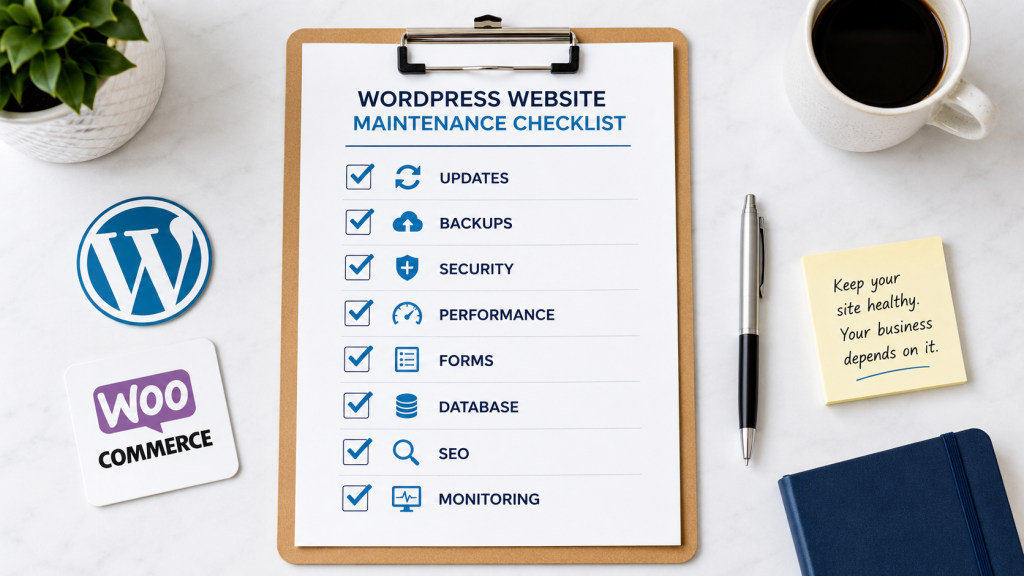
The Complete WordPress Website Maintenance Checklist
Below is the core checklist, organized by category. Each item includes what to check and why it matters.
1. Backups
- Confirm that a full backup ran successfully in the last 30 days, including files and databases
- Verify that backups are stored off-site, not only on the same server
- Test that at least one backup can actually be restored
- Check backup retention settings so older backups are not silently deleted too soon
A backup that has never been tested is not a reliable safety net. Restoration testing is easy to overlook, but it is the only way to confirm a backup will actually work when needed.
- Check for available WordPress core updates
- Review and apply plugin updates, prioritizing security-related patches
- Update the active theme and any child theme in use
- Read changelogs before major updates to catch breaking changes
- Test the site on a staging environment before applying major updates on production, where possible
If you regularly run into compatibility issues after updates, it may point to deeper plugin conflicts, which are covered in this article on WordPress plugins not working.
3. Security Checks
- Review user accounts and remove any that are no longer needed
- Confirm two-factor authentication is active for admin accounts, if supported
- Check for unfamiliar admin users or unexpected file changes
- Review firewall and malware scan reports from your security plugin
- Confirm SSL certificate is valid and has not expired
Security maintenance is not a one-time setup. New vulnerabilities are discovered regularly, so ongoing review is part of keeping a site protected, not a guarantee against every possible threat.
- Remove spam comments and trashed content that has built up
- Clean expired transients and orphaned data
- Check database table size and look for unusual growth
- Optimize database tables where appropriate
A cluttered database can slow down the admin dashboard and, in some cases, the front end of the site. For a deeper look at this topic, see this guide on WordPress database optimization.
5. Performance and Speed Maintenance
- Run a page speed test on key pages, including the homepage and top landing pages
- Check image sizes and confirm compression is applied
- Review caching settings to confirm they are active and configured correctly
- Check for render-blocking scripts or unused plugins that may be slowing the site
- Review hosting resource usage if the site has grown in traffic or content
Performance maintenance is closely tied to user experience and can influence how visitors interact with your site. If you want a structured, ongoing approach to this, our WordPress performance optimization services focus specifically on identifying and resolving these bottlenecks.

6. Forms Testing
- Submit every live form on the site, including contact, quote, and newsletter forms
- Confirm form submissions are reaching the correct inbox or CRM
- Check spam filtering is not blocking legitimate submissions
- Review form error messages for clarity
A broken form often fails silently. Visitors may still see the form and submit it, while the business simply stops receiving those leads. Monthly testing is one of the simplest ways to catch this.
7. Broken Links and Content Check
- Scan the site for broken internal and external links
- Check for outdated content, expired offers, or incorrect pricing
- Confirm important pages such as service pages and contact pages load correctly
- Review redirects to confirm none are creating loops or unnecessary chains
Broken links affect both user trust and how search engines evaluate a site’s overall quality.
8. Uptime Monitoring
- Review uptime monitoring reports for any downtime in the past month
- Confirm alerts are being sent to the right person or team
- Investigate the cause of any recorded downtime, whether hosting-related or plugin-related
Uptime monitoring does not prevent downtime, but it ensures issues are noticed quickly rather than discovered by a visitor first.
9. SEO Maintenance
- Check for crawl errors in Google Search Console
- Confirm the XML sitemap is up-to-date and submitted
- Review meta titles and descriptions on key pages for accuracy
- Check that important pages are indexable and not accidentally blocked
- Review internal linking structure, especially for new content
A strong technical foundation supports ongoing SEO efforts. If your site structure needs a broader review, this guide on WordPress website structure covers how structure affects both usability and search visibility.
10. WooCommerce-Specific Maintenance
For stores running WooCommerce, monthly maintenance should also include:
- Testing the full checkout process, including payment and shipping calculations
- Reviewing failed orders and payment errors
- Checking stock levels and product data accuracy
- Reviewing plugin and extension compatibility after updates
- Testing cart and checkout speed, since delays here directly affect conversions
WooCommerce sites carry additional complexity because updates to WordPress, plugins, and payment gateways all need to remain compatible with each other. If your store needs a structural review or new functionality, our WooCommerce development services are built around this kind of ongoing store health.

Our Monthly Maintenance Process
Beyond the individual checklist items above, it helps to understand how these checks typically fit together as a repeatable monthly process. This is the sequence a maintenance team would generally follow.
Reviewing the Website Health
The first step each month is reviewing the overall health of the website to identify potential issues before they become larger problems.
This review would typically cover:
- Website uptime and availability
- Performance and page speed
- Security status
- Server health
- Storage and resource usage
- Error logs
This monthly review helps ensure the website remains stable and secure and performs as expected.
Checking Updates and Compatibility
Keeping the website updated is essential for both security and stability.
This review would typically cover:
- WordPress core updates
- Plugin updates
- Theme updates
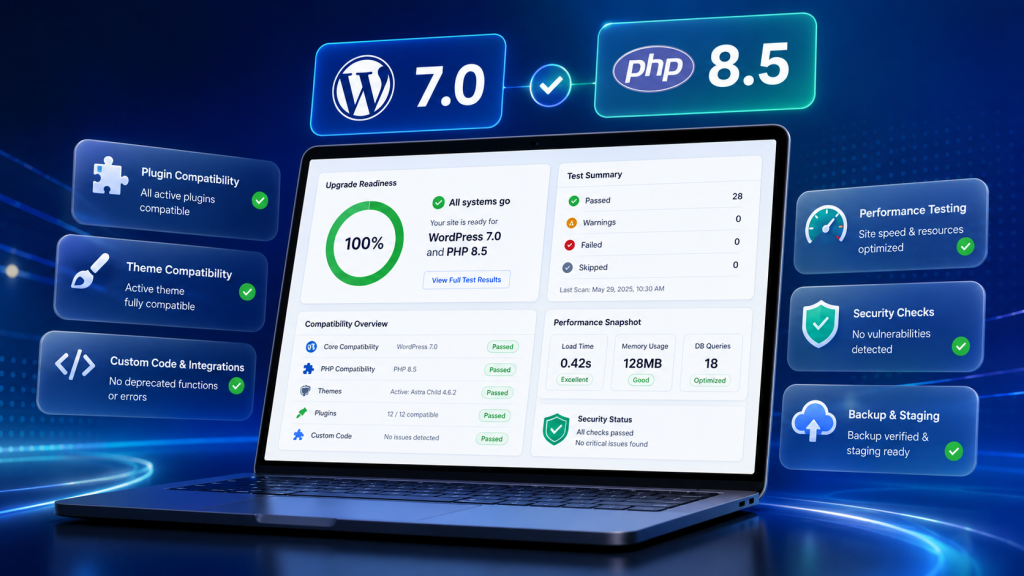
- PHP compatibility
- Deprecated features
- Plugin conflicts after updates
The goal here is to keep the website current while ensuring all components continue to work together correctly.
Reviewing Security
Website security should be monitored regularly rather than only after an issue occurs.
This review would typically cover:
- Malware scans
- User accounts and permissions
- Failed login attempts
- Security plugin reports
- SSL certificate status
- Backup availability
Regular security checks help reduce the risk of vulnerabilities and unauthorized access.
Optimizing Performance
Over time, websites naturally accumulate unnecessary data and background processes.
This review would typically cover:
- Database health
- Scheduled cron jobs
- Caching performance
- Image optimization
- Broken links
- Resource-intensive plugins
Routine optimization helps maintain fast load times and a smooth user experience. For sites where scheduled tasks or background processes seem to be affecting performance, this guide on WordPress cron jobs and performance goes deeper into how those processes work.
Validating Website Functionality
The most important features on the site should continue to work as expected every month, not just at launch.
This validation would typically include:
- Contact forms
- WooCommerce checkout, if applicable
- User registration and login
- Search functionality
- Payment gateways
- Third-party integrations
Regular testing helps identify issues before they affect customers or business operations.
Reporting and Planning
At the end of each maintenance cycle, it helps to step back and review the bigger picture rather than only closing individual tasks.
This review would typically cover:
- Completed maintenance tasks
- Performance improvements
- Security observations
- Outstanding issues
- Recommendations for future improvements
This provides visibility into the website’s health and helps prioritize future enhancements.
Expected Outcome
The end result of a consistent monthly process like this is a well-maintained WordPress website that remains secure, performs consistently, minimizes unexpected downtime, and continues to support the business reliably as it grows. This is a realistic expectation from consistent maintenance, not a guarantee, since outcomes still depend on hosting quality, the complexity of the site, and how quickly critical updates are applied.
Common Mistakes to Avoid
- Updating plugins and themes without a recent backup
- Ignoring minor errors because the site still appears to work
- Testing forms only once at launch and never again
- Treating maintenance as a one-time task instead of an ongoing routine
- Relying only on automated scans without manually reviewing key pages
- Delaying major updates for so long that multiple updates must be applied at once, increasing risk
Best Practices for Ongoing WordPress Maintenance
- Keep a simple maintenance log noting what was checked and when
- Schedule updates during low-traffic periods
- Always update on staging first for business-critical or high-traffic sites
- Set calendar reminders for monthly, quarterly, and annual tasks
- Document who is responsible for each part of the maintenance routine
DIY Maintenance or a Professional Maintenance Service
Some teams are comfortable handling basic updates and backups internally, especially for smaller, low-traffic sites. Others, particularly e-commerce stores or content-heavy business sites, benefit from a structured maintenance plan that includes monitoring, testing, and technical troubleshooting.
If your team already has WordPress experience and time to dedicate monthly, an internal checklist like this one can work well. If updates keep slipping, or if past updates have caused issues, a professional maintenance approach may reduce risk. For sites built on custom functionality, our custom WordPress development services team can also review whether existing customizations are contributing to maintenance challenges.
Conclusion
Consistent WordPress maintenance is less about any single task and more about building a routine that catches small problems before they grow. Backups, updates, security checks, performance reviews, and functional testing each play a specific role, and skipping any one of them for too long increases risk.
Use this checklist as a recurring monthly reference, whether you manage it internally or share it with a team responsible for your site’s health.
CTA
If your WordPress website has outdated plugins, slow performance, broken forms, missed backups, database issues, or security risks, Dazzlebirds can help you maintain, audit, optimize, and protect your website with a structured monthly maintenance approach.
Now, a few supporting details for your publishing workflow.
FAQs
Core security checks and backups should be reviewed at least monthly, while critical security patches should be applied as soon as they are available rather than waiting for a scheduled review.
Outdated plugins are one of the most common sources of security vulnerabilities and compatibility issues, which can lead to site errors, broken features, or increased exposure to attacks over time.
Monthly maintenance covers most routine needs, but stores with high transaction volume often benefit from more frequent checks on checkout, payments, and stock accuracy due to the direct impact on revenue.
Some tasks such as backups and basic uptime monitoring can be automated, but testing forms, checkout flows, and reviewing update changelogs still require manual review to catch issues automation may miss.
A WordPress website health check typically reviews updates, backups, security status, database health, page speed, broken links, and core functionality such as forms and checkout, giving a clear picture of overall site condition.


 WooCommerce Solutions
 Solutions for WordPress