Introduction
If you have ever waited several seconds for the WordPress dashboard to load before you could even update a page, manage a product, process an order, or check a form entry, you already know how disruptive this is to daily work. Many business owners and website managers experience this problem and assume something is broken. In most cases, nothing is broken at all. The slowdown usually comes from a combination of plugins, database load, WooCommerce activity, hosting limits, background processes, or hidden errors. A reliable fix starts with proper diagnosis, not guesswork.
Quick Answer
A WordPress admin slow issue usually happens because of plugin overload, database bloat, large autoloaded options, heavy WooCommerce data, background cron tasks, or limited server resources. Before applying any fix, check your hosting resources, error logs, active plugins, database size, and scheduled tasks to identify the real cause.
What Does a Slow WordPress Admin Really Mean?
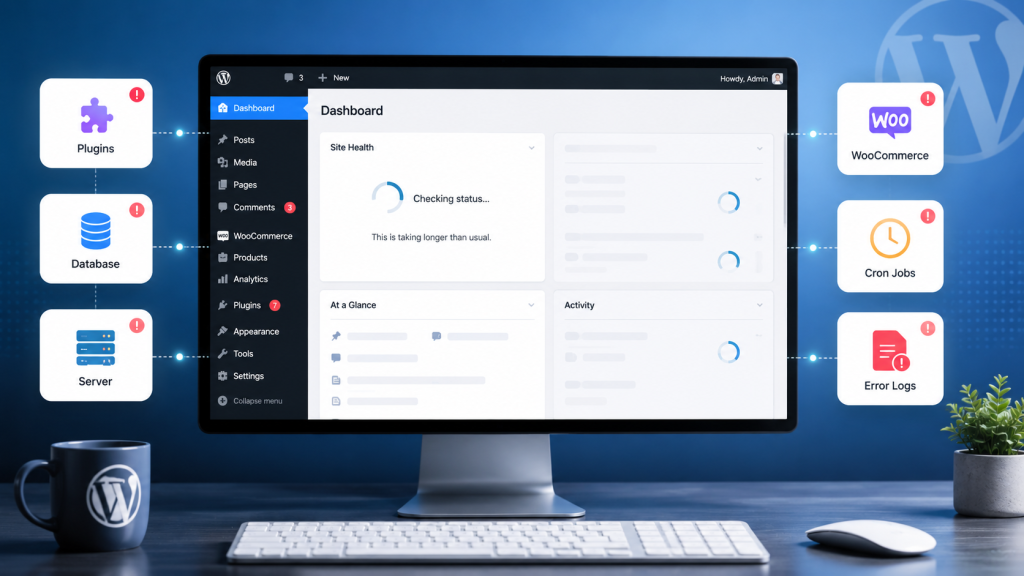
It is important to understand that backend slowness is not the same as frontend page speed. A website can load quickly for visitors while the admin area still feels sluggish for the team managing it. This happens because admin pages are not simple static pages. Every time you open the dashboard, edit a product, or check an order, WordPress runs multiple database queries, loads plugin scripts, checks user permissions, and sometimes contacts external services. Front end speed tools do not measure any of this, which is why a fast website does not guarantee a fast admin experience.
Why Is WordPress Admin Slow?
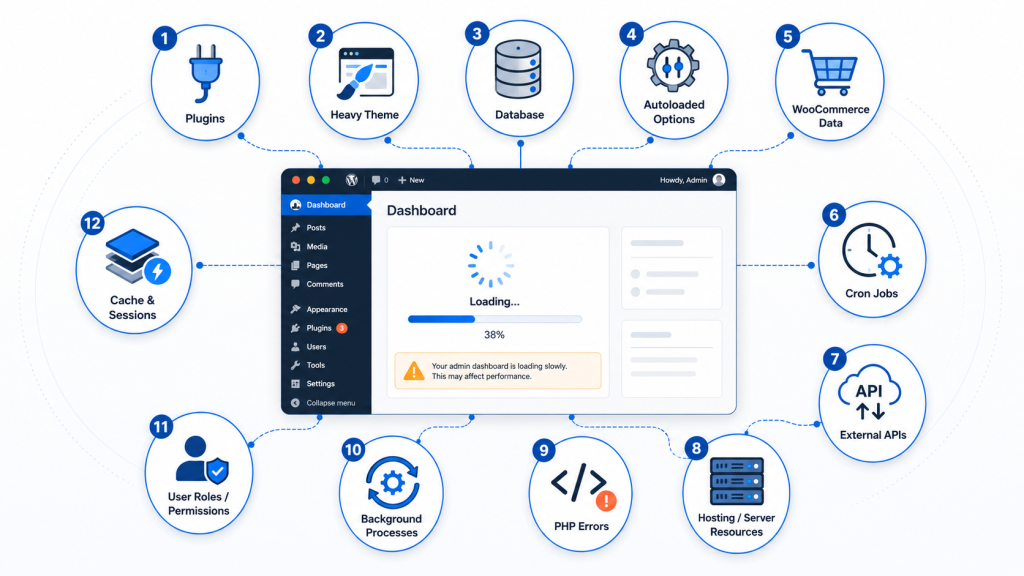
A WordPress admin slow issue rarely comes from a single cause. It is usually the result of several smaller inefficiencies working together. Plugins add extra processes. The database grows heavier over time. WooCommerce stores accumulate order and product data. Background tasks run during business hours. Hosting resources reach their limits during peak usage. On their own, each factor may seem minor. Combined, they create a backend that feels slow, delayed, or unresponsive. The sections below break down the twelve most common causes we look at when reviewing a slow admin environment.
12 Common Causes of a Slow WordPress Admin Dashboard
1. Too Many Plugins Running Admin Processes
Every active plugin can add scripts, settings panels, notifications, or database calls to the admin area, even if you never interact with them directly. The more plugins you have, the more processes load each time a dashboard page opens. What to check: review your plugin list and identify which ones are essential to daily operations. How to fix it safely: test plugin impact in a staging environment before removing anything from the live site.
2. Plugin Conflicts or Poorly Built Plugins
Not all plugins are coded efficiently. Some run unnecessary queries or load resources on every admin page instead of only where needed. Conflicts between two plugins can also create delays or errors. What to check: enable debugging in a safe environment and review which plugins generate the most queries or errors. How to fix it safely: test one plugin change at a time so you can clearly see what development services improve performance.
3. Database Bloat and Large Tables
Over time, WordPress databases collect old post revisions, expired transients, orphaned metadata, plugin logs, and unused data. This extra weight makes every admin query slower, even simple ones like loading the dashboard. What to check: review database size and identify which tables have grown unusually large. How to fix it safely: clean data gradually after taking a full backup, and validate results after each step.
4. Large Autoloaded Options
WordPress automatically loads certain settings, called autoloaded options, on every single admin request. When plugins store large or unnecessary data here, it adds weight to every page load in the backend. What to check: review the size of your autoloaded options table. How to fix it safely: identify which plugin is responsible for excessive autoloaded data before adjusting anything.
5. WooCommerce Order and Product Data
Stores with high order volume, large product catalogs, or heavy metadata often experience a WooCommerce admin slow issue. Order tables, product attributes, and scheduled actions all add load to the backend. What to check: review order volume, product count, and how scheduled actions are processing. How to fix it safely: optimize WooCommerce data handling without removing historical order information that the business may need.
6. Slow Database Queries
Some admin screens, such as product lists, order lists, or reports, rely on queries that become slower as data grows. A query that worked fine with a small dataset can become a bottleneck as the store or website expands. What to check: identify which queries take the longest to run. How to fix it safely: optimize query performance gradually and confirm improvement through testing rather than assumptions.
7. Heavy Dashboard Widgets and Admin Notices
Dashboard widgets, plugin marketing banners, and admin notices can quietly slow down the main dashboard screen, especially when several plugins display their own panels at once. What to check: review which widgets and notices appear and whether they are necessary. How to fix it safely: disable unnecessary widgets through supported settings rather than editing core files.
8. WordPress Cron Jobs and Background Tasks
WordPress relies on cron jobs to handle scheduled tasks like backups, imports, email queues, and WooCommerce scheduled actions. When too many tasks run at once, or during business hours, they can compete for server resources and slow down the admin. What to check: review how many scheduled tasks are running and when. How to fix it safely: Reschedule heavy tasks to low traffic hours after testing in staging.
9. Third-Party API Calls
Many plugins connect to external services such as CRMs, payment gateways, analytics platforms, shipping providers, or licensing servers. If any of these services respond slowly, the admin page waits for that response before fully loading. What to check: identify which plugins make external API calls on admin pages. How to fix it safely: review whether those connections are necessary on every page load or only specific ones.
10. Hosting or Server Resource Limits
Shared hosting environments often have limited CPU, memory, and PHP workers. When a website grows, the admin area can hit these limits before the front end visibly slows down. What to check: review server resource usage during peak admin activity. How to fix it safely: assess whether current hosting still matches the website’s actual usage and growth.
11. PHP Errors, Deprecated Code, or Log Growth
Hidden PHP errors and warnings do not always show on screen, but they still consume resources and can grow log files significantly over time. What to check: review PHP error logs for repeated warnings or deprecated function notices. How to fix it safely: address root causes in code rather than simply suppressing error messages.
12. Unoptimized Theme or Custom Code
Custom theme functions, admin hooks, or custom database queries can sometimes run unnecessarily inside wp-admin, even though they were built for the front end. What to check: review custom code for functions that run on every admin page. How to fix it safely: have a developer assess whether admin-specific code is properly scoped.
What You Should Check Before Trying to Fix It
Before making any changes, a careful review should always come first. We typically look at the following.
- Full backup of the website and database
- A staging environment to test safely
- Hosting resource usage during peak hours
- Error logs and warning patterns
- Full list of active plugins
- Theme and custom code
- Database size and table growth
- Autoloaded options size
- WooCommerce scheduled actions
- Recent plugin or core updates
- Admin page response times
- Real workflow issues reported by the team
This checklist matters because it prevents guesswork. Fixing the wrong thing can waste time or, worse, introduce new problems.
What Not to Do on a Live WordPress Website
When an admin area feels slow, the instinct is often to act quickly. This is where mistakes happen. Avoid randomly deactivating plugins without understanding their role. Avoid deleting database tables or clearing unknown options just because they look unused. Avoid removing WooCommerce order or customer data to save space. Avoid changing PHP versions without testing compatibility first. Avoid installing several optimization plugins at once on a live site, since they can conflict with each other and make diagnosis harder. Every change should happen on a backup or staging copy first, with results validated before anything touches the live environment.
Technical Approach
Understanding the Performance Issue
The first thing we would do is identify what is causing the WordPress admin dashboard to load slowly, as the issue can stem from multiple areas rather than a single bottleneck.
We would review:
Overall server performance
Plugin and theme impact
Database health
WooCommerce admin activity
Background processes and scheduled tasks
User roles and admin permissions
This discovery phase helps pinpoint the root cause instead of treating only the symptoms.
Analyzing the Admin Environment
Once the initial assessment is complete, we would evaluate how the admin area is performing.
We would analyze:
Dashboard load times
Admin page response times
Database queries
API requests
Plugin-generated processes
PHP errors and server logs
The goal here is to identify which components are contributing most to the slowdown.
Reviewing Common Bottlenecks
We would then investigate the areas that most commonly affect WordPress admin performance, such as:
Large WooCommerce order volumes
Excessive plugins
Heavy database queries
Autoloaded options
Scheduled background jobs
Third-party API calls
Resource-intensive admin features
Understanding these bottlenecks allows us to prioritize the changes that will have the greatest impact.
Optimization Strategy
Rather than applying generic performance fixes, we would develop an optimization plan based on the findings.
This may include:
Optimizing database performance
Reducing unnecessary admin requests
Improving plugin efficiency
Cleaning scheduled tasks
Optimizing WooCommerce data handling
Reviewing server resource allocation
This ensures improvements are targeted, measurable, and sustainable.
Infrastructure and Scalability Review
If the website supports a growing business, we would also review the underlying infrastructure.
We would assess:
Hosting resources
PHP configuration
Database server performance
Object caching
Page and server caching
Resource utilization during peak activity
A slow dashboard is often the result of the overall platform reaching its operational limits rather than a single configuration issue.
Testing and Validation
Once the optimizations are implemented, we will validate the results by measuring:
Dashboard load times
Admin page responsiveness
Database query performance
WooCommerce admin operations
Overall system stability under normal workloads
This helps confirm that the changes have improved both performance and the day-to-day administrative experience.
Expected Outcome
The end result would be a faster and more responsive WordPress admin experience, allowing administrators to manage products, orders, customers, and website content more efficiently while providing a platform that remains performant as the business continues to grow.

How to Fix a Slow WordPress Admin Safely
A safe fix follows a logical order rather than random changes.
- Set up a full backup and staging environment
- Conduct a plugin audit
- Review the database structure and size
- Check autoloaded options
- Review WooCommerce admin data
- Clean up cron jobs and scheduled tasks
- Check server resource limits
- Review PHP and error logs
- Optimize admin specific requests
- Test thoroughly after every single change
Skipping steps or combining multiple changes at once makes it difficult to know what actually improved performance.
Slow WordPress Admin vs Slow Website: What Is the Difference?
Area: Admin Dashboard
Slow Admin Impact: Affects site managers, editors, and store staff trying to manage content or orders
Slow Website Impact: Affects visitors browsing pages, products, or checkout
Area: Common Cause
Slow Admin Impact: Database queries, plugin processes, autoloaded options, background tasks
Slow Website Impact: Page weight, images, caching, front-end scripts
Area: Who Notices First
Slow Admin Impact: Internal team and content managers
Slow Website Impact: Customers and visitors
Sometimes both issues share the same root cause, such as database bloat, limited hosting resources, or heavy plugins. In those cases, fixing one often improves the other as well.
When Should You Ask a WordPress Developer for Help?
Some signs suggest the issue needs professional review rather than basic troubleshooting.
- WooCommerce admin is slow despite normal traffic
- Order pages take too long to load
- Product editing feels delayed
- Admin errors appear in logs or on screen
- Database size has grown significantly
- The site uses custom-built plugins
- The website includes membership, booking, or LMS systems
- Staging testing is needed before any change
- Previous optimization attempts did not help
- Business-critical admin tasks are being affected daily
In these situations, a structured review from a WordPress development services team can prevent further complications and identify issues that basic plugins cannot detect.
Final Thoughts
A WordPress admin slow problem is not something to ignore or guess your way through. It is a signal that something in the backend, whether database related, plugin related, or hosting related, needs proper investigation. The right fix always depends on the actual root cause, not a generic checklist applied blindly. Careful diagnosis, safe testing, and validated results lead to lasting improvement rather than temporary relief.
If your WordPress dashboard is slowing down daily work or your WooCommerce admin is becoming difficult to manage, Dazzlebirds can review your admin environment, database, plugins, server resources, and backend workflow to create a safe optimization plan. contact Dazzlebirds
FAQs
A WordPress admin dashboard slow issue usually results from too many active plugins, database bloat, large autoloaded options, heavy WooCommerce data, or limited hosting resources. The cause is often a combination of factors rather than one single issue, which is why proper diagnosis matters before applying fixes.
Start by reviewing hosting resources, plugin activity, database size, and scheduled tasks. Identify the most likely cause using logs and testing in staging. Apply changes gradually, validating results after each step, instead of making several changes to the live site at once.
Yes. Plugins can load scripts, run database queries, display notices, or connect to external services every time an admin page opens. Poorly coded or conflicting plugins are one of the most common reasons behind a wp admin slow experience, especially on larger websites.
Yes. High order volume, large product catalogs, extensive metadata, and scheduled actions can all create a slow WooCommerce admin experience. Stores with growing sales data often need targeted database and admin optimization to keep order and product management responsive.
In many cases, yes. WordPress database optimization can reduce query load, clean up unnecessary data, and improve autoloaded option size, which often leads to a more responsive admin experience. Results depend on the specific issues found during review.


 WooCommerce Solutions
 Solutions for WordPress