WordPress multisite security comes down to one idea. One weak spot can hurt every site in your network. A bad plugin, a stolen admin login, or a loose server setting can reach all your sites at once.
That risk scares some teams away from multisite. It shouldn’t. A well-run network can be as safe as separate sites. Sometimes it’s safer, because you manage one set of updates and one set of rules.
This post shows you how to lock your network down. You’ll learn where the risks come from, which settings to change and which habits to build. If you’d rather hand the job to experts, you can get a multisite security audit from our team.
Is WordPress Multisite Secure?
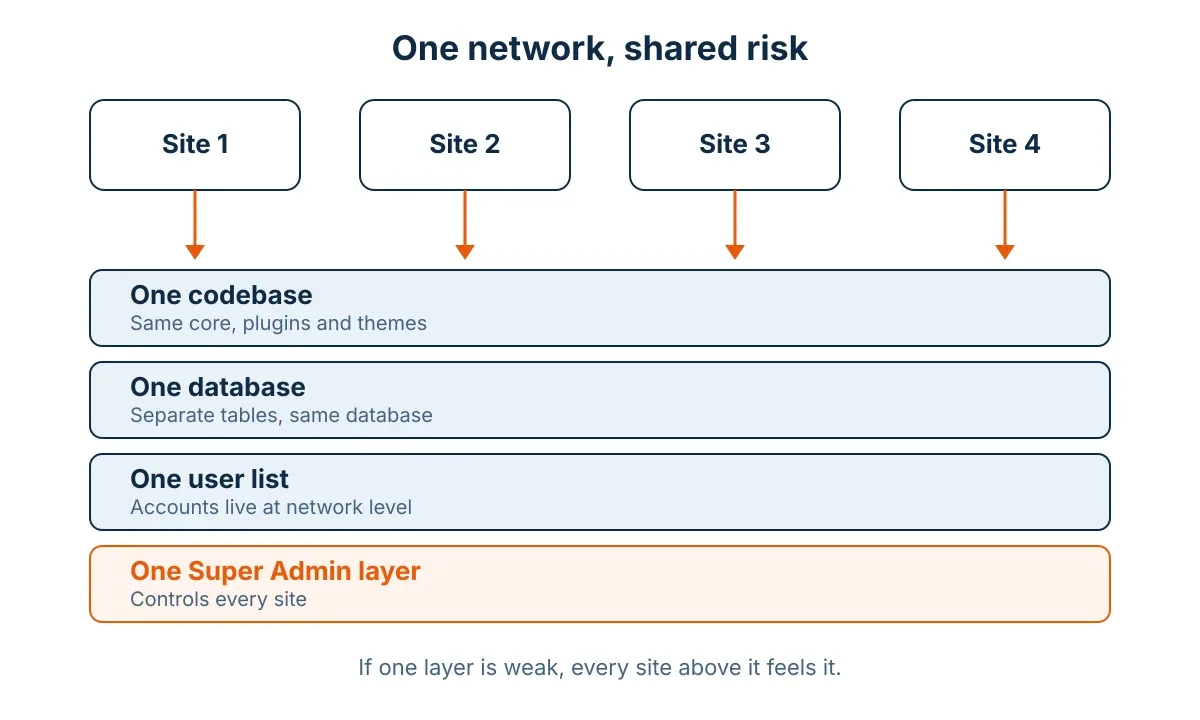
Yes, WordPress multisite is secure when you set it up well and look after it. It runs on the same core code as a normal site. The difference is shared risk. All your sites share one codebase, one database, and one pool of users. So one weak point can touch every site.
The WordPress core team ships regular security fixes. Attackers often skip the core and go after old plugins, weak passwords, and poor server setup. Those problems hit single sites too. On a network, they just spread faster.
So here’s the honest answer. Multisite is only as secure as the person who runs it. Good habits keep it safe. Bad habits put every site at risk.
How Multisite Changes Your Risk
A network doesn’t work like a single site. Knowing the difference shows you where to focus.
- One codebase. Every site runs the same core, plugin, and theme files. One infected file can reach them all.
- One database. Each site gets its own tables, but they sit in the same database. A SQL injection flaw can reach more than one site.
- One user list. Accounts live at the network level. One person can hold roles on many sites.
- One Super Admin layer. Super Admins control the whole network, not just one site.
- One server. All sites share the same files and server resources. Loose file permissions let trouble jump from site to site.
There’s an upside. You fix a problem once, and the fix reaches every site. That’s one reason big names choose this setup. See how in our post on multisite examples from famous brands. Still deciding between a network and standalone sites? Read multisite vs separate sites first.
Common Ways Attackers Get Into a Network
Most break-ins aren’t clever. Attackers use the same few doors again and again. Close these first.
Stolen or weak passwords. Bots test leaked passwords on login pages all day. If an admin reuses a password, the bot gets in.
Old plugins and themes. A known flaw stays open until you update. Attackers scan for it.
Nulled plugins and themes. These are pirated copies of paid tools. They often hide malware. Never download them. Buy the real license instead. It costs little next to a cleanup.
Open sign-ups. Public registration lets spammers create sites on your network. Those sites can host junk links or worse.
Weak hosting. Cheap shared servers with loose rules make every attack easier.
An infected admin computer. A virus on a laptop can steal a logged-in session. Keep admin devices clean and updated.
Multisite Super Admin Security: Protect the Master Key
The Super Admin role is the most powerful account on your network. A super admin can install plugins, add themes, create sites, edit users, and delete almost anything. If an attacker gets that login, they own every site.
Multisite super admin security starts with one rule. Treat these accounts like the keys to a vault.
Keep the Super Admin list short.
Most networks need two or three Super Admins at most. Open Network Admin, go to Users, and check who holds the role. Remove anyone who doesn’t need it today. Give site-level work to regular administrators instead.
Turn on two-factor login.
Add two-factor authentication to every Super Admin account. Use an authenticator app or a hardware key. A stolen password, then, isn’t enough to get in. A hardware key has a small price, and it’s worth paying for these accounts.
Use a separate account for daily work.
Don’t write blog posts with your Super Admin login. Create a normal editor or administrator account for daily tasks. Log in as Super Admin only for network jobs. This limits the damage if someone steals your session.
Use strong, unique passwords.
Use a password manager. Make each password at least 16 characters long. Never reuse a password from another service. A leaked password from an old account is a common way in.
Watch what Super Admins do.
Install an activity log plugin. Track logins, role changes, and plugin installs. Set an alert for any new Super Admin account. If you didn’t create it, treat it as a break-in and act at once.
Multisite Plugin Vulnerabilities: Control What Gets Installed
Plugins are a common way attackers get in. On a network, the stakes go up. Multisite plugin vulnerabilities can sit on every site at the same moment, especially when you network-activate a plugin.
Limit who can install plugins.
By default, only super admins can install plugins and themes on multisite. Keep it that way. In Network Settings, leave the Plugins menu switched off for site admins. Then a site owner can’t add risky code on their own.
Keep a short approved list.
Write down which plugins and themes you allow. Test each one before you add it. Delete what you don’t use. Deleting beats deactivating, because attackers can still hit the files of an inactive plugin.
Vet each plugin before you network-activate.
Network activation puts the code on every site. Ask these questions first:
- Does the developer update the plugin often?
- Does it work with your PHP and WordPress versions?
- Does it have a clean record on past security fixes?
- Does every site really need it?
If the answer to the last one is no, activate the plugin on single sites only.
Update fast, but test first.
When a plugin gets a security fix, attackers start scanning for sites that haven’t updated. Test the update on a staging copy of your network. Then roll it out to the live network the same day if you can. For wider hardening tips, read our post on WordPress security services and best practices.

Secure WordPress Multisite Network Settings at the Server Level
Your host and server shape your security as much as WordPress does. Many networks run on weak defaults. Start here.
- Use HTTPS everywhere. Get an SSL certificate. A subdomain network needs a wildcard certificate. Then add
define( 'FORCE_SSL_ADMIN', true ); to your wp-config.php file.
- Turn off the file editor. Add
define( 'DISALLOW_FILE_EDIT', true ); to wp-config.php. This removes the built-in theme and plugin editor from the dashboard.
- Set strict file permissions. Use 755 for folders and 644 for files. Lock wp-config.php down further, to 440 or 400.
- Block PHP in the uploads folder. Attackers often hide bad scripts there. A server rule that stops PHP from running in uploads shuts that door.
- Refresh your security keys. Replace the salts in wp-config.php once a year and after any breach. This logs everyone out.
- Run a supported PHP version. Old PHP versions stop getting fixes. Ask your host to upgrade you.
- Use a database user with limited rights. Don’t run your network on a root database account.
- Add a firewall. Use a web application firewall at the edge or through a security plugin. It blocks known bad traffic before it hits your site.
- Turn off XML-RPC if you don’t use it. It’s an old door that attackers love to test.
Watch your custom domains too. If you map a domain to each site, every domain needs a valid SSL certificate. An expired certificate scares visitors away and can break logins.
Your hosting plan matters as well. Cheap shared hosting puts you next to strangers on the same server. For a network, pay for a plan with isolation, daily backups, and server-level security. It costs more. It also costs less than a hack. If one site needs risky custom code, move it out of the network.

Lock Down Sign-Ups, Users, and Roles
Open sign-ups invite spam sites and fake accounts. Open Network Admin, go to Settings, then Network Settings, and find the Registration option. Choose “Registration is disabled” unless you need public sign-ups.
Check these settings too:
- Add New Users. Leave it off if you want to control who joins. If it’s on, site admins can add users on their own.
- Upload file types. Allow only the file types you need.
- Max upload size. Set a limit that fits your content.
Multisite already helps you here. By default, only super admins get the unfiltered HTML, right? That stops site admins from posting scripts that could harm other sites. Don’t change that.
Review user roles every quarter. Remove old accounts. Give each person the lowest role that lets them do the job. Add login limits and two-factor login for all admins, not just super admins.
Choose the Right Security Tools
A good tool saves you hours each week. A bad one adds new holes. Before you buy anything, check that it supports multisite. Some plugins only work on single sites and break on a network.
Look for these features:
- A firewall that blocks bad traffic before it reaches WordPress
- A malware scanner that checks core, plugin, and theme files
- Two-factor login for admins
- An activity log with email alerts
- Network-wide settings, so you don’t set up each site by hand
Free tools cover the basics. Paid plans add live firewall rules, faster alerts, and support. Compare the price against the number of sites you run. A plan that costs a little per site can still save you a lot.
Don’t stack five security plugins. They slow your network and can clash. Pick one main tool, test it on staging, and then install it network-wide. Ask your host what they already include, so you don’t pay for the same thing twice.
Back Up, Monitor, and Test
Strong settings still can’t stop every attack. So plan for the day one gets through.
- Back up daily. Store copies off the server. Test a restore at least once a quarter. A backup you’ve never tested might fail when you need it.
- Check single-site restores. Some tools can only restore the whole network. Pick one that can restore one site without touching the rest.
- Scan for malware. Run scans every day and watch for file changes.
- Monitor uptime. A site that goes down at 3 a.m. can signal trouble.
- Write an incident plan. List who to call, how to isolate a site, which passwords to reset and how to restore.
Can your team run all this every week? Many teams can’t. Our multisite management services can handle updates, backups and monitoring, so your team can focus on content and sales.
What to Do If Your Network Gets Hacked
Stay calm and move in order.
- Isolate the site. Put the affected site in maintenance mode, or take it offline. If you can’t tell which site is hit, treat the whole network as hit.
- Reset access. Change every Super Admin password. Replace the security keys in wp-config.php. Also reset your database and hosting passwords.
- Scan and find the cause. Look for new users, odd files and changed plugins. Find the way in before you clean up. Otherwise the attacker returns.
- Restore a clean backup. Pick a backup from before the hack. Update everything right after the restore.
- Watch closely. Check logs daily for a few weeks. Tell your users if their data was at risk.
If this feels like too much, call a pro early. A fast response limits the damage.
WordPress Multisite Security Checklist
Check this list each month.
- The Super Admin list has only the people who need it
- Two-factor login is on for all admins
- Site admins can’t install plugins or themes
- Every plugin and theme is approved, current and in use
- HTTPS and FORCE_SSL_ADMIN are on
- File editing is off
- File permissions are strict
- Open registration is off
- Daily off-server backups run, and you tested a restore
- An activity log and a malware scan are running
Follow this list and WordPress multisite security stops feeling like a guessing game. You’ll know what you’ve done and what’s left.
When to Hire a Multisite Security Expert
You can do much of this yourself. Some situations call for a pro. Hire help if:
- You run dozens of sites or host sites for clients
- You take payments or store customer data
- You can’t patch every week
- A hack has hit you before
A security audit finds weak spots before attackers do. Our team can review your setup, fix the gaps and keep your network updated. Request a quote and tell us how many sites you run.
Get Your Multisite Security Audit →
FAQs
Yes, WordPress multisite is secure when you run it well. It uses the same core as a single site. The main difference is shared risk, since all sites use the same code, users, and server. Tight Super Admin rules, strict plugin controls, and good hosting keep that risk low.
It can be. One breach can spread because the sites share code and users. But you also patch once instead of many times. Good habits matter more than the setup you pick.
Start with a short Super Admin list and two-factor login. Then limit plugin installs, turn on HTTPS, switch off file editing, and close open sign-ups. Set up daily off-server backups. Test every update on staging before you go live.
A stolen Super Admin login. It gives an attacker control of every site. Use two-factor login, strong passwords and a short Super Admin list. Add alerts for new Super Admin accounts.
Yes, it can. Shared files, shared users and network-activated plugins are the usual paths. Strict file permissions, careful plugin choices and fast clean-up cut that risk. Move high-risk sites out of the network.



 WooCommerce Solutions
 Solutions for WordPress