I want to walk you through the second I realized that my WordPress website was costing me real cash.
Most of these optimizations happen at the origin server, but for globally distributed audiences, moving specific logic to the network edge is often the next lever. We break down what that actually looks like in edge computing for web development.
My product was launched; I activated my email list and eagerly refreshed the analytics dashboard. Traffic spiked beautifully. I returned in horror to find a bounce rate of 68%. My site had visitors arriving and departing within seconds. Not due to the poor quality of my content, not because my offer wasn’t compelling. Well, if only my site wasn’t slower than a lazy day on holiday.
This painful lesson underscored a key piece of wisdom: in the digital economy, speed is not just optional. It means more money in your pocket as opposed to someone almost buying and disappearing before they even see your page.
If you’ve ever experienced the feeling of despair when your website moved at its slowest speed or if you observed that your website received visitors who did not turn into actual customers, you should stay here because this place suits your needs. The document will not present another dull technical guide that contains specialized terms that require a computer science degree for understanding.
This guide should be viewed as a dialogue with someone who experienced the same situation you currently face. I have enhanced the performance of more than a hundred WordPress websites, which include both small personal sites and large e-commerce platforms that generate six-figure revenue. I have made every mistake in the book so you don’t have to. I discovered that WordPress performance optimization requires neither advanced coding skills nor expensive software tools.
Great copywriting is about knowing which levers really affect the result and doing these exactly well.
Whether you have an online store and despise seeing potential buyers blindly abandoning their carts, or are running a blog that fails to hold onto readers who bounce away before reading the articles you’ve poured all your heart into writing, or simply have a business website that needs to make all the right first impressions possible, this will take you by the hand and show exactly how you can do it without losing your stability in speeding up WordPress.
We’re going to go over everything from the simple, 5-minute tactics that can make a world of difference to some more advanced strategies that separate nonprofessional sites from pro ones. No unnecessary complexity. No outdated advice from 2015. Just the strategies that work right now, explained in plain English.
Ready to transform your slow WordPress site into something that actually performs? Let’s get started.
The Real Cost of a Slow Website (And Why You Should Care)
Here is something most WordPress guides won’t tell you: your slow website is not only annoying. It’s sleeping in your shower when you are asleep and actively sabotaging your business.
Imagine this scenario: You operate a WooCommerce store. Your product is great, your prices are reasonable, and you have dollars coming in from marketing. But your average page load time is 5.2 seconds. Google Research demonstrates that for every additional second it takes a page to load, the likelihood of mobile visitors bouncing increases 90% from a one-second load time to five seconds. That’s not a typo. Ninety percent.
Now let’s do the math. If you have 10000 visitors each month, a conversion rate of 2% will give you 200 sales. But with that bounce rate, you could be losing up to 90% of mobile visitors before they even have a chance to see your products. All of a sudden, you’re not getting 200 sales; you only get half or less than that.
This isn’t theoretical. I have witnessed small business owners waste thousands on Facebook ads, Instagram influencers, and email marketing just to send all that expensive traffic to websites that take forever to load. Like having a nice store, running TV ads, and then locking the front door.
The good news? The process of optimizing WordPress performance is not rocket science, and the results are tangible. The strategies I am about to share with you have doubled conversion rates at other sites. Not because we adjusted the product or copy, nor messaging. We were simply making the site fast enough that people would actually hang around to see what was on offer.
Search engines notice too. Google uses page speed as a ranking factor to rank the websites. Two sites that share content and links? The faster one wins. Every. Single. Time. With this back-end change, it not only means your sluggish site is failing to convert customers but also that, either way, hardly anyone in the first place comes across you.
Understanding Core Web Vitals: Google’s New Rules of the Game
Then in May 2021 Google went and changed everything. With the official introduction of Core Web Vitals as ranking factors, website speed was now truly more important than ever. With Google judging your site based on these three metrics, it is time to get serious about WordPress performance optimization.
Look at Core Web Vitals optimization as your website’s report card from Google. Only three grades carry weight:
LCP stands for Largest Contentful Paint, a metric that records how long it takes your main content to load. This needs to be less than 2.5 seconds for Google. This means how soon your visitors see the actual content they came for. Which is the headline, not the nav bar—the event? This is the content of your article if you are running a blog. Your product images and descriptions if you have a store.
First Input Delay (FID), or how fast your site responds when a user interacts with it. Have you ever tapped a button and not much happened? That’s bad FID. Google is aiming for this to be less than 100 milliseconds. That, in practical terms, means that when one clicks ‘Add to Cart’ or taps a menu item—something needs to happen straight away. Not when they have already pulled their finger away in anger.
Cumulative Layout Shift, or CLS—it measures visual stability. You know that terrible moment when you are going to click on something but the page shifts and your finger hits a different thing? That’s a big, bad layout shift, and Google hates it. So do your visitors. Google wants a CLS score under 0.1.

Why does this matter more than just Google rankings? These are directly related to their enjoyment. Well-performing pages of Core Web Vitals have lower bounce rates, higher engagement, and conversion. These were not random metrics that Google chose; they are actual human experiences.
Understanding Core Web Vitals optimization is essential for companies that are investing in WordPress SEO services. Your SEO agency may create the best of content and score high-quality backlinks, but if your Core Web Vitals scores lie in the red area, it is a losing battle.
Start With Your Foundation: Choosing the Right WordPress Hosting
The straight-up truth is, if you are still on that $3.99 per month shared hosting plan, I need to talk with you.
I get it. And when you’re just getting started, budget is everything. But this is what will actually cost you that cheap shared hosting. You are sharing the server with what may be hundreds of other websites. Your site lags when their sites experience traffic spikes or security problems. And you are unable to control this, not one bit. Doing it at Rescape is like having a meeting in that crowded coffee shop but without the ability to tell your friends to quiet down.
I learned this the hard way. When I was a wee lad entering into the world of clients, there once was a Tuesday on which one client would check out, and it would slow to an absolute crawl. It was only after weeks of digging that we found their hosting neighbor executed resource-intensive database operations every Thursday. All that uncertainty alone lost them sales—nothing we could do other than switch hosts.
Quality WordPress hosting is not a cost but an investment. Managed WordPress hosts such as WP Engine, Kinsta, or SiteGround offer server settings that are optimized with WordPress in mind. These people know WordPress performance optimization from the infrastructure. Their servers are optimized for WordPress, their support team knows exactly what they’re doing with WP, and they take care of all the technical shit you shouldn’t have to worry about.
Hosting is particularly important for WooCommerce stores. If this works, when someone is ready to buy, your checkout process should be seamless. A checkout process that is slow or unreliable costs you money both directly; I have seen store owners lose thousands of dollars in revenue because their cheap hosting didn’t cut it during peak sales season.
What features should you seek in hosting?
First, modern PHP versions. PHP 8.0 or higher is much faster than previous versions of PHP. PHP 7.2 or older – Some budget hosts are still running PHP 7.2 (or worse) because it involves work to upgrade. That’s a red flag.
Second, the SSD for storage instead of classic hard drives. Night and day difference in speeds. Only run if they are using HDDs in 2024.
Third, server-level caching. Great hosts use server level caching even before the requests reach WordPress! This will lighten the load on your site and serve content faster.
Fourth, proper support. When it breaks at 2 AM and your site is down, you require humans who understand WordPress, not offshore support reading scripts on how to turn things off and then back again.
Yes, quality hosting costs more. We’re talking about $10 a month vs. $30: that’s peanuts for most small- and medium-sized businesses out there. If $20 will wreck your business, you have more serious problems than the cost of hosting.
Caching: The Single Biggest Performance Win You’ll Ever Get
Caching: If you do one thing from this guide, implement caching. Knowing WordPress caching techniques is like finding out that your website has a turbo button you never knew existed.
This is how caching works, if you can put it in a human way. If you do not use caching, every time a visitor visits your site, WordPress works pretty hard. Then it runs queries against your database, interprets the PHP files, and puts all those pieces together to produce HTML that visitors see. Such occurs for every single visitor at all times. It’s like making a meal from scratch for every single person who walks into your restaurant, even if they are all ordering the same thing.
Caching is like meal prep. So WordPress builds the page only once, saves that result, and gives you this saved version to everyone who requests it. Fast, because you are not querying a database and rendering PHP dynamically; rather, your pages have already been built and can be served immediately. The performance improvement is dramatic. We are literally talking about taking a load time from one to two seconds with this. to 200–300 milliseconds for loading it all up.
This is a combination of different forms of caching that work together to make WordPress even faster. Website performance:
Page caching saves whole versions of your pages as HTML. This is the big one. If configured correctly, page caching reduces server load by 80% or more and makes your site run between three to five times faster.
Browser caching instructs visitors’ browsers to cache certain files locally. Once they come back to your site, their web browser brings in pictures, CSS, and JavaScript from neighborhood storage space as an alternative to downloading it some other time. This allows frequent visitors to your blog for whom you have already published content as nearly instant repeat visits.
Object caching saves database query results. Here is an actual JSON payload to load a single post page; note the dozens of database queries WordPress makes. Object caching remembers the results so requests do not have to hit the database at all.
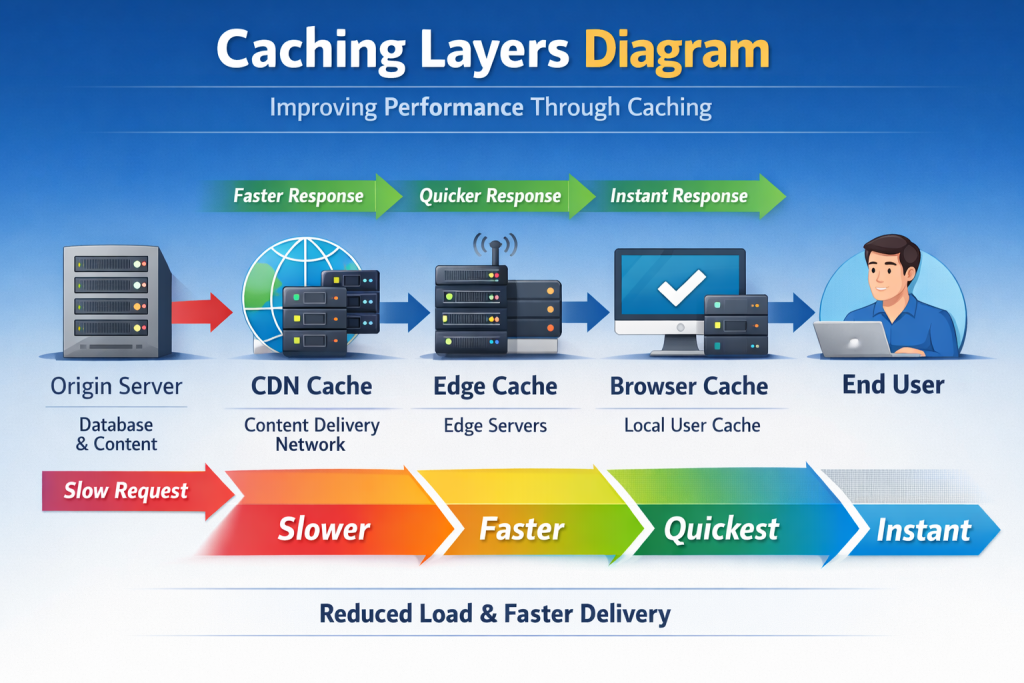
Setting up caching is pretty easy for almost all WordPress sites. Plugins such as WP Rocket (my own favorite one) make it essentially one-click. You install it, you turn on the page caching, and boom! If you have a tighter budget, WordPress has free options available such as W3 Total Cache or WP Super Cache, but they require more configuration.
A caution for WooCommerce stores is to never cache anything that someone might find on a cart, checkout, or account page. Proper caching plugins will automatically exclude these, but make sure to test thoroughly before you go live. It’s the last thing you want is customers seeing one another’s carts.
Making Images Fast Without Making Them Ugly
On WordPress sites, images typically form the largest performance bottleneck. You could have a single unoptimized photo larger than your entire CSS and JS combined. But every day, I also continue to see many business owners simply uploading giant photos from their cameras without any optimization.
And that can be demonstrated with a story about this. I took on a client who was complaining of slow load times. The first one took 8 seconds to load its homepage. So they were serving a 6MB hero image, and I went to their site. Six megabytes! Just for an overview—your entire page should probably be less than 2MB total (ideally). This one photo was ruining their performance.
The fix? That image was compressed and resized to 180KB. After all, they looked identical on screen — to the naked eye at regular web resolutions. The home page load time decreased from 8 seconds to 2.3 seconds, however. This single change increased their bounce rate by 35%.
So, image optimization basics:
The first is to size your images correctly before you upload. For example, if your blog displays pictures at 800 pixels wide, you shouldn’t upload originals from your camera that are 4000 pixels per side. Resize them with the help of basic image editing software. This by itself can lead to 70–80% reductions in file size.
Second, optimize images by using a tool like TinyPNG or ShortPixel (or the Smush plugin). The optimization tools utilize advanced compression algorithms that provide exceptional size reductions without loss of visual quality. Your visitors would not be able to distinguish a 2MB image and its compressed version of just 200KB, but your website will have no doubts about it.
Third, implement lazy loading. This technique only loads the images when visitors scroll them into view. For example, what if someone clicks through to your blog post but only reads the first few paragraphs; why make their browser download all twenty of those images in the article? Lazy-loading allows us to load initial pages rapidly.
For one, now we have the likes of modern image formats like WebP. Over JPEG and PNG, these formats yield better compression with file sizes typically reduced by 25–35% without loss of quality. WebP is supported by most modern browsers, and quality plugins will automatically serve WebP to compatible browsers while delivering JPEG for older ones.
Image Optimization for WooCommerce Store Owners: A Good and Very Difficult Task Selling a product requires good images, but the files still have to be compressed or otherwise optimized so that they don’t slow your site even close to being unresponsive. The answer is a compromise: images that look beautiful on screen but are as small and compact as they can possibly be file-size-wise.
The Plugin Problem: More Isn’t Better
A few years ago I did an audit of a site that had 47 active plugins. It took 12 seconds for the site to load. With some cautious analysis and plugin merge-downs, we landed on 18 plugins being used along with an overall load time of 2.1 seconds.
The thing about WordPress plugins is that they all come with overhead. The issue is you will never know what is good and bad until the time of testing.
Each plugin must earn its right to live; this is the simple rule I follow. Now, when I am installing a plugin, the first question that comes to my mind is “Do we even need this functionality? Is there a lighter alternative?
For example, consider social media sharing plugins. The problem is that a lot of sites load heavy plugins like AddThis or ShareThis, which waste kilobytes to include external scripts just so they can display share buttons on the screen. You can even make pretty simple sharing buttons using a line of HTML links and twenty lines of CSS. Same functionality, 99% less overhead.
Many related post plugins will hit your database quite hard. Unscrupulous plugins will query your entire post database on every page load. But most quality SEO plugins already come with built-in features for displaying related posts and usually do so in an optimized way.
If you are a business owner or freelancer working with multiple sites, create an essential set of plugins that have your trust. Working with a consistent setup makes debugging easy and guarantees you use well-quipped tools.
Database Maintenance: The Forgotten Performance Factor
As your WordPress database accumulates old drafts, spam comments, and other digital rubbish, it slows queries down, leading to degradation of performance.
The most offensive are post revisions. Each change you make is stored as its own revision by WordPress. Add this line to wp-config (bonus point: limit revisions): php: define(‘WP_POST_REVISIONS’, 5);
Spam comments accumulate endlessly. Set up WordPress to automatically delete spam that is older than 30 days.
Transients are temporary database entries that store responses from APIs. They are supposed to delete themselves when they expire but sometimes do not. Expired transients bloat your database over time.
Database Maintenance Plugins: Plugins such as WP-Optimize, Advanced Database Cleaner, or WP-Sweep automate the process of maintaining a database. Run weekly cleanups to delete post revisions, spam comments, and expired transients.
Database optimization is extremely important for WooCommerce stores. Regular maintenance prevents performance bottlenecks.
Content Delivery Networks: Going Global
Instead of serving from one server, a content delivery network (CDN) gives you copies of your content on all the servers around the globe.
Your server might be in Dallas, but if someone visits from Tokyo, then with a CDN, the visitor retrieves files from a Tokyo-based server, and latency is cut significantly.
The performance improvement is substantial. I had been working on one blog that was serving the US and European audiences separately. We enabled Cloudflare’s free CDN, and times from Europe fell to 2.1 seconds instead of 5-plus seconds. Bounce rates decreased by 42%.
Popular CDN options:
Over 200 cities around the world are easily available from Cloudflare, which offers a free tier.
Price: Pay-as-you-go pricing from just $10/month BunnyCDN
IMG Section: World Map → CDN Delivery and how does it work at the global level with latencies compared?
Setting up a CDN is simple. CDN integration is built right into most caching plugins.
Sign up and enter the URL into your caching plugin settings, and it works instantly.
When to Get Professional Help
Even so, some types of WordPress performance problems need experts—most business owners don’t have.
When to consider professional WordPress speed optimization services?
You have done everything in this guide and still are having issues. Sometimes, this is purely a technical issue: servers that configured incorrectly or workshops where they do not work well with plugins.
So you have a WooCommerce store doing 10,000+ monthly. Hiring professional WordPress performance optimization services is not an expense; it’s investing.
You don’t have time to learn that. Your time has value. Outsource the work to people who are better at it.
This is why, when comparing services offering WordPress performance optimization, you should check if they provide detailed audits, make specific promises to improve your site speed, are monitoring it after their actions, and have relevant experience.
It is for this reason that a large proportion of complete WordPress SEO services also take care of performance optimization in their program.
Monitoring: Because Optimization Isn’t One and Done
WordPress performance degrades over time. You optimize today, and it is quick. Half a year later, it is slow again. Newer plugins and additional content mean the database gets bloated, which can impact performance.
Monitoring matters. You require systems that notify you whenever performance starts to drop.
Free Core Web Vitals monitoring is offered through Google Search Console. Variance: Monthly checks to catch degrading performance
You can monitor your site for free with GTmetrix, which tests it regularly and emails you when performance drops.
Image Section: Pictures from performance testing tools that display metrics, battery scores, actionable insights
Uptime monitoring is no less important for WooCommerce stores. UptimeRobot pings your site every 5 minutes and will notify you immediately if it goes down.
Define performance budgets, i.e., metrics you commit not to violate. For instance: LCP < 2.5 secs; FID < 100 ms, CLS < .1
Your Action Plan: Where to Start
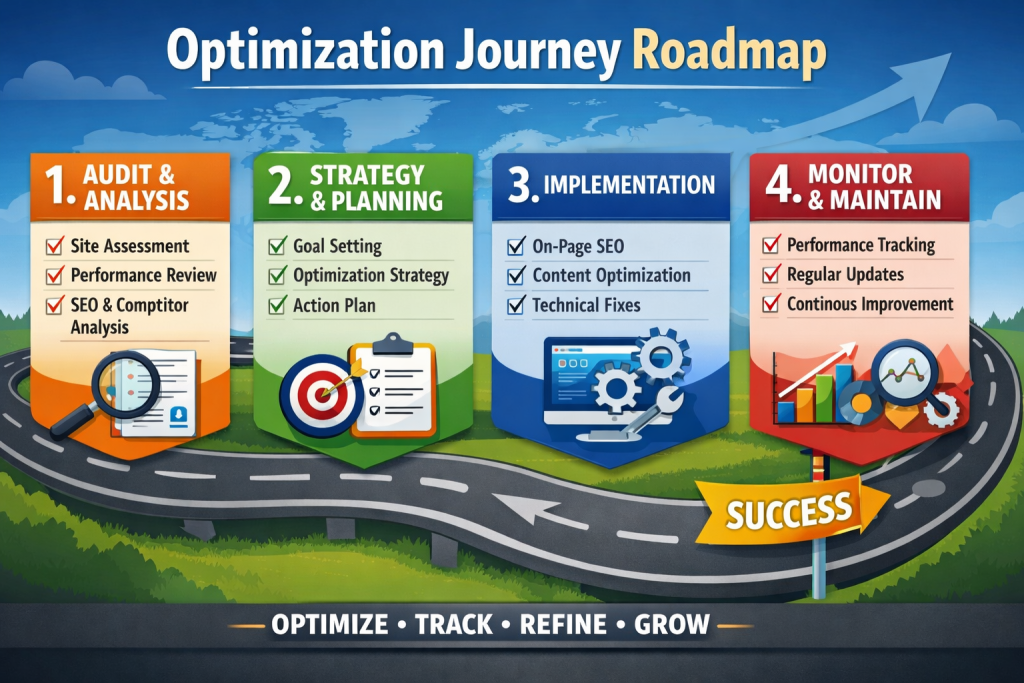
The prioritized roadmap to improved WordPress performance
Week one: Implement caching. Download and Install WP Rocket or W3 Total Cache. Often this yields a 50% immediate improvement.
Week two: Optimize images. Install ShortPixel or Imagify. Enable lazy loading.
Week three: Choose a CDN. Start with Cloudflare’s free tier.
Week four: Audit and remove unnecessary plugins
Week five: Database cleanup. What works for us: WP-Optimize—Just install it, optimize, and make sure you set up weekly optimization.
Week six: Review your hosting. Upgrade if you’re on basic shared hosting that struggles.

Final Thoughts
Website load time optimization changed my career and over 600 clients. Fast sites convert better, rank higher, and provide a much improved user experience.
Use the fundamentals: good hosting, caching, and image optimization. There are several elements that will, by orders of magnitude, improve WordPress website performance for the majority of sites.
Secondly, website speed affects business directly. Fast websites help; slow ones hurt your goal—whether you are selling products or generating leads or even building an audience.
This guide features battle-hardened strategies that have been tested on thousands of WordPress sites. Roll them out in a controlled way, measure the outcome, and iterate based on data.
Your website is too important to be slow. The WordPress Performance Optimization Your Site Deserves: Fix It. Monitor It. Profit!
FAQs
Slow WordPress websites are commonly caused by poor hosting, oversized images, too many plugins, outdated PHP versions, missing caching systems, and unoptimized databases that increase overall loading times significantly.
You can improve WordPress speed quickly by enabling caching, compressing images, using a CDN, removing unnecessary plugins, optimizing databases, and upgrading to high-performance WordPress hosting services.
Core Web Vitals are Google performance metrics that measure loading speed, responsiveness, and visual stability. Better scores improve SEO rankings, user experience, engagement, and website conversion performance.
Yes, website speed affects SEO rankings because Google prioritizes faster websites that deliver better user experiences, lower bounce rates, improved engagement, and stronger Core Web Vitals performance scores.
Yes, too many poorly optimized plugins increase database queries, server requests, and script loading times, which negatively affects WordPress speed, website stability, and overall user experience for visitors.


 WooCommerce Solutions
 Solutions for WordPress