Audit your Drupal content first. Set up a clean WordPress site. Map each Drupal content type to a WordPress post type. Move content, media, and users with a migration tool. Redirect old URLs, test everything, then launch. A planned Drupal to WordPress migration usually takes four to twelve weeks.
Many teams run Drupal for years. Then the site gets slow to edit. Updates cost too much. Developers are hard to find. Marketers wait days for a simple page change.
If that sounds familiar, you are not alone. This guide explains when a Drupal to WordPress migration makes sense, how the process works, and what it costs in time and effort. You will also get a clear checklist to follow.
Why Teams Choose a Drupal to WordPress Migration
Drupal is powerful. It handles complex data and strict user roles well. But power comes with a price. Many teams find it heavy for daily work.
Here are the top reasons teams switch:
- Easier editing. WordPress lets editors build pages with blocks. They do not need a developer for every change.
- Lower running costs. WordPress developers are easier to find and often cost less per hour.
- Faster launches. New pages, landing pages, and campaigns go live in hours, not weeks.
- A huge plugin library. You can add SEO, forms, search, and e-commerce tools in minutes.
- Less upgrade pain. Major Drupal upgrades can feel like a rebuild. WordPress updates are smoother.
Drupal 7 also reached the end of life in early 2025. If you still run it, you face security risk. A move to WordPress is often cheaper than a jump to the newest Drupal version.
Want to see how WordPress compares with other platforms? Read our guide to the best CMS platforms in 2026.
When a Drupal to WordPress Migration Makes Sense
Not every site should move. Use this list to check your case. If you tick three or more boxes, a move is worth a close look.
- Your editors rely on developers to publish or update content.
- Your Drupal version is old or no longer gets security fixes.
- Your maintenance bill is higher than the value the site brings.
- You want faster page speed and better Core Web Vitals.
- You need more marketing tools, such as SEO, A/B tests, and landing pages.
- Your site is mostly content: blogs, news, service pages, and resources.
- You struggle to hire Drupal talent.
A content-led site fits WordPress very well. That includes company sites, media sites, blogs, and lead-generation sites. These sites gain the most from a simple editor and a rich plugin set.
Signs your site is a strong fit
Look at how you use Drupal today. Most of your pages are probably standard pages, articles, and landing pages. Few use deep custom logic. In that case, you pay for Drupal power you do not use.
When You Should Stay on Drupal
Be honest about the limits. Some sites are better off on Drupal. Stay put if:
- You run a complex, multi-site setup with deep custom modules.
- You rely on fine-grained access control for thousands of users.
- Your site acts more like a data platform than a content site.
- Your team already knows Drupal well and ships fast.
In these cases, a Drupal upgrade may cost less than a move. A good partner will tell you this up front. Not sure where you stand? Our CMS migration checklist shows what to audit before you decide.
How to Migrate from Drupal to WordPress: Step by Step
This is the core process. Follow these eight steps in order. Each one lowers risk for the next.
Step 1: Audit Your Drupal Site
Start with a full content audit. List every content type, field, taxonomy, menu, view, and user role. Count your pages and media files.
Then sort content into three groups: keep, update, and remove. Old pages with no traffic should go. A smaller site is faster to move and easier to run.
Export your top pages from Google Analytics and Search Console. You will use this list to protect your rankings later.
Step 2: Set Goals and Pick Your Scope
Decide what success looks like. Maybe you want faster pages. Maybe you want lower costs. Write it down. Your goals shape every choice that follows.
Not sure what to move first? Our guide on what to migrate first in an enterprise CMS helps you set the order.
Step 3: Build a Staging WordPress Site
Never build on your live domain. Set up a staging site on a secure host. Install WordPress, your theme, and the core plugins you need.
Choose a theme that fits your brand. Pick a page builder or the block editor. Keep the plugin list short. Every extra plugin adds risk.
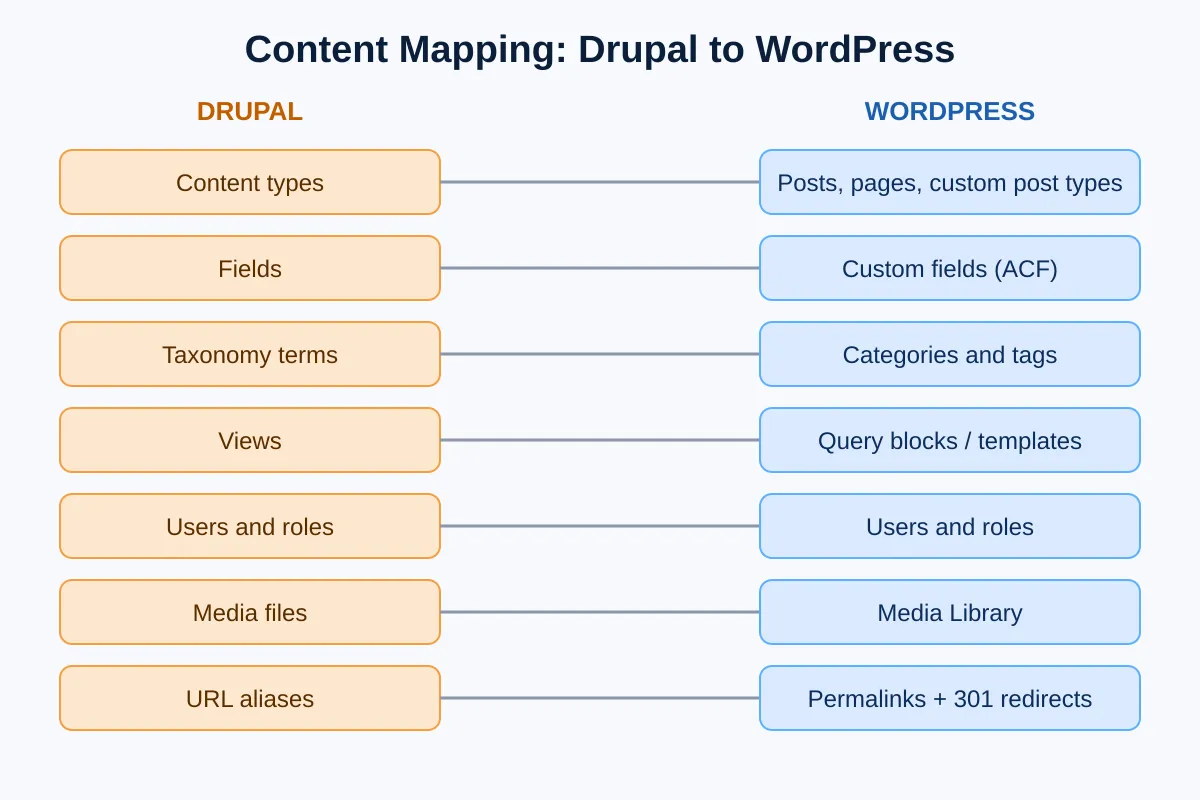
Step 4: Map Drupal Content to WordPress
This step decides how clean your new site will be. Match each Drupal item to a WordPress item:
| Drupal |
WordPress |
| Content types |
Posts, pages, custom post types |
| Fields |
Custom fields (ACF or similar) |
| Taxonomy terms |
Categories and tags |
| Views |
Query blocks or custom templates |
| Users and roles |
Users and roles |
| Menus |
WordPress menus |
| Media files |
Media Library |
| URL aliases |
Permalinks and redirects |
Write this map in a spreadsheet. Share it with your team. It becomes your guide for the whole project.
Step 5: Transfer Drupal Content to WordPress
Now you move the data. You have three main ways to transfer Drupal to WordPress:
- Migration plugins. Tools such as the FG Drupal to WordPress plugin read your Drupal database and import content into WordPress. They suit small and mid-size sites.
- Custom scripts. Developers write PHP or WP-CLI scripts. This route gives full control over complex data.
- CSV or XML export and import. You export from Drupal, clean the files, then import them with a tool such as WP All Import. This works well for simple content.
Always run a test import first. Check ten to twenty pages by hand. Fix the mapping before you move the full set.
Step 6: Rebuild Design, Menus, and Features
Content moves over. Design usually does not. You will rebuild templates, headers, footers, and forms in WordPress.
This is a good time to improve the site. Clean up the layout. Compress images. Cut slow scripts. Add a clear call to action on key pages.
Step 7: Set Up 301 Redirects and Protect SEO
This step protects your traffic. Match every old Drupal URL to its new WordPress URL. Add 301 redirects for any URL that changes.
If you can, keep the same URL structure. Then fewer redirects are needed. Also move your page titles, meta descriptions, canonical tags, and image alt text.
Step 8: Test, Launch, and Monitor
Test before you go live. Check links, forms, search, mobile layout, and speed. Check that redirects work. Ask editors to try the new admin.
Then launch. Submit your new sitemap in Google Search Console. Watch rankings, traffic, and crawl errors for at least 90 days. Fix issues fast.
Tools to Convert Drupal to WordPress
The right tool depends on your site size and your data. Use this quick guide.
- Small site (under 500 pages): Use a migration plugin. Test on staging first.
- Mid-size site (500 to 5,000 pages): Combine a plugin with custom scripts for fields and media.
- Large or complex site: Use custom WP-CLI scripts. Plan for batch runs and error logs.
Some tasks need manual work. Menus, widgets, and custom views often do. Plan time for them.
If you want a team to handle the heavy lifting, request a CMS to WordPress migration quote and get a clear scope within days.
What Happens to SEO During a Drupal to WordPress Conversion?
Most teams worry about rankings. This worry is fair. A poor move can drop traffic. A careful move keeps it, and often grows it.
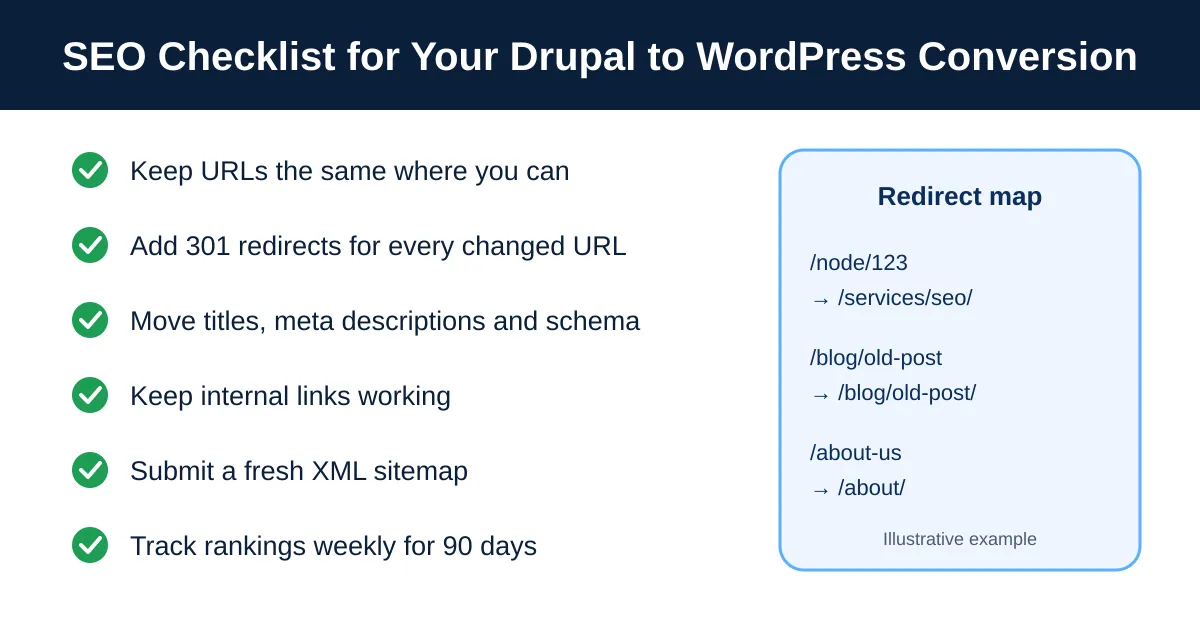
Protect your SEO with these actions:
- Keep URLs the same where you can.
- Add 301 redirects for every changed URL.
- Move titles, meta tags, and schema.
- Keep internal links working.
- Submit a fresh XML sitemap.
- Check your robots file. Do not block the new site by mistake.
- Track rankings weekly for three months.
A short dip in the first two weeks is normal. Search engines need time to crawl the new pages. Strong redirects shorten that dip.
Common Risks and How to Avoid Them
Every move has risks. Most are easy to prevent with a plan.
Lost or broken content. Run test imports. Compare page counts before and after.
Broken URLs. Build a redirect map early. Test it on staging.
Missing media. Check image paths and file sizes. Fix broken links in body text.
Slow pages. Pick a light theme. Use caching. Compress images.
Lost custom features. List every custom module. Decide which ones need a plugin or custom code.
Content freeze gaps. Plan a short content freeze before launch. Run a final sync on launch day.
Security gaps. Use strong passwords. Turn on two-factor sign-in. Keep plugins updated.
If you also work with other enterprise platforms, see how the same ideas apply in our Sitecore to WordPress migration guide.
How Long Does a Drupal to WordPress Migration Take, and What Does It Cost?
Time and cost depend on size and complexity. Here is a rough guide:
| Site type |
Typical timeline |
| Small content site |
4 to 6 weeks |
| Mid-size business site |
6 to 10 weeks |
| Large or complex site |
10 to 16 weeks or more |
Cost drivers include:
- Number of pages and media files
- Number of custom content types and fields
- Custom features and integrations
- New design or design match
- Multilingual needs
- Training and support after launch
Ask for a fixed quote after a short audit. Fixed scope avoids surprise bills.
DIY or Hire an Expert: Which Is Better?
You can do a small move yourself. A blog with 100 posts and few custom fields is a fair DIY project. Use a plugin, test well, and set up redirects.
Hire an expert if any of these apply:
- You have more than 1,000 pages.
- You rely on custom modules or complex views.
- Organic traffic drives your revenue.
- You have a tight launch date.
- You lack in-house WordPress skills.
An expert team brings a tested process. They also catch problems early, which saves money. Ready to start? Book your Drupal to WordPress migration with Dazzlebirds and get a plan built for your site.
For a wider view of platform features before you commit, read the complete guide to enterprise CMS features, functions and use cases.
Drupal to WordPress Migration Checklist
Use this short list as you go:
- Audit all content, users and media
- Set goals and success metrics
- Build and secure a staging site
- Map content types and fields
- Run a test import
- Run the full import
- Rebuild templates and forms
- Add 301 redirects
- Move SEO data
- Test speed, links and forms
- Launch and submit the sitemap
- Monitor for 90 days
Final Thoughts: Plan Your Move the Right Way
A Drupal to WordPress migration can cut costs, speed up publishing and give your team more control. The key is a clear plan. Audit first. Map your content. Protect your SEO. Test before you launch.
If you want to convert Drupal to WordPress without the stress, our team can help. We handle the audit, the import, the redirects and the launch.
Get Your Free Migration Quote →
FAQs
Audit your content, build a WordPress staging site and map Drupal content types to WordPress post types. Import content with a plugin or script, rebuild design and menus, add 301 redirects, test, and launch. Monitor traffic for 90 days after go-live.
A small site takes four to six weeks. A mid-size site takes six to ten weeks. Large sites with custom features can take sixteen weeks or more. Your content volume and custom work set the timeline.
Yes. Keep URLs the same where possible. Add 301 redirects for changed URLs. Move titles, meta descriptions, and schema. Submit a new sitemap. A short traffic dip is common, and it should recover with good redirects.
Yes, for small and mid-size sites. Plugins such as FG Drupal to WordPress read your Drupal database and import content. Complex sites usually need custom scripts as well.
Cost depends on page count, custom fields, design work and integrations. A small blog costs far less than a large enterprise site. Request a fixed quote after a short audit.
No. Content moves over, but themes do not. You rebuild the design in a WordPress theme. You can match your old look or take the chance to refresh it.
It depends on your needs. WordPress suits content-led sites that want easy editing and low cost. Drupal suits complex, data-heavy builds with strict access rules.



 WooCommerce Solutions
 Solutions for WordPress