Can you automate WooCommerce orders with Zapier or n8n? Yes, you can. Both tools connect to your store and run tasks when an order comes in. They can send emails, update stock, create shipping labels, and sync data to other apps. You set the rules once, and the tools do the work after that.
This guide shows you how WooCommerce order automation works. You will learn how each tool works, which one fits your store, and how to build your first workflow. The steps are simple, and you do not need to code.
If you run a growing store, manual order work will slow you down. Let’s fix that.
What Is WooCommerce Order Automation?
WooCommerce order automation means software handles order tasks for you. A customer buys something. Your tools then act on their own. No one has to copy data or click through screens.
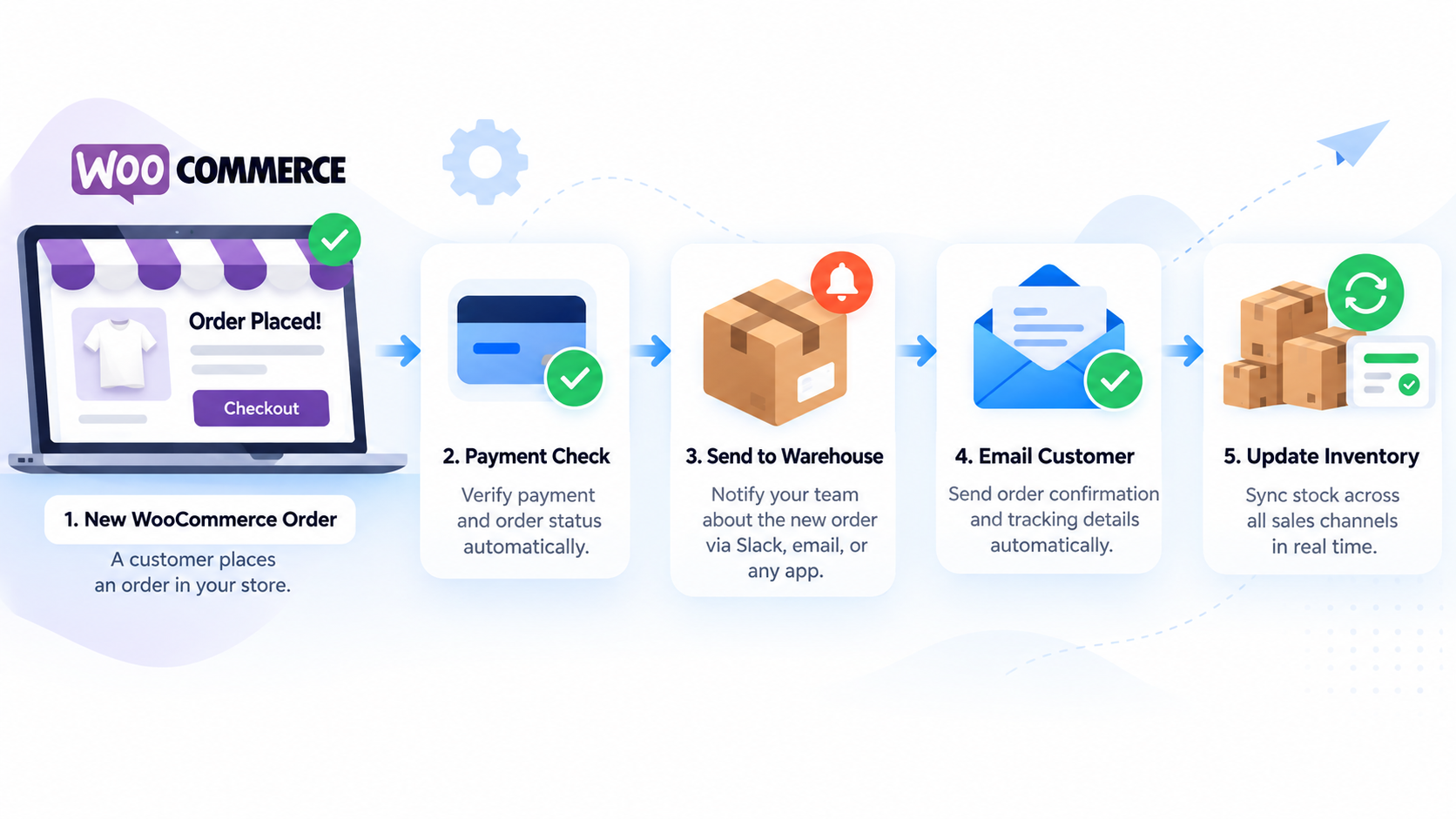
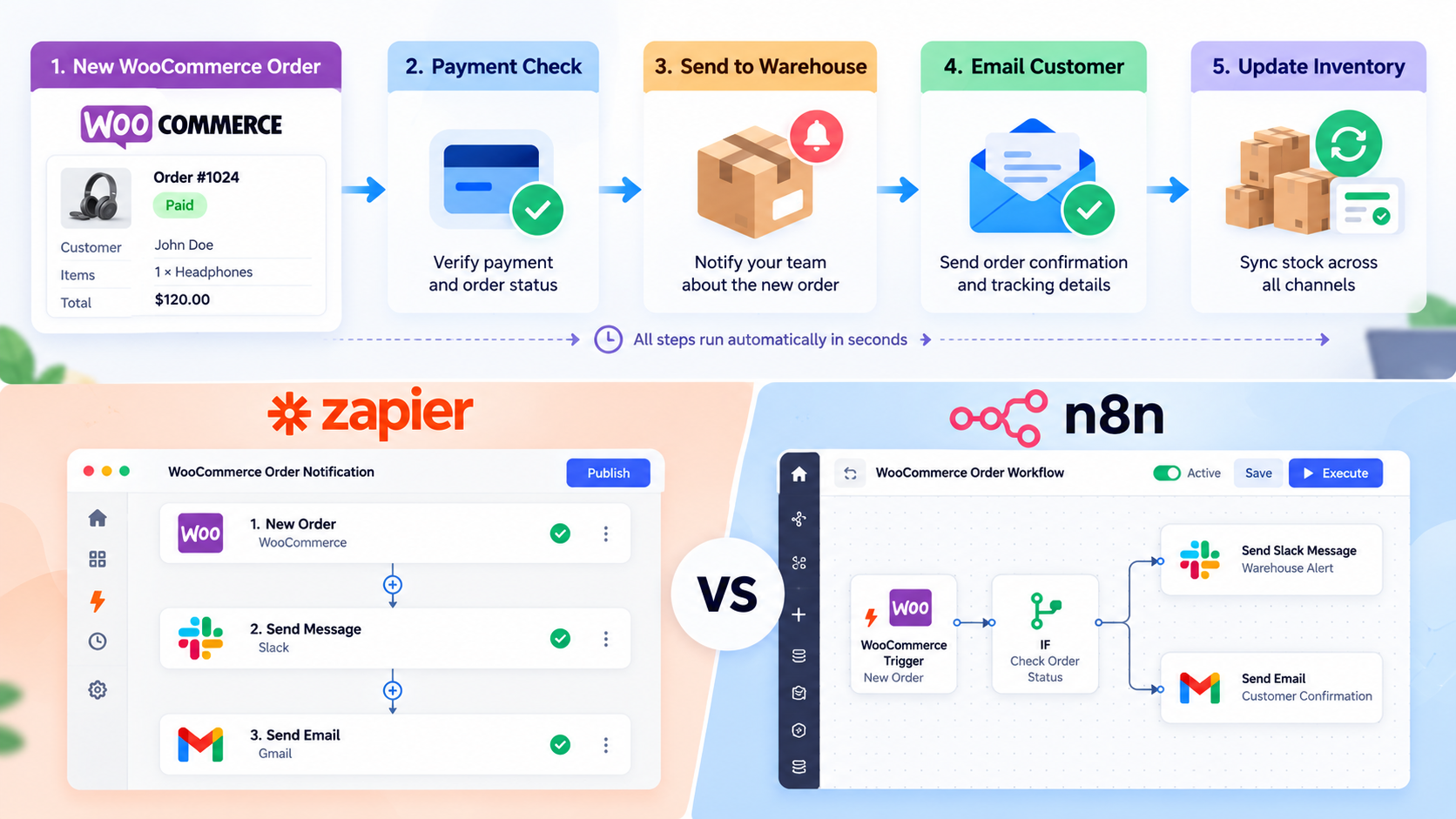
Here is a simple example. A customer places an order. Your workflow checks the payment, tags the order, emails the warehouse, and updates your sheet. All of this takes seconds.
These tools use two parts: a trigger and an action. The trigger is the event, such as “new order.” The action is what happens next, such as “send a Slack message.” You can chain many actions together. That chain is a workflow.
WooCommerce order workflow automation works best for tasks that repeat. If you do the same task ten times a day, automate it.
Why You Should Automate WooCommerce Orders
Manual order handling costs time and money. It also leads to mistakes. Someone types the wrong address. Someone forgets to update stock. A customer waits days for a reply.
When you automate WooCommerce orders, you fix these problems. Here is what you gain:
- Faster fulfillment. Orders reach your team the moment they are paid.
- Fewer errors. Software does not mistype or skip steps.
- Happier customers. They get quick updates and clear tracking.
- More free time. Your team can focus on sales and support instead of data entry.
- Easier growth. You can handle more orders without hiring more staff.
Because of this, many store owners start with automation before they hit a wall. If you want a deeper look at scaling, read our guide on WooCommerce process automation at scale.
Which WooCommerce Order Tasks Can You Automate?
You can automate almost any step after checkout. Here are the most common ones:
- Order confirmation emails. Send a custom message with your brand voice.
- Warehouse alerts. Post new orders to Slack, email, or a shared sheet.
- Shipping labels. Create labels and send tracking numbers back to the customer.
- Inventory sync. Update stock in your other sales channels.
- Accounting entries. Send invoices to QuickBooks, Xero, or Zoho.
- CRM updates. Add buyers to HubSpot or Mailchimp with the right tags.
- Failed payment follow-ups. Email the customer a payment link.
- High-value order alerts. Notify your sales team about big orders.
- Refund handling. Log refunds and update stock.
Start with one or two tasks. Pick the ones that waste the most time. Then add more over time.
WooCommerce Zapier: How It Works
Zapier is a no-code tool. You build workflows, called Zaps, using a visual editor. It connects to thousands of apps. That makes it a strong pick for beginners.
With WooCommerce Zapier setups, you pick a trigger from your store. Common triggers include new orders, new customers, and updated orders. Then you pick an action in another app. Zapier shows each step on screen, so you always know what happens.
What Zapier does well:
- It is easy to learn. You can build a Zap in minutes.
- It has a huge app library.
- It offers built-in error alerts and task history.
- It needs no server and no setup on your side.
Where Zapier falls short:
- Pricing grows with task volume. Each action counts as a task, so busy stores can pay more.
- Complex logic, such as loops and heavy data changes, can feel limited.
- You depend on a hosted service.
Zapier is a good fit if you want quick wins and a simple setup.
WooCommerce n8n: How It Works
n8n is a workflow tool with a visual canvas. You drag nodes onto the screen and link them. It has a WooCommerce node and a WooCommerce trigger. You can use it in the cloud or host it yourself.
With WooCommerce n8n workflows, you get more control. You can add code, branch your logic, loop through line items, and call any API. That helps when your orders follow special rules.
What N8N does well:
- It handles complex logic with ease.
- Self-hosting can lower costs for high-volume stores.
- You keep control of your data.
- You can build custom steps when no ready-made node exists.
Where n8n falls short:
- The learning curve is steeper than Zapier.
- Self-hosting means you manage updates, backups, and uptime.
- Some apps have fewer ready-made connections.
n8n is a good fit if you have technical help or need custom order rules.
n8n vs Zapier for WooCommerce: Quick Comparison
| Feature |
Zapier |
n8n |
| Ease of use |
Very easy |
Moderate |
| Setup time |
Minutes |
Minutes to hours |
| Complex logic |
Limited |
Strong |
| Hosting |
Cloud only |
Cloud or self-hosted |
| Cost at high volume |
Can grow fast |
Often lower when self-hosted |
| Best for |
Simple, fast workflows |
Custom, multi-step workflows |
So which should you pick? Choose Zapier if you want speed and simplicity. Choose n8n if you want control and lower costs at scale. Some stores use both. They run simple tasks in Zapier and complex ones in n8n.
How to Build Your First WooCommerce Order Workflow Automation
Let’s build a simple workflow. The goal is to alert your warehouse and email the customer when a new order is paid. The steps are almost the same in both tools.
Step 1: Connect your store.
First, create API keys in WooCommerce. Go to WooCommerce, then Settings, then Advanced, then REST API. Click “Add key.” Give it read and write access. Copy the key and secret.
Next, paste the keys into Zapier or n8n. Add your store URL. Then test the connection.
Step 2: Set the trigger.
Pick “New Order” or “Order Updated” as your trigger. For paid orders, many teams use the “Order Updated” trigger and filter by status.
In n8n, the WooCommerce Trigger node uses webhooks. In Zapier, you can pick the WooCommerce app and the trigger event from a list.
Step 3: Add a filter.
You do not want every order to run the workflow. Add a filter that checks the order status. For example, only continue if the status is “Processing.” This step stops duplicate alerts and wrong emails.
Step 4: Add your actions.
Now add the steps that do the work. For example:
- Send a Slack message to your warehouse channel.
- Add a row to Google Sheets with the order ID, items, and address.
- Send a custom email to the customer.
Map the fields from the order. Use the customer name, order number, and item list. Check each field before you move on.
Step 5: Test with a real order
Place a test order in your store. Watch the workflow run. Check each action. Fix any wrong fields.
Then turn the workflow on. Check the logs for the first few days.
Step 6: Add error handling
Things break sometimes. An API goes down. A field comes back empty. Plan for that.
In Zapier, turn on error emails. In n8n, add an error workflow that sends you an alert. This keeps small issues from becoming lost orders.
Smart WooCommerce Order Workflow Ideas to Try Next
Once your first workflow runs well, try these:
- Fraud check. Flag orders with mismatched billing and shipping details for review.
- Backorder alerts. Email customers when an item runs out of stock.
- VIP tagging. Tag repeat buyers and send them a thank-you coupon.
- Review requests. Send a review email seven days after delivery.
- Supplier orders. Send dropship orders to your supplier by email or API.
- B2B approvals. Route large wholesale orders to a manager before fulfillment.
B2B stores often need extra steps like approvals and custom pricing. Our B2B ecommerce automation guide covers these cases in detail.
Best Practices for Automating WooCommerce Orders
Follow these tips to keep your workflows safe and fast:
- Start small. Automate one task first. Add more once it works.
- Map your process on paper. Write down each step before you build.
- Use clear names. Name each workflow so your team knows what it does.
- Test every change. A small edit can break a working flow.
- Watch your limits. Check API rate limits and task counts.
- Protect your keys. Store API keys safely and rotate them often.
- Keep a manual backup. Know how to process orders by hand if a tool fails.
- Review monthly. Remove old workflows and fix slow ones.
Common Order Fulfillment Problems Automation Can Solve
Slow shipping, wrong stock counts, and lost orders hurt your store. They hurt B2B sellers even more, since bulk orders carry higher stakes. Automation fixes many of these issues. However, it cannot fix a broken process. If your steps are unclear, fix them first.
To see the most common issues and how to solve them, read our post on WooCommerce order fulfillment problems in B2B.
When to Use a Custom Automation Solution
No-code tools work well up to a point. After that, you may need a custom build. Here are signs you have hit that point:
- Your workflows break often.
- You pay high task fees.
- You need two-way sync with an ERP or warehouse system.
- You need custom pricing, approvals, or complex tax rules.
- Your team spends more time fixing automations than running the store.
A custom setup can combine n8n, Zapier, and plugins into one stable system. It can also add logging, retries, and alerts. That makes your WooCommerce order automation more reliable as you grow.
If you want expert help, our team can design and build it for you.
Get Your WooCommerce Order Automation Solution →
Conclusion
WooCommerce order automation saves time, cuts errors, and helps you ship faster. Zapier gives you a quick, simple start. n8n gives you power and control. Both can handle the daily tasks that slow your team down.
Start small. Pick one repeat task. Build a workflow, test it, and watch it run. Then add more steps as your store grows.
If your orders are getting complex, you do not have to build everything alone. Our team can set up a stable system that fits your store.
Get Your WooCommerce Order Automation Solution →


 WooCommerce Solutions
 Solutions for WordPress