Yes. WordPress hosting affects site speed more than most owners expect. Your host controls how fast the server replies, and every other step waits for that reply. Weak WordPress hosting performance slows every page, even when your theme and plugins are lean.
Here’s the good news. You can measure this in about 30 minutes. And you can often fix it without a rebuild.
This guide shows how your host shapes speed, which numbers to check, and when it’s time to move.
How Your Host Controls Your Site Speed
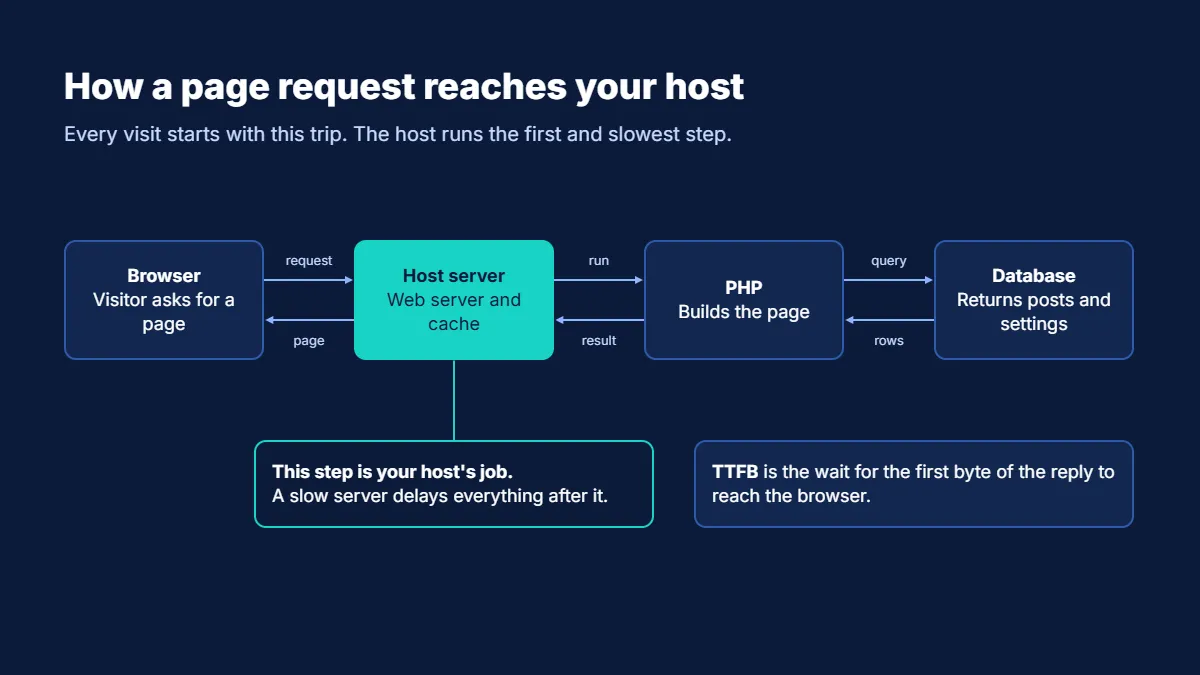
Every visit starts with a request. The browser asks your server for the page. The server runs PHP, pulls content from the database, builds the page, and sends it back.
Only then can the browser load your images, fonts, and scripts.
Your host runs that server. So it sets the pace for the first and slowest step.
Four hosting factors matter most:
- CPU and memory. This is the power your site gets when a visitor arrives.
- Storage and database speed. This decides how fast the server reads and writes data.
- Caching. The server can save ready-made pages instead of building each one from scratch.
- Distance. A server far from your visitors adds travel time to every request.
A fast theme can’t fix a slow server. You end up polishing a car with a flat tire.
What WordPress Hosting Performance Really Includes
Many owners judge a host by price and storage space. Speed depends on other things.
Server software. Your host picks the web server (Nginx, Apache, or LiteSpeed) and the PHP version. Newer PHP versions run faster and get security fixes. Old ones don’t.
Caching layers. Page caching saves finished pages. Object caching, such as Redis, saves database results. Good hosts offer both at the server level.
Storage. Fast solid-state drives load files and database data quicker than old disks.
Network. A content delivery network (CDN) keeps copies of your files close to visitors. The right data center region helps too.
Resource limits. Every plan has caps on CPU, memory, and simultaneous visitors. Hit the cap, and your site slows or throws errors.
Together, these parts make up your WordPress hosting performance. One weak part can drag down the rest.
Diagram of a WordPress page request moving from browser to server, PHP, database, and back
WordPress TTFB Hosting: The Number That Exposes a Slow Host
Time to First Byte (TTFB) is the wait between a request and the first byte of the reply. It’s the clearest sign of server speed.
Google’s web.dev guide sets the targets. A TTFB of 0.8 seconds or less is good. Anything above 1.8 seconds is poor.
TTFB isn’t a Core Web Vital. But it comes before every other loading step. A slow reply eats into the time left for your Largest Contentful Paint (LCP). A good LCP is 2.5 seconds or less.
Do the math. If your TTFB is 1.5 seconds, you have only about one second left to show your biggest page element. That’s tight.
Bar chart of TTFB thresholds: good at 0.8 seconds or less, poor above 1.8 seconds

How to read a WordPress TTFB result
A high TTFB doesn’t always point to your host. Your theme, plugins, and database also add time. Any fair WordPress TTFB hosting test has to separate those causes. Here’s a simple way to do it:
- The cached page is slow too. The problem likely sits with your host, server location, or network.
- A cached page is fast; an uncached page is slow. Look at your code, database, and plugins first. Weak server power can also cause it.
- TTFB jumps at busy hours. Your plan probably runs out of resources.
Want to go deeper on the other speed scores? Our WordPress Core Web Vitals guide explains LCP, INP, and CLS in plain steps.
Why Server Location and Traffic Patterns Matter
Distance adds delay. Say a visitor in London loads a site from a server in Texas. That visitor waits longer than one whose server sits in the UK. Each request crosses the network, and every mile counts.
Check your analytics before you pick a data center. Find the country or region that sends most of your traffic. Then choose a server region close to it.
Have visitors all over the world? Add a CDN. It serves images, scripts, and styles from a location near each visitor. Your main server then handles only the work that must run there.
Traffic patterns matter too. A site that gets a rush of visitors after an email or ad campaign needs headroom. Ask your host how the plan handles a spike. Some plans slow down. Some add resources. Some shut the site off until the spike ends.
Managed WordPress Hosting vs Shared: What Changes for Speed
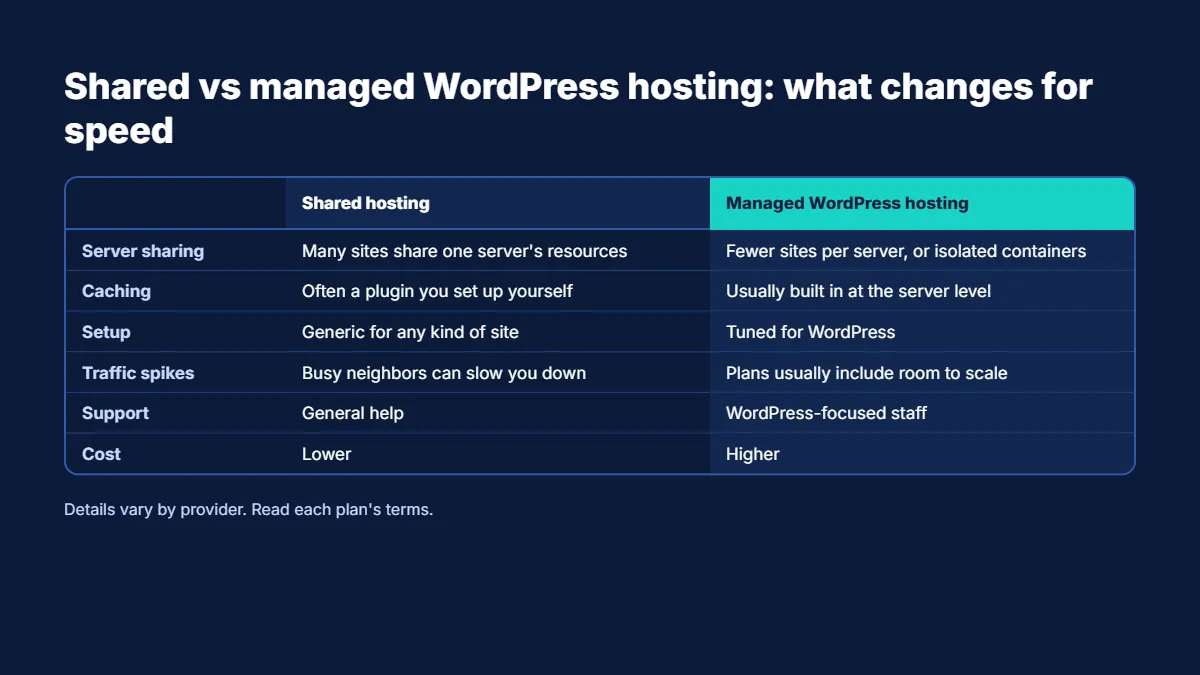
This is the choice that affects speed the most. The two plan types work in different ways.
| Factor |
Shared hosting |
Managed WordPress hosting |
| Server sharing |
Many sites share one server’s resources. |
Fewer sites per server, or isolated containers |
| Caching |
Often a plugin you set up yourself |
Usually built in at the server level |
| Setup |
Generic for any kind of site |
Tuned for WordPress |
| Traffic spikes |
Busy neighbors can slow you down. |
Plans usually include room to scale. |
| Support |
General help |
WordPress-focused staff |
| Cost |
Lower |
Higher |
Details vary by provider, so read each plan’s terms.
Here’s the plain version. Shared hosting works for a small brochure site with low traffic. Managed hosting fits stores, membership sites, and any site that earns money.
A busy shop on a shared plan is the classic mistake. One slow checkout costs a sale. The monthly savings rarely cover that.
Most people debating managed WordPress hosting vs shared plans also ask about VPS and cloud hosting. Those give you dedicated resources and more control. But someone has to set up and maintain the server. If you don’t have that skill in-house, managed hosting saves time.
Uptime Is Not the Same as Speed
Hosts love to advertise uptime. A promise of 99.9% sounds great. But uptime only tells you the server answered. It says nothing about how fast.
A site can stay up all month and still load in five seconds. Visitors won’t wait around to admire the uptime report.
So ask about hosting speed, not just uptime. Request real numbers on server response time. Look for a trial or money-back window, then test the plan with your own site. Your results matter more than any chart on a sales page.
Signs Your Host Is Slowing Your Site Down
Watch for these warning signs:
- TTFB stays above 0.8 seconds, even on cached pages.
- Your site runs fast at 3 a.m. and slow at noon.
- The WordPress dashboard drags, even with few plugins.
- You see random 502, 503, or 504 errors.
- Speed scores swing wildly between tests.
- Your host asks you to upgrade each time traffic grows.
One sign may be a fluke. Three or more point to a hosting problem.
Not sure where the slowdown starts? Read our post on the signs your WordPress site needs a performance audit.
What the Best WordPress Hosting for Speed Includes
Marketing pages all claim speed. Ask for proof of these features instead:
- Current PHP version, with easy upgrades
- Server-level page caching
- Object caching, such as Redis
- Solid-state storage
- HTTP/2 or HTTP/3 support
- A built-in CDN, or easy CDN setup
- Data centers near your visitors
- Clear CPU, memory, and visitor limits
- A staging site to test changes
- Daily backups and uptime terms in writing
Then ask the host three direct questions. What happens when my site hits its limits? Can I pick my server region? How do you handle traffic spikes?
Clear answers show a host that knows its stuff. Vague answers tell you more.
Need help comparing plans? Our guide on how to select the top WordPress hosting walks through traffic, storage, security, support, and pricing.
Checklist comparing shared and managed WordPress hosting features that affect speed
Fix These Things Before You Blame Your Host
Not every slow site is the host’s fault. Check these first. They cost less than a move.
- No page cache. Turn on caching at the server or with a trusted plugin.
- Too many plugins. Delete the ones you don’t use. Replace heavy ones.
- Large images. Resize them and use modern formats like WebP.
- Old PHP. Upgrade to a version your plugins support.
- Bloated database. Clear old revisions, spam, and expired transients.
- Third-party scripts. Chat widgets and trackers add real delays.
After these fixes, test again. If TTFB is still high on cached pages, your host is the problem.
Want the full list? Our WordPress performance optimization guide covers every step in order.
How to Test WordPress Hosting Performance in 30 Minutes
You need no special skills. Follow these steps.
- Pick three pages. Use your homepage, a blog post, and your heaviest page, such as a product page.
- Run PageSpeed Insights. Note the server response time and LCP for each page.
- Check TTFB in Chrome. Open DevTools, go to the Network tab, and look at “Waiting for server response” on the main request.
- Test at different times. Run the same tests in the morning, afternoon, and evening.
- Compare cached and uncached loads. Log out, load a page twice, and compare.
- Write down the results. Keep a simple sheet. You’ll need it for your host or when you compare new plans.
Run each test three times and use the middle result. One test can mislead you.
When It’s Time to Switch Hosts
Move when these things are true:
- Cached pages still show a poor TTFB.
- You’ve fixed plugins, images, and caching, and speed barely changes.
- Your host can’t or won’t raise your limits.
- Your traffic grew, and your plan didn’t.
Plan the move with care. Back up the site first. Build the copy on a staging server and test it. Lower your DNS time-to-live (TTL) a day before you switch. Then move at a quiet hour and watch the site for a few days.
A bad migration can cost more than the slow host did. If you run a store or a high-traffic site, get expert help.
Get a Faster WordPress Site Without Guesswork
You don’t need to guess where your site loses time. A proper speed review checks your host, server settings, plugins, and code in one pass. You get a clear list of fixes in order of impact.
At Dazzlebirds, we audit and tune WordPress sites for speed. Book a review, get your numbers, and get a plan you can start this week.
Get Your WordPress Speed Review
Final Word
WordPress hosting performance sets the speed ceiling for your site. Test your TTFB, fix the easy problems, and compare plans with real numbers. Then you’ll know whether to tune your site or move it.
Want a second pair of eyes? Talk to our speed team and start with a review.
FAQs
Yes. Your host runs the server that builds and sends every page. A slow server delays everything else on the page. Server power, caching, storage, and location all change how fast visitors see your content.
Google's web.dev guide calls 0.8 seconds or less good and anything over 1.8 seconds poor. Aim for under 0.8 seconds on cached pages. Test at different times, since busy hours often raise the number.
Often, yes. Managed plans usually include server-level caching, WordPress-tuned settings, and fewer sites per server. Shared plans split resources among many sites, so a busy neighbor can slow you down. Results vary by provider.
The best fit depends on your traffic and budget. Look for current PHP, server-level caching, object caching, fast storage, a CDN, and a data center near your visitors. Test any host with a trial or money-back period before you commit.
Often you can. Turn on page caching, upgrade PHP, cut heavy plugins, and clean your database. Add a CDN too. If cached pages still show a poor TTFB after these fixes, your host is the likely cause.



 WooCommerce Solutions
 Solutions for WordPress