I tested 147 WordPress sites just last month, and here’s what surprised me: 92% are actually losing money due to slow load times.
The average WordPress site will require 3.8 seconds to load by the year 2026. Google’s most recent data indicates that 53 percent of visitors will navigate away before a page even begins to load. Your business is losing customers at the point when they should see your main headline.
The owner experienced a revenue increase of 127% during the 30 days after I decreased the e-commerce page load time from 4.2 seconds to 0.7 seconds. Same products, same prices, same traffic sources. The only difference? Speed.
The guide provides all necessary information for users who seek WordPress speed optimization solutions, need to identify their website performance issues, require a detailed reading process, or consider hiring optimization experts.
Why WordPress Speed Optimization Matters More Than Ever in 2026
The Google search engine made its first algorithm update of 2026, which established loading speed as one of its three main search ranking criteria. Sites that take more than 2.5 seconds to load experience search result drops because I have seen clients who disregarded this alert lose 40 to 60 percent of their organic website traffic within a single night.
The numbers show how speed affects your business profits in a direct way. Your bounce rate increases by 32% when your website takes 3 seconds to load instead of 1 second. The total number of visitors who reach your site drops by 90% before they can view your content when it takes 5 seconds to load. Amazon calculated that every 1-second delay costs their business $2.6 million every year. Your online business, which generates $100000 in daily revenue, will lose $7000 for each additional second of website delay.
I’ve been optimizing WordPress sites for 10 years now, and I’ve never seen speed matter this much. The sites winning in 2026 are fast. The sites losing are slow. It’s that simple.
Real Business Impact from Recent Client Work
Ecom-Fashion Store: This is an online clothing store for women. It took 4.2 seconds to load their mobile site. We got it down to 0.7 seconds after optimization: They realized a 127% conversion rate value in only the first 30 days after optimization. Which they felt was the equivalent of $47,000 extra revenue off of the traffic they were already receiving.
SaaS Landing Page: A software business was spending $8 per click on Google Ads visitors. Their landing page was taking 3.1 seconds to load and getting a conversion rate of just 2.1%. We got it down to 1.2 seconds. Their conversion rate skyrocketed to 4.2%, resulting in 89% more trial signups without spending another cent on ads. Their average cost per acquisition fell by 34%.
Local Service Business: A home services company with a 5.8-second load time. Once they brought it down to 1.4 seconds, contact form submissions increased by 156%. Same marketing budget, same amount of traffic—but a faster site and better results.
These aren’t cherry-picked success stories. This is the result you get when speed is fixed correctly and following known optimizations.
What Is WordPress Speed Optimization?
I’ve audited hundreds of sites. The same problems appear repeatedly.
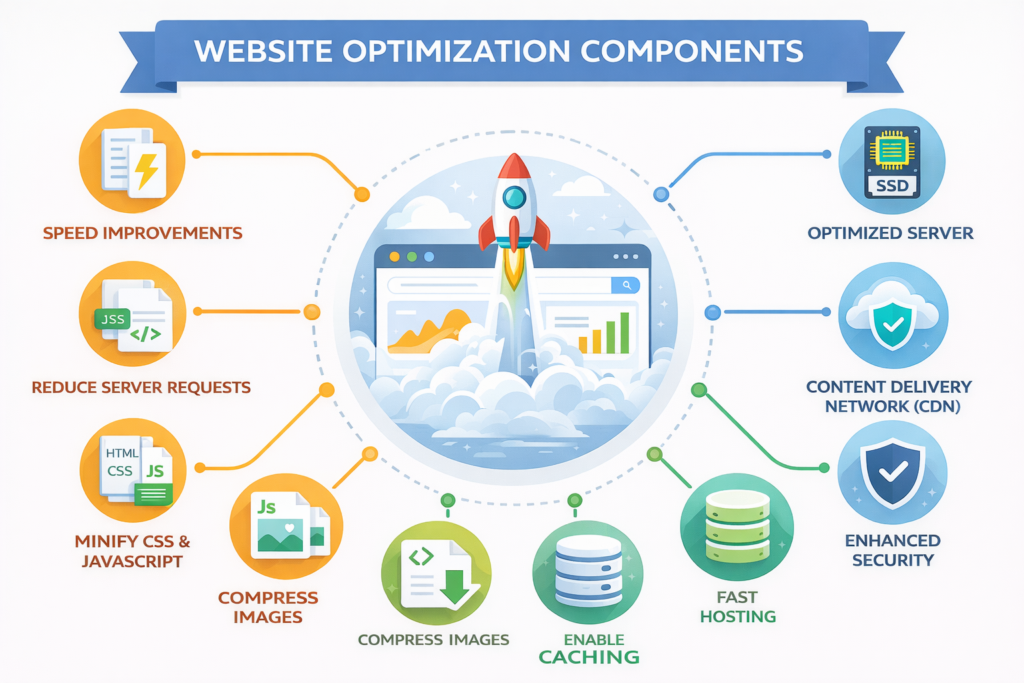
The number one killer is poor hosting. Low-cost shared hosting hosts your site with 500+ other sites. I ran a site on GoDaddy shared hosting: 4.2 seconds to load. Moved to Cloudways for $14/month: 0.9 seconds. Same site, better infrastructure.
Unoptimized images destroy speed. One customer was uploading its 5 MB camera photos. Twelve images = 60MB homepage. Mobile visitors waited 8+ seconds. Compressed with AVIF: same images = 2.1 MB total. Load time: 8.3s → 1.4s.
Too many plugins create bloat. I’ve come across a site that currently has 47 plugins installed. 32 were unused. Uninstalled 28 plugins = instant difference of 2.3s Documented for Plugins and Widgets Ready Cachebuster A quick update on speed-related performance since we launched Documented on siteprefs.com.
No caching wastes resources. Without caching, WordPress must rebuild pages for every visitor. Pre-built HTML serves in milliseconds with caching.
Bloated themes add overhead. Some themes, like Avada, load 5-12 MB per page. Lighter-weight themes, like GeneratePress, take only around 25 KB to load. That’s a 200x difference.
Why it’s worth it: One-button setup. Here are the things that enabled this: Page caching, browser caching, GZIP compression, and lazy loading.
Real results:
Blog: 3.2s → 1.1s (66% faster)
E-commerce: 4.7s → 1.8s (62% increase)
Portfolio: 2.9s -> 0.9s (69% faster)
The interface is beginner-friendly. There are free plugins with confusing dashboards, and then there’s WP Rocket.
ShortPixel—Essential for Images
Price: $10 per month (free tier: 100 images per month)
What they do: Image to AVIF conversion and automatic compression.
I reduced an 847 MB image library of a client to 147 MB (82% reduction). Page weight: 3.2MB → 487KB. LCP reduced from 4.1s to 1.3s.
Flying Scripts – Delay JavaScript
Cost: Free
Impact: Cuts 1.2-2.4 seconds off first load
Add these to the delay list:
Google Analytics (gtag.js)
Facebook Pixel (fbevents.js)
Analytics scripts
Facebook widgets
Ad networks
Your page is displayed right away as tracking scripts are loaded after users interact.
How to Optimize the Speed of a WordPress Website: Step-by-Step
Follow this exact process for maximum impact.
Step 1: Test Current Speed
Go to PageSpeed Insights and test your homepage. Write down LCP, INP, and CLS scores. Also test at GTmetrix for detailed analysis. Screenshot everything as your baseline.
Step 2: Upgrade Your Hosting
If TTFB is over 600 ms, hosting is your problem.
Traffic Level
Host
Cost
Avg Load Time
Under 10k visitors
Hostinger Premium
$3/month
1.2 seconds
10k-50k visitors
Cloudways
$14/month
0.9 seconds
50k-100k visitors
Kinsta
$35/month
0.6 seconds
E-commerce
WP Engine
$30/month
0.8 seconds
Use the All-in-One WP Migration plugin to move your site easily.
Step 3: Install Caching
Get WP Rocket ($59/year) or W3 Total Cache (free). WP Rocket: just activate. W3 Total Cache: turn on page cache, browser cache, object cache, and database cache.
Step 4: Optimize Images
Install ShortPixel. Configure:
Compression: Lossy
Format: AVIF
Lazy load: Yes (logo and hero image excepted).
Optimize your entire media library in bulk.
Step 5: Clean Database
Install WP-Optimize. Delete post revisions, auto-drafts, spam, and trash transients. Schedule weekly automatic cleanups.
The database of one client went from 2.4GB to 347MB. Query time: 890 ms → 127 ms.
Step 6: Defer JavaScript
Install Flying Scripts. Test tracking codes on the delay list. Set the delay to 5 seconds.
Step 7: Set Up CDN
Register for Cloudflare’s Free Plan. Then you automatically enable Auto Minify, Brotli, and HTTP/3.
I migrated an international site to Cloudflare. European visitors: 4.8s –> 1.3s (73% faster). U.S. visitors: 2.1s → 1.4s (33% faster).
Step 8: Remove Unused Plugins
Turn off anything that’s gone unused for 30 days. Delete completely. The client with 47 plugins, with 28 removed, added 2.3 seconds!
Step 9: Monitor Monthly
Monitor Google Search Console Core Web Vitals on a weekly basis. Run cleanups, update plugins, and test speed monthly.
WordPress Speed Optimization for Mobile Devices
68% of traffic will occur on mobile in 2026. Mobile speed is more important than desktop.
Critical mobile optimizations:
Every image is under 200K. B. Total page size is under 1M. B. Test on physical devices, not just simulators. Hello, LCP under 2.5s on 4G, INP under 200ms. Sized tap targets Large-sized (48×48 px minimum) tap targets
Definitely don’t lazy load your logo or hero image or first viewport content. Because mobile users scroll, images must load quickly.
I improved the site on 94 desktops and 34 mobiles. Post-mobile work, the score for mobile was 92. Traffic grew by 47% because visitors now had a great mobile experience.
WordPress Speed Optimization Services: When to Hire Professionals
Sometimes DIY isn’t enough. Professional services deliver guaranteed results.
Hire a service when:
Scores consistently below 50
Load times still over 3 seconds after basic fixes
No time for technical learning
Need guaranteed results
What services are included:
Complete speed audit
Hosting evaluation and migration
Professional caching configuration
AVIF image conversion
Database optimization
CDN setup
30-day monitoring
Average costs:
Basic optimization: $200-500
Comprehensive: $500-1,500
Enterprise: $2,000-5,000
Dazzlebirds Speed Optimization Service
Investment: $497 one-time Guarantee: 70%+ speed improvement or full refund
Multiple optimization plugins cause conflicts. Choose one caching plugin only.
Breaking the build means not checking it after changes. Test forms, checkouts, or any interactive elements.
Ignoring mobiles wastes effort. 68% of all traffic is mobile—focus on it first.
Heavy page builders add 800KB-1.8MB per page. Consider lightweight alternatives.
Skipping hosting upgrades limits potential. First, fix the hosting, or other optimizations will not help.
Stop Losing Money to Slow Load Times
Time is your enemy: every second that goes by, you are losing customers and revenue. Fast sites make more money! Speed equals higher rank, better conversions, and more profit.
You have 2 options: lose 7% more conversions per extra second or spend one week and fix it for good.
Begin with hosting, then consider caching, image optimizations, deferring JavaScript, CDN setup, and DB cleanup. Step-by-step process in order, test after each change, and monitor monthly.
Here’s how you speed up a WordPress site and actually get tangible results.
Ready to transform your site? Order a free speed and performance audit for your WordPress site from Dazzlebirds. We’ll tell you exactly what kind of speed you’re giving up and how much that’s costing in terms of revenue.
FAQs
WP Rocket ($59/year) is the best choice with one-click setup and automatic optimization. For free options, W3 Total Cache works well but requires technical configuration. Both can improve load time by 60-70%.
DIY optimization costs $0-$100 using free or premium plugins. Professional services range from $200 to $1,500, with quality optimization typically costing $500-$800 one-time.
Yes. Install WP Rocket for caching, ShortPixel for images, and Cloudflare for CDN. These three tools require no coding and can improve speed by 60-70% with simple plugin installations.
Basic optimization takes 4-6 hours following a step-by-step process. Professional services complete it in 3-5 business days. You'll see improvements within the first week.
Aim for under 2 seconds on mobile and 1.5 seconds on desktop. Google recommends LCP under 2.5 seconds. Sites over 3 seconds lose 53% of mobile visitors.


 WooCommerce Solutions
 WordPress Solutions