When a customer lands on a product page, the related products section below can either feel thoughtfully curated or completely random. Many store owners treat it as a simple recommendation widget added to the design, not realizing that related products are actually part of a larger product relationship architecture that determines what customers discover.
The quality of your related products depends on how your product data is structured, how your categories and tags are organized, and whether you understand the difference between automatically generated recommendations and manually configured relationships. A store with hundreds of products can’t rely on guessing which items belong together. A store with thousands needs a systematic approach.
This guide explains exactly how WooCommerce related products work, how the system determines which products appear together, and when you need to take manual control of those relationships.
Quick Answer: What Are WooCommerce Related Products?
WooCommerce related products are product recommendations displayed on individual product pages based on relationships within your product catalog. The system uses product categories and tags as signals to identify relevant products. Related products can be automatically generated based on shared attributes or manually assigned by store managers. They appear as a separate section on product pages and serve to help customers discover complementary or alternative products without leaving the current product.
How WooCommerce Related Products Work
WooCommerce determines related products through a specific workflow:
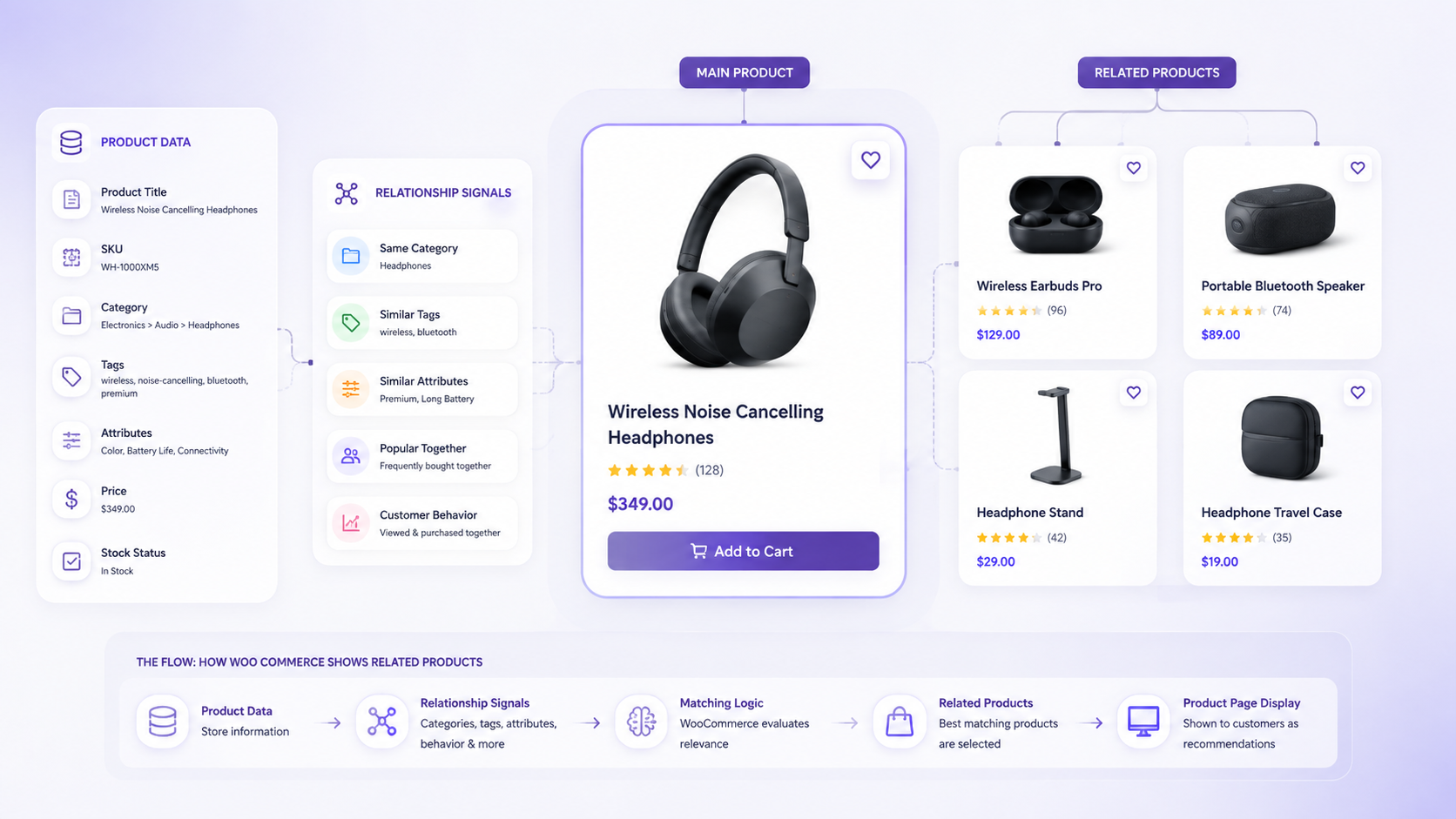
Product Data → Categories and Tags → Relationship Signals → WooCommerce Logic → Product Page Display
Here’s what happens at each stage:
A product has categories, tags, and other data attributes assigned to it. WooCommerce scans your product catalog for other items sharing the same categories or tags. Products with matching categories or tags become candidate-related products. WooCommerce applies its relationship logic to display a subset of those candidates on the product page (typically up to 5 related products by default, though this varies by theme).
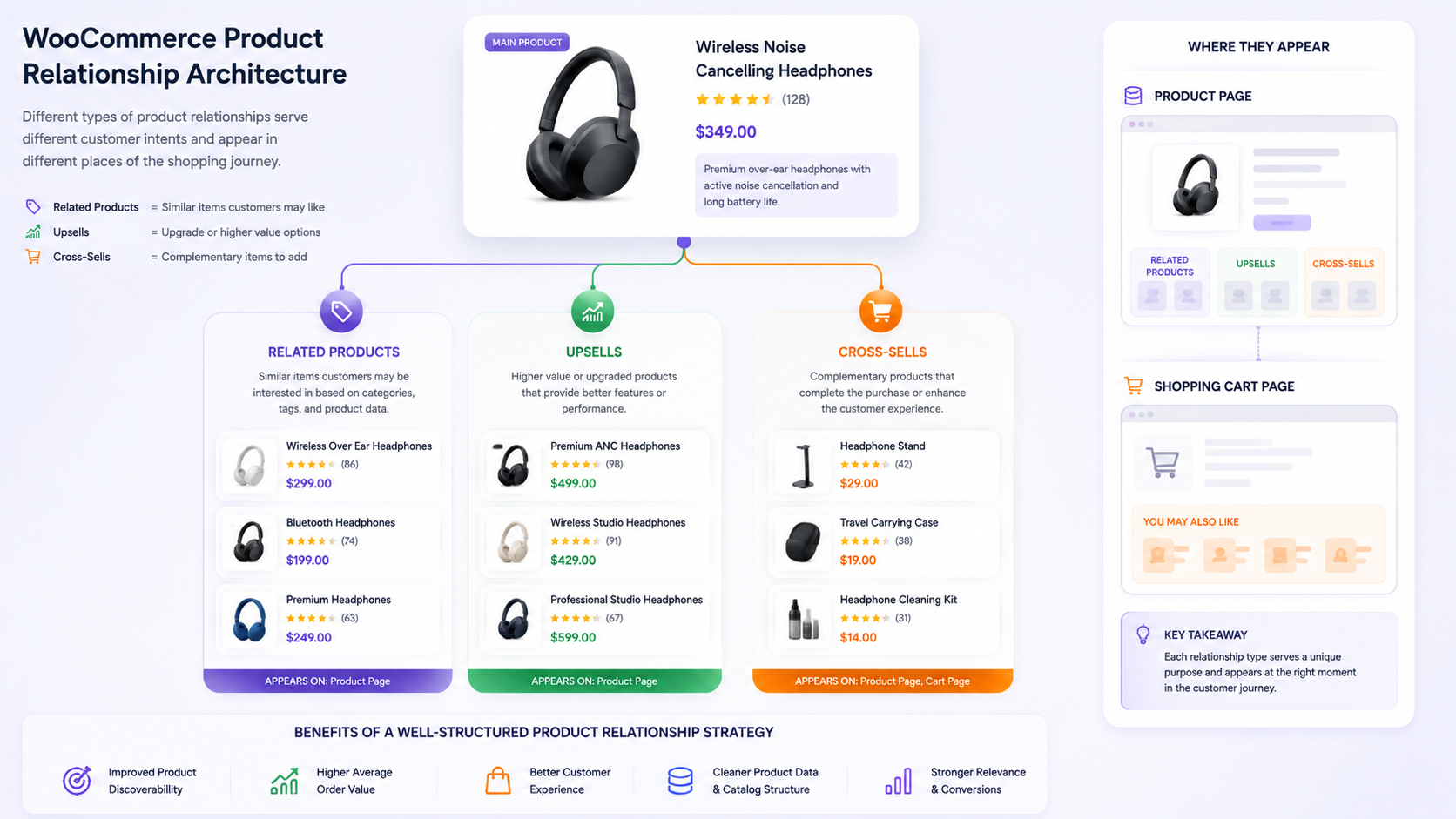
The key distinction here is that WooCommerce related products are different from upsells and cross-sells, which are manually configured product relationships. Related products are generated automatically based on catalog structure. However, the quality of that automation depends entirely on whether your categories and tags actually reflect product relationships accurately.
What Determines Which Products Are Related?
WooCommerce related product selection relies on specific relationship signals derived from your product data structure. Understanding these signals helps you manage what appears on your product pages.
Categories: This is the primary signal. If Product A and Product B are both assigned to the same category, WooCommerce treats them as related. A product assigned to “Power Drills” becomes related to other power drills. If you assign too many products to overly broad categories, your related products become diluted and less relevant.
Tags: Secondary signal. Tags provide a finer classification than categories. A drill and a drill bit might both carry the tag “corded power tools,” which creates a relationship signal. However, tags only influence related products if your theme and WooCommerce configuration are set up to use them for this purpose.
Product Visibility: Products must be visible in the catalog to appear as related products. An out-of-stock product marked as not visible won’t show up in the related products section, even if it shares categories with the primary product.
Product Quantity: If your category has hundreds of products but only a small number of them are truly related to the current product, the related products section may still display less relevant items simply because they share the same broad classification.
The real problem emerges when category structures become inconsistent. Imagine a product listed in both “Heavy Equipment” and “Power Tools.” Its related products might include items from either category, producing a mixed set of recommendations that lack thematic coherence.
Product data quality directly impacts relationship quality. If you sell industrial equipment but categorize related items differently across the catalog, your recommendations will never feel cohesive to customers.
Related Products vs Upsells vs Cross-Sells: The Technical Difference
These three relationship types serve different purposes in your ecommerce workflow. Understanding each is essential before deciding how to structure your product relationships.
| Relationship Type |
Purpose |
Display Location |
Selection Method |
Customer Context |
Typical Use |
| Related Products |
Show alternative or complementary products in the same category/topic. |
Product page, usually below main content |
Automatic (based on categories/tags) or manual |
Customer browsing or making initial decision |
Showing similar products in same category |
| Upsells |
Encourage upgrading to a better version or higher-value product. |
Product page, prominently displayed |
Manual assignment only |
Customer considering purchase |
Show the premium version when browsing the standard version. |
| Cross-Sells |
Suggest complementary products customers might buy together. |
Product page and cart page |
Manual assignment only |
Customer at purchase stage or in cart |
Show drill bits when buying a drill. |
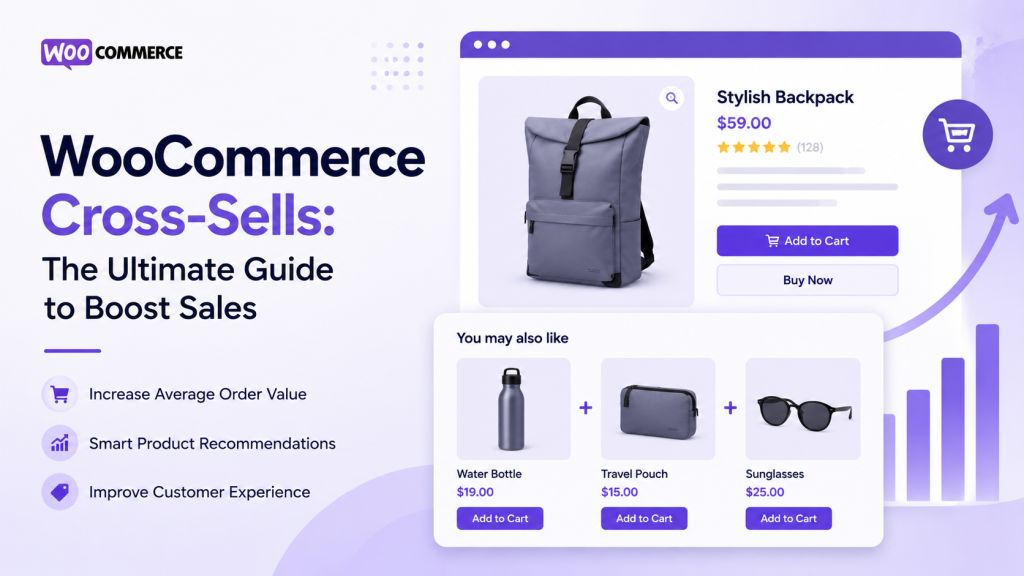
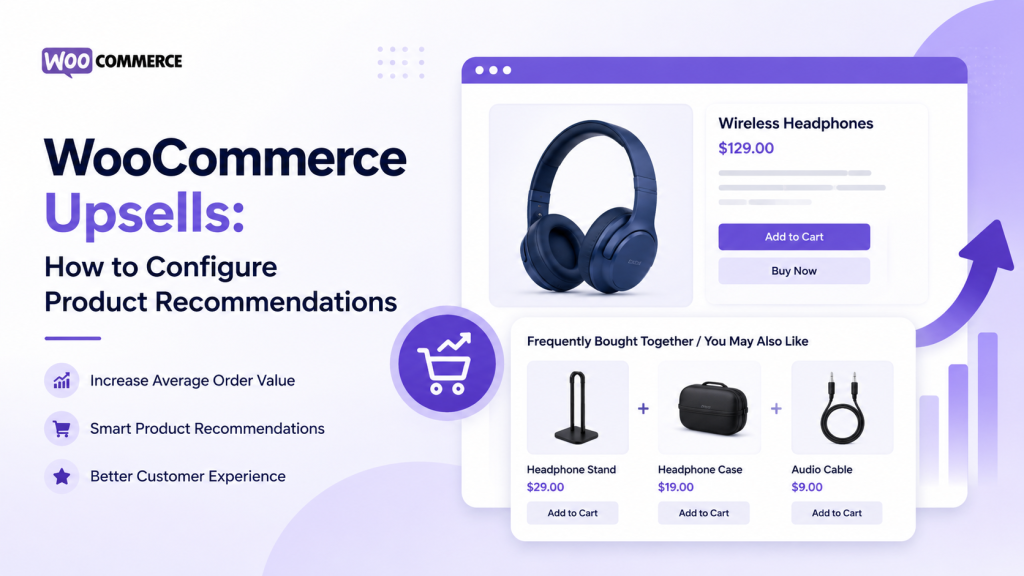
Related products work through automatic relationship signals. Upsells and cross-sells are always manually assigned because they represent business strategy decisions, not just catalog structure. A store selling tool sets needs to manually decide that the “Professional Drill Kit” is an upsell to the “Basic Drill Kit.” The system won’t figure that out automatically.
This distinction matters because many store owners try to force too much automation where manual control is actually required. Related products scale automatically as your catalog grows. Upsells and cross-sells require ongoing human decision-making.
Automatic vs Manual Product Relationships: When to Use Each
WooCommerce offers both automatic and manual relationship options. Your choice depends on the nature of your product catalog and how precisely you need to manage recommendations.
Automatic relationships rely on product data structure. If your categories are consistently organized and genuinely reflect how products relate to each other, automatic relationships work well. A store selling camera lenses can assign all prime lenses to a “Prime Lenses” category and all zoom lenses to a “Zoom Lenses” category. When customers browse a specific lens, they’ll see related lenses with shared characteristics automatically.
Automatic relationships scale well. As you add new products to your catalog, they immediately become related to existing products in their category without any additional effort.
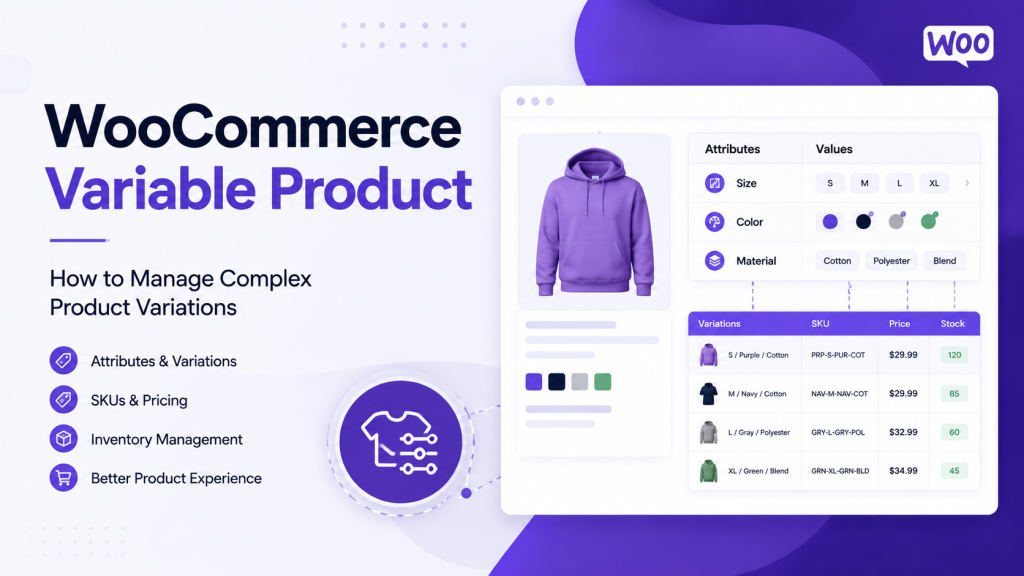
The downside is that automatic relationships depend on category consistency. If your store has messy category assignments or overly broad categories, recommendations become less relevant. When managing product variations, this becomes especially important. Understanding how to structure your categories is foundational to relationship quality. When using variable products or grouped products, each variant should maintain consistent category assignments to ensure related products appear correctly. The same principles that apply to managing complex product variations also apply to ensuring related products’ logic works properly.
Manual relationships give you complete control. You explicitly decide which products should be related to which. This works well for B2B catalogs where product compatibility matters. Industrial equipment manufacturers often need specific products to relate only to compatible items, not just products in the same general category.
Manual relationships are precise but require ongoing maintenance. When you add new products, someone must manually review and assign relevant relationships. In a catalog with thousands of items, this becomes unsustainable without a documented process.
The operational trade-off is real: automatic gives you scale but less precision. Manual gives you precision but requires more effort. The best approach for large catalogs is often a hybrid, where category structure handles most relationships automatically, but critical products or specialized product lines receive manual relationship assignment.
Why Product Data Quality Affects Related Product Relevance
The relationship between product data quality and recommendation relevance is direct and unavoidable:
Product Data Quality → Accurate Categories → Consistent Tags → Clear Classification → Better Signals → More Relevant Recommendations
Consider these real-world data quality problems:
A product manager assigns a hydraulic component to both “Industrial Parts” and “Accessories” categories. The component now shows up as related to everything from valves to hoses to decorative items. The recommendation becomes noise rather than signal.
A store uses tags inconsistently. Some products are tagged “commercial grade” and others “industrial strength” even though they’re identical in classification. Related products become fragmented.
Products are assigned to overly broad categories. Everything from hand tools to power equipment ends up in “Tools,” making the category useless for generating relevant relationships.
Missing or incomplete product data means the system has fewer signals to work with. A product without tags or only one category becomes harder to match with truly relevant items.
The solution requires treating product data structure as part of your commerce architecture, not just administrative overhead. When you manage the catalog in the context of how WooCommerce uses that data, relationship quality improves automatically. This is especially critical when managing complex product variations or bundled offerings, where data consistency directly impacts what customers see across your entire product ecosystem.
How to Structure Product Relationships for Large WooCommerce Catalogs
Large catalogs require strategic thinking about product relationships. Stores managing hundreds or thousands of products can’t rely on ad hoc decisions.
Product Relationship Rules → Classification System → Recommendation Logic → Manual Exceptions → Ongoing Governance
Start by defining your relationship rules. What does “related” actually mean in your business context? For a distributor selling industrial equipment, related products might mean items from the same product family or items with compatible specifications. For a manufacturer, related products might mean alternatives with different capacities or materials.
Classification must be consistent. Every product in a given category should genuinely belong there. If some products in “Hydraulic Systems” are actually control modules and others are fluid lines, split the category. Precision in classification is the foundation for quality automation.
Next, establish where manual exceptions are necessary. Some products might need relationships that don’t follow the automatic category logic. A high-value B2B product might need specific related products that don’t share categories. Document those exceptions and make them explicit rather than working around your system. This approach differs from how you’d structure bundled offerings, where business decisions about packaging combinations take precedence over automatic category matching.
Implement ongoing governance. Assign responsibility for product data quality. When new products enter the catalog, ensure they’re categorized correctly. When categories become inconsistent, create processes to fix them. This is operational work, but it’s less work than manually assigning every relationship.
Without this structure, large catalogs become unmanageable. You end up with inconsistent recommendations, customer confusion, and missed sales from products that exist but don’t relate correctly.
Common Problems with WooCommerce Related Products
Real stores encounter predictable problems with related products. Understanding these helps you diagnose issues before they harm customer experience.
Irrelevant products appearing as recommendations: This happens when categories are too broad or inconsistent. A customer viewing industrial safety gloves sees recommendations for general apparel rather than other safety equipment. The root cause is usually category structure, not the WooCommerce system.
Related products not matching customer context: A customer viewing a beginner-level product sees advanced equipment in the related products section. Again, this points to classification issues. If you’re mixing beginner and advanced products in the same category, your recommendations will be mixed.
Inconsistent categories and tags: Different team members categorize similar products differently. Over time, the catalog becomes fragmented. Some hydraulic pumps are in “Pumps,” others in “Hydraulics,” and others in “Industrial Equipment.” Related products for pump A won’t include pump B because they’re not in the same category.
Too many products with identical relationship signals: Your “Electrical Components” category contains 500 items. When a customer views any one component, the system has hundreds of candidates for related products and may show arbitrarily selected items rather than the most relevant ones.
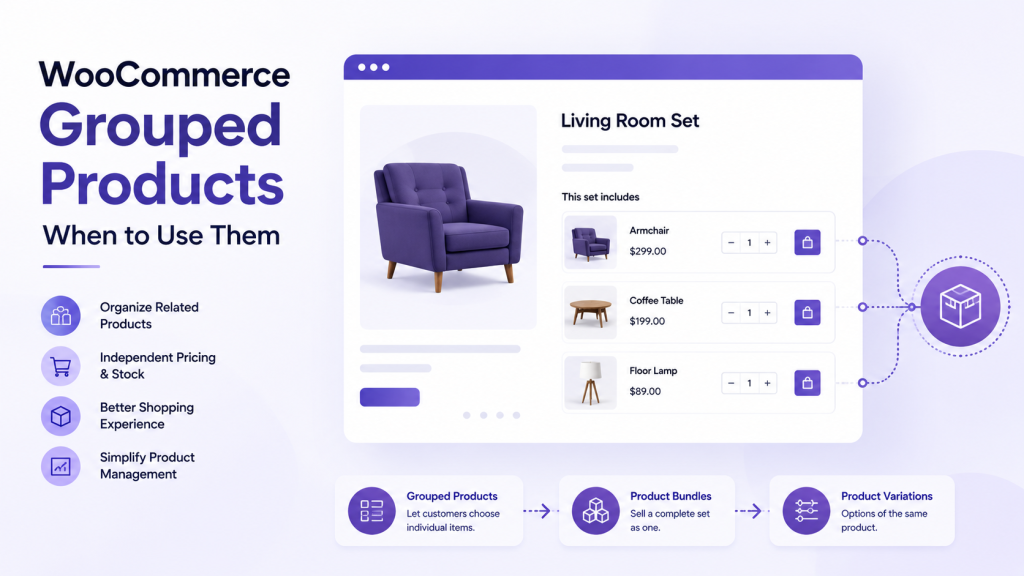
Important compatible products not appearing: A retailer selling modular furniture should show compatible pieces together. If the configuration system isn’t reflected in product categories, customers won’t discover these relationships. Understanding the differences between variable products, grouped products, and bundles becomes important here, as each product type has different relationship expectations and different ways that related products should display alongside them.
Related products not showing as expected: This has several causes. The theme template might not be calling the related products function. Plugin conflicts might be blocking the display. Product visibility settings might be hiding potential related items.
Manually managed relationships becoming difficult at scale: As you add products, manual assignments become a bottleneck. You can’t realistically assign relationships to thousands of products manually.
Each problem has a different solution, but they all stem from the gap between your product data structure and what customers need to discover.
WooCommerce Related Products Not Showing: What to Check
When related products don’t appear on your product pages, start with systematic checks rather than assuming a complex technical problem.
Check whether suitable products actually exist: If you have only three products in a category and you’re viewing the only item in that category, WooCommerce has no related products to show. This isn’t a problem; it’s expected behavior.
Verify product categories and tags: The product should have categories assigned. Check whether other products share those categories. If a product is the only item in its category, it won’t have related products based on automatic relationships.
Confirm product visibility: Products marked as hidden or not visible in the catalog won’t appear as related products. Check the product’s visibility status in the admin.
Check out-of-stock behavior: Some themes are configured to hide out-of-stock products from the related products section. If all your related products are out of stock, they might not display.
Review theme templates: Not all themes display related products by default. Check whether your theme includes the related products template in the single-product template files. Themes based on different templates might not call the WooCommerce related products function.
Verify WooCommerce configuration: In WooCommerce settings, check whether related products are enabled. The number of related products to display is configurable.
Test for plugin conflicts: Deactivate non-essential plugins temporarily to see whether a plugin is interfering with the related products’ display. Plugins handling product display, caching, or template overrides might cause conflicts.
Inspect custom code: If your store has custom development, check whether custom code is overriding the related products display.
The exact cause depends on your theme, plugins, and any customization. Start with the simplest checks and work toward more complex troubleshooting.
Customizing WooCommerce Related Products
When standard-related products functionality doesn’t meet your business requirements, customization becomes necessary. Understand your needs first, then choose the right implementation approach.
Manual product selection: You need complete control over which products appear as related items on specific product pages. This is common for high-value B2B products where relationships don’t follow category patterns.
Category-based recommendations: You want related products filtered by specific categories rather than all categories the product belongs to. This prevents broad categories from polluting recommendations.
Compatibility-based products: You need products related by technical compatibility or specifications, not just category membership. Industrial equipment often requires this approach. When you’re selling products that bundle naturally, compatibility-based recommendations ensure customers see truly complementary items without forcing relationships that don’t make business sense.
Customer segment-specific recommendations: You want to show different related products to different customer groups. B2B customers and retail customers might see different recommendations for the same product.
Dynamic recommendation rules: You want related products to change based on product attributes, inventory levels, or other factors.
Customization can involve several implementation paths. WooCommerce hooks and filters allow developers to modify related product query logic without extensive custom coding. Extensions and plugins provide pre-built solutions for specific customization needs. Custom development gives you complete control but requires ongoing maintenance.
Before implementing customization, decide whether the effort is justified. Does your business actually need this level of control? For most stores, fixing category structure and ensuring data consistency solves most related products’ problems without requiring custom code.
How DazzleBirds Approaches Product Relationship Architecture
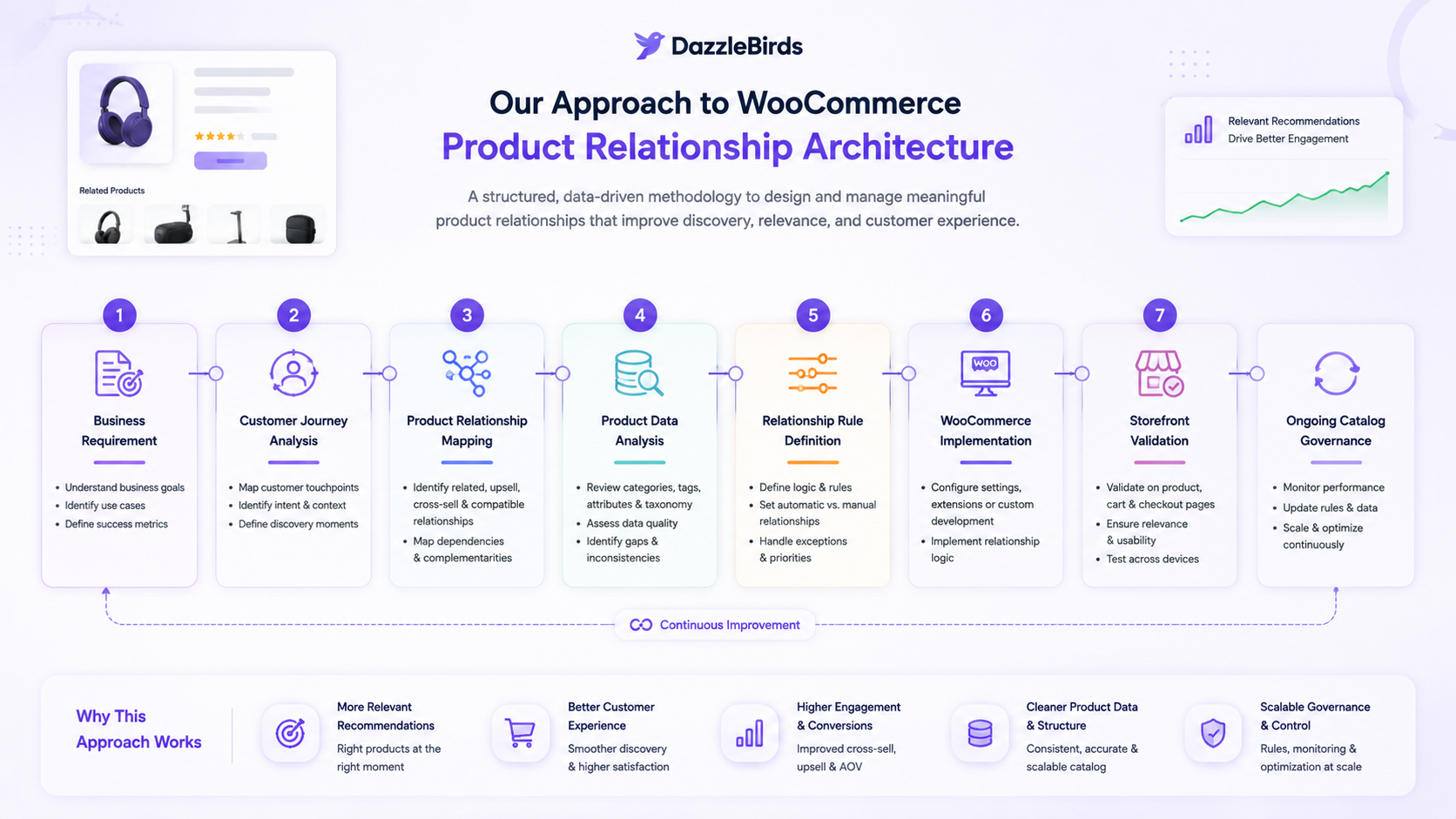
Effective product relationships require treating catalog structure as part of business logic, not administrative overhead. DazzleBirds approaches product relationship architecture systematically:
Business Requirement → Customer Product Journey → Product Relationship Mapping → Product Data Analysis → Relationship Rule Definition → WooCommerce Implementation → Product Page Validation → Ongoing Catalog Governance
Start by clarifying the business requirement. Why are related products important to your customers? How do they help with product discovery? For a distributor, related products might help customers find compatible items. For a manufacturer, they might help customers compare specifications.
Map the customer product journey. How do customers typically move through your catalog? What comparisons do they make? What decisions do they need support for? This understanding shapes how related products should work.
Define product relationships explicitly. Which products should relate to which others? Is the relationship based on category, compatibility, alternative options, or something else? Create decision rules that scale with your catalog. When selling variable products with multiple options or product bundles with complementary items, this decision becomes especially important because your related products logic must account for how variants and bundles influence customer discovery across different product types.
Analyze your current product data. Where are categories inconsistent? Where are tags incomplete? Where do manual relationships need to exist alongside automatic ones? This analysis identifies work before implementation.
Define relationship rules in WooCommerce. Use categories consistently. Tag products precisely. Set up manual relationships for exceptions. Document the system so team members understand how to maintain it.
Implement in WooCommerce. Configure related product settings. Test recommendations across different product types. Verify that related products appear correctly and feel relevant.
Validate on the live product page. The technical implementation must produce actual customer value. Test as a customer would, not just in the admin.
Establish ongoing governance. Assign responsibility for product data quality. Create processes for adding new products correctly. Monitor whether related products feel relevant. Update classification rules as your product mix evolves.
This approach treats product relationships as an architectural concern, not a feature added at the end. It requires cross-functional thinking about customer experience, business logic, and technical implementation. But it’s the only way to scale recommendation quality as your catalog grows.
A Practical Framework for Managing Product Relationships
Use this framework to decide which relationship type to apply in different scenarios:
| Relationship Type |
Best Used For |
Relationship Logic |
Customer Context |
Management Approach |
| Related Products |
Products in the same category or with shared characteristics |
Automatic, based on category and tag matching |
Customer discovering alternatives or complementary items in the same product family |
Category structure and automated recommendation logic |
| Upsells |
Encouraging purchase of a higher-value or premium version |
Manual assignment of specific product pairs |
The customer is considering a purchase; the timing is before add-to-cart. |
Manual assignment; review periodically for accuracy |
| Cross-Sells |
Suggesting products frequently bought together |
Manual assignment based on purchase patterns or compatibility |
Customer at purchase stage or in cart |
Manual assignment; update based on actual purchase data |
| Manual Compatibility Relationships |
Products with technical dependencies or specific compatibility requirements |
Manual assignment based on specs or business rules |
Customer needing assurance that products work together |
Documented business rules; manual updates as products change |
The key principle is that each relationship type serves a specific business purpose. Don’t try to force all recommendations through a single mechanism. Use automatic relationships where your catalog structure supports it. Use manual relationships where business logic requires precision.
Scaling Product Relationships With Your Catalog
Product relationships that work for 100 products often break down at 1,000 or 10,000 products. The scaling challenge isn’t technical; it’s structural.
Small catalogs can get by with loose category organization and occasional manual tweaking. Large catalogs require systematic discipline. Every product categorized incorrectly multiplies the problem across dozens of recommendation instances.
The solution is to treat your category and tag structure as a scalable data architecture. Define clear classification rules. Document what each category means. Ensure every team member applying categories follows the same logic. Use the same tags consistently. Enforce these standards as part of your product entry workflow.
For large B2B catalogs, this might mean implementing systems that enforce data quality across your e-commerce system and other business systems. This level of governance ensures that related products remain relevant even as your catalog grows to tens of thousands of items.
Key Takeaways
- WooCommerce related products are generated automatically based on shared product categories and tags, making product data structure fundamental to recommendation quality.
- Related products are distinct from upsells and cross-sells, which are manually configured relationships serving different business purposes.
- Category consistency and tag precision directly impact recommendation relevance; inconsistent categories produce diluted or irrelevant related products.
- Automatic relationships scale efficiently but depend on category structure; manual relationships provide precision but require ongoing maintenance.
- Large catalogs benefit from hybrid approaches that use categories for automatic relationships while applying manual exceptions for specific products or relationships that don’t follow category patterns.
- Related products not showing usually stems from category structure issues, product visibility settings, or theme configuration rather than WooCommerce system problems.
- Product data quality is not an administrative concern; it’s a business architecture concern that directly impacts customer discovery and sales.
- Scaling related products to large catalogs requires treating product classification as core infrastructure, with clear rules, consistent application, and ongoing governance.
- The DazzleBirds approach to product relationships starts with business requirements and customer journeys, then builds WooCommerce implementation around those needs.
- Related product frameworks should vary by relationship type and customer context; what works for alternatives won’t work for upsells or cross-sells.
FAQs
WooCommerce related products are product recommendations automatically displayed on product pages based on shared categories or tags. They help customers discover alternative or complementary products within the same product family without manually assigning each relationship.
WooCommerce identifies related products by scanning your catalog for items that share the same product categories or tags as the current product. It displays a subset of matching products (typically 5 by default) on the product page using your theme's related products template.
Related products are automatically generated based on shared catalog data and show similar items in the same category. Upsells are manually assigned relationships encouraging customers to upgrade to a premium version or higher-value product and typically appear prominently on the product page.
Related products may not display due to missing category assignments, products marked as hidden or not visible, theme configuration issues, plugin conflicts, or a category containing only one product with no other items to relate to. Check category assignments first, then verify theme configuration.
WooCommerce's default related products are automatic based on categories and tags. However, you can use plugins or custom code to override this behavior and manually assign specific products as related items, giving you complete control over recommendations.


 WooCommerce Solutions
 Solutions for WordPress