A store may have hundreds of products, but simply assigning a more expensive item as an upsell does not necessarily create a useful product relationship. A genuine upsell should provide a meaningful upgrade, additional capability, greater capacity, or a better version of the same solution that actually addresses a customer’s evolving needs.
The real challenge emerges when managing product relationships at scale. A business with hundreds of products needs a clear system for defining which items qualify as upgrades. A business with thousands of products needs that system to remain consistent even as products are added, updated, replaced, or discontinued. Without this structure, WooCommerce upsells become random product pairings that may confuse customers rather than guide them toward better solutions.
This guide explains exactly how WooCommerce upsells work, how to identify genuine upgrades, how to configure upsell relationships, and how to manage those relationships as your catalog grows in complexity and size.
What Are WooCommerce Upsells?
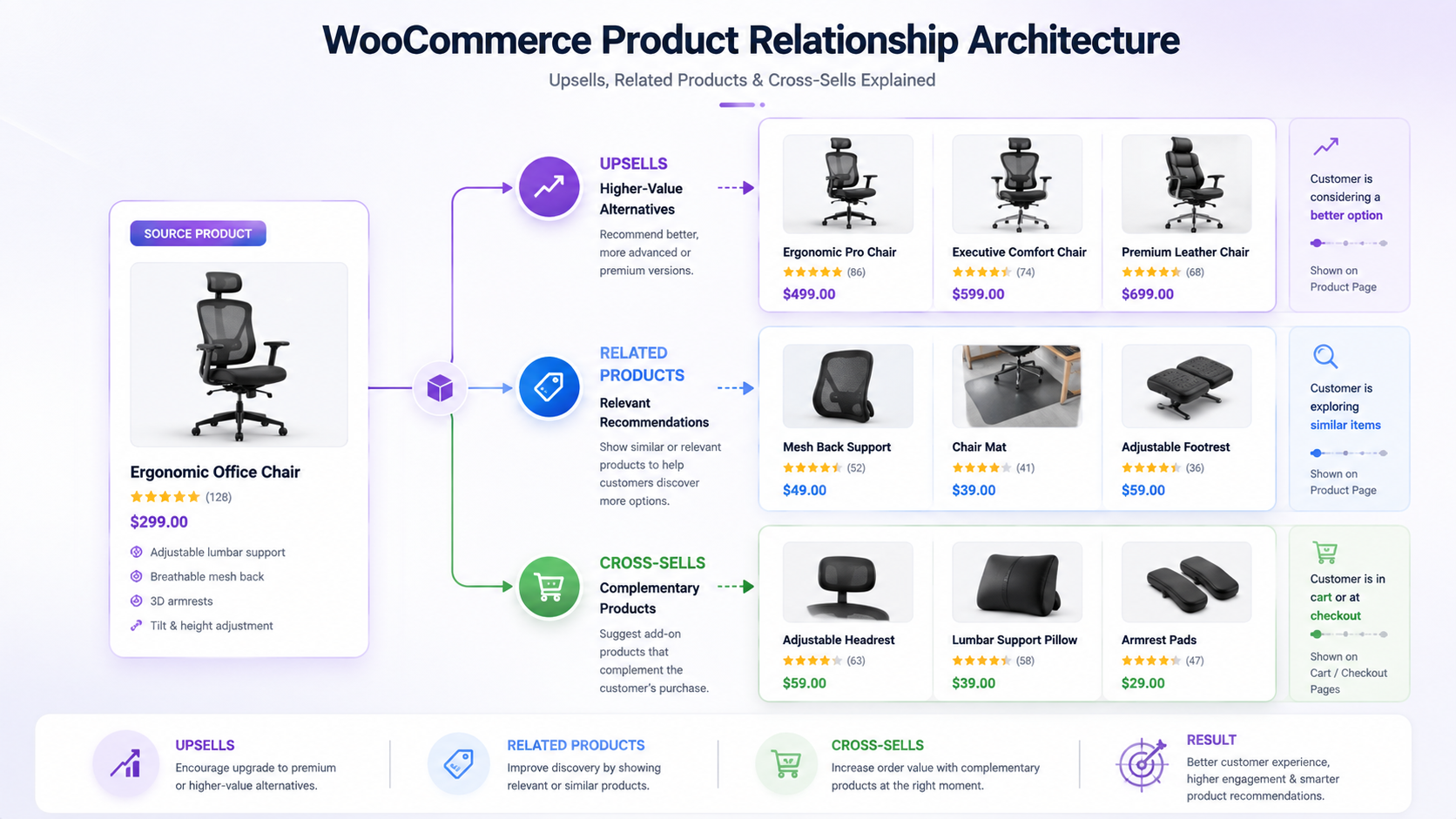
WooCommerce upsells are products intentionally associated with another product as a higher-value, more advanced, or otherwise suitable alternative for customer purchase. An upsell product represents an upgrade in capability, features, performance, or capacity compared to the source product. Unlike related products, which show similar items in the same category, or cross-sells, which suggest complementary products, upsells specifically encourage customers to purchase a better or more feature-rich version of the solution they are already considering.
How WooCommerce Upsells Work
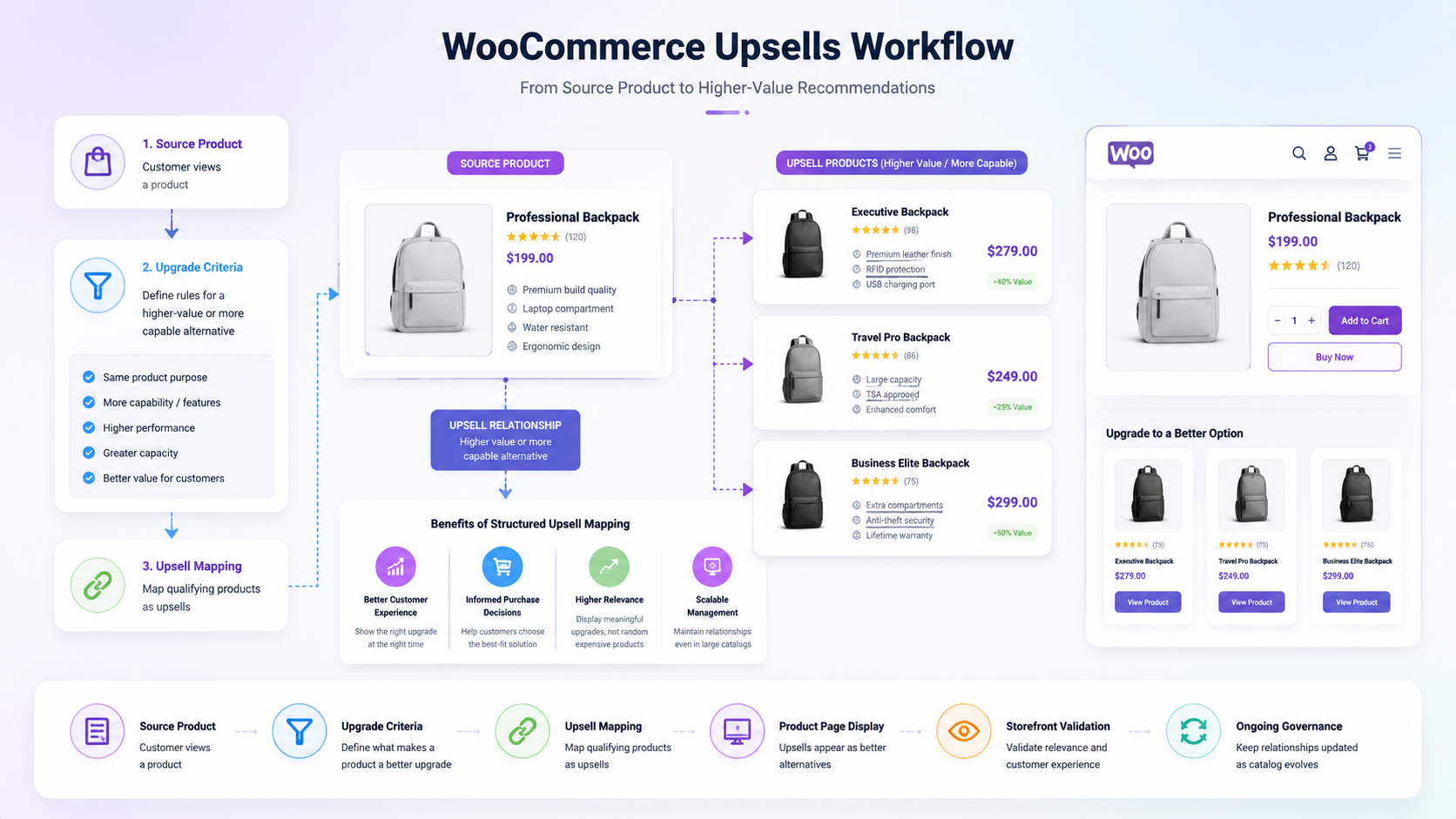
WooCommerce determines and displays upsells through a specific configuration workflow:
Source Product → Assigned Upsell Relationship → Recommended Upgrade Product → Product Page Context → Customer Recommendation
Here’s what happens at each stage:
You select a source product (the item a customer is currently browsing). You then manually assign one or more products as upsells for that source product. Those assigned products represent higher-value or more capable alternatives. WooCommerce displays the upsell products on the source product page, typically in a dedicated section. The customer sees the upgrade option alongside the product they were viewing.
The key distinction here is that WooCommerce upsells are manually configured relationships. You decide which products are upsells; the system does not automatically determine this based on categories or tags. This manual control is essential because an upgrade decision involves business judgment, not just catalog data. A truly suitable upsell must represent a genuine alternative that serves the same customer need but at a higher level of capability or value.
What Makes a Product a Good Upsell?
An effective upsell should not simply be the most expensive product in the catalog. A strong upsell should provide a meaningful upgrade in a dimension that matters to the customer.
Consider these genuine upgrade scenarios:
A customer browsing a basic power drill might benefit from an upsell to a professional-grade drill with higher torque and longer battery life. The products solve the same fundamental need but at different capability levels.
A customer viewing entry-level accounting software might be offered an upgrade to the professional version with advanced reporting and custom integrations. The upgrade addresses the same need with additional capability.
A customer selecting a standard industrial component might see an upsell to a higher-capacity version or a variant with additional features. The upgrade serves the same purpose but with greater performance or flexibility.
Use this decision framework when evaluating whether a product qualifies as a genuine upsell:
Does the product solve the same customer need as the source product? If yes, continue evaluation. If no, it should not be classified as an upsell.
Does it provide additional capability, performance, features, or capacity? If yes, it may be a suitable upsell. If no, consider whether it should be a related product or cross-sell instead.
Is it a completely different product addressing a different need? If yes, it should not be treated as an upsell.
This framework prevents false upsells where expensive products are paired with unrelated items simply because they have higher price points. An upsell should be a genuine alternative path for the customer, not a product push disconnected from the customer’s stated interest.
How to Add and Configure WooCommerce Upsells
Creating and maintaining WooCommerce upsell relationships requires systematic attention to ensure relationships remain relevant as products change.
Step 1: Choose the Source Product
Select the product for which you want to assign upsells. This is the product customers are currently viewing and considering for purchase. The source product should be a clear representation of a specific capability level or use case. For example, “Standard Industrial Pump” rather than “Pump Product A.”
Step 2: Identify a Genuine Upgrade
Determine which products in your catalog represent genuine upgrades to the source product. An upgrade might involve:
Higher capacity or performance specifications. Advanced or professional features. Better materials or durability. Greater flexibility or customization options. Enhanced support or warranty terms.
Document why each candidate product qualifies as an upgrade. For example, “Professional Drill: Higher torque rating (1,200 RPM vs 800 RPM), extended runtime battery (90 minutes vs 60 minutes).” This documentation helps ensure consistency as you manage upsells at scale.
Step 3: Assign the Upsell Relationship
In the WooCommerce admin, open the source product for editing. Locate the product data section and find the “Upsells” field. Add the upgrade product to the upsells section. You can typically assign multiple upsells to a single source product, but limit this to products that represent genuine upgrades. A best practice is to assign only the most relevant upgrade options rather than every possible higher-priced product.
Step 4: Save and Validate the Product Relationship
Save the product changes. The upsell relationship is now configured in WooCommerce. However, configuration in the admin does not guarantee the relationship will display correctly on the storefront.
Step 5: Test the Storefront Display
Navigate to the source product page on your live storefront. Verify that the upsell product appears correctly. Check whether the upgrade text makes sense in the customer’s context. Review how the product image, price, and description display. Some themes may show upsells prominently; others may place them in a less visible location. Test on multiple devices and browsers if possible.
Step 6: Review the Relationship When Products Change
Set a calendar reminder to periodically review upsell relationships. When products are updated, their capabilities might change. A product that was once a genuine upsell might become equivalent to the source product, or vice versa. When products are discontinued, remove them from active upsell relationships. When new products are added to the catalog, evaluate whether they represent better upgrades than current upsell assignments. This ongoing review is essential for maintaining relationship quality.
Where Do WooCommerce Upsells Appear?
WooCommerce upsells typically display on product pages, but the exact location and visibility depend on several factors that vary across installations.
Theme behavior: Different WooCommerce themes position upsells differently. Some themes display upsells immediately after the product description or price. Others place them below related products. Some premium themes offer configuration options for upsell positioning. Default WooCommerce themes display upsells in a dedicated section, but this can vary.
Template structure: Upsells are controlled by WooCommerce template files. If your theme uses custom product page templates, the upsell display may be affected. Some theme customizations intentionally remove or reposition the upsell section.
Plugin or extension configuration: Certain plugins that modify product pages or add custom product page elements might affect how upsells display. Plugins handling product comparison, quick views, or product filtering might change the upsell display location or visibility.
Custom development: If your WooCommerce store uses custom code, that code might override default upsell behavior entirely. Custom implementations can change where upsells appear, which products display, or how they are formatted.
Storefront validation is important because you should never assume your upsells appear as expected. Test the source product page after assigning an upsell. Verify the upgrade product displays, that the price and details are correct, and that the recommendation makes business sense in that customer context. This validation prevents situations where upsells are configured but not actually visible to customers.
WooCommerce Upsells vs Related Products
Related products and upsells serve different purposes in your product recommendation strategy. Understanding this distinction is essential for using each relationship type correctly.
| Aspect |
Upsells |
Related Products |
| Primary Purpose |
Encourage upgrading to a higher-value or more capable alternative. |
Show relevant or similar products in the same category. |
| Product Relationship |
Higher-value or more advanced version of the same solution |
Relevant alternative or similar product |
| Customer Context |
The customer is considering the current product; timing is before the purchase decision |
Customer browsing for options or comparing solutions |
| Selection Method |
Manual assignment by store managers |
Automatic based on categories/tags or manual assignment |
| Management Approach |
Individual product relationships require ongoing review. |
Scalable through category structure |
| Typical Use Case |
Standard model to professional model, basic features to advanced features |
Alternative products in the same product family |
Related products work through automatic relationship signals based on product categories and tags, whereas upsells require manual curation because they represent business decisions about which products represent meaningful upgrades. Understanding how WooCommerce related products work provides important context for distinguishing that distinct product relationship architecture from upsell relationships.
WooCommerce Upsells vs Cross-Sells
Cross-sells and upsells are distinct recommendation types that should not be confused with each other.
| Aspect |
Upsells |
Cross-Sells |
| Primary Purpose |
Upgrade to a higher-value alternative of the same solution. |
Suggest a complementary product for purchase together. |
| Product Relationship |
Better version of what the customer is considering |
Complementary product that pairs with the purchase |
| Customer Stage |
Before or during the purchase decision on the current product |
At the cart or during the purchase stage |
| Typical Context |
“Consider this professional version instead.” |
“Customers who buy this also buy that.” |
| Example |
Standard drill to professional drill |
Drill to drill bits or drill to carrying case |
Upsells say, “This product is better; upgrade here.” Cross-sellers say, “This product pairs well with what you are buying.” Not every product recommendation should be classified as an upsell. A product that does not represent an upgrade should not be forced into the upsell category. Clarity about relationship purpose helps customers understand your recommendations and improves the likelihood they will act on them.
Managing WooCommerce Upsells at Scale
Large catalogs require systematic thinking about upsell management. Stores managing hundreds or thousands of products face specific challenges.
Product Catalog → Product Classification → Upgrade Criteria → Upsell Mapping → Manual Exceptions → Storefront Validation → Ongoing Governance
As your catalog grows, manually reviewing and maintaining every product relationship becomes unsustainable. A store with 500 products might manage upsells individually. A store with 5,000 products cannot. Instead, businesses focused on managing WooCommerce catalogs at scale should create systematic rules for when upsells apply.
Define clear upgrade criteria. For example, in a drill product line: Standard Drill → Professional Drill → Heavy-Duty Contractor Drill. Each level represents a meaningful increase in capability. Document these tiers so team members assigning products understand the upgrade logic.
Assign upsells consistently. When new products enter the catalog, evaluate them against your defined upgrade criteria. If a new professional-grade drill is added, it becomes the upsell for the standard drill. If a standard drill is replaced with an updated version, the upsell relationships may need adjustment.
Identify products requiring manual oversight. Certain products might have upsell relationships that do not follow your standard tiers. Specialized B2B products or high-value items might have custom upgrade paths. Document these exceptions and maintain them separately from your standard upsell rules.
Create repeatable processes. When adding new products, someone should systematically check whether those products are upgrades for existing products or whether existing products should become upsells for them. This process prevents upsells from becoming outdated or incomplete.
Validate upsells when products change. When a source product is updated (new specifications, features, or price), verify its upsells still represent genuine upgrades. When a product is discontinued, remove it from active upsell relationships. When specifications change, the upgrade relationship might shift.
Implement periodic review cycles. Set a quarterly or semi-annual schedule for reviewing upsell relationships. Check whether assigned upsells still make business sense. Look for products that should have upsells but do not. Identify duplicate or conflicting upsell assignments.
Use bulk tools for large-scale updates. For managing WooCommerce catalogs at scale, consider using bulk WooCommerce product data management tools or import functions to update upsell relationships across multiple products at once. This is more efficient than editing products individually, especially when you need to update relationships across hundreds of products.
Without this systematic approach, large catalogs tend toward inconsistent or outdated upsells. Some products have relevant upgrades; others do not. Some upgrade relationships become stale as products change. Customers see recommendations that no longer reflect the current product lineup.
Common WooCommerce Upsell Problems and How to Fix Them
Real stores encounter predictable problems with upsells. These problems typically stem from configuration issues, product data problems, or display issues.
| Problem |
Likely Cause |
Practical Fix |
| Irrelevant upsell products appearing |
Upsells assigned without clear upgrade criteria |
Review assigned upsells; ensure they represent genuine upgrades. |
| Products that are not genuine upgrades |
Expensive products selected based on price alone, not capability |
Define upgrade criteria; validate that upsells offer additional capability. |
| Outdated or discontinued upsells |
Products removed from the catalog but upsell relationships not updated |
Audit upsell assignments when products are discontinued. |
| Duplicate or conflicting relationships |
The same product is assigned as an upsell to multiple sources without consistency. |
Document upgrade tiers; use consistent assignment logic. |
| Too many manually managed upsells |
Attempting to manage all relationships individually in a large catalog |
Create systematic rules; use bulk import tools for scaled updates. |
| Upsells not appearing on storefront |
The theme does not display upsells, or the template has been removed. |
Verify the theme includes an upsell section; check template files. |
| Display issues or formatting problems |
Theme incompatibility or custom CSS affecting upsell styling |
Test in different themes; review custom CSS rules |
| Plugin conflicts blocking display |
Plugins modifying product pages interfering with upsells |
Deactivate plugins temporarily to identify conflicts. |
Irrelevant upsells appearing: This usually happens when products are selected based on price rather than capability. A $500 product does not automatically become a good upsell for a $100 product. The upsell must represent an upgrade in functionality, performance, or features that justifies the price difference. Fix this by reviewing your upgrade criteria and reassigning upsells based on capability, not price.
Upsells not appearing on storefront: This often indicates a theme or template issue. Not all WooCommerce themes display upsells by default, or the theme may have been customized to remove the upsell section. Verify your theme includes the upsell template. Check your theme’s product template files for the upsell function call. If your theme lacks upsell display functionality, customizing WooCommerce product experiences might require theme updates or custom development.
Outdated upsells when products change: When source products are updated or discontinued, their upsells should be reviewed. A product that was a genuine upgrade might become equivalent to the source product after an update, or it might no longer be relevant. This is why periodic review cycles are important.
Manual vs Automated Upsell Management
Different approaches to managing WooCommerce upsells have different trade-offs.
Manual Upsell Management
Best for:
- Technical or specialized products
- B2B catalogs where upgrade relationships are complex
- High-value products requiring careful relationship curation
- Situations where each product relationship requires human judgment
Advantages: Complete control over every relationship. Ensures accuracy and business relevance. Disadvantages: Does not scale beyond a few hundred products. Requires ongoing maintenance as products change. When to use: B2B businesses selling industrial equipment, specialized tools, or high-value products where upgrade decisions require expertise.
Automated or Rule-Based Upsell Management
Best for:
- Large product catalogs with consistent structures
- Product lines with clear version hierarchies
- Repeatable upgrade patterns across product families
- Situations where new products follow predictable upgrade paths
Advantages: Scales to large catalogs. New products automatically receive appropriate upsells. Reduces manual data entry. Disadvantages: Requires well-organized product data and clear upgrade tiers. Cannot handle exceptions or complex upgrade relationships. When to use: Retailers with hundreds or thousands of similar products following predictable upgrade patterns.
A Hybrid Approach
Combine automation for standard relationships with manual control for exceptions:
Automation → Handles repeatable relationships for standard products based on product attributes or categories.
Manual control → Handles strategic products, specialized product lines, and technically complex relationships.
This approach scales better than purely manual management while maintaining control over relationships that require judgment.
| Aspect |
Manual |
Automated/Rules-Based |
Hybrid |
| Control Level |
Complete control over each relationship |
Limited control; follows defined rules |
Control for important relationships; automation for standard ones |
| Scalability |
Poor for large catalogs |
Excellent for large catalogs |
Good; scales with rules plus manual oversight |
| Maintenance Effort |
High; must review and update continuously |
Low once rules are defined |
Moderate; maintain rules and exceptions |
| Precision |
High accuracy for each relationship |
Accuracy depends on rule quality. |
High accuracy where it matters |
| Best Use Case |
Specialized B2B products, expert curation |
Large catalogs with consistent product structures |
Mixed catalogs with both standard and specialized products |
How Product Data Affects Upsell Management
The quality and organization of your product data directly impacts how well you can manage and scale upsell relationships.
Product Data → Upgrade Criteria → Upsell Eligibility → Product Mapping → Recommendation Quality
Product data elements that influence upsell decisions include:
Product hierarchy: How are products organized? Are there clear version levels or capability tiers? A catalog with distinct product lines makes upsells easier to define systematically.
Product versions: Are new versions clearly identified and distinguished from previous versions? If your product numbering or naming lacks consistency, determining whether one product is an upgrade of another becomes difficult.
Capacity or performance specifications: Do your product records include capacity ratings, performance metrics, or feature lists? This data helps determine whether one product genuinely represents a higher-capability version of another.
Product lifecycle status: Are products clearly marked as new, current, updated, or discontinued? Without this information, upsells may point to discontinued products or miss newly released upgrades. Understanding product lifecycle management for ecommerce catalogs is essential for maintaining accurate upsell relationships as products move through their lifecycle stages.
Product relationships documentation: Do your product records document which products are versions or variants of each other? This documentation is crucial for maintaining consistency.
Consider a practical example: A distributor manages pumps in multiple sizes and performance ratings. Without clear specifications in the product data, assigning upsells becomes guesswork. Standard Pump (1,500 GPM) should upsell to Professional Pump (2,500 GPM). But if the product records lack clear specification data, this relationship might be missed or incorrectly assigned.
When product data lacks these details, two problems emerge: you cannot systematically identify upgrade relationships, and your upsells become inconsistent or arbitrary.
The solution requires treating product data as infrastructure for your recommendation system. Accurate, complete product data is not just administrative overhead; it directly impacts whether your upsells make business sense to customers.
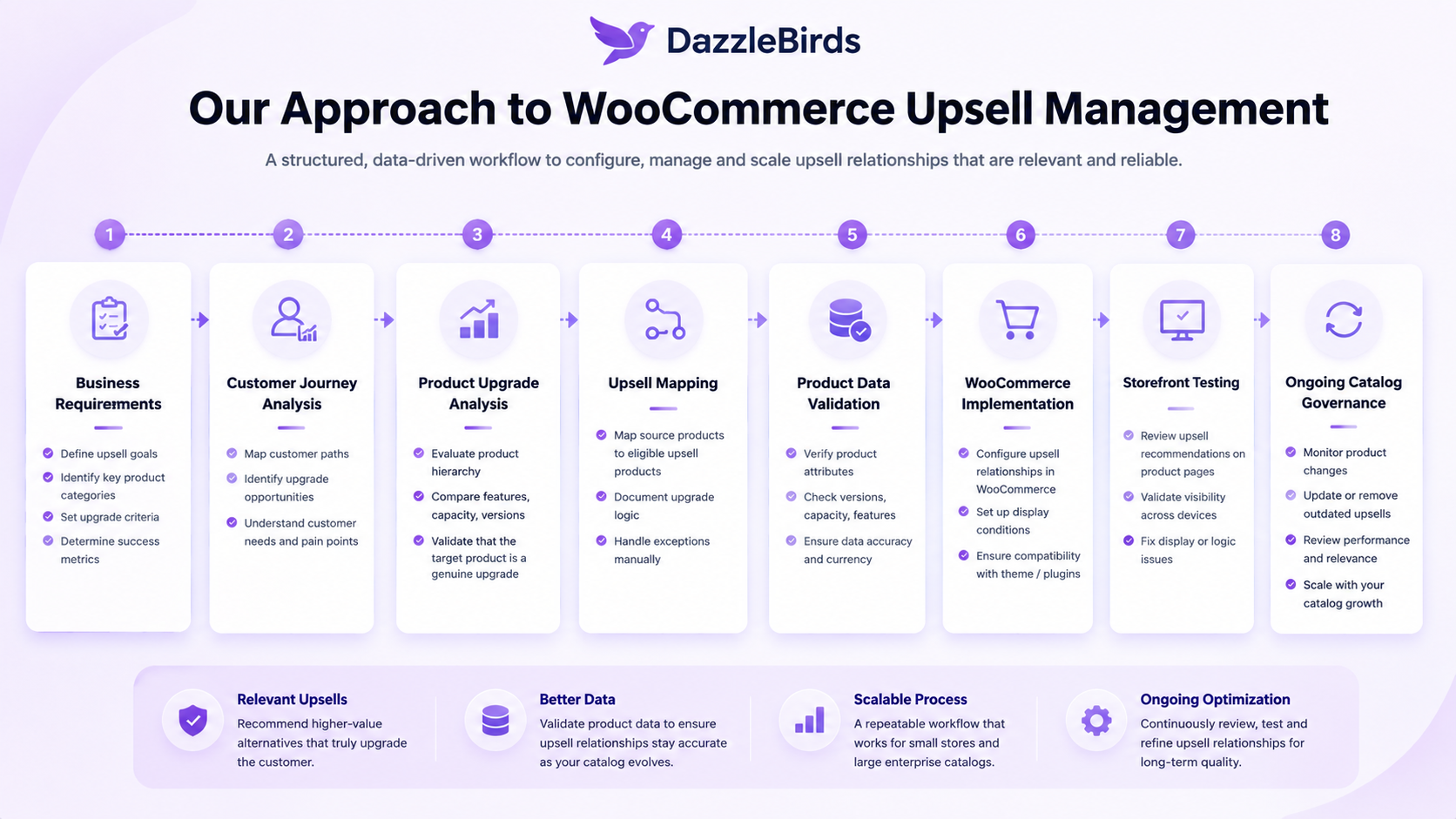
How DazzleBirds Approaches WooCommerce Upsell Management
Effective upsell management requires treating upgrade relationships as strategic business logic, not just product page features. DazzleBirds approaches WooCommerce upsell management systematically:
Business Requirements → Customer Product Journey → Product Upgrade Analysis → Upsell Mapping → Product Data Validation → WooCommerce Implementation → Storefront Testing → Ongoing Catalog Governance
Start by clarifying business requirements. Why are upsells important to your business? Are you trying to help customers find better solutions? Are you hoping to increase average order value? Do specific product lines have clear upgrade paths? Understanding your goal shapes how you structure upsells.
Map the customer product journey. How do customers typically move through your product line? What upgrade considerations do they face? Are there specific points where a customer might reconsider and opt for a better product? This understanding shapes which products should be upsells and for which source products.
Analyze product upgrades in your catalog. Which products genuinely represent upgrades? What makes them upgrades? Is it features, performance, capacity, durability, or support? Document these upgrade criteria so team members can apply them consistently. This analysis often reveals that some expensive products are not genuine upgrades, and some moderately priced products represent meaningful improvements.
Map upsell relationships explicitly. Create a mapping document showing which source products have upsells and what those upsells are. This documentation serves as a reference for consistency and a governance tool for reviewing relationships over time.
Validate product data before implementation. Verify that your product records include the information needed to determine upgrades (specifications, features, capacity, and performance). Clean incomplete or inaccurate data. Update product records to clearly distinguish version levels, product lines, and relationship hierarchies.
Implement in WooCommerce carefully. Assign upsells to the admin. Test thoroughly on the storefront. Verify that upsell products display correctly. Ensure the upgrade text and positioning make sense in the customer context.
Test on the live storefront systematically. Do not assume implementation is complete once you save changes in the admin. Navigate to source product pages. Verify upsells appear. Check formatting and readability. Test on mobile. Validate across different browsers. This testing catches display issues before customers encounter them.
Establish ongoing governance. Assign responsibility for upsell management. Create processes for adding new products and assigning appropriate upsells. Set review cycles for evaluating existing relationships. Define how upsells are updated when products change or are discontinued. Document these processes so consistency continues as team members change.
A Practical Framework for Choosing WooCommerce Upsells
Use this decision framework before assigning an upsell relationship:
| Question |
If yes |
If not |
| Is the product a genuine upgrade? |
Continue evaluation. |
Do not assign as upsell. |
| Does it solve the same customer need? |
Continue evaluation. |
Classify as a related product or cross-sell. |
| Does it offer additional capability? |
Likely a good upsell |
Reconsider; may not qualify |
| Is the product relationship relevant to customers? |
Strong upsell candidate |
May confuse customers; skip |
| Can the relationship scale as the catalog grows? |
Recommend assignment |
Consider whether the relationship will remain valid. |
| Could the recommendation become outdated? |
Plan review process |
Assign with confidence. |
This framework prevents false upsells and helps ensure your recommendations represent genuine business value. Apply this thinking before assigning each relationship, especially for high-value products or strategic product lines.
Building a Scalable WooCommerce Upsell Strategy
The workflow that ties WooCommerce upsells together is
Product Data → Upgrade Logic → Upsell Mapping → Storefront Validation → Ongoing Governance
WooCommerce upsells should be treated as structured product relationships rather than simply placing expensive products next to other products. A clear upgrade strategy helps businesses maintain relevant recommendations as their WooCommerce catalog becomes larger and more complex.
Small catalogs can manage upsells individually without much structure. As catalogs grow, that approach breaks down. A business with thousands of products needs systematic rules for what constitutes an upgrade, clear documentation of upgrade tiers, and regular review cycles to maintain consistency as products change.
The most successful WooCommerce implementations treat upsells as part of product relationship architecture. Start with business requirements and customer needs. Understand which products represent genuine upgrades. Define clear criteria for what makes a product an upgrade. Maintain product data that supports these upgrade decisions. Implement systematically. Validate on the storefront. Review continuously. This discipline ensures your upsells guide customers toward better solutions rather than confusing them with irrelevant recommendations.
Key Takeaways
- WooCommerce upsells are manually configured relationships where one product is intentionally positioned as a higher-value or more capable alternative to another product.
- A genuine upsell must represent a meaningful upgrade in capability, features, performance, or capacity, not simply be a more expensive product.
- Upsells are distinct from related products (similar products in the same category) and cross-sells (complementary products), each serving different purposes in your recommendation strategy.
- Configuration requires systematic attention to ensure relationships remain relevant as products are added, updated, or discontinued.
- Where upsells appear on your storefront depends on theme behavior, template structure, and any custom development, requiring storefront validation after configuration.
- Large catalogs require rule-based or hybrid upsell management approaches rather than purely manual assignment to remain maintainable as product volumes increase.
- Product data quality directly impacts upsell management; clear specifications, version information, and product lifecycle status enable systematic relationship configuration.
- The DazzleBirds approach to upsell management starts with business requirements and customer journey analysis, then structures product upgrade relationships around those needs.
- Ongoing governance processes are essential; periodic review cycles prevent upsells from becoming outdated when products change or are discontinued.
- A hybrid approach combining automation for standard relationships with manual control for strategic products scales better than purely manual management while maintaining relationship quality.
FAQs
WooCommerce upsells are higher-value or more capable products intentionally associated with a source product on the product page. When a customer views the source product, the upsell recommends an upgrade option. Upsells are manually configured relationships, not automatic recommendations based on categories or tags.
Open the source product in the WooCommerce admin. In the product data section, find the "Upsells" field. Select the product that represents an upgrade. Save the changes. The upsell will then appear on the source product page, though the exact display location depends on your theme. Always test on the storefront to verify the upsell displays correctly.
WooCommerce upsells typically display on product pages, but the exact location varies by theme. Some themes show upsells immediately after product details; others place them below related products. Custom themes or customizations may position them differently. Always verify where upsells actually display on your live storefront rather than assuming they appear in a specific location.
Upsells encourage customers to upgrade to a higher-value or more capable version of what they are already considering. Cross-sells suggest complementary products that pair well with a purchase. An upsell says, "Consider this better product instead." A cross-sell says, "This product pairs well with what you are buying." Understanding the difference helps you classify relationships correctly.
Upsells may not display if the theme does not include upsell functionality in its product page templates. Some themes require template customization to show upsells. Plugins modifying product pages might interfere with upsell display. Custom code might override default upsell behavior. Check your theme's template files, deactivate plugins to identify conflicts, and verify the upsell configuration in the admin is correct.


 WooCommerce Solutions
 Solutions for WordPress