A growing WooCommerce store rarely stays a one-person operation for long. Within a year or two, the same store might have an owner, an e-commerce manager, a support team, an inventory coordinator, a developer, and a growing list of customers, all touching the same website in different ways.
Not everyone needs the same level of access. A support agent who only needs to look up an order does not need the ability to change payment settings. A content writer updating a blog post does not need visibility into customer billing details. When every team member is handed administrator access because it is faster than thinking it through, the store ends up carrying operational and security risk that has nothing to do with how well the business itself is run.
This raises a practical question: how do WooCommerce user roles determine who can access the store and what actions they can perform?
WooCommerce user roles are built on top of the WordPress role and capability system. Each role, such as Administrator, Shop Manager, or Customer, is assigned a defined set of capabilities. Those capabilities determine exactly which screens a user can see, which data they can view, and which actions they are permitted to take inside the store.
How WooCommerce User Roles and Capabilities Work
Every WordPress user is assigned a role, and every role is built from a set of capabilities. A capability is a specific permission, such as the ability to edit a product, view an order, or manage store settings. These roles simply group capabilities together in a way that matches a typical job function.
The chain looks like this in practice:
A user account is created, a role is assigned to that account, the role carries a defined list of capabilities, those capabilities determine which permissions the user has, and those permissions determine which actions the user is allowed to perform inside WooCommerce and WordPress.
In everyday terms, this means a user with the right capabilities might be able to:
- Manage products, including adding, editing, or removing listings
- View and update customer orders
- Create and manage coupons
- Access sales and performance reports
- Manage customer accounts and account details
- Edit broader site settings, themes, and plugins
Which of these a specific person can do depends entirely on the role assigned to their account and the capabilities attached to that role. A shop manager and an administrator can both touch products and orders, but the two roles are not interchangeable, and treating them as if they are is one of the most common access mistakes in WooCommerce stores.
The Default Roles Used in a WooCommerce Store
WordPress ships with a set of default roles, and WooCommerce adds one of its own on top. Understanding what each role is actually meant for is the starting point for any sensible access strategy.
The administrator has full control over the WordPress installation. This includes themes, plugins, users, site settings, and every WooCommerce screen. Administrator access should be reserved for the small group of people who genuinely need to manage the technical foundation of the site, not simply the store’s daily operations.
Shop Manager is the role WooCommerce introduces specifically for store operations. It grants access to products, orders, coupons, and store-level reports, without granting the ability to change themes, install plugins, or manage other WordPress users.
Customer is the role automatically assigned to shoppers who create an account. It is scoped to that person’s own orders, addresses, and account details, with no visibility into the store’s backend.
Subscriber, where relevant, is a WordPress default role with very limited access, typically used for content-related features such as commenting or gated content rather than store management.
| Role |
Main access level |
Typical responsibilities |
Who should usually use it |
| Administrator |
Full site and store control |
Site configuration, plugin and theme management, user management |
A small internal group or trusted technical lead |
| Shop Manager |
Store operations only |
Product management, order processing, coupons, store reports |
Ecommerce managers, operations staff |
| Customer |
Own account only |
Viewing orders, managing addresses, updating account details |
Shoppers with a registered account |
| Subscriber |
Minimal, content-related |
Commenting, gated content access |
Users who need light site interaction, not store control |
The distinction between administrator and shop manager matters more than most store owners realize. Administrator access carries the ability to install plugins, deactivate security tools, and modify the underlying site structure. Shop manager access lets someone run the store day to day without ever touching those deeper technical layers. When a task only requires managing products or fulfilling orders, assigning a shop manager role instead of administrator access reduces the number of people who can accidentally, or deliberately, change something outside their job.

What Can a Shop Manager Access in WooCommerce?
The Shop Manager role exists so that people running the store do not need Administrator access to do their jobs. In a typical setup, a shop manager can create and edit products, manage stock and pricing, view and process orders, issue refunds where permitted, create and manage coupons, and review store reports covering sales and performance.
A shop manager can generally manage customer records related to orders and accounts, since that information is directly tied to fulfilling and supporting purchases. What a shop manager typically cannot do is install or update plugins, switch themes, edit other users’ roles, or change core site settings.
It is worth being direct about one thing here: exact shop manager access can shift depending on the store’s specific setup and the extensions installed. Some plugins extend or restrict what a shop manager can see, and a few poorly built extensions ignore WooCommerce’s role structure entirely. Reviewing actual access after installing new tools, rather than assuming the default behavior always holds, is a reasonable habit for any team managing role assignments at scale.
For most day-to-day ecommerce operations, shop manager access is the more appropriate choice over administrator access. It gives operations staff everything they need to run the store while keeping the technical foundation, themes, plugins, and other user accounts out of reach. This single decision removes a large share of the accidental changes and security exposure that come from over provisioning access.
Understanding Customer Access and Account Permissions
The customer role is designed around a narrow, predictable scope. A customer with an account can typically view their own order history, manage saved addresses, update account information such as name and email, and, in some setups, download purchased digital products or manage active subscriptions.
Customers cannot see other customers’ data, cannot view backend store information, and have no access to WooCommerce administration screens. That separation is intentional and forms the baseline of account security on any WooCommerce store.
Businesses selling to other businesses or running stores with more complex buyer relationships often need more than the default customer experience. Common examples include restricting certain products from being visible to general customers, showing account-specific pricing or catalogs, grouping customers so that different segments see different content, or adding custom account functionality tied to a company or account type rather than an individual shopper.
These needs usually call for role or capability adjustments layered on top of the customer role or a dedicated customer group structure, rather than a complete departure from how WordPress user roles work. If your store already sells to distributors or wholesale accounts with account-specific pricing, our guide on B2B WooCommerce pricing and customer rules covers how that layer typically gets built without compromising standard account security.
When Do You Need Custom WooCommerce User Roles?
Default roles cover a large share of stores well. Custom roles become useful once a business has responsibilities that do not map cleanly onto Administrator, Shop Manager, or Customer.
A few practical examples make this concrete:
A support employee who needs to view and update orders but has no reason to touch site settings or product pricing is better served by a role scoped specifically to order visibility and customer notes.
An inventory team member who manages stock levels and product data does not need access to customer records or store financial reports.
A content manager responsible for blog posts and site pages should not have visibility into orders or customer information at all.
A developer who needs temporary technical access for a specific project can be granted that access for a defined period, rather than holding it permanently after the work is finished.
A business with a specialized operational function, such as a warehouse team confirming fulfillment or a regional manager overseeing one segment of the catalog, often needs access that falls between the standard roles.
The underlying principle across all of these examples is the same: build the role around the minimum access required to do the job, not around what is convenient to set up. Custom roles work best when they reflect actual responsibilities rather than default assumptions about who might eventually need broader access.
How to Think About WooCommerce Permissions Before Creating Custom Roles
Before building a custom role, it helps to work through a short set of questions rather than jumping straight into configuration.
- What information does this user actually need to access? Be specific about data, not just general areas of the site.
- What actions does the user need to perform? Viewing information is different from being able to edit or delete it.
- What information should remain restricted, even if it would be convenient for the user to see it?
- Does an existing role already provide the access required, or close to it, so a custom role is not the fastest path to unnecessary complexity?
- What happens when this person’s responsibilities change? Roles that are never revisited tend to accumulate access that no longer matches the job.
The goal of this exercise is not to create as many finely tuned roles as possible. A store with a dozen overlapping custom roles is often harder to manage than one with three or four clear, well-scoped ones. The objective is a manageable access structure that maps to how the business actually operates, built around roles that reflect real responsibilities rather than a role for every conceivable edge case.

Common WooCommerce User Role Mistakes
Access problems in WooCommerce stores tend to follow familiar patterns. Recognizing them early is easier than untangling them after months of unmanaged growth.
Giving administrator access to every team member. This is the most common shortcut, usually taken because it avoids the work of figuring out what someone actually needs. The risk is that any one of those accounts can change core settings, install plugins, or remove other users, whether intentionally or by mistake. The better approach is assigning Shop Manager or a scoped custom role and expanding access only when a genuine need is demonstrated.
Using one shared administrator account. Some stores still operate with a single login shared across a team. This makes it impossible to know who made a given change, and it means the account cannot be individually disabled if one person leaves. Individual accounts with clearly assigned roles solve both problems.
Creating too many overlapping custom roles. When roles are created reactively, one for each new request, the structure becomes difficult to audit. Two roles with nearly identical capabilities but different names create confusion about who can do what. Consolidating similar roles keeps the system understandable.
Forgetting to update access when responsibilities change. A person who moves from support to operations often keeps their old permissions on top of new ones, rather than having their role updated to match their current job. Over time, this quietly builds up unnecessary access across the team.
Giving third-party users more access than necessary. External agencies, freelance developers, and contractors are sometimes granted Administrator access purely because it is the fastest way to give them what they need for one task. A scoped role, or temporary elevated access removed once the work is complete, achieves the same result with far less exposure.
Assuming installed plugins automatically follow the same permission structure. Not every plugin respects WordPress and WooCommerce roles consistently. Some introduce their own permission settings, and a few grant broader access than the store owner expects by default. Checking plugin-specific permission settings after installation is a necessary step, not an optional one.
Managing User Roles as Your WooCommerce Store Grows
Access requirements rarely stay simple as a store scales. More internal team members join, external agencies get involved in specific projects, developers rotate in and out for technical work, dedicated customer support teams form, and inventory or operations staff take on more defined responsibilities. What worked with three people wearing multiple hats does not automatically work with fifteen people across several departments.
Periodic review is the mechanism that keeps role assignments aligned with how the business actually operates. In practice, this means removing access that is no longer needed, updating permissions when someone’s responsibilities shift, reviewing accounts that have gone inactive, managing time-bound access for external partners and agencies, and keeping a clear record of who is responsible for which part of the store.
None of this needs to be complicated. A quarterly access review, even a short one, catches most of the drift that accumulates from day to day operational decisions. Stores that connect WooCommerce with other systems, such as an ERP platform for inventory and order data, often find that access review needs to extend slightly beyond WordPress itself. Our guide on WooCommerce ERP integration covers how data and access responsibilities typically get coordinated once a store is connected to external business systems.
Where User Roles Connect With More Complex WooCommerce Workflows
WooCommerce user roles and capabilities are the foundation that more advanced business workflows are built on top of. Restricted catalog access, customer-specific pricing experiences, and operational access controls all depend on a clear underlying role structure to function correctly.
Order approval workflows are a good example of this relationship. Permissions determine who is allowed to participate in an approval process, such as who can view a pending order or who can mark it as approved, while the approval workflow itself, including the sequence of steps and business rules, is a separate layer built on top of that access foundation. If your store needs a structured approval process for B2B orders, our breakdown of WooCommerce order approval and automation workflows covers how that process is typically designed once the underlying access structure is in place.
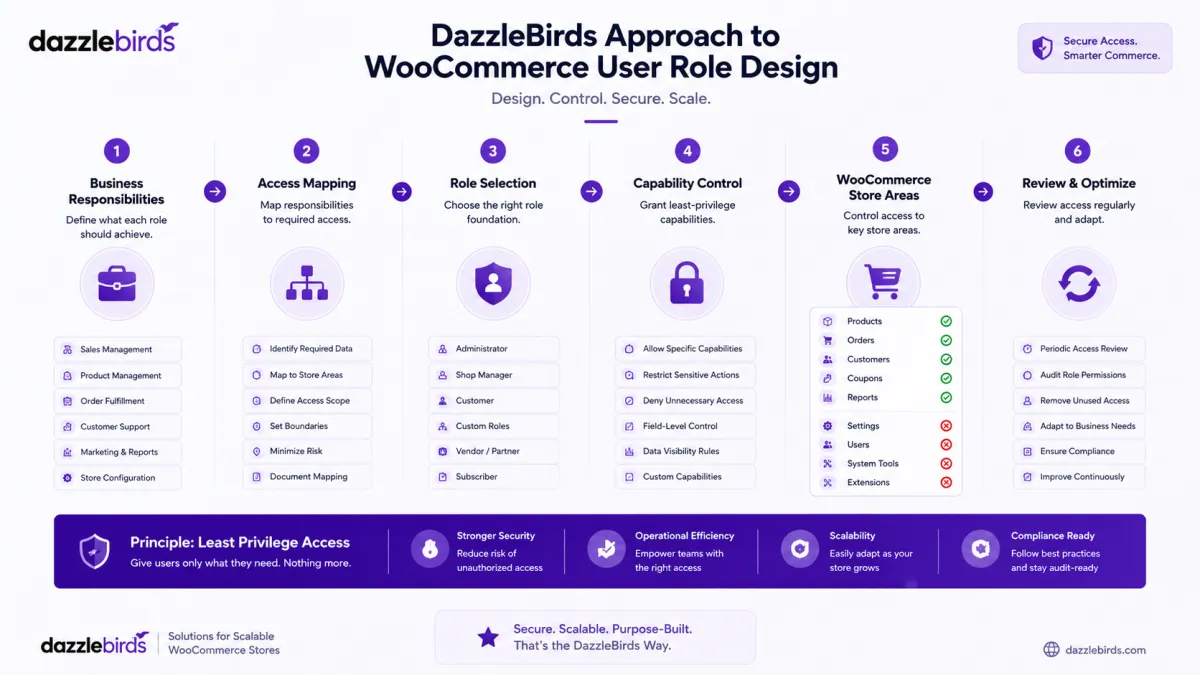
The DazzleBirds Approach to WooCommerce Access and Role Design
Access design is not something we treat as a checkbox during a build. It is a working part of how a store operates day to day, and getting it wrong tends to surface as either operational friction or a security gap, usually months after launch rather than during it.
Understanding responsibilities. We start by identifying what different people on a client’s team actually need to do. That might mean managing products, processing orders, supporting customers, maintaining content, or overseeing store operations. This step is conversation-driven, not assumption-driven.
Mapping required access. From there, we determine what data each role genuinely needs to see, what actions each role needs to perform, and, just as importantly, what should stay restricted. This mapping becomes the reference point for every role decision that follows.
Using the simplest appropriate role structure. In many cases, the default roles are sufficient, and building custom ones would only add unnecessary complexity. Custom roles get introduced when a team’s responsibilities genuinely require more specific access control than an administrator, shop manager, or customer can provide on their own.
Reviewing access as workflows change. Store operations shift. Teams grow, tools get added, and responsibilities evolve. We treat user access as something to revisit alongside those changes, not as a one-time setup task.
Considering connected systems. Where WooCommerce connects to other platforms, such as an ERP system, a multi-store setup, or a custom pricing structure for B2B accounts, access responsibilities often need to be reviewed across the full workflow rather than in isolation. Businesses running more than one storefront face this regularly, and our overview of WooCommerce multi-store management covers how access coordination typically works across multiple connected stores.
Choosing the Right Role Structure for Your WooCommerce Store
There is no single correct answer for every business. The right structure depends on how many people touch the store, how varied their responsibilities are, and how the store connects to other systems.
| Approach |
Best suited for |
Main benefit |
When it may become necessary |
| Default roles |
Stores with straightforward, well separated responsibilities |
Simple to manage, no added configuration |
Suitable from launch through moderate team growth |
| Custom roles |
Teams where specific staff need access beyond standard roles |
Access matches actual job functions closely. |
When support, inventory, content, or technical staff have overlapping but distinct needs |
| Advanced access management |
Businesses with complex operations, multiple teams, or system integrations |
Centralized, auditable control across connected systems |
When a store integrates with ERP, CRM, or multi-store setups involving several external parties |
A store with a founder, one operations person, and a small customer base rarely needs anything beyond the default roles. A store with a dedicated support team, an inventory coordinator, and an agency handling development work usually benefits from a small number of custom roles. A business running multiple storefronts, connected systems, and a mix of internal and external users tends to need a more deliberate, ongoing access management approach. If custom development work is required to build out roles beyond what plugins or core WordPress support, our guide on WooCommerce custom development outlines how that kind of technical work typically gets scoped.
Store Access Should Match Real Responsibilities
WooCommerce user roles are not a background administrative setting to configure once and forget. They determine who can see store information and which actions different people are allowed to take every day the store is running.
The right role structure is the one that matches how the business actually operates. That might mean the default Administrator, Shop Manager, and Customer roles are genuinely enough. It might mean a handful of custom roles built around specific job functions. Either way, the underlying discipline is the same: give people the access their work requires, keep everything else restricted, and revisit those decisions as the team and the store itself continue to change.
A short, periodic review of who has access to what, done consistently, prevents most of the access sprawl that quietly builds up in growing WooCommerce stores.
FAQs
WooCommerce uses WordPress user roles to control what users can access and manage. The main roles relevant to a WooCommerce store include Administrator, Shop Manager, Customer, and Subscriber. Each role has different capabilities, ranging from full website administration to limited customer account access.
An Administrator has broad access to WordPress and WooCommerce, including site settings, users, plugins, and other administrative functions. A Shop Manager is designed for managing day-to-day WooCommerce operations, such as orders and products, without necessarily requiring full website administration access.
WooCommerce user roles work through capabilities that determine which actions a user can perform. Depending on the assigned role, a user may be able to manage products, view or update orders, access customer information, manage store settings, or perform other approved actions.
Yes. Custom WooCommerce user roles can be created when the default roles do not provide the right level of access. For example, a business may need a role that can manage products but cannot access site settings, or a support role that can view and update specific order information.
Choose a WooCommerce user role based on the person's actual responsibilities and the access they need to perform their work. A good approach is to provide the minimum permissions required rather than giving every employee Administrator access, then review permissions when responsibilities change.



 WooCommerce Solutions
 Solutions for WordPress