A WordPress update can look correct in staging and still fail after deployment. A layout may break on mobile. A form may be submitted without delivering its email. A payment gateway may work in test mode but fail in a real customer journey. An outdated staging database may even overwrite new orders, users, leads, comments, or inventory changes on the live website.
Staging WordPress changes safely requires more than reviewing a few pages and clicking publish. A reliable process must validate design, functionality, compatibility, performance, integrations, search settings, business data, deployment steps, and rollback readiness.
This WordPress staging site checklist explains what to test before pushing changes live and how to reduce avoidable production risk.
What Is a WordPress Staging Site?
A WordPress staging site is a private copy of a live website used to develop, test, and validate changes before real visitors experience them. It should resemble production closely enough to expose technical and operational problems without affecting customers, orders, leads, or search visibility.
WordPress recognizes local, development, staging, and production as separate environment types. This helps themes, plugins, and custom code identify the environment in which they are running.
A staging website is useful for testing WordPress updates, plugin changes, theme modifications, custom code, checkout improvements, integrations, performance work, database migrations, redirects, tracking, and major content releases.
Staging is not a replacement for backups, code review, or production monitoring. It is one controlled stage within a safer WordPress development and deployment process.
Why Is a WordPress Staging Environment Important?
A staging environment gives the team a place to find failures while the live website continues serving customers.
The business impact of incomplete testing often extends beyond the visible issue. A broken button can stop inquiries. A slow dashboard can delay order handling. A failed scheduled task can interrupt stock updates, renewals, exports, or email queues. An incorrect search directive can remove important pages from search results. A careless database deployment can erase transactions that cannot be recreated safely.
Use staging when a change affects revenue, customer data, authentication, lead generation, website-wide templates, integrations, performance, or search visibility.
Staging Versus Production
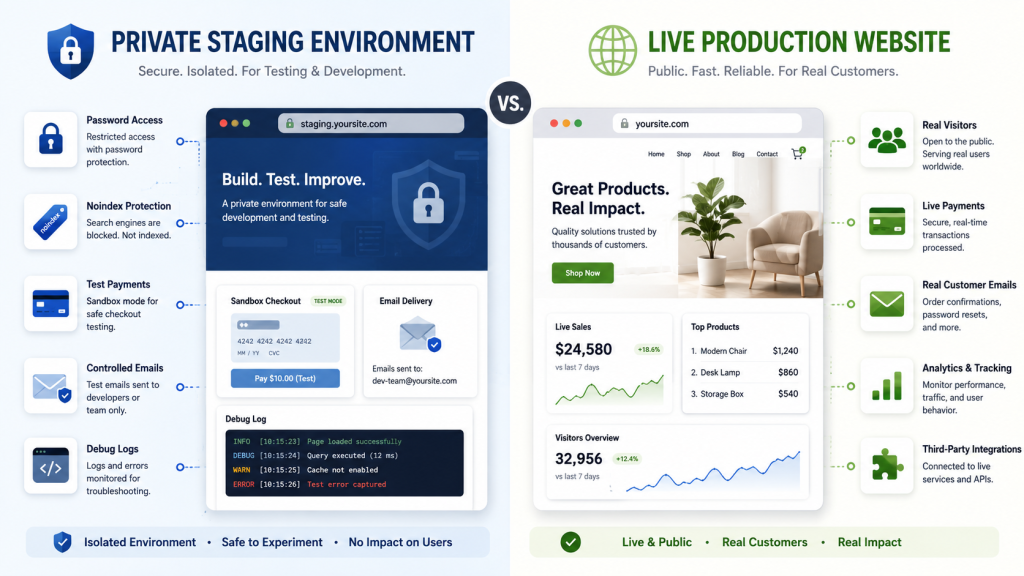
Staging is designed for controlled testing. Production is the public website used by customers, staff, search engines, analytics tools, payment services, and connected business systems.
The two environments should match in the areas that influence behavior. Compare the WordPress version, PHP version, active theme, plugin versions, server settings, database structure, caching, content delivery rules, and relevant integrations.
They should differ in areas that create risk. Staging should use protected access, test payment credentials, controlled email delivery, safe API credentials, debug logging, and noindex protection. Production should use public access, real credentials, live payments, verified tracking, and correct search settings.
Prepare the Staging Site Before Testing
Testing results are only useful when the environment is prepared correctly.
Protect Access and Prevent Indexing
Use server authentication, platform access controls, a private network, or another reliable restriction. A hidden URL is not security.
Google states that robots.txt is not a method for keeping a page out of search results. It recommends noindex or password protection for content that should not appear in Google.
Use sitewide noindex protection and confirm it in the page source or HTTP response. Do not block the staging site in robots.txt before confirming the noindex directive, because Google must be able to crawl the page to see that instruction.
Refresh the Staging Copy
Create or refresh staging close enough to testing that its content, settings, plugins, users, and database structure still represent production.
This is especially important for WooCommerce, membership, learning, and lead generation websites because their databases change throughout the day. Record when staging was created and identify what has changed on production since that time.
Control Emails, Payments, and Integrations
Replace live credentials with sandbox credentials. Route email to a controlled inbox or disable delivery safely. Prevent test orders from reaching shipping, accounting, fulfillment, customer relationship, and marketing systems.
Also confirm that scheduled tasks, webhooks, subscriptions, imports, and automation cannot create real customer messages or operational records.
WordPress Staging Site Checklist
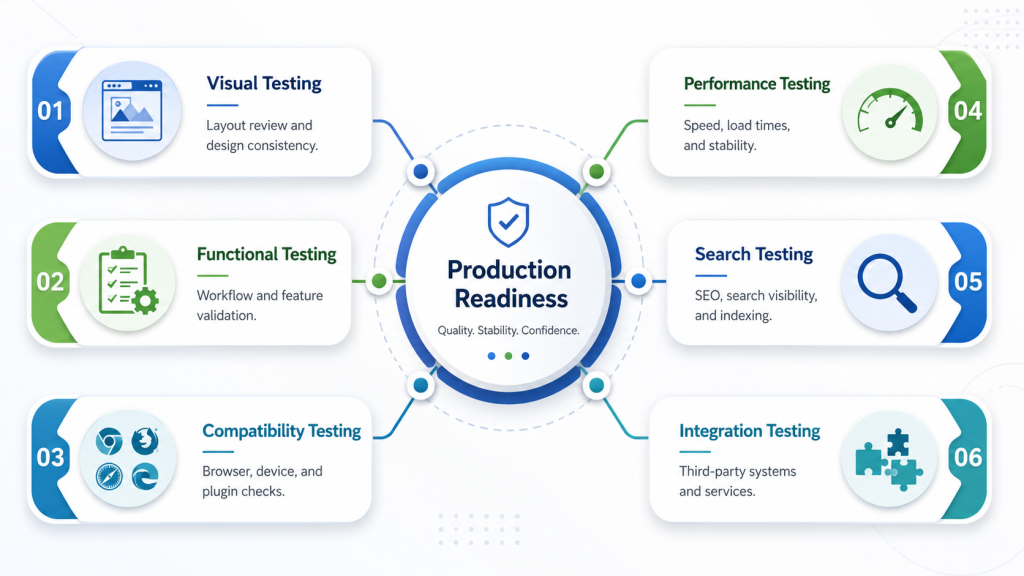
1. Compare Staging and Live Environments
Record the WordPress version, PHP version, active theme, child theme, plugin versions, database version, memory limits, permalink settings, HTTPS behavior, caching, content delivery configuration, scheduled tasks, and server rules.
WordPress Site Health can surface environment concerns, including HTTPS-related issues.
A test may pass in staging and fail in production when the PHP version, cache layer, security rules, object cache, memory, or external credentials differ.
2. Test Layouts and Responsive Design
Review every template affected by the change, not only the page used during development.
Check the header, footer, menus, banners, buttons, cards, tables, forms, product grids, account pages, blog layouts, search results, and error pages. Look for missing images, incorrect spacing, text overflow, font failures, overlapping elements, hidden content, unexpected scrolling, and layout shifts.
Test several desktop, tablet, and mobile sizes. Use real devices where possible. Check mobile menus, touch targets, popups, filters, galleries, form keyboards, sticky elements, and checkout fields.
For major design work, include a structured review of WordPress theme customization so global templates and reusable components are not overlooked.
3. Test Menus, Links, Buttons, and Redirects
Follow complete user journeys from the entry page to the final action.
Confirm that menus open correctly, buttons lead to the intended page, internal links do not point to staging URLs, pagination works, breadcrumbs show the right hierarchy, and redirects reach the correct final destination.
Also check for redirect loops, broken links, incorrect anchor links, and error pages that leave users without a useful next step.
4. Test Forms and Lead Workflows
A form is working only when the entire process succeeds.
Test required fields, validation, consent, spam protection, file uploads, error messages, success messages, email delivery, contact creation, automation, and thank-you page tracking.
Use unique test details so the submission can be traced through every connected system. Confirm that the right team receives the notification and the visitor receives the intended response.
5. Test Login, Registration, and Account Features
Test as a visitor, new user, existing user, customer, limited role, and administrator.
Confirm registration, verification, login, logout, password reset, profile editing, account navigation, role permissions, and protected content. Also test incorrect passwords, expired reset links, duplicate emails, and invalid sessions.
6. Test Search, Filters, Custom Post Types, and Fields
Test common searches, partial terms, empty results, sorting, pagination, individual filters, and combined filters.
For custom post types and custom fields, confirm that data saves correctly, displays in the right template, respects user permissions, appears in search where intended, and preserves relationships between content records.
7. Test Plugins, Themes, and Custom Code Together
A plugin may work alone but conflict with the theme, another plugin, custom code, the cache layer, or a connected service.
Test the actual workflow affected by each change. Review browser console errors, PHP errors, WordPress debug logs, failed network requests, deprecated notices, database errors, permission failures, and duplicate scripts.
When a feature fails only with several extensions active, use a controlled conflict test. The Dazzlebirds guide about WordPress plugin compatibility problems can support this investigation.
8. Test WordPress Admin Performance
The public website may appear fast while the dashboard becomes difficult to use.
Open product editing, orders, reports, media, forms, page builders, plugin settings, and custom administration pages. Watch for slow database queries, remote requests, timeouts, large option loads, and delayed background actions.
WordPress command-line tools include profiling options that can help identify slow operations.
A deeper review of the causes of a slow WordPress dashboard can help isolate problems before deployment.
9. Test Performance, Caching, and Core Web Vitals
Measure representative pages before and after the change. Include the home page, landing pages, blog templates, product pages, cart, checkout, and account pages.
Review server response, largest contentful paint, interaction to next paint, cumulative layout shift, script execution, images, fonts, cache headers, object caching, and content delivery behavior.
Google describes Core Web Vitals as user-centered measurements of loading, responsiveness, and visual stability. Google also distinguishes diagnostic laboratory results from field data collected from real users.
Staging performance is useful for comparison, but it cannot perfectly reproduce production traffic, geography, devices, cache conditions, or third-party behavior. Continue monitoring after launch.
For releases with a meaningful speed impact, connect the review to WordPress performance optimization services.
10. Test Scheduled Tasks and Background Processes
Test scheduled publishing, imports, exports, backups, subscriptions, stock synchronization, abandoned cart workflows, report generation, image processing, email queues, and cleanup tasks.
Confirm that events are scheduled, run at the expected time, log failures, avoid duplicate processing, and complete without timeouts. The Dazzlebirds resource on WordPress cron job performance can support this review.
11. Test APIs, Webhooks, and External Systems
List every system that exchanges data with WordPress. This may include payment gateways, customer relationship platforms, accounting tools, inventory systems, shipping providers, search services, email platforms, maps, analytics, and advertising tools.
Test successful requests, failed requests, timeouts, expired authentication, duplicate delivery, and retry behavior. Confirm that endpoint URLs, keys, and secrets will switch correctly during deployment.
12. Test Analytics, Consent, and Conversion Events
Confirm that page views fire once, conversions use the correct trigger, e-commerce values are accurate, consent choices control eligible scripts, duplicate tags are absent, and test traffic is excluded from production reporting.
Complete the real action and inspect the resulting event. A tag appearing in the source does not prove that the measurement is correct.
13. Test WordPress Staging Site SEO
Check titles, descriptions, canonical URLs, robots directives, XML sitemaps, redirects, structured data, headings, alt text, internal links, Open Graph data, HTTP status codes, and staging URL references.
Staging must remain protected from indexing. Production must not inherit staging noindex instructions, authentication, test canonical URLs, or staging sitemap references.
Review the live source code after deployment rather than trusting dashboard settings alone.
WooCommerce Staging Site Checklist
WooCommerce requires stricter control because orders, customers, stock, coupons, subscriptions, refunds, and notes continue changing in the live database while staging work is underway.
Test Products, Cart, and Checkout
Test simple, variable, digital, and subscription products used by the store. Confirm images, prices, variations, stock, backorders, attributes, quantity rules, downloads, and add to cart behavior.
Run complete checkout journeys as a visitor and a signed-in customer. Test cart changes, coupons, taxes, shipping, address validation, required fields, successful payments, failed payments, order creation, account creation, refunds, emails, and order status changes.
WooCommerce recommends using a staging site for test orders because those orders can trigger emails, appear in analytics, and interact with connected extensions.
Prevent Real Charges and Operational Events
Use the payment provider’s official sandbox or test mode. WooPayments specifically warns against testing through live transactions and provides a test mode for payments and refunds.
Before testing, confirm that gateways use test credentials, customer email is controlled, shipping and warehouse webhooks are safe, accounting exports are disabled, and test orders cannot trigger real fulfillment.
Some extensions have their own staging protections. WooCommerce Subscriptions can disable automatic payments and related emails after detecting a copied site, but that behavior depends on how it identifies the live URL and must still be checked.
Test Inventory and Order Workflows
Place orders that create different stock and status outcomes. Confirm that successful payments reduce stock correctly, failed payments behave as configured, cancellations restore stock where intended, refunds update records, and each status sends the correct notification.
Also verify order notes, downloads, staff alerts, customer messages, fulfillment data, and reports.
Never Push an Old Staging Database Over a Live WooCommerce Store
A staging database represents production at the moment the copy was created. Production may then receive new orders, users, reviews, stock changes, subscriptions, form submissions, comments, and content edits.
Replacing the current live database with the old staging copy can remove or corrupt those records.
Plan a selective deployment for dynamic websites. Move approved code, templates, assets, and controlled configuration without overwriting live transactional data. When a feature stores settings or content in the database, document those changes and use a migration method designed for that specific data.
There is no universal safe button for every WordPress staging-to-live deployment. The correct method depends on what changed and where the system stores it.
Prepare a Rollback Plan
A rollback plan explains how the website will return to a known working state when a release fails.
Prepare a verified database backup, a verified file backup, the previous code release, a record of changed settings, hosting access, cache controls, rollback conditions, a responsible decision-maker, and a method for preserving data created during the deployment window.
A backup that has never been checked is not a complete recovery plan.
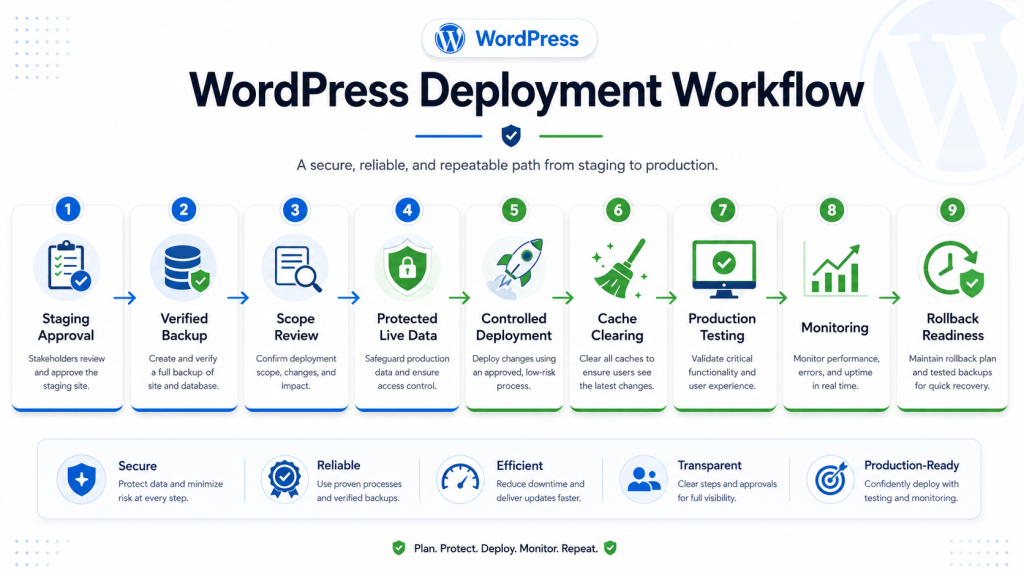
How to Push a WordPress Staging Site Live Safely
Step 1: Define the Scope
List exactly what will move to production. Separate code, files, templates, plugin versions, theme versions, database settings, content, redirects, and server configuration.
Step 2: Review Dependencies
Confirm that every required file, database migration, environment variable, credential, and integration change is included. Remove temporary code, staging users, test data, and debug output that should not reach production.
Step 3: Take Fresh Backups
Back up the current live files and database immediately before deployment. Record the time and confirm that the backups are accessible.
Step 4: Protect New Live Data
Decide how new orders, registrations, comments, leads, and inventory changes will be preserved. Keep the release window as short as practical.
Step 5: Deploy the Approved Scope
Use version control, a hosting deployment tool, or a controlled migration process. Avoid replacing the complete database unless the data impact is fully understood and the approved plan explicitly permits it.
Step 6: Clear Relevant Caches
Clear page, object, browser, hosting, and content delivery caches. Rebuild generated assets where required.
Step 7: Test Production Immediately
Test the most important revenue, lead, account, and content journeys first.
Step 8: Monitor Logs and Business Activity
Watch PHP logs, browser errors, payment failures, form delivery, orders, scheduled tasks, analytics, server resources, and support messages.
How We Test a WordPress Staging Site Before Launch
A reliable staging review follows a structured process. Each stage helps identify technical issues, protect live website data, validate important customer journeys, and reduce the risk of unexpected problems during deployment. This approach forms part of a structured WordPress development process.
Preparing the Staging Environment
We first confirm that the staging website accurately reflects the live environment. Testing against an outdated or incomplete copy can produce misleading results.
We review:
- WordPress core version
- Active theme and child theme versions
- Plugin versions and configurations
- Database structure and synchronization
- Media files and uploads
- PHP and server configuration
- Caching and content delivery settings
- Connected platforms and third-party integrations
This creates a reliable testing environment that closely represents production before any changes are introduced.
Reviewing the Planned Changes
Once the staging environment is ready, we define the complete scope of the update and identify which areas of the website may be affected.
We review:
- New website features
- Design and layout changes
- Plugin or theme updates
- Custom WordPress development
- WooCommerce functionality
- Database changes
- Integration updates
- Tracking or search configuration changes
This review helps determine the required testing depth and prevents affected pages, workflows, or integrations from being overlooked. Changes involving custom plugins should also include WordPress plugin compatibility testing.
Completing Functional Testing
Before deployment, we test the website as a real visitor, customer, registered user, and administrator where relevant.
We test:
- Website navigation
- Page templates and layouts
- Buttons and interactive elements
- Contact and lead generation forms
- User registration and login
- Password reset workflows
- Website search and filtering
- WooCommerce product selection
- Shopping cart and checkout
- Payment gateways
- Order status changes
- Customer notifications
- Third-party integrations
These checks help identify functionality problems before they affect live visitors, leads, customers, or internal teams. When an extension behaves unexpectedly, reviewing common WordPress plugin compatibility problems can help isolate the cause before launch.
Testing Performance and Compatibility
A website change must work consistently across the technologies and devices used by real visitors.
We review:
- Page loading performance
- WordPress admin performance
- Desktop, tablet, and mobile responsiveness
- Major browser compatibility
- Database performance
- PHP compatibility
- Theme and plugin compatibility
- Plugin interoperability
- Caching behavior
- Content delivery behavior
This testing helps confirm that the update provides a stable and consistent experience across supported environments. Teams experiencing dashboard delays should also test WordPress admin performance before approving the release.
For changes that affect loading speed, caching, database queries, or page rendering, WordPress performance optimization services can provide a more detailed technical review.
Completing Pre-Launch Validation
Before moving approved changes to production, we complete a final technical and operational review.
We check:
- WordPress and PHP error logs
- Browser console errors
- Search engine visibility settings
- Canonical URLs
- Redirects and internal URLs
- Security configurations
- Live and test credentials
- Backup availability
- Backup restoration readiness
- Deployment responsibilities
- Rollback procedures
A documented rollback plan ensures that the previous working version can be restored if an unexpected production issue appears.
Deploying and Verifying the Live Website
Once staging tests are completed and the update is approved, we follow a controlled production deployment process.
We:
- Create a fresh backup of the live files and database
- Protect recent orders, users, leads, comments, and inventory changes
- Deploy only the approved changes
- Clear relevant website and server caches
- Verify critical website functionality
- Test live forms, checkout, login, and integrations
- Review website performance
- Monitor error logs
- Confirm analytics and tracking
- Verify that search settings remain correct
WooCommerce releases require additional care because orders, customer accounts, stock levels, taxes, shipping rules, and payment records may change while testing is underway. Businesses preparing an ecommerce release can use professional WooCommerce staging and checkout testing to validate these workflows before deployment.
Production verification is completed immediately after launch because a successful staging test does not guarantee that every feature will behave identically in the live environment.
Expected Outcome
The result is a carefully tested and validated website update that reduces deployment risk, protects business-critical data, preserves website stability, and provides users with a consistent experience when the approved changes go live.
After deployment, the website should continue to be reviewed through an ongoing WordPress website maintenance checklist to identify errors, performance changes, compatibility issues, and failed background processes.
What to Verify Immediately After Deployment
Check priority pages, header, footer, menus, mobile navigation, forms, login, password reset, search, filters, checkout, live payment credentials, transactional email, inventory, order status, scheduled tasks, analytics, canonical URLs, robots directives, sitemaps, redirects, logs, caches, dashboard performance, and external integrations.
Continue monitoring after the first successful test. Some problems appear only when a cache expires, a scheduled task runs, a payment webhook returns, or a real visitor follows an uncommon path.
Add these checks to an ongoing WordPress website maintenance checklist.
Common WordPress Staging Mistakes
Testing an Outdated Copy
An old staging website may not reflect current data, plugins, settings, or production behavior.
Checking Only the Changed Page
A shared script, style, template, or plugin can affect unrelated pages.
Treating Visual Approval as Functional Testing
A form or checkout can look correct while delivery, validation, tracking, or data transfer fails.
Using Live Payment Credentials
This can create real charges, fees, refunds, customer records, or fraud alerts.
Ignoring Logs Because the Page Loads
Warnings, failed requests, and background errors often reveal problems before visitors notice them.
Pushing the Complete Database
This can overwrite live orders, accounts, stock, leads, comments, and operational records.
Forgetting Production Search Settings
A copied noindex directive or staging canonical URL can damage search visibility.
Launching Without Rollback Conditions
The team must know when to continue troubleshooting and when to restore the previous release.
When Is Professional WordPress Deployment Support Necessary?
Professional support is valuable when a release affects revenue, custom plugins, large databases, subscriptions, memberships, advanced integrations, high traffic, multiple environments, or a website with limited tolerance for downtime.
It is also appropriate when staging and production have drifted, database changes are involved, plugin conflicts remain unresolved, checkout testing is incomplete, logs contain unexplained errors, or no verified rollback plan exists.
A structured WordPress testing and deployment workflow turns an informal review into a controlled release process.
Conclusion
A WordPress staging site provides a safer place to test changes, but the environment alone does not make deployment safe. A reliable release depends on environment accuracy, complete workflow testing, protection of live data, verified backups, controlled deployment, and immediate production validation.
Test the change as a real user. Trace the business process behind it. Confirm how connected systems respond. Prepare for the possibility that the release may need to be reversed.
FAQs
A WordPress staging site is a private copy of a live website used to test updates, plugins, themes, custom code, design changes, and WooCommerce functionality. It allows teams to identify technical problems before changes affect visitors, customers, orders, leads, website performance, or search visibility.
Create a recent copy of the live website in a protected staging environment. Apply the planned changes, test important pages and workflows, review errors, verify performance, and confirm that integrations work correctly. After approval, back up the live website and deploy only the tested changes through a controlled process.
A staging site is a private testing environment where changes can be reviewed without affecting real users. A live site is the public production website used by visitors and customers. Live websites process real payments, emails, orders, analytics, accounts, inventory changes, and connected business activity.
A development site is mainly used while developers build and modify features. It may contain incomplete code, test data, or simplified configurations. A staging site is normally a more accurate copy of production and is used for final functionality, compatibility, performance, integration, and deployment validation before launch.
Test page layouts, mobile responsiveness, navigation, forms, login, search, plugins, themes, custom features, performance, caching, scheduled tasks, integrations, analytics, redirects, metadata, and search directives. WooCommerce websites should also test products, cart, checkout, payments, taxes, shipping, inventory, emails, and order status changes.


 WooCommerce Solutions
 Solutions for WordPress