Alright, let’s be honest for a second. At the first instance of hearing about WordPress hooks, I felt it was a term that was pretty complicated in itself.
And I’d see developers throw around stuff like, “just hook into that action” or “put a filter there,” and I would nod my head like I understood what the hell they were talking about. Spoiler: I didn’t.
But here is what no one tells you—WordPress hooks and filters are not advanced developers’ magic. Once you see them explained in plain English, rather than technical gibberish, they’re actually quite simple.
This is the reason why we’re here. The following is your ultimate beginner guide to WordPress hooks, written in a style that I wish someone had used when I was just starting out.
No intimidating code dumps. If you know PHP like the back of your hand, NO. Just the stuff that makes a difference.
What Are WordPress Hooks? (The Simple Answer)
WordPress is like a super-efficient factory assembly line.
Everything happens in a specific order. WordPress loads. It checks your settings. It pulls in your content from the DB. It applies your theme. And it can show everything on the given page. All in a specific sequence.
Now, visualize that assembly line, and at points throughout this, WordPress halts and shouts out, “Yo. I’m about to do this thing. Anyone want to jump in?”
That’s a hook.
It’s WordPress allowing you to inject your own content at certain points in the system without needing to rewrite the whole framework. Which is good, because writing over WordPress core files is a horrible mistake that you’ll regret when the next update comes around.
Hooks, in short, are the key to literally everything about how your site works; they’re present all over WordPress — hundreds of them.
The beauty of this entire system? Then you can add your customizations, and they exist externally from WordPress itself. Custom fixes you added can be written in a separate function, and your custom code is safe with WordPress updates. Your customization also works when you change the themes.
This is just why the concept of hooks is so powerful for anyone customizing WordPress or simply trying to accomplish a goal with their site that plugins will not fully provide.

Why Should You Even Care About This?
Fair question.
Most everyone uses WordPress perfectly fine without ever writing a hook. You install a theme, add some plugins, maybe mess with the settings, and you’re done.
And honestly? For many sites, that is just fine.
However, this is exactly where hooks become important:
You have the need for functionality that a plugin does not offer. When someone publishes a post, perhaps you need to send an email automatically. Or you need to create custom fields, which will appear in some specific areas. Or you are in the process of building something bespoke for the client that needs it to behave in a way that WordPress will not out of the box.
That’s where hooks come in.
They are the difference between “Man, I wish WordPress had this” and “I made WordPress do that.
Hooks have let me create membership sites with custom login flows; change WooCommerce checkout pages for specific industries; post to children’s social media when new content goes live; and even build a custom WP admin dashboard for clients that don’t care about 90% of what standard WordPress offers as options.
All of that was done without getting a new WordPress site up and running or without having to pull out all my hair to hire a dev team. Just hooks.
The Two Types: Actions vs Filters
This is where all those WordPress hooks & filters tutorials lose most people. They use technical definitions that make them sound smart but often have little bearing on why and what you are really seeing.
So let me unpack it as it finally clicked for me.
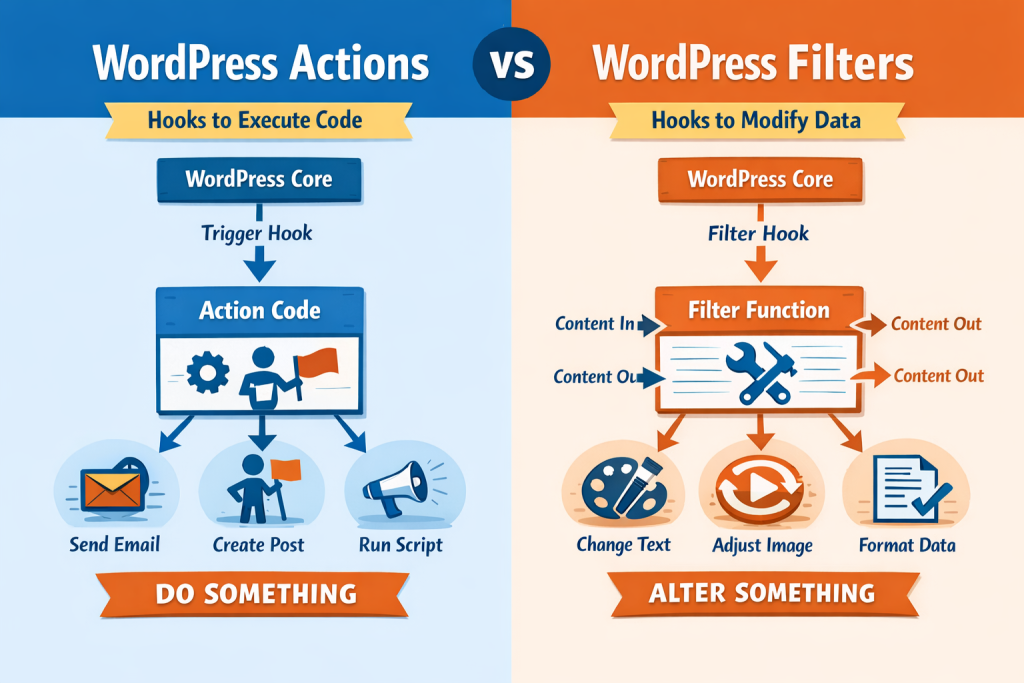
There are two types of hooks in WordPress: actions and filters. And the difference is quite simple in fact.
Actions let you DO something at a specific point.
WordPress is doing its thing; it hits a point in time and does this—”Cool, run all the add code that people want to add here. “You use actions when you want to run something, email someone, add some kind of HTML at the bottom of your footer, log something in a file, or whatever.
WordPress is already doing that; you are not changing anything. You’re merely adding something more exactly then.
Filters let you CHANGE something before WordPress uses it.
WordPress is going to write some text, display a number, or render an image. Before it goes, it says, “Does anyone want to change this first? You take that data, change it in whatever way you like, and you give it back.
WordPress will now use the version you updated instead of the original.
That’s it. Actions do stuff. Filters change stuff.
Sound familiar?
How about a non-code real-world example?
Given WordPress is like making a sandwich. When we reach the “add lettuce” step, there is a hook for an action. You can then hook in and say, “Also make it with bacon.” ‘You’re not changing the lettuce; you’re adding something on top of it.
There is a filter hook at the step “spread mayo.” What you could do is intercept that and say, “Hey, wide put mustard. “You’re modifying what’s already happening.
Same process, different purposes.
Understanding WordPress Actions vs Filters in Practice
And this is the part that makes it all start to click.
Actions are for when you want WordPress to do something additionally. Send a notification. Add tracking code. Log an event. Display additional content somewhere.
Actions can be compared to adding new items to the to-do list of WordPress. This is a normal day for WordPress, except at certain intervals, when it asks itself, “Any other tasks for me to do?” If you have hooked it, it runs your task against it as effectively.
Filters for changing the existing data. Change text. Adjust numbers. Swap out images. Remove or add HTML classes.
Consider filters as quality control waypoints. WordPress has some data it wants to use, but before WP proceeds, it asks the question: “Is anybody [any plugin or theme function] going to modify this?” If you have hooked it in, you get to modify it before it goes on.
The analogy with a sandwich is surprisingly adequate here. Actions add ingredients. Filters swap ingredients.
And this is why the package appears to be such a great approach — because you can hook into the same point as many times as you’d like. WordPress will execute all the hooked functions as they are entered (in a priority order). We’ll come to that in just a moment.
WordPress Actions — When You Want to Execute Code
When starting out, you probably use actions more than anything.
The most common scenario? Adding something to your site without directly editing theme files.
Want Google Analytics in Your Header?? Hook into action that is executed when WordPress builds the header. Do you want to add custom JS into the footer of your site? Hook into the footer action. Something to be done every time a post is published? Hook into the publish action.
Here’s a super simple example of what the code looks like:
function add_my_custom_script() {
echo ‘<script>console.log(“Hey, my code is running!”);</script>’;
}
add_action(‘wp_footer’, ‘add_my_custom_script’);
That’s it. When WordPress reaches the footer (wp_footer), it calls that function and adds this script.
Of course, you’d replace that with useful JavaScript now, but you get the point. You’re saying to WordPress, “At this point, run my function too.”
What makes actions so powerful is that WordPress has them EVERYWHERE. There are actions for:
- When WordPress first loads
- When the admin area loads
- When someone logs in
- When a post gets saved
- When comments are submitted
- When your theme’s header displays
- When the footer displays
- When widgets load
And this is just the tip of the iceberg.
Those being some of the ones I use all day, every day:
wp_head — Runs inside your site. Great for tracking codes, custom CSS, meta tags, or whatever belongs in the header.
wp_footer — Executes just before the closing part. Best for scripts that need to load at the end of the page.
init — This occurs very early in the WordPress loading process. It will be fine for registering your own post types, taxonomies, or anything that should exist before WordPress fully loads.
admin_init — Same as init, but only fires in the admin area. If you’re building custom functionality into your site administration.
The list goes on. And on.
WordPress Filters — When You Want to Modify Data
The reason is that filters behave somewhat differently since they expect you to also return things back.
WordPress is about to use some data. It feeds that data into your filter function. You modify it. You return the modified version. WordPress uses whatever you returned instead of the original.
The most common use case? Changing content so it’s ready by the time it displays on your website.
Let’s say you want to automatically add a copyright notice to the end of every post. You’d use the the_content filter:
function add_copyright($content) {
$content .= ‘<p>© 2024 Your Site Name</p>’;
return $content;
}
add_filter(‘the_content’, ‘add_copyright’);
See what’s happening? Now, WordPress is about to display the content for a post. Your filter gets and appends copyright text after and returns all as it is. And WordPress will show your updated version.
The important thing to remember about filters is that you MUST return something. Always. You still need to return the data to WordPress even if you’re not actually changing anything.
Forget to return it and things feel weirdly broken. Trust me on that one.
Common filters you’ll see:
the_content — Allows you to modify the content of a post or page just before it is displayed. Super versatile.
the_title — Modifies the title before it appears on your site.
excerpt_length — Determines how long post excerpts are (default is 55 words, but you can change it)
body_class — Allows adding CSS classes inside the body tag; this is useful for customizing styles for specific pages.
I always create filters to show content differently instead of modifying the posts. Such as including “read more” links in excerpts, removing text from titles that people always use or want to modify, fixing image size issues, and changing URLs before they get printed.
The WordPress add_action Function (Your New Best Friend)
When you want to hook into an action, you use the add_action function.
It looks like this:
add_action(‘hook_name’, ‘your_function_name’);
That’s the basic version. In essence, it’s saying, “WordPress, when you reach this hook name, run my function.”
In fact, there are a few more optional parameters available for you (priority and arguments), but let’s be honest. You won’t use them most of the time. The standard two-parameter version is about 90% of what you will ever use.
Knowing the hook name to use is, of course, the important part. And that’s where the WP documentation shines—it’s a complete list of hooks you can look at whenever needed.
Here’s the workflow:
- Figure out what you want to do
- Find the hook that runs at that moment
- Write a function that does what you want
- Connect your function to that hook with add_action
So assume you want to implement Google Analytics on every page. You would be like, “Okay, I need this in the header. So you’d search for “WordPress header hook,” and you discover that it is hooked in to wp_head. Write your function. Hook it in. Done.
No editing theme files. Updates that wipe out your changes are no worry. Just clean, modular customization.
The WordPress add_filter Function (Same Idea, Different Purpose)
add_filter works almost exactly like add_action. Same basic syntax:
add_filter(‘filter_name’, ‘your_function_name’);
The difference is what your function does within that block. With a filter you basically are constantly getting some data, maybe modifying that data and sending it back.
Modified excerpt length is a super common example. Excerpts are truncated by default at 55 words in WordPress. But say instead you want 30.
function custom_excerpt_length($length) {
return 30;
}
add_filter(‘excerpt_length’, ‘custom_excerpt_length’);
WordPress was supposed to use 55. We checked whether anyone wanted to filter that number. Your function went, “Actually, let’s use 30.” So WordPress went cool and picked 30 instead.
Simple as that.
The ever-repeating pattern you’ll notice: Receive some data, do something with it, and return the result. You have to return it even though you are not changing it.
Real Scenarios Where You’d Actually Use This
Okay, theory was probably boring enough. Anyone can theorize. Let me show you actual instances where I have placed hooks on WordPress sites in reality.

Scenario 1: Client wanted their logo to link to a custom URL instead of the homepage
The site logo links to your homepage on almost every theme. However, for this client, it was needed to link to the targeted landing page. No theme option for that. Not a single plugin that does only that one thing.
Solution? Filter the logo URL. It took about 5 minutes.
Scenario 2: Automatically notifying the site owner when someone submits a contact form
The contact form plugin installation succeeded, but it failed to send admin notifications according to the client’s specified requirements. The developer created a new email system by using an action hook that activated when users submitted their forms.
Scenario 3: Adding custom CSS classes to specific pages for styling
The client wished to style their About page separately from others as well. Added a custom class on that page only using the body_class filter. Then their designer could prick it with CSS.
Scenario 4: Removing the “Category:” text from category archive titles
WordPress adds “Category ” before category names on archive pages. The display looks awkward because of this design feature. The site-wide filter was implemented through two code lines, which removed the element.
Scenario 5: Customizing the WordPress admin dashboard
The client dashboard: Users wanted a simplified dashboard with only what they needed. Utilized action hooks for adding their custom widgets and filter hooks to remove the default WordPress widgets, which they did not require.
See what I mean? These aren’t theoretical examples. They’re real, live problems that presented themselves on a client site, and hooks addressed them without the need for elaborate plugins or theme modifications.
This is what makes WordPress plugin development and custom WordPress development so valuable. Some problems can be solved quickly without reinventing the wheel.
Where Does This Code Actually Go?
So, this is a question nobody asks until they sit and look at code that they don’t know where to put.
You’ve got a few options:
Your theme’s functions. Definitely the PHP file—This works, but I’m not a fan. If your theme gets updated, you may lose your changes. Not to mention that if you change themes, all your customizations are gone.
It is better to use a child theme. You use a child theme (and doing that is easier than it sounds) and place your custom code in the functions of the child. PHP. It is not altered when you update the parent theme, and you retain your customizations.
Custom Plugin. This is what I usually do. Make a basic plugin, which is merely a script with your functions. Plugins will remain on whatever theme you use, and it’s as simple to turn them back on and off for testing.
Code Snippets functions as a plugin that allows users to add their own code snippets through its user interface without needing to create custom files. The system takes care of all technical requirements on your behalf.
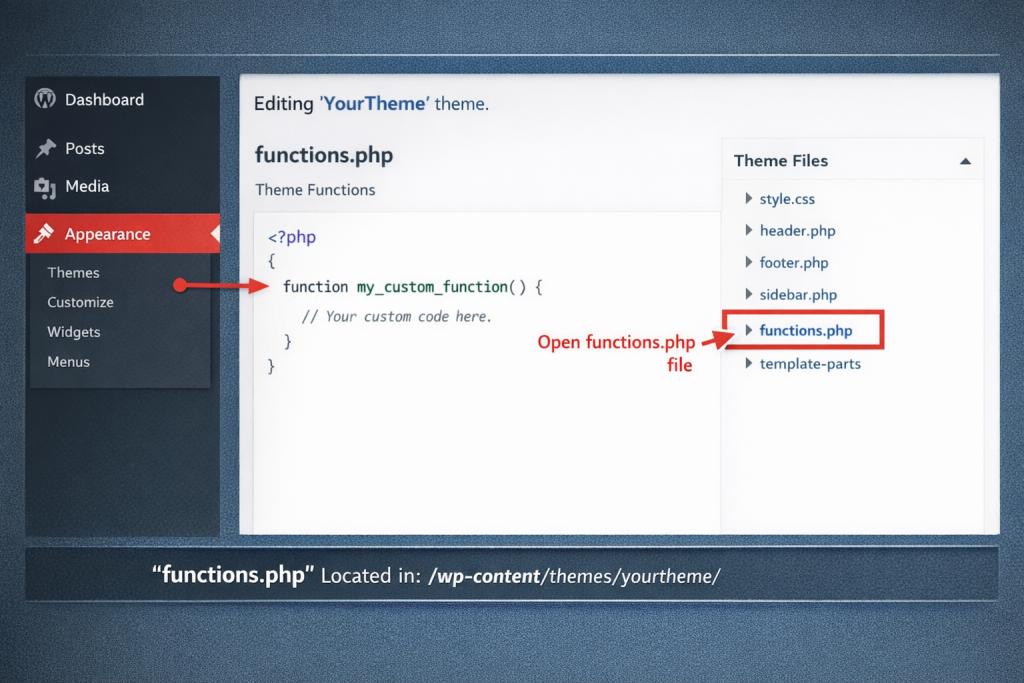
As a beginner I recommend sticking to the Code Snippets plugin or child theme. When you’re ready to move on, create your simple plugin for an orderly solution.
Now, the thing here is that whatever you do, this needs to be in a PHP file that WordPress really loads. You’re not able to copy-paste PHP into a page or post editor. It won’t work. This code should go to a proper place, i.e., its own file in your WP install; therefore,
Common Mistakes (That I Definitely Never Made…)
Sharing mistakes would save you some headaches, so let me give them to you. What I’ve noticed (and surely did not create, oh no, not me):
Not to return data in filters—your The filter function has something to return. Always. And that’s even if you’re not changing any. WordPress is expecting data back.
Using the wrong hook name—WordPress has hooks with similar names. the_content is different from get_the_content. Small typo, big problem.
Not checking for pre-existing function names—you may choose to give a custom name, custom_function, to your function, but it is highly likely that some other plugin or theme already has created a function with the same name. Conflict city.
Incorrectly placing code—You need to be careful with PHP code placement; you can’t just paste it anywhere. It must be placed in a PHP file that WordPress will load.
Some hooks only work in particular situations—hooking into things that don’t exist yet. The admin hooks will not execute on the frontend. In admin you’re not going to get your frontend hooks firing.
Run your code everywhere when it only needs to run once -> site performance suffers. When doing something heavy, let it only run on demand.
Failing to enclose PHP code properly—Your code has to be wrapped in PHP tags (()). This sounds totally obvious, but it is simple to lose track of when copying snippets.
The good news? WordPress is pretty forgiving. You’ll make mistakes. Your site won’t explode. You will learn what went south, mend it, and proceed forward.
This is actually the best way for you to learn. Break something and learn why and how to fix it. Rinse and repeat.
When You’d Need Custom WordPress Development
Themes and plugins are usually enough to get a WordPress site off the ground. And that’s totally valid.
But there comes a time when you outgrow those premade solutions. Perhaps you run a membership site that needs users to have certain roles. Maybe you are building a dedicated niche directory that requires different post types and taxonomies. Maybe you are connecting an API from a third party that no plugin reaches.
This is where you may need to resort to custom WordPress development. And all of it rests on hooks.
This is what you’ll live in if you provide customization to WordPress for other clients. The fact that every client has that one unique requirement that cannot be fulfilled by any existing plugin. Hooks are how you build it.
Similarly, if you are doing WordPress plugin development. The truth is, plugins are essentially just sets of hooks. You use hooks in WordPress to add your functionality at specific points, and if you create it properly, you define a few hooks of your own so other developers can extend your plugin.
It’s hooks all the way down.
Through a few years of building custom WordPress solutions, here is what I learned—you do not need to know every hook by heart. It’s knowing the trick enough to know what hook you require for each scenario.
You learn to think, “Okay, when do I need this? And: “What am I trying to change? You find the hook that aligns with this. You live with the WordPress Codex and documentation.
WordPress Hooks Examples for Different Use Cases
Now, let me share with you some more real-life examples to give you a better idea of the variety of things that are possible:
Customization of e-commerce: Used hooks to alter WooCommerce checkout fields, add custom badges for products, change the way price displays, and send out customized order notifications.
Membership sites: Custom login redirects by role, content access restrictions via hooks, and user registration flows.
author: Automatically added author info boxes to every post, presented customized author archive pages for each contributor type, and created either a dashboard or sistemas (depending on the level of contribution).
Portfolio sites: Custom post types for projects, custom gallery behavior, and automatic image watermarking on upload.
Business Listings: Customized search filters and listing displays, built custom taxonomies
Without the Need to Edit Core WordPress Files Just hooks doing their thing.
The Bottom Line
Now, WordPress hooks and filters are not exactly some deep developer black magic. They’re only ways to customize WordPress without literally hacking core files.
Actions allow you to perform an activity at a given moment. Filters are higher-priority than actions, meaning they allow you to modify data before WordPress uses it. That’s the entire concept.
When you understand that pattern, you can do pretty much all things WordPress. You’re not constrained by what your theme allows or what plugins are available. Assemble precisely what you require.
Oh, and yes, there’s a bit of a learning curve. You’ll make mistakes. You are going to hook into the wrong thing, forget returning data, or call your function something that conflicts with a plugin.
But you’ll figure it out.
Because honestly? The technical stuff is not the hard part. Getting over the mental hurdle that begins with “This looks complicated; therefore, I shouldn’t do it.”
It’s not complicated. It’s just new.
So pick one hook. Write one function. Watch it work. Then build from there.
That’s how everyone learns this. Including me.
It’s not talent or intelligence that separates someone who knows hooks and someone who doesn’t. The only difference is that one person gave it a go and the other didn’t.
Be the person who tries
FAQs
WordPress hooks are points where you can add or modify functionality without editing core files. They let you customize how your site works using actions to add features and filters to change existing content.
In WordPress hooks, actions let you run custom code at specific points, while filters allow you to modify data before it is displayed. Actions do something, while filters change something already created.
You can add WordPress hooks code in a child theme functions file, a custom plugin, or a code snippets plugin. Using a custom plugin is often the safest and most flexible option.
Basic PHP knowledge helps when using WordPress hooks, but you do not need to be an expert. Many simple customizations can be done by copying and adjusting small code snippets correctly.
WordPress hooks allow you to customize your site without changing core files, making updates safe. They give you full control to add features or modify content beyond what themes and plugins offer.


 WooCommerce Solutions
 Solutions for WordPress