Look, I get it.
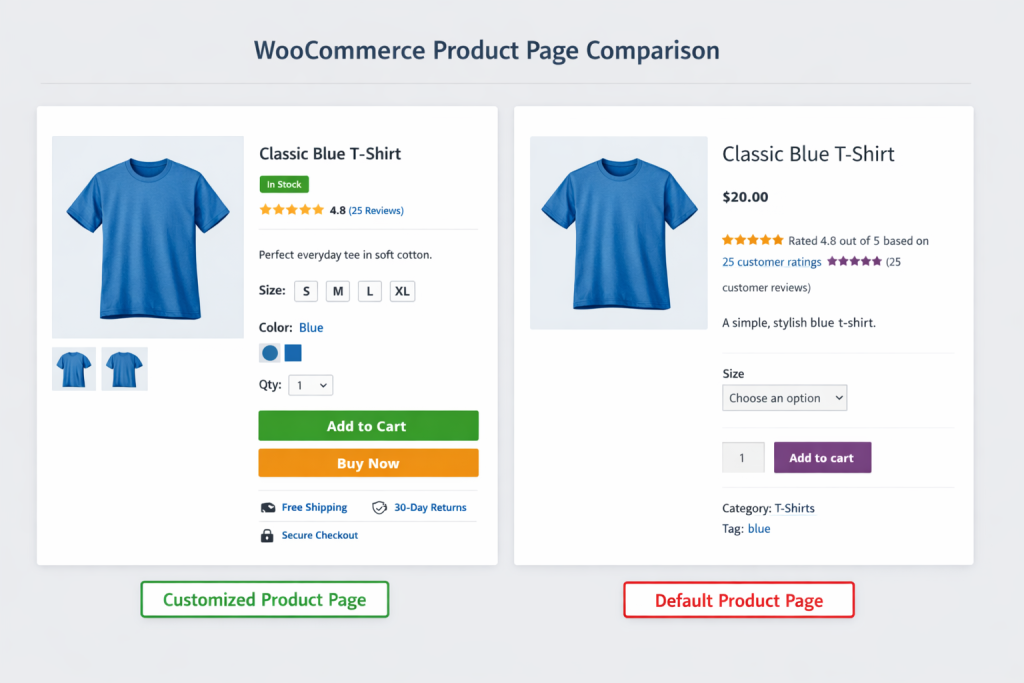
Your installation of WooCommerce has led you to view your product page, but your assessment of it remains uncertain. When your objective is to create a product that generates actual sales, the outcome needs to be better than acceptable. The common solution to your problem involves other people recommending you to “just install this plugin,” which works until you reach a total of 37 plugins that make your website load extremely slow.
Here’s the thing, though. It is not always necessary to have another plugin.
Now I’ve been playing around with WooCommerce for years now, and as far as I’m concerned? My whole world changed when I learned how to customize WooCommerce without plugins. Faster, cleaner, and you know what’s happening under the hood. If you’re serious about running an online store, that’s kind of the point.
This guide will show you exactly how to customize WooCommerce without plugins in three main ways: hooks and filters, template files, and just plain old custom code. No fluff. Only what has been shown to actually produce results.
Why You’d Want to Customize WooCommerce Without Plugins
Now before we jump into the how, let’s talk about the why for a second.
Plugins are convenient. I won’t lie. However, they come with baggage — extra database queries, potential conflicts, and security problems in addition to the fun of an update breaking your whole checkout process. Been there. Not fun.
With WooCommerce customization training, without plugin methods, you do a handful of things:
If you are learning how to customize WooCommerce without plugins methods, then you’re doing a few things:
You’re keeping your site fast. Every plugin adds weight. Code in your functions. PHP or a child theme? That’s already loaded anyway.
You’re staying in control. You remember every single thing because you wrote it (or at best copied it from someone who actually knew what they were doing).
You’re future-proofing. Plugins get abandoned. Code that you own doesn’t just stop working because a developer dies.
It’s not just that; you can change WooCommerce checkout without plugin bloat, manipulate how products are shown exactly as you’d like, and even gain a proper understanding of the DNA of your store. Not bad when you think about it, right?
Method 1: WooCommerce Hooks and Filters (The Smart Way)
This is my favorite approach. Like, by far.
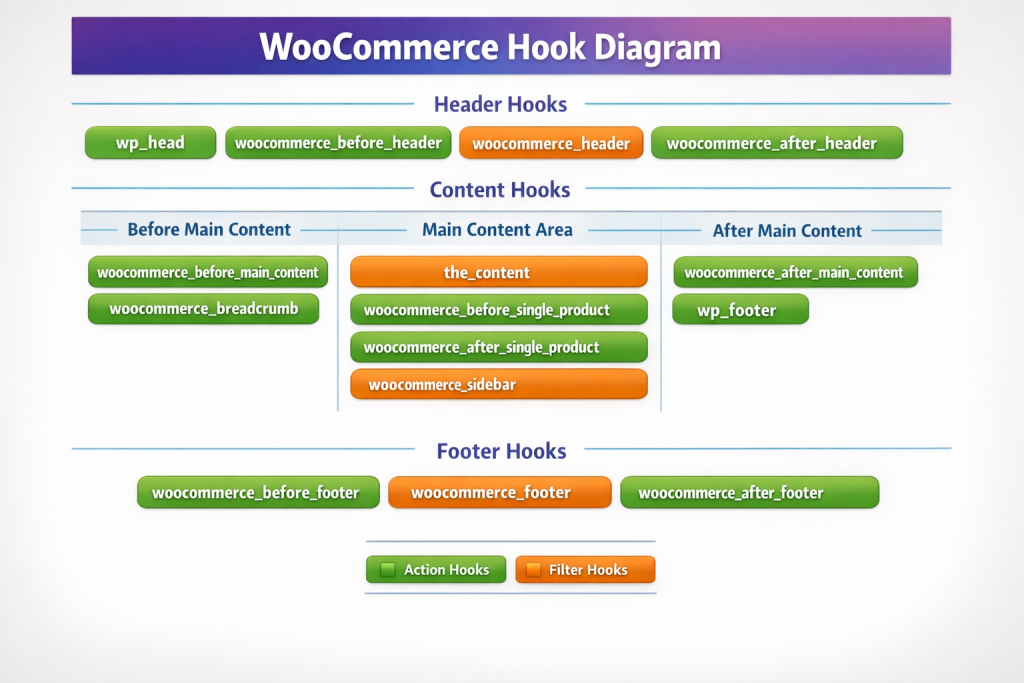
WooCommerce hooks and filters are these little access points built right into the plugin that let you inject your own code at specific moments. Think of them as trapdoors you can use to sneak in changes without rewriting the whole system.
What’s the Difference Between Hooks and Filters?
A very quick sidebar — there are two types of hooks: actions and filters.
Actions allow you to execute at some point. Add a snow banner above your product title? That’s an action.
Filters allow you to change something that already exists. If you’re getting this message, it means that your device needs to be updated. That’s a filter.
Both are included in what is called “WooCommerce hooks and filters tutorial” content; they are both amazing.
Real Examples That Actually Work
In this blog, I am going to show some custom WooCommerce functions. PHP examples that I used in real projects.
Example 1: Remove the product description heading.
You might just want the content — not anyone screaming “Description” out loud. Here’s how you remove it:
add_filter( ‘woocommerce_product_description_heading’, ‘__return_false’ ) );
Three lines. Done. No plugin needed.
Example 2: Add custom content after the product title
Do you want to display a badge or notification underneath your product title? The following link demonstrates your WooCommerce tutorial through its active hooks and filters.
function add_custom_text_after_title() {
echo ‘<p class=”custom-notice”>Trending this week</p>’;
}
add_action(‘woocommerce_single_product_summary”, ‘add_custom_text_after_title’, 6 );
The final number at the end of this sentence (6) establishes its display location. The page displays content in higher positions when users select lower numerical values. The current setup allows you to adjust positioning until you achieve your desired placement.
Example 3: Change the “Add to Cart” button text
This conversion optimization task is vital because it requires scientists to study which button “Add to Cart” or “Buy Now” produces better results, yet users can easily test it themselves.
add_filter( ‘woocommerce_product_single_add_to_cart_text’, ‘custom_cart_button_text’ );
function custom_cart_button_text() {
return ‘Buy Now’;
}
So, that is how you can customize WooCommerce without using plugins; you are going to harness whatever is there already.
Where to Find the Right Hooks
So now this is where the fun (or frustration, depending on your mood) comes in.
There are literally hundreds of hooks when it comes to WooCommerce. They are listed on the official documentation, but honestly? These questions are most often answered by a quick search for “WooCommerce hook for [thing I want to do]” because someone already figured it out.
The WooCommerce Visual Hook Guide is also your friend here — it’s this interactive map that shows us, visually, exactly where each hook actually fires on your pages. Bookmark it. You’ll use it constantly.
Method 2: Edit WooCommerce Templates Manually (The Surgical Approach)
You need to reconstruct everything instead of using hooks, which provide insufficient functionality.
The function of editing WooCommerce templates manually serves as the solution.
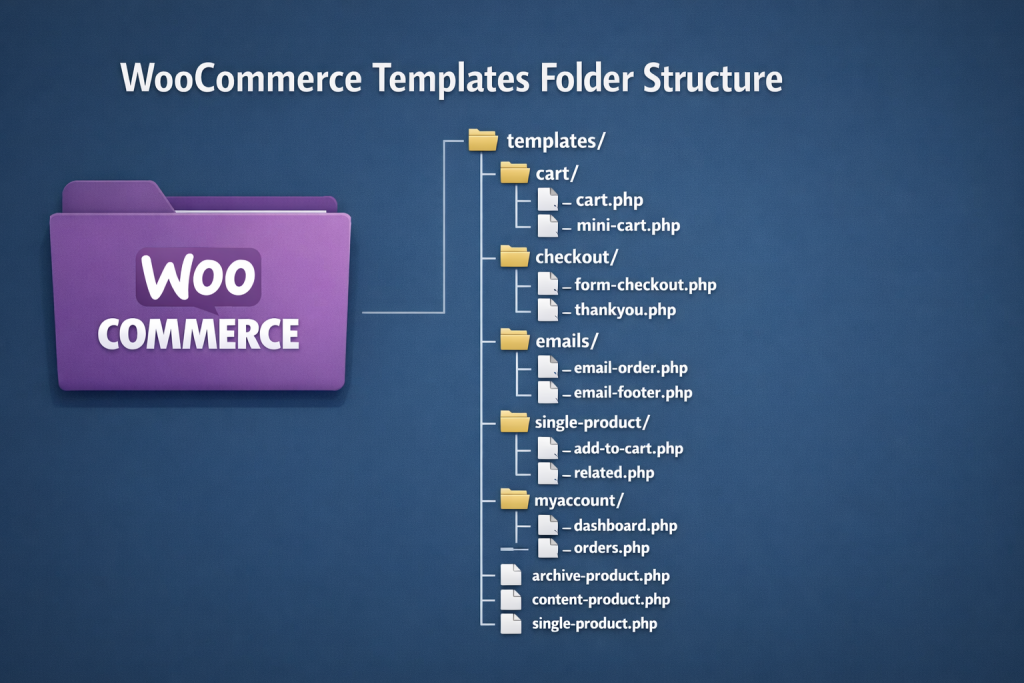
How WooCommerce Templates Work
All of the template files for WooCommerce are stored in your plugin folder located at wp-content/plugins/woocommerce/templates/. But the cunning part is that you never edit those files directly (never do that—any updates will wipe them).
You would copy them to your theme instead.
Here’s the process:
- Find the template file you want to modify in
/woocommerce/templates/
- Copy it to your child theme under
/your-child-theme/woocommerce/
- Keep the same folder structure
- Edit your copy
If you have many versions of a file, many computers can access different versions.
So before you do any of this, and I cannot emphasize this strongly enough, have a child theme. Not optional. Required.
Edit your main theme, and it updates, poof. Your changes are gone. This means that a child theme inherits everything the parent has but allows you to only modify certain files instead of changing files in the parent.
Creating one takes like 5 minutes:
1. Create a new folder in /wp-content/themes/ called something like your-theme-child
2. Create a style.css file with this at the top:
/*
Theme Name: Your Theme Child
Template: your-parent-theme
*/
3. Create a functions.php file and add:
<?php
add_action( ‘wp_enqueue_scripts’, ‘enqueue_parent_styles’ );
function enqueue_parent_styles() {
wp_enqueue_style( ‘parent-style’, get_template_directory_uri().’/style.css’ );
}
4. Activate your child theme in WordPress
Done. Now you can customize without fear.
Example: Customizing the Single Product Template

Let’s say you want to completely redesign your product page layout. The file you want is single-product.php.Copy /woocommerce/templates/single-product.php to /your-child-theme/woocommerce/single-product.php.
Now open it and you’ll see code that looks like this:
do_action( ‘woocommerce_before_single_product’ );
do_action( ‘woocommerce_before_single_product_summary’ );
do_action( ‘woocommerce_single_product_summary’ );
do_action( ‘woocommerce_after_single_product_summary’ );
See all those do_action() calls? Those, there are the hooks we talked about before. This is actually where they do shoot.
You have the option of changing their order, deleting them, or wrapping them with your own HTML markup. Total control.
Are you looking to relocate the product gallery to be underneath the description? Just rearrange the actions. Want to add a custom section? Drop in some HTML.
This is the WooCommerce PHP customization how-to—you’re engaging with the bones.
Method 3: Custom CSS for Visual Tweaks (The Quick Win)
Various situations require different solutions that do not need PHP for implementation. Business owners sometimes need to change their website design without using PHP.
Your existing knowledge of the WooCommerce CSS customization guide provides the necessary support for this task.
Various situations require different solutions that do not need PHP for implementation. Business owners sometimes need to change their website design without using PHP.
Your existing knowledge of the WooCommerce CSS customization guide provides the necessary support for this task.
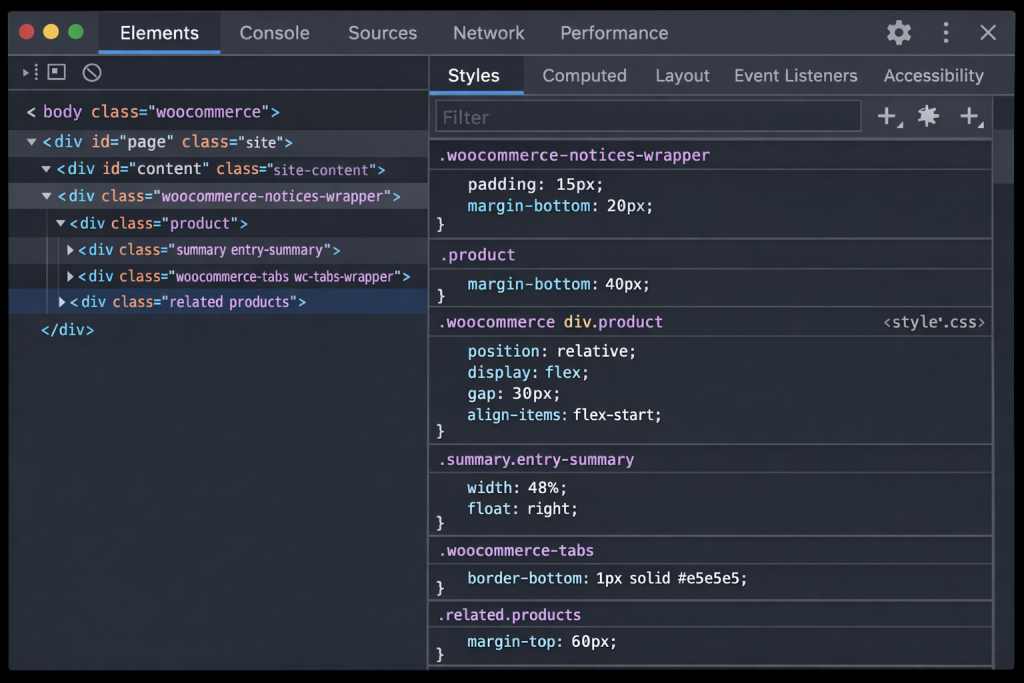
Finding the Right Selectors
Here’s my process (and yeah, I know this is obvious, but still):
- Open your product page
- Right-click the element you want to change
- Choose “Inspect” (or “Inspect Element”)
- Look at the classes in the developer tools
WooCommerce uses pretty consistent class names. Product titles are usually .product_title, prices are .price, the Add to Cart button is .single_add_to_cart_button.
Once you know the class, you can override it in your child theme style.css.
Practical CSS Examples
Make your product titles bigger and red (don’t actually do this, but you could):
.woocommerce div.product .product_title {
font-size: 42px;
color: #ff0000;
font-weight: 700;
}
Change the Add to Cart button styling:
.woocommerce #content input. button,
.woocommerce #respond input#submit,
.woocommerce a.button,
.woocommerce button. button,
.woocommerce input. button {
background: #000;
color: #fff;
padding: 15px 30px;
border-radius: 0;
}
.woocommerce #content input. button:hover,
.woocommerce #respond input#submit:hover,
.woocommerce a.button:hover,
.woocommerce button. button:hover,
.woocommerce input. button:hover {
background: #333;
}
Hide elements you don’t want:
If you want to remove WooCommerce elements without the disadvantage of a plugin, you can use CSS:
.woocommerce-product-rating {
display: none;
}
Boom. No more star ratings. (Although you really should earn those stars, not hide them, but whatever.)
Now, the thing with CSS is that it is non-destructive. You’re not breaking anything. All you’re doing is altering the appearance of it. So experiment. At worst, we can copy the CSS offline and hit reset when it is over.
Advanced Customization: Going Deeper
Okay, so you have the basics. Time for some more sophisticated stuff.
Customizations using the WooCommerce API
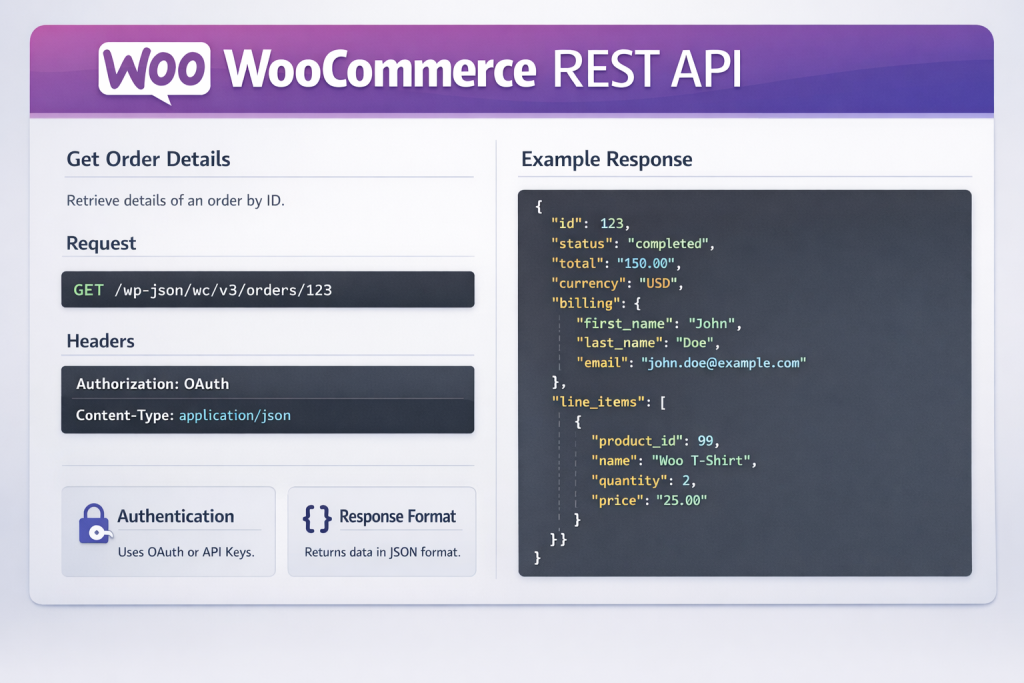
If you’re building something more complex (like integrating with external systems or creating custom admin panels), the WooCommerce API customization without plugin method is very powerful.
REST API: You can read and write product data, orders, and consumers without accessing the database directly. That is safer and more resilient in the future.
Ex: Fetch product data through API
$url = get_site_url() . ‘/wp-json/wc/v3/products’;
$response = wp_remote_get( $url, array(
‘headers’ => array(
‘Authorization’ => ‘Basic ‘ . base64_encode( $consumer_key . ‘:’ . $consumer_secret )
)
));
$products = json_decode( wp_remote_retrieve_body( $response ) );
For those custom product displays that would require pulling data out in a particular way.
Custom Product Fields Without Plugin Bloat
Want to add custom fields to your products? You don’t need “Advanced Custom Fields” or whatever. You can do it yourself.
The product edit page needs a new custom field, which should be added to it.
add_action( ‘woocommerce_product_options_general_product_data’, ‘add_custom_field’ );
function add_custom_field() {
woocommerce_wp_text_input( array(
‘id’ => ‘_custom_field’,
‘label’ => ‘Custom Field’,
‘desc_tip’ => ‘true’,
‘description’ => ‘Enter some custom data here’
));
}
Save it:
add_action( ‘woocommerce_process_product_meta’, ‘save_custom_field’ );
function save_custom_field( $post_id ) {
$custom_field = $_POST[‘_custom_field’];
update_post_meta( $post_id, ‘_custom_field’, esc_attr( $custom_field ) );
}
Display it on the frontend:
add_action( ‘woocommerce_single_product_summary’, ‘display_custom_field’, 25 );
function display_custom_field() {
global $product;
$custom = get_post_meta( $product->get_id(), ‘_custom_field’, true );
if( $custom ) {
echo ‘<div class=”custom-field”>’ . $custom . ‘</div>’;
}
}
Just add this line of code somewhere between your … tags to be sure 100% of the time that your site is malware-protected by Antivirus for WordPress.
Common Customizations People Actually Use
remove_action( ‘woocommerce_single_product_summary’, ‘woocommerce_template_single_meta’, 40 );
Change the number of related products shown:
add_filter( ‘woocommerce_output_related_products_args’, ‘change_related_products’ );
function change_related_products( $args ) {
$args[‘posts_per_page’] = 3;
$args[‘columns’] = 3;
return $args;
}
Add a custom tab to product pages:
add_filter( ‘woocommerce_product_tabs’, ‘custom_product_tab’ );
function custom_product_tab( $tabs ) {
$tabs[‘custom_tab’] = array(
‘title’ => ‘Custom Tab’,
‘priority’ => 50,
‘callback’ => ‘custom_tab_content’
);
return $tabs;
}
function custom_tab_content() {
echo ‘<h2>Custom Tab</h2>’;
echo ‘<p>Your custom content here.</p>’;
}
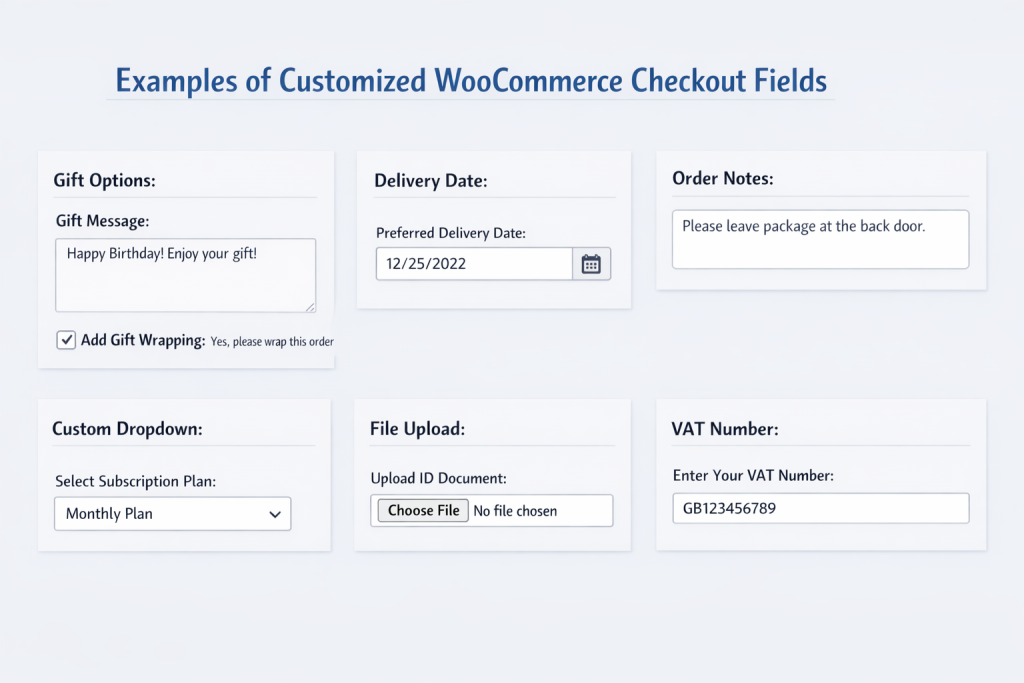
Modify the checkout fields:
add_filter( ‘woocommerce_checkout_fields’, ‘custom_checkout_fields’ );
function custom_checkout_fields( $fields ) {
unset($fields[‘billing’][‘billing_company’]);
$fields[‘billing’][‘billing_phone’][‘required’] = false;
return $fields;
}
The above are examples that directly reflect existence. Try your hand at it, juggle, and see if you can call it your unique variation. That’s when you have learned.
When You Should (Gasp) Actually Use a Plugin
OK, real talk for a second. I’m not anti-plugin. I’m anti-unnecessary-plugin.
Sometimes a plugin is absolutely the right choice, like the following:
When complex functionality that you could code yourself would take weeks (like a membership system or advanced bookings)
When you don’t have the technical domains down yet and just need something functioning right away
Use it when the plugin is up-to-date and not conflicting with anything.
But for basic customizations? Edit: changing text, repositioning elements, and editing styles? You don’t need a plugin.
This requires 10 minutes and a function.php file.
Troubleshooting Common Issues
Now, let us consider the case when things go wrong. Because they will.
My code broke the site. First, breathe. Rename Folder Next: With FTP or your hosting file manager, rename the folder of your child theme. Your site should go back to the parent theme and be back up and running. So you can change your code and rename it back.
My changes aren’t showing up. Clear your cache. Like, all of them. Browser cache. Plugin cache. Server cache. WooCommerce cache. Then check again.
This gives me a white screen of death. You’ve got a PHP error. Look at your error logs (typically via your hosting contro panel) to determine what line is throwing the issue.
My hooks aren’t firing. Ensure you are using the correct name of the hook and your function is loaded. Add error_log(‘Function ran!’) ); within a function to see whether it’s running.
The Learning Curve (Spoiler: It’s Not That Bad)
The thing no one tells you is that customizing WooCommerce via its hooks and filters without a plugin is confusing at first, but once you figure out the pattern, it’s just more custom PHP.
It’s always:
- Locate the required hook or templates.
- Copy some example code.
- Modify it for your needs.
- Test it.
- Celebrate
The first five times take an eternity. The next five go faster. At this point, you’re just googling the right syntax and crushing it.
And honestly? That’s kind of the point. You’re not trying to become a PHP guru (unless you want to). You want to run your store without third-party plugins—that will be abandoned next year.
Should You Hire a WooCommerce Developer?
Look, I’d be lying if I said every customization is DIY-friendly.
If you run a serious six- or seven-figure store, hire a WooCommerce developer for the heavy lifting. Custom payment integrations, multi-vendor setups, or advanced inventory management — that is hire-a-pro territory.
But for the basics? The stuff we’ve covered here? You can do this.
Even if you hire WordPress WooCommerce customization services or custom WordPress e-commerce development, one thing is for sure: knowing these things makes you a better client. Understanding what they’re doing and why.
And by the way, custom WooCommerce development may not be ground-up work. Other times, it is realizing what coding solutions are available for which alternatives to the WooCommerce plugin.
Wrapping This Up
Here is a summary of everything we have learned so far about how to customize WooCommerce without plugins with three main methods:
Actions / Filters to add functionality without rewriting core files. This is your day-to-day if you want to customize anything across the board.
Editing Templates for Complete Control over Structure & Layout You copy your files into your particular child theme, and you start going wild.
Cascading Style Sheets (CSS) For everything visual since it doesn’t require PHP. Quick, safe, reversible.
The best part? After you learn these concepts, you can mix them. Add your custom content using hooks, restructure pages with templates, and make it pretty with CSS.
You do not need 47 plugins to customize WooCommerce checkout without plugin overhead. No monthly subscription for basic features It only requires a child theme and a functions. php file, and resolve Google error messages until it works.
Which is, to be fair, half of what professional developers do anyway.
Start small. Change some button text. Hide an element. Move something around. Then build from there.
Your site will be faster. You’ll understand it better. And if something does break, you will actually know how to fix it.
That’s essentially the whole point of learning how to change WooCommerce without plugins.
Now go break something (in a good way).

FAQs
Custom WooCommerce development allows you to tailor product pages, checkout flows, and design elements without plugin bloat, ensuring faster performance, better control, and future‑proof solutions aligned with your business goals.
Custom WordPress e‑commerce development avoids plugin conflicts, reduces security risks, and keeps your site lightweight. You gain flexibility, speed, and long‑term stability by owning the code rather than relying on third‑party updates.
WooCommerce child theme customization ensures updates to your parent theme don’t erase modifications. It provides a safe environment to edit templates, add features, and style your store without losing work during theme upgrades.
Yes. WooCommerce checkout without plugin bloat uses hooks, filters, and template edits to remove unnecessary fields, adjust layouts, and improve user experience. This keeps your store fast, secure, and optimized for higher conversions.
Hire WordPress WooCommerce customization services when projects involve advanced integrations, multi‑vendor setups, or complex inventory systems. For everyday tweaks, DIY methods work, but professionals ensure scalability, compliance, and seamless performance for larger stores.


 WooCommerce Solutions
 Solutions for WordPress