You are here because your WordPress site is slow.
And honestly? You’re not alone. Having worked with hundreds of WordPress sites over the years, the speed issue is more or less a universal thing at some time or another. Your site starts out fine. Then you add more plugins. More images. More “essential” features. Soon enough, your page loads in 8 seconds, and visitors are clicking away before they even see your headline.
Here’s the thing, though. In reality, knowing how to speed up WordPress site performance is not some dark art that requires a computer science degree. And it is actually quite simple when you know what really slows things down and which fixes make the needle move.
In this post, I’m walking through 10 methods to speed up a WordPress site that I have tried and used. No fluff. No “clear your cache” written six different times. Only the things that are actually feasible in 2026.
Why Your WordPress Site Speed Actually Matters
Without wasting much time in how, let’s talk about the why. And I want to explain why you are on the fence about whether or not to invest time into speed optimization for WordPress.
Google cares about speed. A lot. That was soooo 2020—page speed is (now) a direct ranking factor, so if your page is slow, your SEO suffers literally. I’ve watched sites move up 10 to 15 positions just from reducing load times in half. And that right there is not even the greatest reason why.
Your visitors care more. Research indicates that 53% of mobile users will leave sites that take longer than three seconds to load. Three seconds. That’s basically nothing. However, we are humans, and we are impatient (and honestly for good reason). They have a million sites available to them other than your own site.
Then there are conversions. A 7% drop in conversions for every second of delay. If you’re trying to run an online store or generate leads, that can stack up really quickly.
So yeah. Speed matters. A lot.
1. Pick the Right Hosting (This Is Half the Battle)
I’m going to start with hosting first because it’s the base on which everything else sits. You could optimize your site to perfection, but if you have terrible hosting, you’re screwed.
Alternatively, most individuals begin with shared hosting. It’s cheap. When you’re starting off, that’s okay. However, this is what happens in shared hosting: all your info and server resources are literally shared with dozens or hundreds of other sites. Your site is getting slower because someone else’s site has a surge of traffic. They are your audience—like you trying to have a conversation while in concert.
If you want more than that for the performance of your WP, it is time to scale up. Then for starters, use managed WordPress hosting. WP Engine, Kinsta, or Flywheel are providers that have been developed for WordPress specifically. They manage caching, security, and backup by themselves. The servers are optimized to run only WordPress. And you are not competing with 200 other sites for resources.
Last year I migrated a client from GoDaddy shared hosting to Kinsta. Before, load time was 4.8 seconds, and after, it was 1.2 seconds. We didn’t change anything else. Just hosting.

The price difference? About $20 more per month. Totally worth it.
Also, if managed hosting is not within your budget right now, at a very minimum get a VPS (Virtual Private Server). A solution that gets you dedicated resources but without the full managed hosting sticker shock. Good options here are DigitalOcean, Linode, and Vultr.
2. Use a Lightweight Theme (Stop Using Bloated Multipurpose Themes)
Theme choice is huge. And this is where most people are wrong.
Then we are all tempted by the famous multipurpose themes like Avada or Divi. They can do everything. Built in page builders. Fifty different header styles. A hundred shortcodes. They seem exciting in the demo.
But here’s the problem. With all of that utility, however, comes a price. Most of those themes load gigantic CSS and JavaScript files regardless of whether you use those features or not. In fact, I’ve come across Divi sites loading upwards of 2MB of code on the homepage alone! That’s insane.
If it is how to make your WordPress site faster, let a software program close that you could construct towards performance. My recommendations are GeneratePress, Astra, and Kadence. They’re fast out of the box. Clean code. Minimal bloat.
Last month, I moved a site from Avada to GeneratePress. We reduced load time by 1.8 seconds, simply from the theme alone! Same design. Same content. Just a lighter theme.

Sure, you may have to install a couple of plugins for some functionality you had built into your old theme. And believe me, three focused plugins are better than one fancy theme that tries to do it all.
3. Optimize Your Images (Because They’re Probably Killing Your Speed)
Images are almost always the biggest users of resources when sites are slow. An uncompressed photo may go up to 5 MB. Put four of those on a page and you are almost at 20 MB without even writing any code!
But when it comes to optimizing images, here are the things you have to do.
So, resize your images before uploading for the first step. Do NOT upload a 4000-pixel image and have WordPress scale it down if your content area is only 800 pixels wide. That is lazy, and it kills performance. Resize it to the actual display size at first.
Second, compress your images. Utilize ShortPixel, Imagify, Smush, or similar plugins for it. These plugins automatically optimize images as you upload them, and they can also batch optimize your existing media library. I aim for 70 to 80% compression. You hardly notice the difference in quality, but the size is much smaller.
Third, use next-gen formats. WebP images are 25 to 35 percent smaller than JPEGs with the same quality (more recent tests and comparisons with AVIF show WebPs being noticeably larger). Most modern browsers today support WebP. Generally, your image optimization plugins are capable of converting the images into WebP.
Fourth, lazy load your images. Lazy loading provides that images will be loaded whenever they are going to be visible on the screen. Means that if someone visits your page, only the photos in the viewport will load immediately. The rest are loaded as they scroll down. You are only loaded with data until October 2023; this reduces your first-page load.

I’ve seen image optimization alone cut load times in half. It’s that important.
4. Implement Caching (This Makes Repeat Visits Lightning Fast)
In effect, caching can be described as generating a static HTML version of your dynamic WordPress pages. When a visitor comes to your site, instead of WordPress having to build the page from scratch (querying the database, running PHP, etc.), it just serves an already built HTML file. Way faster.
To learn more about how to create my WordPress site fast the caching way: I recommended WP Rocket to you. This is a premium plugin, but it is so worth it. Just click a few buttons, and you’re set up with page caching, browser caching, and cache preloading. Your files are also minified, and images get lazy-loaded.
Whether you choose WP Super Cache or W3 Total Cache, it works fine if a free option is what you’re after. These are simply more complex to set up.
The trouble with caching, however, is this. When you update your site, INCREASE your cache. If not, the old cached version will continue to be seen by visitors. Now, clearing cache is commonly abbreviated to “clear caches” in the dashboard, and most plugins have a button for that. Just make sure to tap it after updating pages.
Browser caching is important too. This is the directive for visitors’ browsers to cache some files locally. That way, when someone views another page on your site or returns at a later time, their browser skips the need to re-download these files. This usually is handled automatically by your caching plugin.
I have never dealt with a site where speed is improved by even 30% if caching is added to it. Often in the 50–60% range. This is probably the easiest speed win you will ever get.
5. Minify and Combine CSS and JavaScript Files
Your site is pulling in a bunch of CSS and JS files. Your theme has files. Each plugin adds files. Next thing you know,, you are loading 30 files just to render a single page.
The whole point is that every file is an HTTP request. Slower load times = more requests.
The process of minification takes off all the unnecessary or extraneous characters from your code. Spaces, new line characters, comments… that stuff that is important to humans so we can understand code but does not really do anything. A minified file is smaller and needs less time to load.
CSS is built specifically for the web and takes all your individual CSS files and brings them together as a combined file. Same with JavaScript. And rather than loading 15 CSS files instead, you’re loading a unified file. Way fewer HTTP requests.
WP Rocket handles this automatically. If you are not using WP Rocket, well, Stencil is great for Autoptimize (it’s free). Just make sure not to mix JavaScript files. In some cases, it breaks functionality from the beginning due to script dependencies. Make sure to thoroughly test your site after enabling this.

The first warning states that users should avoid excessive minification and combination processes. Users who apply excessive minification and combination methods to their websites will encounter problems. Users should begin their work by using CSS minification and combination methods. The process should begin with CSS minification and combination before users proceed to implement JavaScript minification. Testing requires users to check all components. The system allows you to exclude particular files from processing when an issue occurs.
6. Use a Content Delivery Network (Serve Files From Locations Near Your Visitors)
A CDN saves the static files (images, CSS, JavaScript, etc.) in servers all over the world. When a user goes to your site, they receive files from the closest server based on location. This greatly reduces the time it takes for data to travel.
If you have a server in New York and someone is visiting from Australia, this is a journey too far for data. With a CDN, they’d receive files from Sydney instead. Much faster.
So for most of the sites, having a free plan with Cloudflare will suit you fine, and actually that’s still the best CDN out there. Then you just set it and forget it: sign up, point your DNS records to Cloudflare, and it all just works™. Setting them up took me 10 min when I did it for the first time.
BunnyCDN and StackPath are good choices for implementing WordPress speed optimization at scale too. They’re paid but pretty affordable.
A CDN does involve a speed improvement, but the amount of this depends on where your visitors are. If your audience is worldwide, the rewards are even higher. If everyone is local to your server anyway, you’re not going to see much improvement. However, the converse of this is that you have literally nothing to lose by using a CDN. You should even set up and configure the free of charge Cloudflare plan.
7. Optimize Your Database (Clean Out the Junk)
Your WordPress database stores everything. Posts, pages, comments, plugin settings, revisions… It just accumulates. Over time this bleeds space, which makes queries slower.
Post revisions are a big one. WordPress preserves past versions of every post you edit. If you have edited a post 20 times, there are those 20 revisions in your database. You may not even need most of those.
Trashed items stick around too. Comments in spam. Deleted posts in trash. Until you permanently delete them, they’re all still in the database.
To clean this and understand how to constrain a WordPress website from the database side, determine to use a plugin suggestion, WP Optimize or Advanced Database Cleaner. These plugins help you to delete old revisions and garbage/trash items and optimize your database tables.
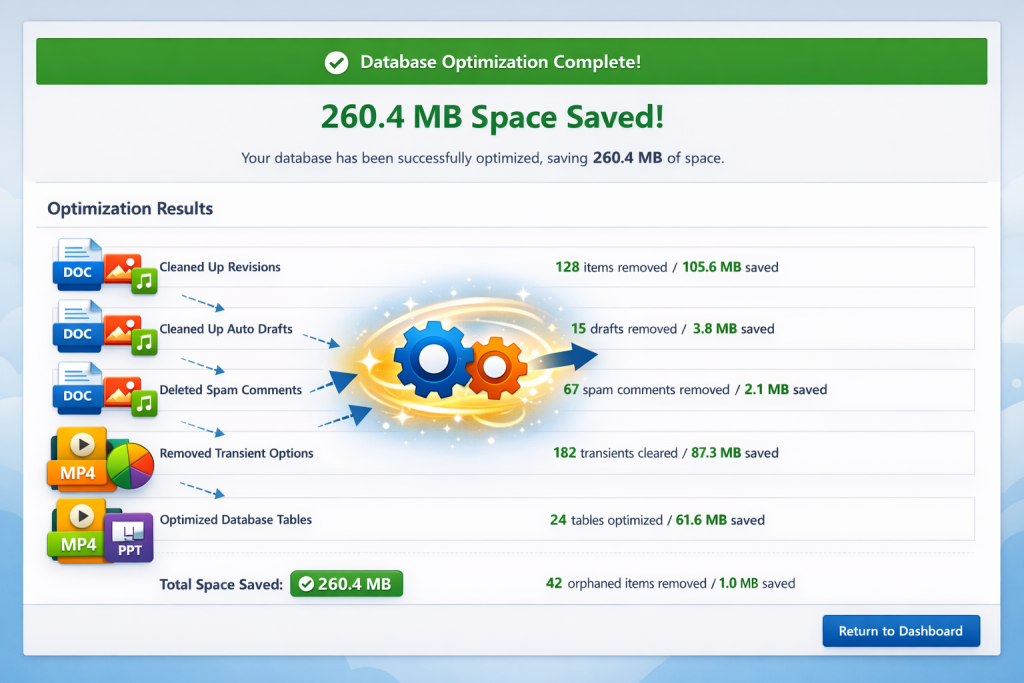
Most sites I do monthly database optimization on. This is especially crucial if you have plenty of content published or a busy comments section.
Tip: Always create a backup of your database before optimizing. Just in case. All optimization plugins come with an inbuilt backup feature, but you can use dedicated backup plugins like UpdraftPlus too.
8. Limit or Remove Unnecessary Plugins
Every new plugin you install can affect the speed of your site. Plugins add database queries. They load CSS and JavaScript. They execute code on every render even when only one page actually needs the code.
I see this all the time. People install a plugin just to get one small feature and then forget about it. Three months down the line, and they have 40 plugins installed, and they’re wondering why their site is slow.
Take a look at your plugins right now! Turn off everything you are not actually using. Delete the deactivated plugins afterwards. Just don’t let them deactivate there.
For some plugins you are using, please check if they are properly coded. The Query Monitor plugin essentially installs it, but you can also check which plugins are querying the database most or taking longer to load. When you discover plugins creating issues, look for lighter substitutes.
Many plugins are known for their sluggishness. Fancy animations on social sharing plugins. Sitewide related posts plugins that scan your entire site on every page load Too many page builders that insert a lot of code. If you can do the same with lightweight plugins or custom code, then go for it.
My rule of thumb is if I am not using a plugin on a weekly basis, it just does not need to be installed. Be ruthless about this.
9. Disable Pingbacks and Trackbacks (Stop Wasting Server Resources)
Pingbacks and trackbacks are essentially notifications between two WordPress sites. A pingback is generated when another site links to you. If you link to another site that is blogging on WordPress, they will receive a trackback.
Sounds useful, right? In terms of actual use, it is just a bunch of spam and wasteful. Each time a pingback is made, it creates a request on your server so that you can respond to and process the pingback. Scale this across hundreds, or even thousands, of spam pingbacks and you’re wasting a lot of server resources for no reason.
If you want to turn these off, make your way to Settings, Discussion, and uncheck Allow link notifications from other blogs. Done.
Self-pingbacks / Self-pings: You can then disable self-pings where your own site pings itself if you connect between your own posts. Add this thing into your theme functions.php file:
function disable_self_pingbacks( &$links ) {
foreach ( $links as $l => $link )
if ( 0 === strpos( $link, get_option( ‘home’ ) ) )
unset($links[$l]);
}
add_action( ‘pre_ping’, ‘disable_self_pingbacks’ );
It may seem like a small issue, but especially in the case of an established site with high traffic, things like these start to get magnified.
10. Consider Professional WordPress SEO Services (When DIY Isn’t Enough)
Alright, I gave nine ways to speed up your site by yourself. And honestly? If you implement these changes on your site, this will be fast enough for a majority of people.
But sometimes you need help. Maybe you do not have the time to go through this yourself. Well, you tried, and something was broken. Perhaps your site is custom-built with custom work, and you’re not sure what is safe to change?
This is where the professional WordPress SEO services come in. The audit should go beyond generic recommendations, such as “your images are too large,” to determining what part of your site is actually slowing down (and, unfortunately, going straight into implementation without breaking things). A good agency or freelancer can do this.
They can also take care of ongoing WordPress performance optimization. Because speed optimization is not a one-time task. When you start adding content and features, new performance concerns arise. Getting someone to watch your site performance and maintaining it means you’re fast for the long term.
And if you are running a business site or e-commerce store, professional assistance is generally worth it. Lower load times, higher rankings with search engines, and more visitors to your site that can convert equal a higher Return on Investment (ROI), which essentially pays for itself in the first few months of use.

Just make sure you hire someone who actually knows WordPress performance. You need to hire someone with WordPress expertise instead of a general web developer. Ask for examples of speed improvements they’ve achieved for other clients. You should request concrete evidence instead of accepting their vague statement about increased speed.
Putting It All Together to how to Speed Up a WordPress Website
So there you have it. How to Speed Up Your WordPress Website: 10 Tried-and-True Techniques In the year twenty twenty-six.
Start with hosting. My advice: Get on good hosting, or you are fighting your hand to the field with the rest.
Switch to a lightweight theme. Stop Using Bloated Multi-purpose Themes that Do Everything
Optimize your images. Make images responsive, compress them, serve them as WebP, and lazy load.
Implement caching. This is your biggest layup win you’ll come across.
Minify and combine files. The fewer HTTP requests, the quicker your site will be loaded.
Use a CDN. And serve files from physical locations closer to your visitors.
Optimize your database. Get rid of the accumulated junk.
Limit plugins. Instead, be callous in just hanging on to what you actually use.
Disable pingbacks and trackbacks. Quit the spam wasting server resources.
And you can seek professional help whenever needed. Stop being ashamed of hiring someone whose job is to do that.
None of these have to be implemented at once. Pick three. Do those. Test your speed. Pick three more. What matters is to take action (instead of simply reading about it).
By following this stuff, I have seen sites go from 8 second load times to under 2! It works. Your site can be fast. As long as you are okay with busting your ass.
Or pay someone to do it for you. Either way, just get it done. Your visitors will thank you. Google will thank you. And your conversion rates will surely be grateful.
FAQs
Start with safe optimizations: install a caching plugin like WP Rocket, compress images with ShortPixel, and upgrade to managed hosting. Always backup first and test changes individually. Avoid JavaScript minification initially, as it causes most issues. These methods rarely break sites.
Professional WordPress speed optimization costs $500-$2,500 depending on complexity. Basic optimization runs $500-$800, while complex WooCommerce sites cost $1,200-$2,500. DIY optimization costs $20-$50 monthly for premium plugins and hosting. The ROI typically pays for itself within months through higher conversions.
DIY optimization following this guide takes 4-8 hours over a few days to implement all methods properly. Professional agencies complete full optimization in 3-5 business days. Speed improvements are instant once applied. Ongoing monthly maintenance requires just 30 minutes for database optimization and image compression.
Yes. Page speed is a direct Google ranking factor since 2021. Sites cutting load times in half can jump 10-15 positions. Speed alone won't guarantee top rankings—you need quality content too—but it gives competitive advantage and reduces bounce rates, which indirectly boosts SEO.
You can improve speed on shared hosting using caching, image optimization, and CDNs—potentially reducing 8 seconds to 4-5 seconds. For speeds under 2 seconds, upgrade to managed WordPress hosting. Shared hosting limits performance since you're competing with 200+ sites for resources.


 WooCommerce Solutions
 Solutions for WordPress